


1. How to Send an Email Without Showing Recipients in Outlook
Outlook makes it easy to send emails while keeping recipient addresses private. When figuring out how to send a group email without showing recipients, Outlook provides simple tools to keep emails private and professional. You can also create a group email in Outlook to handle large-scale communication efficiently while keeping individual addresses private.
Discover the easiest way for how to hide email recipients in Outlook in just a few clicks.
Step 1. Create a new email message in Outlook. In the To field, enter Undisclosed Recipients. As you type, Outlook displays a list of suggestions. Select the undisclosed recipient contact.
Step 2. Choose BCC. If you do not see the BCC button, navigate to the Options and select BCC.
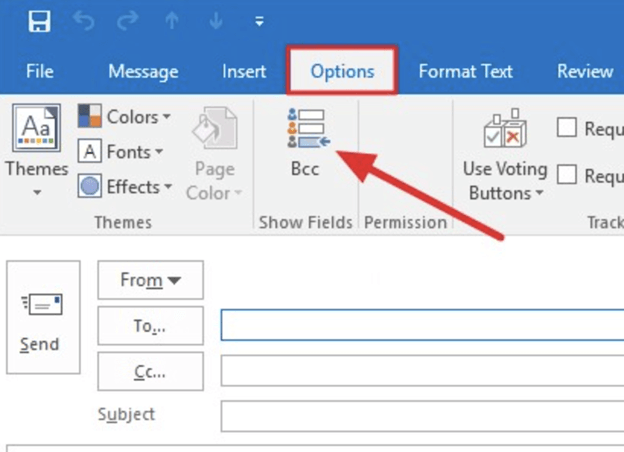
Step 3. Highlight the addresses you wish to email and select BCC. If you type these addresses manually, separate each address with a semicolon.
Step 4. Click OK and start composing your message. And then, select the Send button.
2. How to Send an Email Without Showing Recipients in Gmail
Gmail offers an easy and dependable method to send emails without showing recipient addresses. Whether emailing a large audience or sensitive data, Gmail helps you stay private and professional. Using its built-in options, you can easily send emails while keeping recipients hidden from one another.
Discover how to hide email recipients in Gmail on the web in a few clicks.
Step 1. Log in to your Gmail on the web. And then click the Compose button at the top of the screen.
Step 2. Click the BCC tab at the top of the New Message. If it is not available, click the Recipients field.
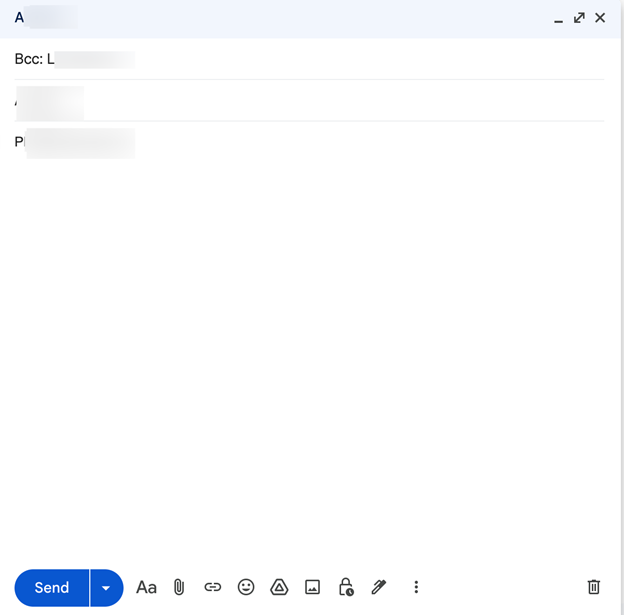
Step 3. Enter the email address or addresses for everyone you plan to send the message to.
Step 4. Finally, compose your message. And click Send.
Bonus Tip: How to Back Up Important Emails
Backing up essential emails avoids data loss and keeps critical information protected for future reference. Here, we’ll guide you on how to save Gmail messages and Outlook emails as PDFs, allowing you to store, organize, and access them anytime.
1. Save Outlook Emails as PDF
Saving Outlook emails as PDFs provides a dependable way to back up key conversations and attachments for long-term access. When you save Outlook email as PDFs, you can preserve the original content and formatting. This makes it easier to securely share, store, or reference emails across devices and platforms.
Explore how to save Outlook emails as PDF using the web version in a few clicks.
Step 1. Open Outlook.com and navigate to your account. Open the Outlook email you wish to save as a PDF.
Step 2. Tap the three dots in the upper-right corner of the email. Then, select Print from the More menu.
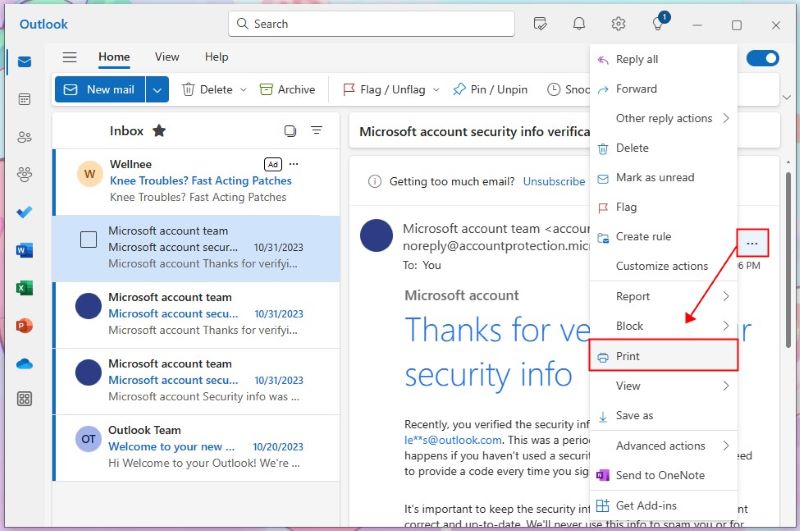
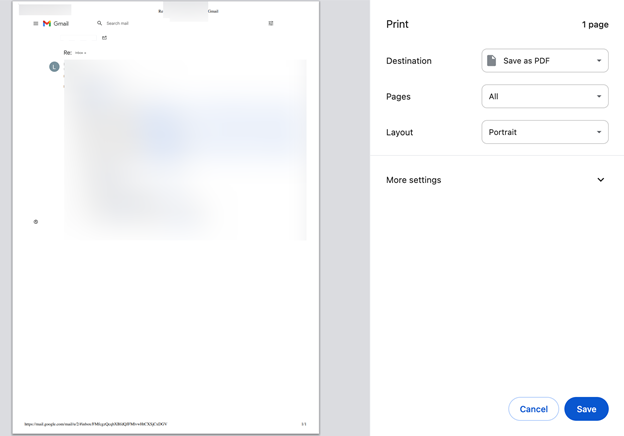
Step 3. And press Save as PDF in the Destination field.
Step 4. Next, press the Save button and save your Outlook or Gmail email as a PDF to your device.
2. Steps to Save Gmail Email as PDF
Turning emails into PDFs is an easy way to secure important messages and keep them accessible. If you save Gmail email as PDF, you can back up conversations, maintain important information, and read emails offline while preserving their original structure and details.
Here are the detailed steps to save Gmail emails as a PDF to your device with ease.
Step 1. To begin, log in to your Gmail account and double-click on the email that you want to print.
Step 2. Next, click the Print All tab to save the entire email.
Step 3. Select the Save As PDF option, then tap Save.
Step 4. After that, select the location where you want to save the PDF file, then click Save.
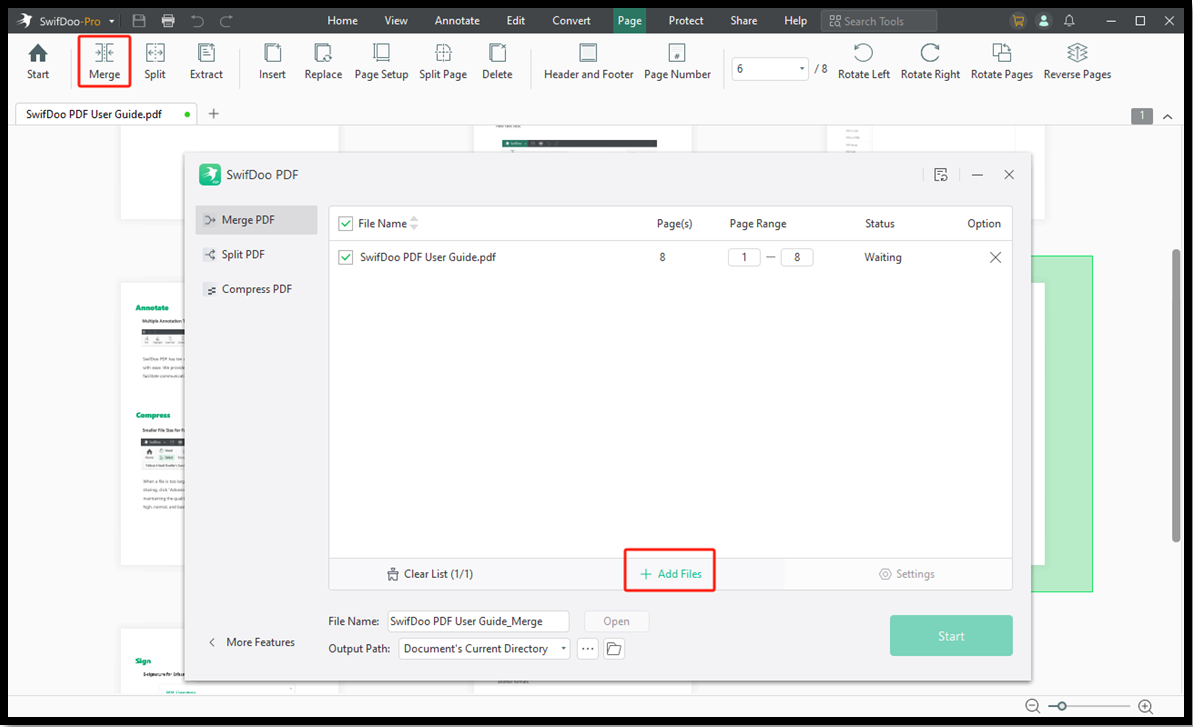
Users can also rely on SwifDoo PDF to efficiently manage their documents. It allows you to compress large PDFs, split files into smaller parts, and combine PDFs into one with ease. These tools help you free up storage, improve file management, and share documents faster. Download and give it a try!
A Quick Wrap Up
Learning how to send an email without showing recipients in Gmail and Outlook is important for preserving privacy and professional communication. Whether emailing many recipients or sensitive content, these methods help prevent unnecessary replies and protect data privacy. Employing the right tools and backup practices allows you to communicate with security and confidence every time.



