


Why Is My Google Calendar Not Syncing?
When your schedule doesn’t update across devices, it can quickly lead to missed meetings and confusion. Learning the root cause is the first step to resolving the issue. If you’re wondering why my Google Calendar is not syncing, several common factors could be responsible. Let’s take a look at the main reasons behind this problem.
Here are a few reasons why Google Calendar may not sync.
- Poor or unstable internet connection.
- Sync settings are disabled on your device or app.
- Outdated Google Calendar app or operating system.
- An incorrect account is logged in on iPhone, Android, or Outlook.
- Google Calendar sync turned off in Apple Calendar or Outlook settings.
- Background app refresh disabled.
- Temporary Google server outages.
- Corrupted cache or app data (especially on Android).
Fix Google Calendar Not Syncing with iPhone/Android
If you’re facing Google Calendar not syncing with iPhone or Android, the issue is usually linked to device settings or app configuration. The good news is that most syncing errors can be corrected quickly with a few simple changes.
Follow any of the methods below to restore seamless calendar syncing across your iPhone and Android devices.
Fix Syncing Issue on iPhone
Method 1. Make sure the Calendar is toggled on in Account Settings
- Navigate to Settings > Apps > Calendar > Calendar Accounts.
- Tap your Google account and make sure the “Calendars” toggle is turned ON.
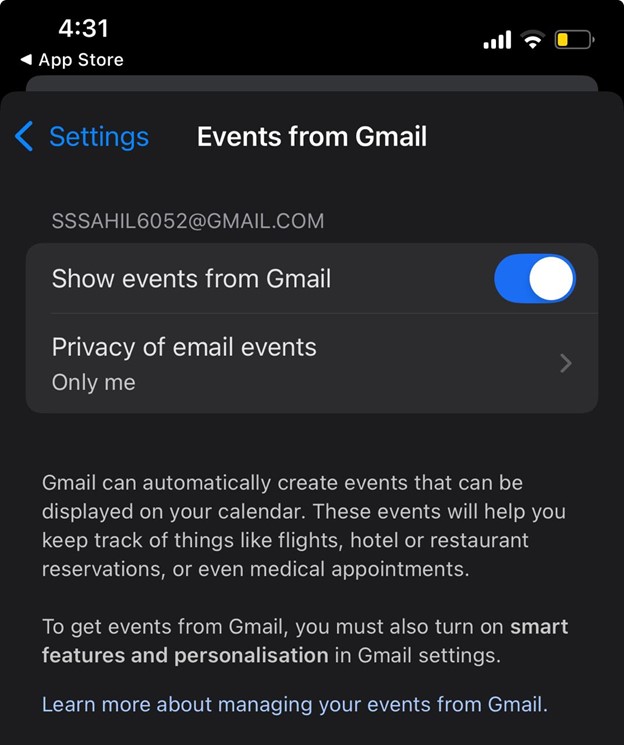
Method 2. Turn on Show Events from Gmail in the Google Calendar app
- Open the Google Calendar
- Tap the Menu icon in the upper-left corner and click Settings.
- Tap Events from Gmail and turn on “Show events from Gmail.”
Method 3. Check the iPhone storage availability
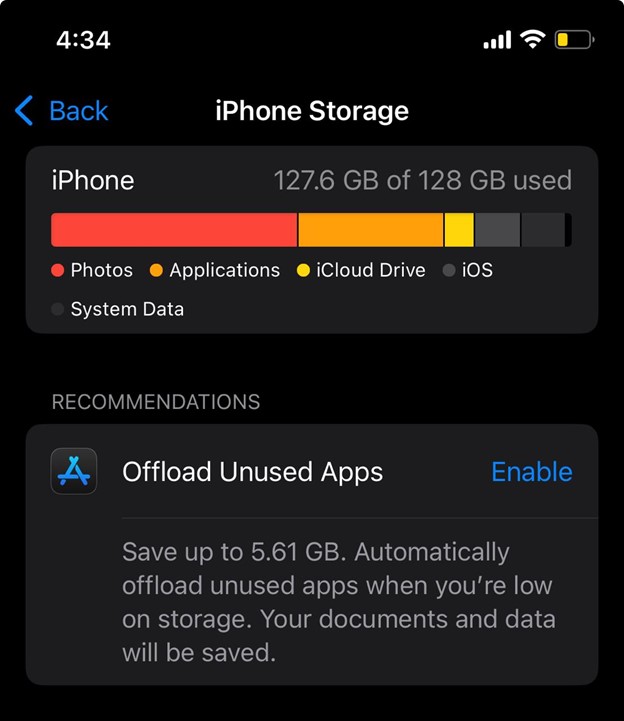
- Go to the Settings on iPhone.
- Select General > iPhone Storage.
- If space is critically low (less than 1–2 GB), delete large files or apps. Low storage can prevent background sync tasks from running.
- Try syncing again after clearing some space.
Fix Syncing Issue on Android
Method 1. Ensure the Google Calendar is visible in the app
- Launch the Google Calendar app.
- Tap the Menu icon in the upper-left corner.
- Scroll through the list and ensure the box next to your specific calendar name is checked. If it is unchecked, events will be hidden even if they have synced.
Method 2. Verify the individual Calendar sync
- From the app’s main menu, tap Settings at the bottom.
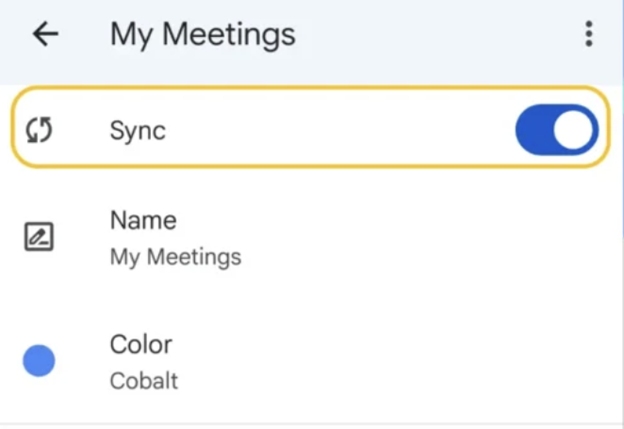
- Tap the specific calendar that is missing events.
- Ensure the Sync toggle at the top is turned on.
Method 3. Trigger the System sync manually
- Go to device Settings > Passwords & accounts (or Users & accounts).
- Select your Google account and tap Account sync.
- Ensure Calendar is toggled ON.
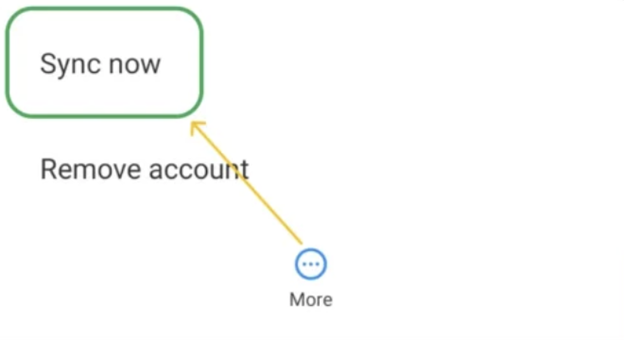
- Tap the three-dot menu (⋮) in the top right and select Sync now to force a refresh.
Method 4. Clear the app’s cache and data
- Go to device Settings > Apps > See all apps > Calendar.
- Tap Storage & cache.
- Select Clear cache. If the issue persists, select Clear storage (or Clear data).
Fix Google Calendar Not Syncing with Outlook/Apple Calendar
When Google Calendar is not syncing with Outlook or Apple Calendar, it’s typically due to several underlying reasons. These include permission issues, outdated applications, or improper calendar integration setup. These platforms depend on correctly linking your accounts in order to share events accurately across devices.
Follow the instructions below to quickly resolve issues and maintain smooth syncing between Google Calendar, Outlook, and Apple Calendar.
On Outlook (Manual Reconnection):
Step 1. Locate the Outlook Calendar
- Open Google Calendar in your web browser.
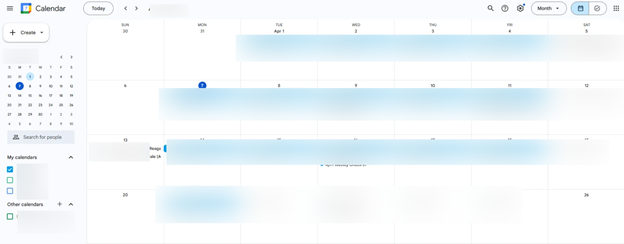
- On the left sidebar, look under the Other calendars section.
- Subscribed calendars (like those from Outlook) usually appear here rather than under "My calendars," which is reserved for calendars you own.
Step 2. Access Settings
- Hover your cursor over the Outlook calendar name.
- Click the vertical ellipsis (⋮) or the X icon that appears next to the name.
- Select Settings.
Step 3. Remove the Calendar
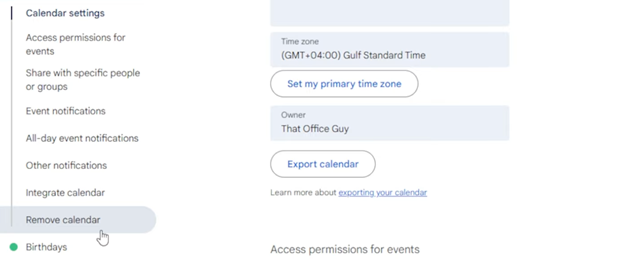
- Scroll to the very bottom of the calendar's settings page to the Remove calendar section.
- Click Unsubscribe.
- In the confirmation pop-up, click Remove calendar to finalize the disconnection.
Step 4. Refresh the Connection (Optional)
- If you need to re-add it to fix a sync issue, go back to the main view and click the Plus (+) icon next to Other calendars.
- Select From URL and paste your updated Outlook ICS link to re-sync.
On Apple Calendar:
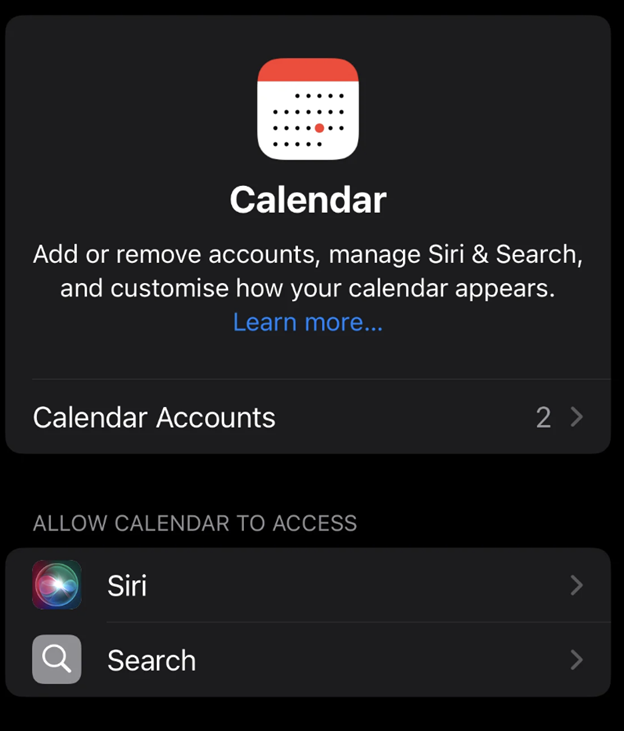
Step 1. Open Settings on your iPhone or iPad. Then click Apps and select Calendar.
Step 2. Tap Calendar Accounts and tap Add Account.
Step 3. Select Google and sign in with your Google account.
Step 4. Ensure the Calendars toggle is turned on when prompted.
Once connected, your Google Calendar events will appear automatically in the Apple Calendar app alongside your iCloud events.
Bonus Tip: How to Export Google Calendar as PDF
Now that you’ve seen the steps to sync Google Calendar with iPhone, Android, Outlook, and Apple Calendar, it’s also a good idea to keep a backup of your schedule.
Google Calendar offers a simple Print feature that allows users to export their calendar as a PDF. This is helpful for offline access, record keeping, or sharing your schedule with others.
Here’s how to use the Print feature to export the calendar as a PDF for backup.
Step 1. Open the Google Calendar on your browser. Next, pick your desired calendar view (Day, Week, Month, Year, Schedule).
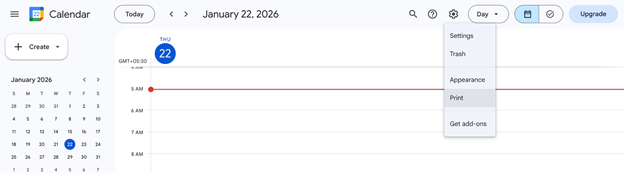
Step 2. Select the calendar, tap the Gear icon, and choose Print. A preview window will display the calendar in printable form.
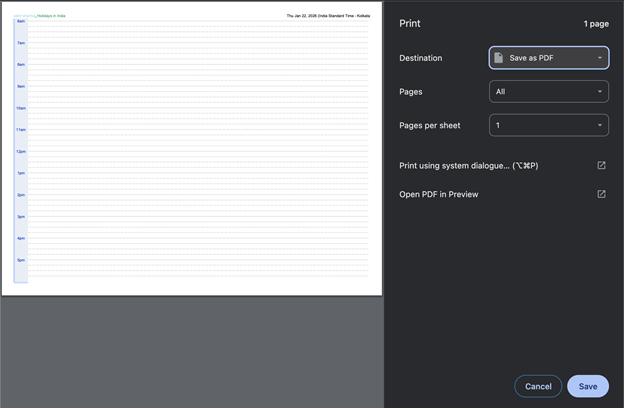
Step 3. Adjust the Paper Size, Orientation, Date Range, Font size, and Color. After that, press Print and in another window, choose the destination Save As PDF.
Step 4. Finally, press Save to convert Google Calendar events to PDF successfully.
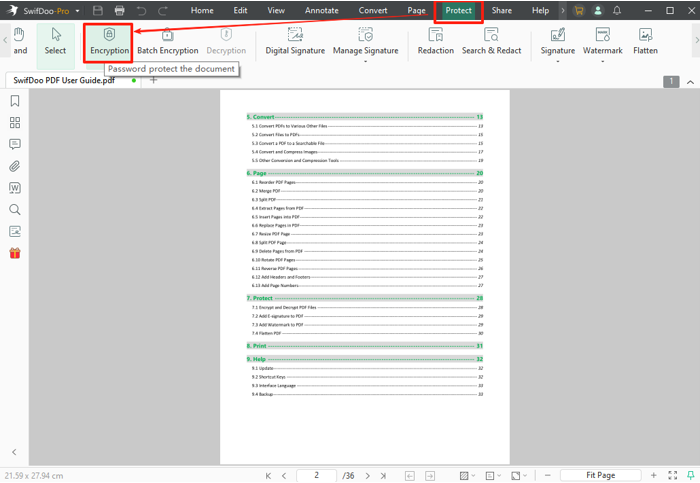
Once your Google Calendar is converted to PDF, you can do much more with it using SwifDoo PDF. This all-in-one PDF tool helps you manage and optimize your calendar files with ease. Users can combine PDFs into one organized document, making it easier to store or share multiple schedules.
For added security, you can also encrypt a PDF with a password, ensuring your calendar data stays private. In addition, SwifDoo PDF allows you to compress, edit, and print PDFs for better file management and convenience. Try it now!
Conclusion
When Google Calendar not syncing properly, it can affect your schedule and lead to overlooked or missed commitments. Luckily, most syncing problems across iPhone, Android, Outlook, and Apple Calendar can be solved by adjusting settings, updating apps, or re-syncing accounts. We have provided step-by-step instructions in this article for seamless syncing.
In addition, by keeping a PDF backup of your calendar and using SwifDoo PDF, you can maintain an organized and easily accessible schedule across platforms. Hope this guide is helpful!



