


Part 1. Edit Existing Form Fields in PDF
Want to add checkboxes and enter their personal details? Here are two very simple ways to do exactly that.
Way 1. Use SwifDoo PDF
If you want a very easy-to-use tool, SwifDoo PDF is a wonderful choice. It is a smart desktop program designed to make document work simple for everyone.
One of the best things about SwifDoo PDF is that it helps you see exactly what you need to do. It will automatically highlight all the empty boxes, so you can easily see every single place where you need to type on PDF forms.
But what if the document you received is completely flat? Sometimes, people send you a scanned picture of a paper form. It has lines to write on, but no clickable boxes. Do not worry. SwifDoo PDF gives you a simple way to fill out a PDF form that is not fillable. It allows you to create your own text boxes and place them anywhere on the page, right above the empty lines.
Here is how to use SwifDoo PDF to edit form fields in PDF:
- Click the button below to download and install the program on your computer.
- Launch SwifDoo PDF and click Open to select the document you need to fill out.
- If the form is already interactive, you will see colored boxes. Just click inside a box and start typing your information.

- If the form is flat and not interactive, click the Edit tab at the top of the screen. Then, click Insert Text. Now, you can drop a new typing box, type your words, and change font, size, and more.

- You can also go to Annotate > Checkbox to add new text, a cross mark, a check mark, and a dot.
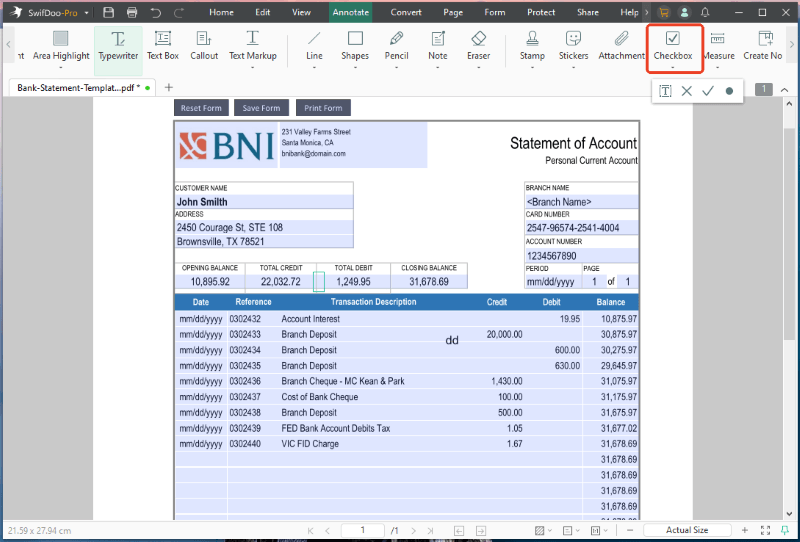
- When you are finished, click the Save button so you do not lose your changes.
SwifDoo PDF is not just for forms. It is a comprehensive PDF editor that can merge pages, edit text, and do much more. Just download SwifDoo PDF and give it a try today!
Way 2. Use Smallpdf Online PDF Form Filler
Don’t want to install any new software? An online PDF form filler like Smallpdf is a good option. It works directly in your web browser, such as Chrome or Safari. However, you need a good internet connection to use it.
Here is how to use Smallpdf to edit PDF form fields:
- Open your web browser and go to the Smallpdf website (https://smallpdf.com/pdf-form-filler).
- Upload the document from your computer or cloud drive.

- Find the form field and enter something. You can also click Add text to put a new text box and start typing your answers.

- When you have filled in all the spaces, click the Download button to save the finished document to your computer.
Part 2. How to Modify or Create New Form Fields
Maybe you want to actually edit form fields in PDF by changing the layout. For example, you might want to delete a text box, add a new checkbox, or create a drop-down menu for other people to use. To change the structure of a form, you need a different kind of tool.
Way 1. Use Adobe Acrobat Pro
Adobe Acrobat Pro is one of the most famous computer programs for PDF documents. If you want to edit form fields in Adobe Acrobat, you will find that it gives you complete control over every single box and button on the page.
However, please note that Adobe Acrobat Pro is a paid program. You usually need to subscribe to use these advanced features.
Here is how to modify forms using Adobe Acrobat Pro:
- Open Adobe Acrobat Pro on your computer and open the document.
- Click Tools and select the Prepare Form option.

- Acrobat will quickly look at your page and try to find any existing boxes. It will turn them into editable fields.
- Now you can click on any existing box. You can press the "Delete" key on your keyboard to remove it. You can also drag the corners of the box to make it bigger or smaller.
- Look at the toolbar at the top of the screen. You will see little pictures of text boxes, check marks, and circles (called radio buttons). Click on one of these pictures, and then click on your page to place a brand new field there.

- Always remember to save your document when you are done modifying it.
Way 2. Use Sejda PDF Form Creator
If you want a web-based PDF form creator to build a form, Sejda is a fantastic option. One of the best things about Sejda is that it allows you to edit PDF form fields for free, as long as your document is not too large and you only do a few tasks each day.
Here is how to create and modify forms with Sejda:
- Go to the Sejda PDF Forms page: https://www.sejda.com/pdf-forms.
- Click the green button that says Upload PDF file and select the document.

- Click on the type of field you want to add. For example, click Textarea for a large typing box, or click Checkbox for a box people can tick. After you click the option in the menu, click anywhere on your document to drop the field into place.

- If you click on a field you just placed, a small menu will pop up. You can use this menu to change the name of the field or make it required.
- When your form looks perfect, click the green Apply changes button. After it processes, click Download to save your brand new fillable form to your computer.
Conclusion
That’s all about how to edit form fields in PDF. If you just need to type your answers into a document, you can use SwifDoo PDF or a simple web filler. If you need to build a brand new form for your office, Adobe Acrobat or an online PDF creator can get the job done. Hope these tools can help you complete the editing task successfully!



