Can You Edit a PDF in InDesign?
The short answer is yes. In the past, if you tried to edit a PDF in InDesign, the software would not let you do it directly. The program treated the file like a locked photograph. You could look at it, move it around, or shrink it, but you could not change the actual words or pictures inside it.
Today, the 2026 version of the software has changed the rules. You can now open these files and make real changes. However, it is not always a perfect magic trick.

If the person who made the file used special fonts that you do not have on your computer, the words might look strange. Sometimes, the layout shifts, and pictures move to the wrong spot. So, while it is very possible to do this, you will need to double-check your work carefully.
In conclusion, if you don't want to lose any formatting and want a complete toolkit, then a professional PDF editor, such as Acrobat or SwifDoo PDF, would be a better choice.
How to Edit a PDF in InDesign
Let’s start to learn how to edit a PDF in InDesign. There is no single "right" way to handle this job. The method you choose depends on the software version you have and what you want to achieve. Here are the three main ways you can do this.
Way 1. Open a PDF with InDesign 2026
If you have updated to the newest 2026 version, you have access to a brand-new feature. Adobe finally made it possible to open a file directly without needing extra plugins. Here is exactly how to open a PDF in InDesign to edit your document:
- Open your program and make sure you are on the home screen.
- Go to the top menu, click on File, and then click on Open. Browse through your computer and select the file you want to change.
- A small box will pop up on your screen. You will see two choices. You must click the button that says Open PDF.
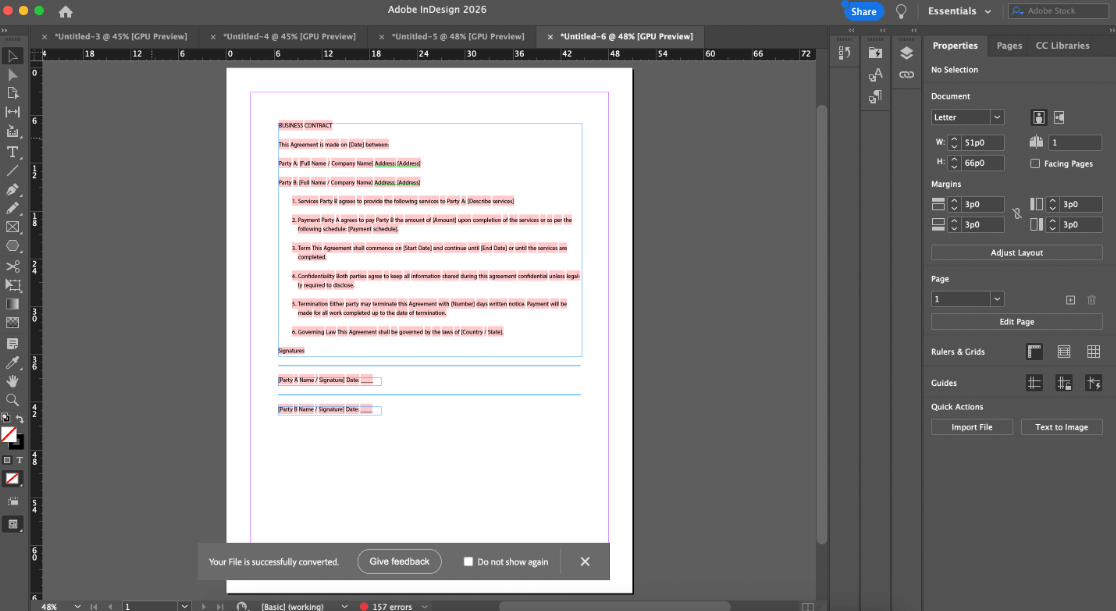
- The program will take a few moments to read your file and rebuild it. It creates a special folder on your computer to save all the pictures from the file.
- Once the file is open, you will see that it is no longer locked. You can now click on the paragraphs and edit text on a PDF in InDesign just like you would in a normal document. You can type new words, update the fonts, change the colors, or adjust the layout of the pages.
Way 2. Place the PDF
If you are using an older version of the software or if you do not want to risk messing up the layout, you can use the traditional "Place" method.
- Start a brand new, empty document in the software.
- Go to the top menu, click File, and choose Place.
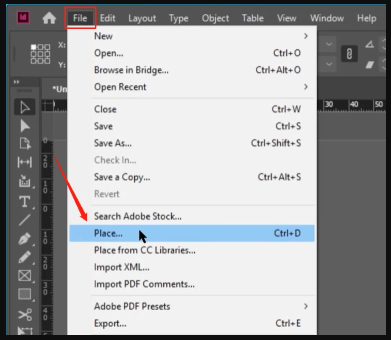
- Select your file and click on your blank page to drop it in.
You cannot edit the text using this method. The file serves as a flat background image. This method is only useful if you want to trace an old design to build a new one, or add a watermark to a finished page.
Way 3. Use a PDF to InDesign Converter (PDFMarkz)
What if you have a massive document with fifty pages? Opening it up and checking every single page for errors is going to take hours. If you work with these files every day, the smartest choice is to convert PDF to InDesign files using a professional tool.
A very popular tool for this job is called PDFMarkz. It is a separate program that does all the heavy lifting for you. You simply open PDFMarkz and drag your file into it.
With one click, it translates the entire document and automatically builds a brand new, fully editable project file. It recreates your text boxes, colors, and layouts very accurately. This is the best method for big projects.
Better Choice: Use a Professional PDF Editor
Opening a heavy design program just to fix a single spelling mistake is a lot of unnecessary work. It takes a long time to load, and it uses a lot of computer power. Instead of going through all that trouble, a much better choice is to use a tool designed specifically for this exact job.
For most people, one of the best choices is SwifDoo PDF. It is lightweight, and you do not need any graphic design experience to understand how it works. The menus are clear, the buttons are simple, and it does exactly what you need in seconds.
Here are the amazing features you get with SwifDoo PDF:
✅ OCR Tool to Recognize Text. Sometimes people send you a scanned document that acts like a photograph. SwifDoo PDF has an amazing tool to OCR a PDF. This means the software reads the picture like a human eye and turns it back into real, editable text.
✅ Various Annotation Tools. If you are reviewing a document, you can easily highlight important sentences, draw shapes, leave sticky note comments, or add a digital stamp of approval.
✅ Complete Page Management. You have total control over the document. With a few clicks, you can crop pages, split one large file into smaller ones, merge multiple files together, or delete blank pages.
✅ Password Protection. Keep your private information safe. You can quickly password-protect a PDF so that only people with the password can open it or copy its text.
How to use SwifDoo PDF:
- Download the SwifDoo PDF and open it.
- Open your document inside the app.
- Click the Edit button at the top of the screen.
- Click anywhere on the page to change words or pictures, and then click Save!
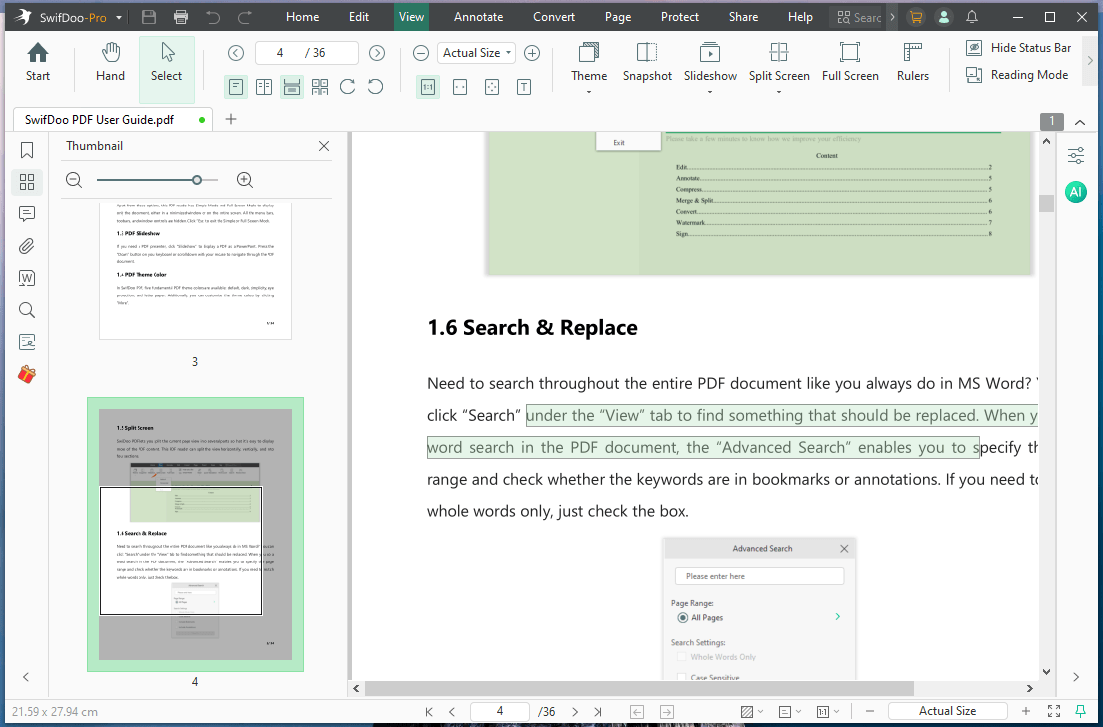
As one of the best PDF editors for Windows and Mac, SwifDoo PDF is powerful and easy to use. Try it now to stop fighting with complex software and save your valuable time.
Conclusion
That’s how to edit a PDF in InDesign. Thanks to the new 2026 updates, using professional design software to edit your layouts is finally a reality. You can open files directly or use special converters to rebuild them.
However, for daily PDF-related work, using a professional tool like SwifDoo PDF is always the best choice. It is fast, easy to use, and lets you complete tasks effortlessly without any worries.