



Can You Add a Page in Adobe Acrobat?
Yes. It’s simple to add a page to a PDF in Adobe Acrobat. The tool lets you expand, update, and organize documents with ease. Adobe Acrobat offers reliable tools to help you add blank pages to PDF files for notes, chapters, updates, or new sections, maintaining a smooth structure and workflow. Of course, it lets you add existing pages from another document.
However, even with its rich features, Adobe may overwhelm users, plus it requires a subscription for several advanced tools. Additionally, opening big files can be slow, and cloud synchronization may not always work perfectly. For those seeking a simpler, lighter Adobe Acrobat alternative, Swiftoo PDF offers an easy, user-friendly solution. You can click the download button to get the tool and give it a try.
How to Add a Page in Adobe Acrobat Pro
Adobe Acrobat Pro is handy for adding pages thanks to its robust performance. Whether you need to insert blank pages or merge 2 PDF files, it is a reliable solution. You can also rearrange sections effortlessly. It even lets you add pages from your computer’s clipboard directly into your PDF. This makes editing faster and more flexible.
Find out how to add a page to a PDF in Adobe Acrobat in just a few simple steps.
Step 1. Open your PDF file and click the Page Thumbnails option.
Step 2. Move to the page where the new page should go, then right-click on it.
Step 3. Select Insert Pages from the dropdown menu. And choose A Blank Page... (Shift+Ctrl+T).
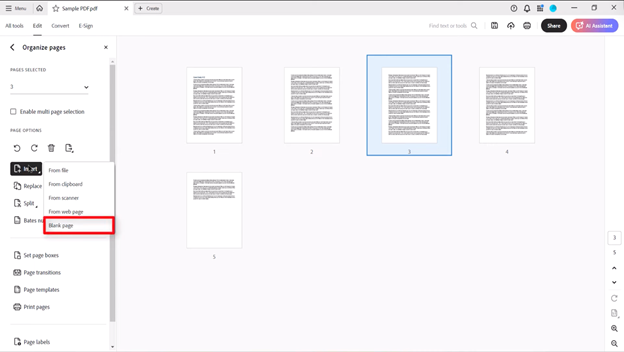
Step 4. Specify the page position in the document using the pop-up menu that appears. When the blank page is in the desired position, click OK. A new blank page will be automatically inserted into the PDF at the chosen location.
How to Add a Page Using the Adobe Acrobat Online Tool
Adding pages with Adobe Acrobat Online is straightforward and ideal for fast PDF editing. Easily upload your PDF, include existing pages, and manage the layout. It works well for combining documents or expanding sections. However, there are limitations. While you can batch insert pages, you can not add a blank page in Adobe Acrobat Online.
Here’s how add a new page in Adobe Acrobat Online tool in a few clicks.
Step 1. Open the Adobe Acrobat Online tool on your web browser. And tap Select a File, or drag and drop a PDF file to insert page in Adobe Acrobat.
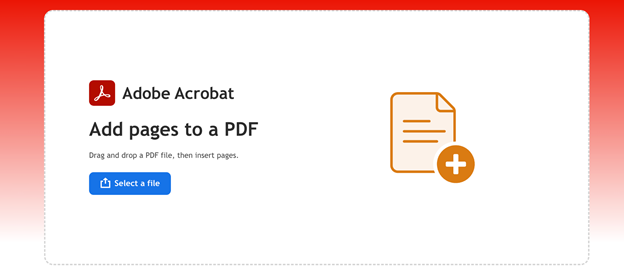
Step 2. Select the PDF file/document to which you want to add pages. Once uploaded, sign in with your credentials.
Step 3. Select a place before or after the page thumbnail where you wish to insert pages. Then, navigate to the PDF file or files you want to add.
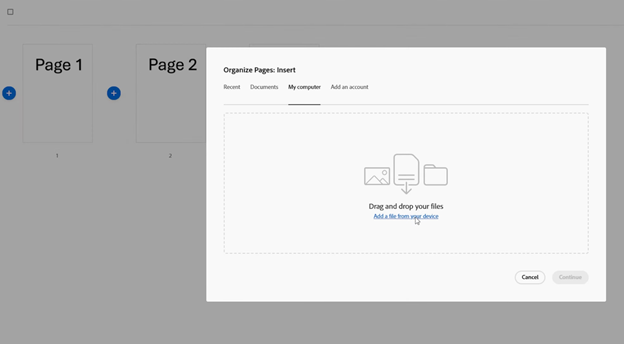
Step 4. Organize individual pages as you desire. Highlight one or more page thumbnails, and then drag and drop to reorder them. You can also use the Delete and Rotate tabs in the toolbar.
Step 5. Hit Save to save your new PDF file. You can download the file or get a link to share.
Bonus Tip: Another Easy Way to Add a Page to a PDF
Does Adobe Acrobat Pro seem too complicated and expensive to you? How to add pages to a PDF without Acrobat? SwifDoo PDF can be an ideal alternative. Whether you need to add a blank page, specific pages, or a whole document to another PDF file, everything is just a click away. In addition, you can perform various functions to edit and manage all your PDFs in one place.
SwifDoo PDF Key Features
- View, read aloud, edit, and annotate PDF files
- Compress, merge, and split PDF pages or the entire document
- Convert the PDF file to different file formats, such as Word, Excel, PowerPoint, Image, and more
- Digitally/electronically sign and password-protect PDFs
- SwifDoo AI to summarize, translate, analyze, and chat with PDFs
Check out how to add a page in Adobe Acrobat’s alternative SwifDoo PDF.
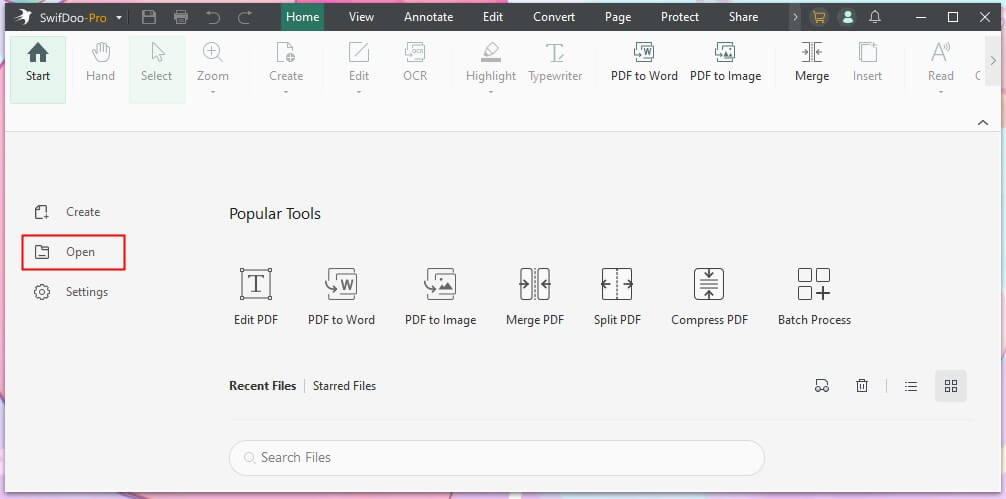
Step 1. Download and install SwifDoo PDF on your computer. Import the desired PDF file in which you wish to add more pages.
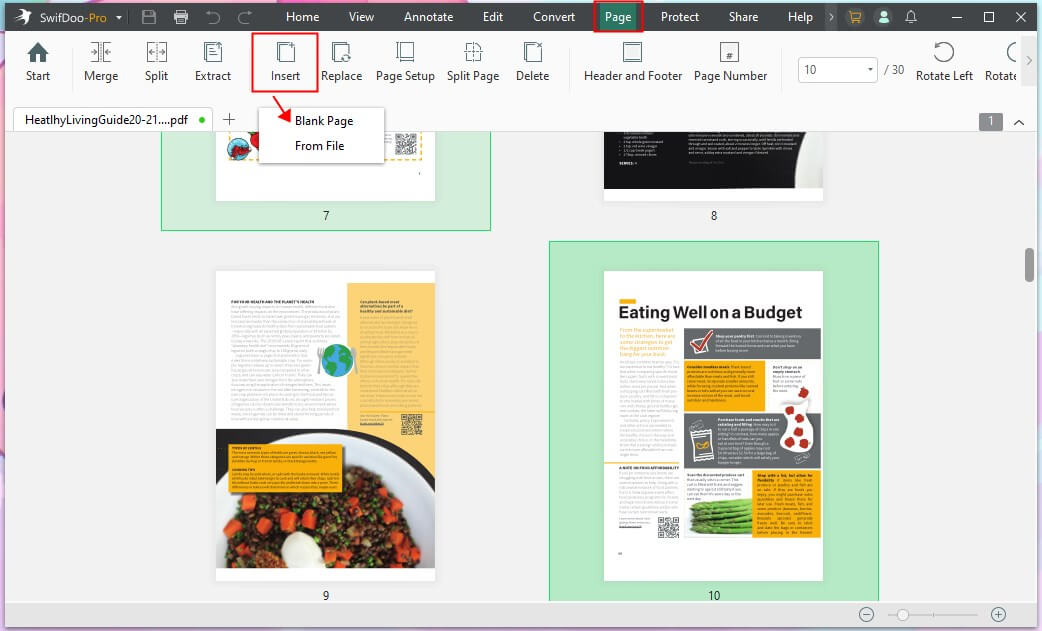
Step 2. Select the Page menu at the top. And all pages in this PDF will automatically unfold. Then, tap the Insert sub-menu.
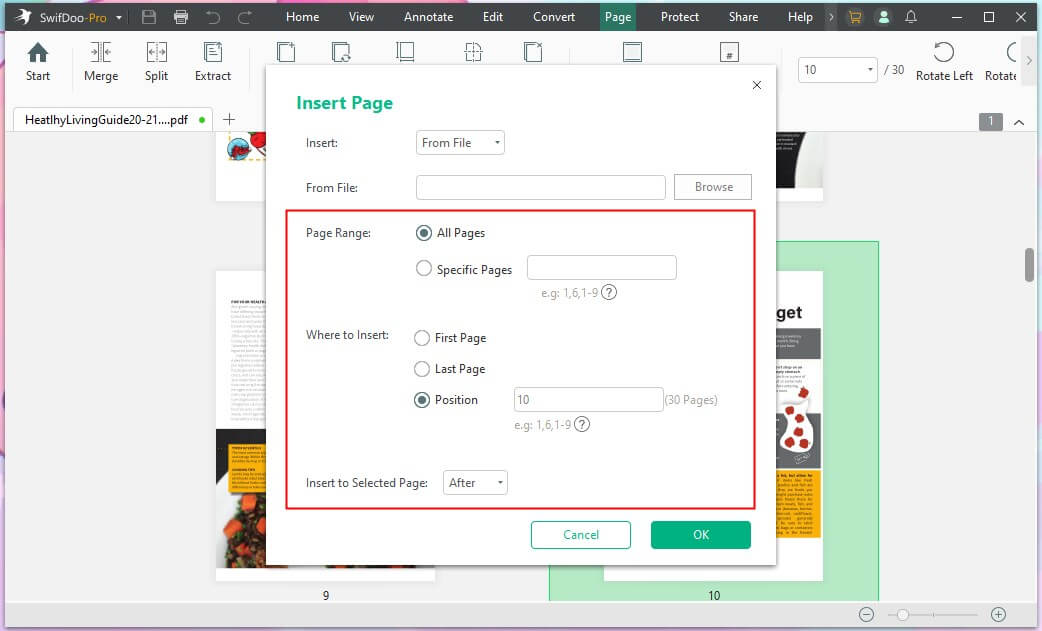
Step 3. Choose Blank Page or From File to add pages from an external PDF file. And the Inset Page dialogue box will appear.
Step 4. Select the location for page insertion. Type the page range or the page numbers to add specific pages from another PDF document.
Step 5. Once the pages are added, drag to reorder the PDF pages or delete unwanted pages. After completing the edits, resave the PDF.
Quick Wrap Up
Mastering how to add a page in Adobe Acrobat helps you create well-organized, complete, and professional PDFs. It helps you update content quickly and maintain professional-quality documents.
Whether merging files, adding blank pages, or rearranging sections, Acrobat makes the process efficient. However, for users who find it expensive and complex, SwifDoo PDF can be an ideal solution. It serves as a full-featured solution for efficiently tackling daily PDF tasks.



