


1. The Professional Way to Convert a Resume to PDF (Best Quality)
For the highest quality results, the best method is to use a professional PDF editor like SwifDoo PDF. The key advantage of using SwifDoo PDF is formatting integrity. Thanks to its advanced technology, it can convert Word to PDF without losing formatting.
Moreover, SwifDoo PDF is not just a converter but also an editor. After conversion, you can immediately correct any spelling errors in the PDF, if present. It is incredibly convenient for last-minute polishes.
See how to save a resume as a PDF with SwifDoo PDF:
- Download, install, and launch SwifDoo PDF.
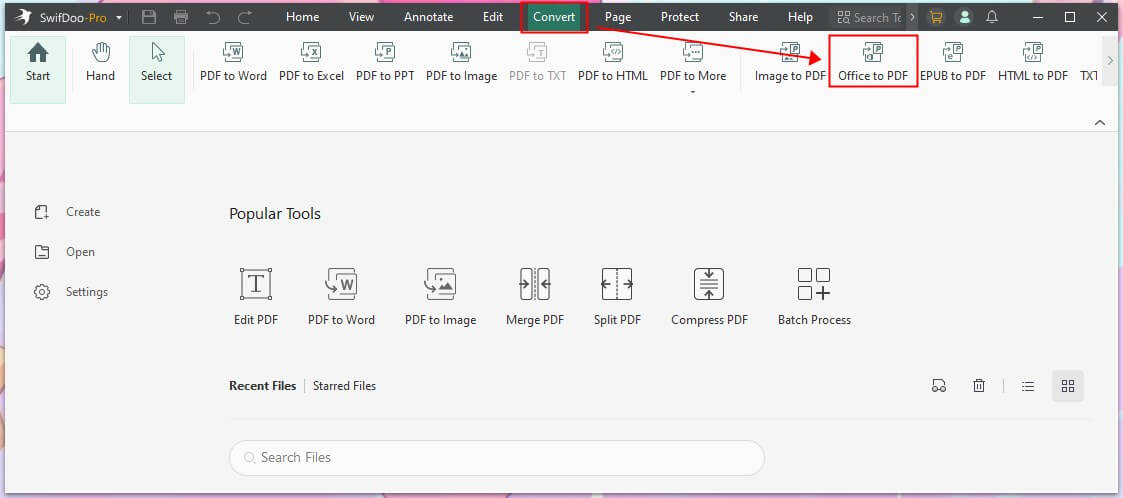
- To open the PDF conversion tool, go to Convert > Office to PDF.
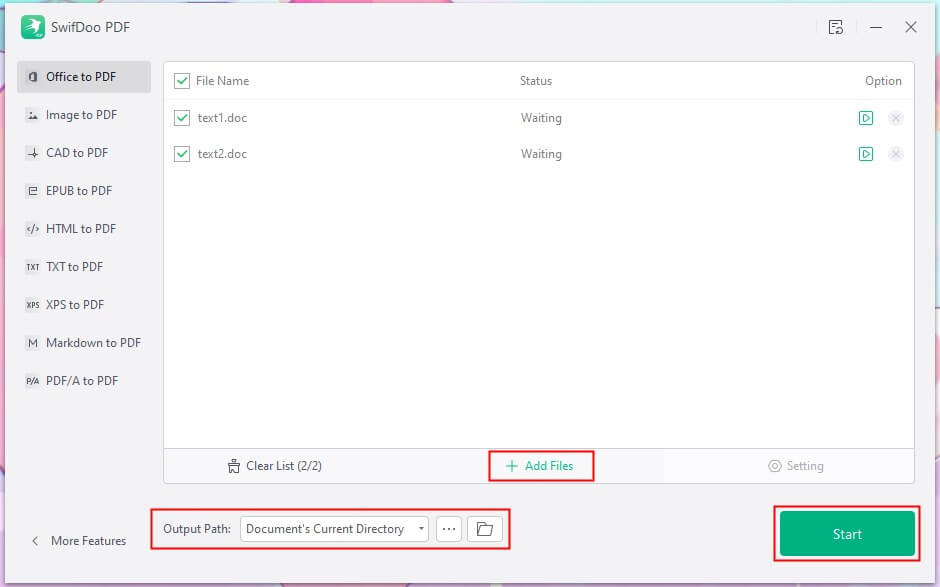
- Add the document you want to convert. You can click Add Files or simply drag files into the window. SwifDoo PDF can batch convert Word to PDF, so you can add multiple resumes.
- Finally, click the Start button.
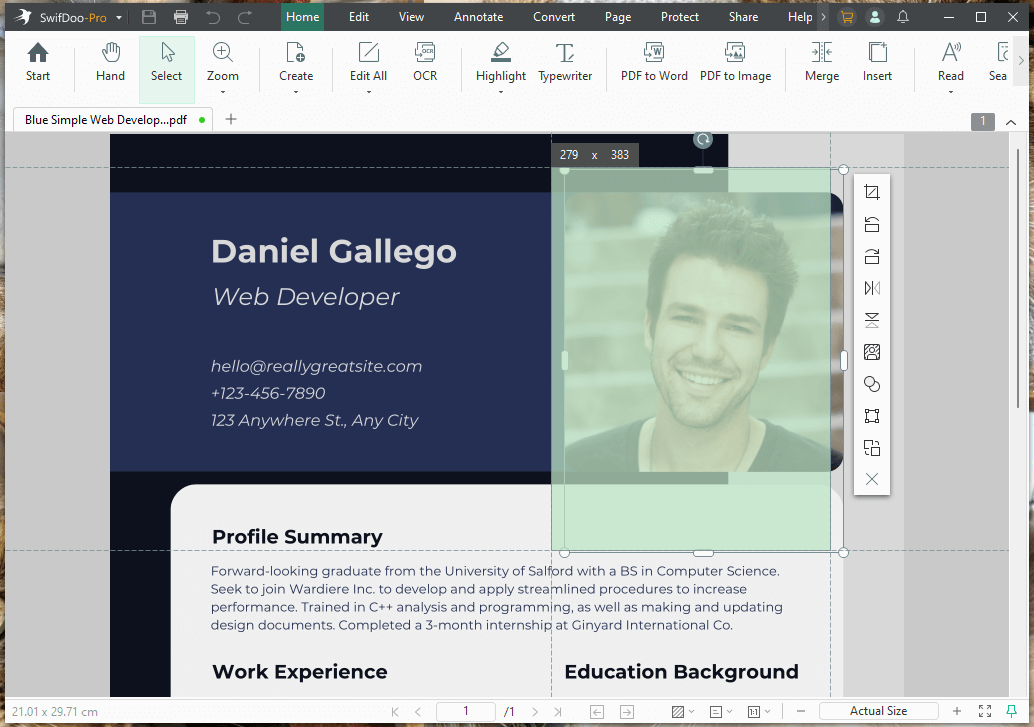
When done, SwifDoo PDF will automatically open the resume. Now, you can check the document and make any edits. Go to Edit, and you can change text, adjust font size, or realign bullet points before sending it off. Try it now!
2. How to Convert a Resume to PDF Online for Free
If you are on a public computer or a borrowed laptop and cannot install software, an online converter is a quick, free solution. There are many tools available, such as SwifDoo’s online converter, iLovePDF, or Smallpdf. They are best for simple, text-based resumes that do not contain complex graphics or layers.
- Open your web browser and go to a converter, like SwifDoo PDF (https://www.swifdoo.com/pdf-online).
- Then, choose Word to PDF option.
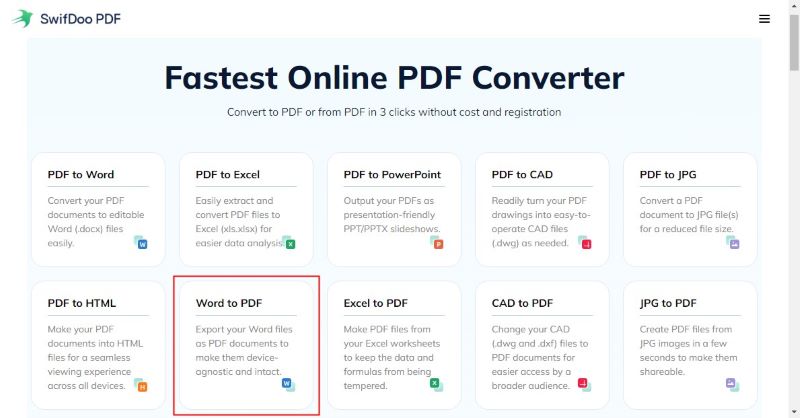
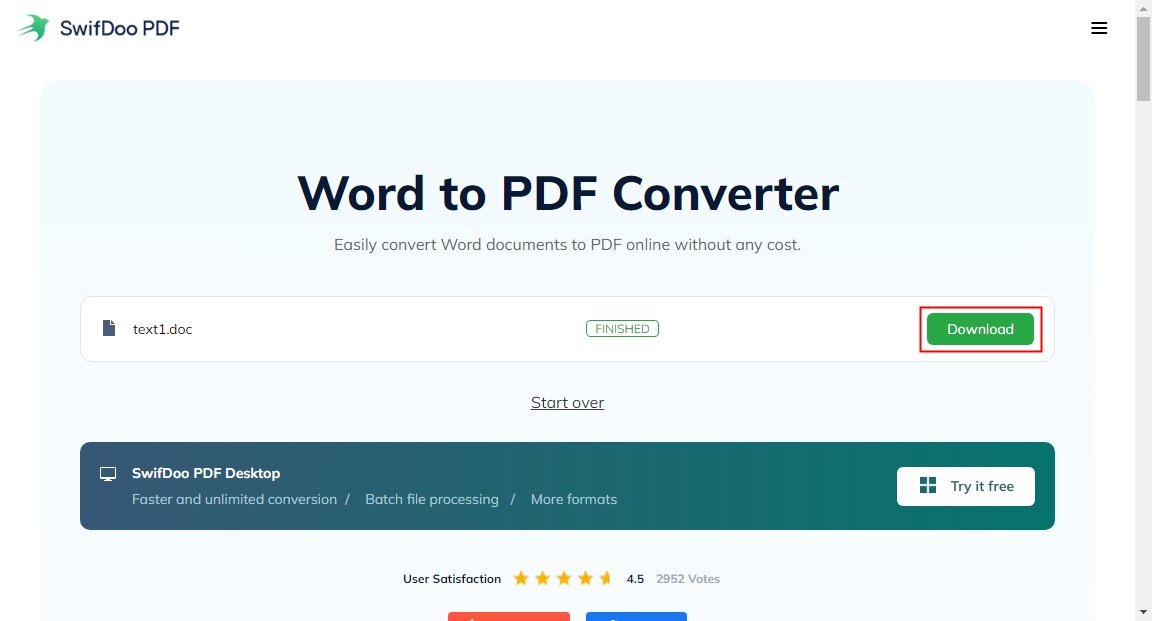
- Upload your resume and wait for a while.
- Click Download to save the new PDF file to your hard drive.
3. How to Save a Resume as a PDF on an iPad/Phone
What if your resume is stored on your mobile device? Generally, the Print feature can help you save file as PDF on iPhone and iPad:
- Open the document that is stored in the Files app.
- Tap the Share icon and choose Print.
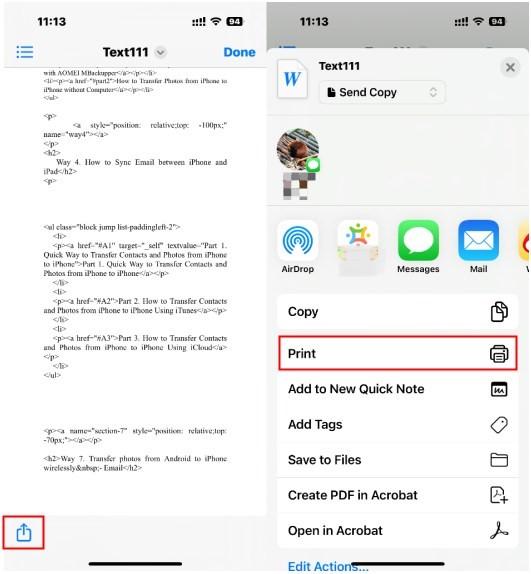
- Tap Share again and select Save to Files.
However, if you care about quality and want to edit the resume, SwifDoo PDF for iOS is a better choice. It can help you convert files, merge/split documents, and manage your resume directly from your phone storage or iCloud Drive.
- Download SwifDoo PDF from the App Store.
- Open the app. You can import your resume file from your Files app, iCloud, or even Google Drive.
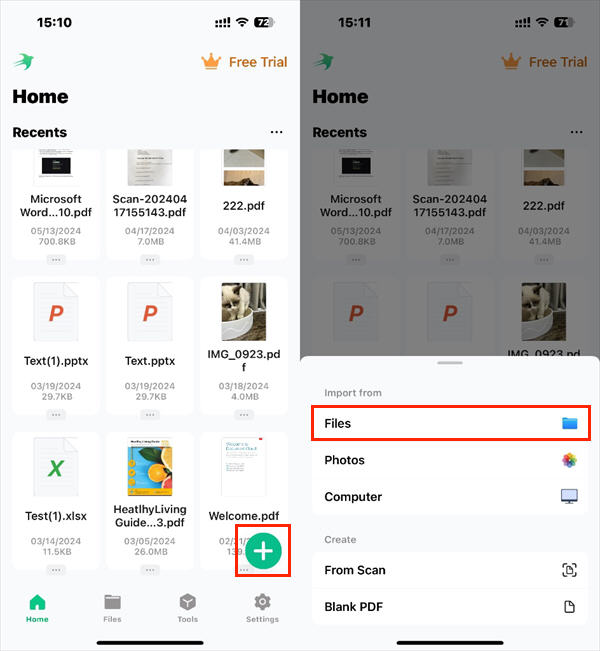
- Click the Convert button, and that’s it.
4. How to Save a Resume as a PDF in Microsoft Word
If you created your resume in Microsoft Word, you can directly export it as a PDF. This is the most common method for Windows users.
For Windows Users:
- Open your resume in Microsoft Word.
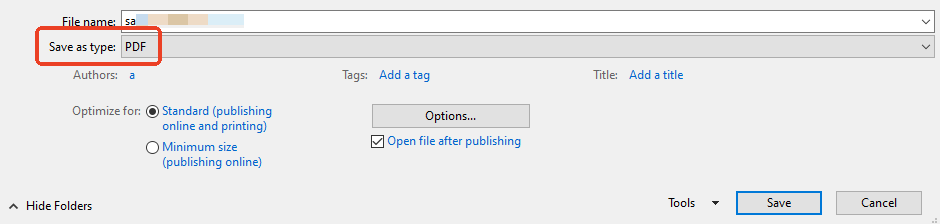
- Go to the File tab in the top-left corner. Then, select Save as and select a location.
- Select "PDF" option and make sure Standard is selected to ensure high-quality.
- Click Save to confirm.
For Mac Users:
Open the Word document. Go to File > Print, click the PDF button in the bottom-left corner, then choose Save as PDF.
5. How to Save a Resume as a PDF in Google Docs
Google Docs is a fantastic free alternative to Word, and many job seekers use it to build their resumes in the cloud. Luckily, you can easily convert Word to PDF in Google Drive, but you must "Download" the file rather than "Convert” it.
- Open your resume in Google Docs in your web browser.
- Do a final check of your page breaks. Google Docs is "pageless" by default in some views, but a PDF has strict pages. Go to View > Print Layout to make sure your resume doesn't cut off weirdly at the bottom of page 1.
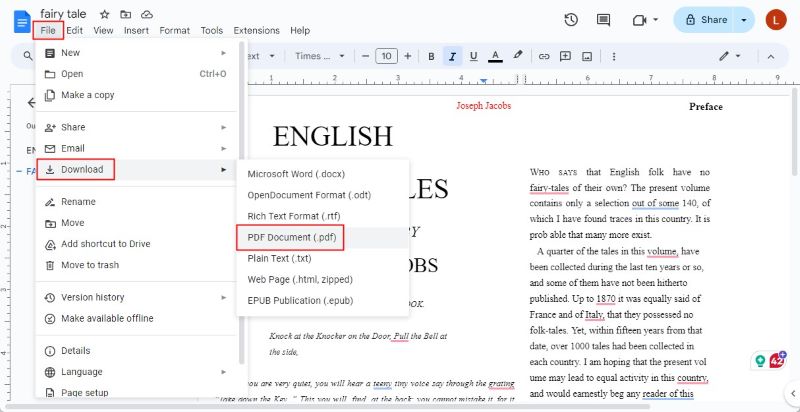
- Go to the File menu in the top-left corner and choose Download.
- Select PDF Document (.pdf) and the PDF will be saved to the Downloads folder.
Troubleshooting Tip:
If Google Docs messes up your formatting when downloading (common with two-column resumes), try printing to PDF instead.
Press Ctrl + P (Windows) or Cmd + P (Mac), then change the destination to Save as PDF. This often renders complex layouts more accurately than the "Download" feature.
6. How to Save a Resume as a PDF in Canva
Designers, marketers, and social media managers often use Canva to create visually stunning resumes. This might be why you choose Canva. After completing the editing, you can choose PDF as the format and download the resume.
- Finish your design in Canva.
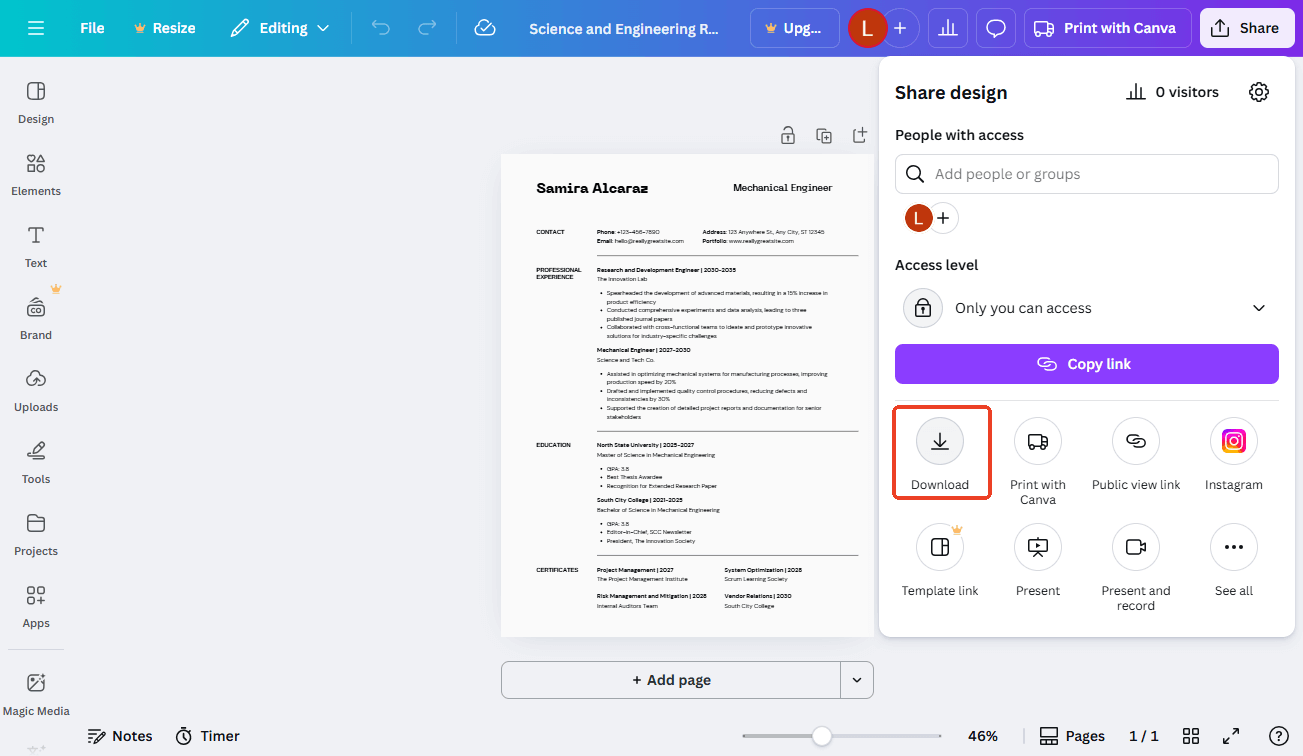
- Click the Share button in the top-right corner and choose Download.
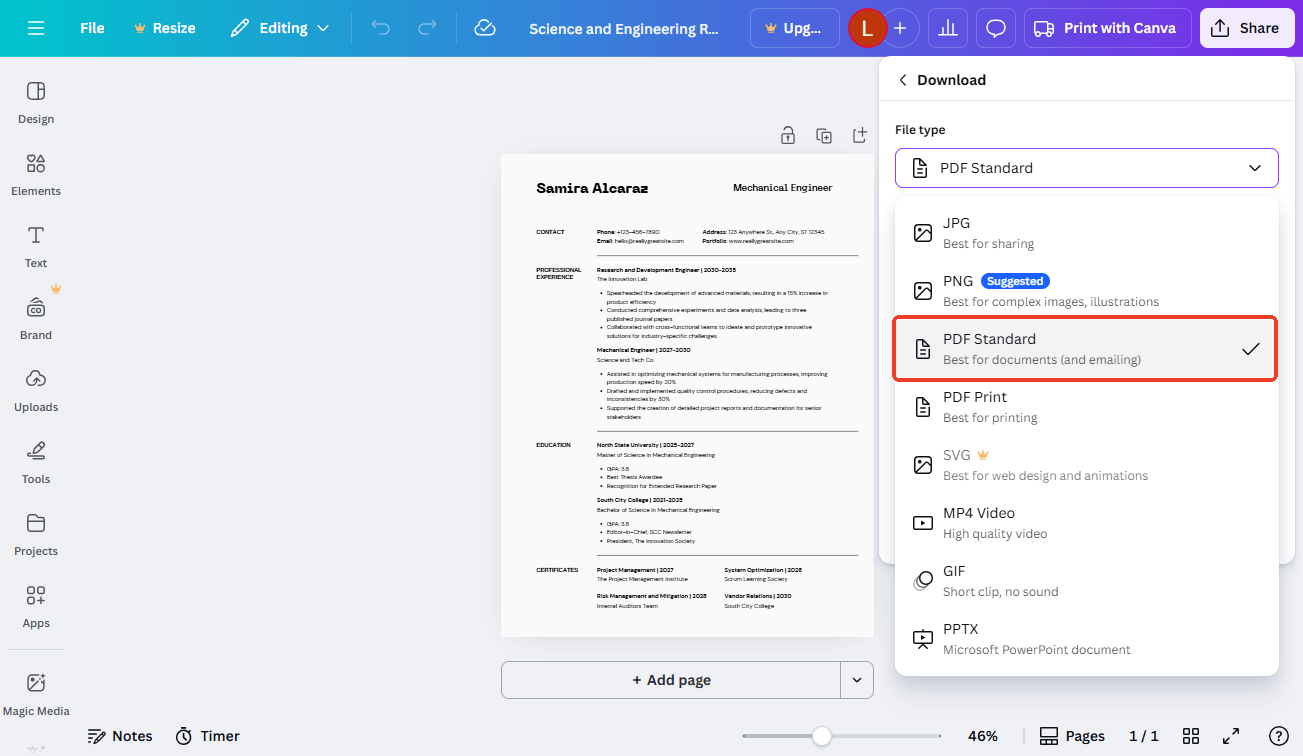
- In the "File type" dropdown, you will see two PDF options. Please select the one you need.
PDF Standard: Best for emailing and uploading to websites. Small file size, fast loading. PDF Print: High quality, 300 DPI. Best if you are physically handing a paper copy to an interviewer.
- Finally, click Download.
Conclusion
Learning how to save a resume as a PDF is a small technical step that makes a massive professional difference. It ensures that the recruiter sees exactly what you intended, with no missing fonts, shifted margins, or broken tables.
While built-in tools like Word and Google Docs can handle basic needs, professional tools like SwifDoo PDF ensure formatting is preserved and let you make critical changes without starting over.
Whether you're using a PC, Mac, or iPhone, simply follow the steps above to create a polished, secure, and professional PDF resume that will help you land that interview. Hope this article has been helpful.



