


Way 1. Insert a PDF into Word as an Image via the Object Feature
Microsoft Word actually has a built-in tool that lets you embed files right onto your page. This means you do not have to download new software. It is a very fast way to insert a PDF as an image into Word. Check to learn the details.
- Open your document in Microsoft Word.
- Click your computer mouse exactly where you want the picture to appear.
- Look at the top menu bar and click on the Insert tab.
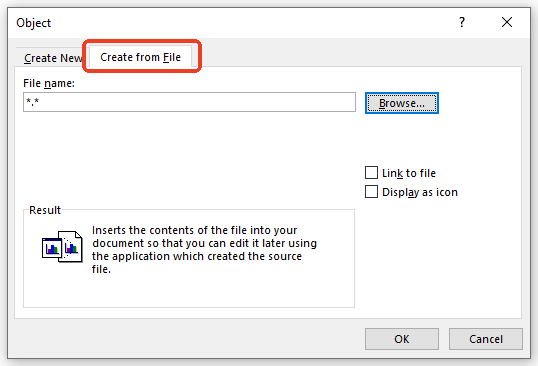
- Find the Text group. Click on the button named Object, and then select Object... from the small drop-down menu.

- A new window will pop up. Click the tab at the top that says Create from File.
- Click the Browse button to find your PDF file on your computer.
- Select your file, click Insert, and then click OK.
Best For: People who only need to quickly insert a single-page PDF document, like a one-page certificate or a simple poster, without leaving the Microsoft Word application.
Way 2. Convert PDF to Image and Insert into Word
If you care about quality, your document has many pages, or you want to insert multiple images, the absolute best method is to convert the PDF to a real image file first. In this case, SwifDoo PDF, a professional PDF converter, can help you.
SwifDoo PDF can help you convert PDF to JPG, PNG, BMP, and TIF pictures easily. It gives you total control over how your picture looks.
✅ It lets you choose exactly which pages you need to convert (for example, just page 3, or pages 1 to 5).
✅ Even better, you can choose to save each page as a separate image, or save all the pages stitched together as a single, long image!
Check to learn how to insert a PDF into Word as an image via SwifDoo PDF.
Steps to Convert the PDF:
- Download and open the SwifDoo PDF on your computer.
- Select the PDF to Image tool from the home interface.
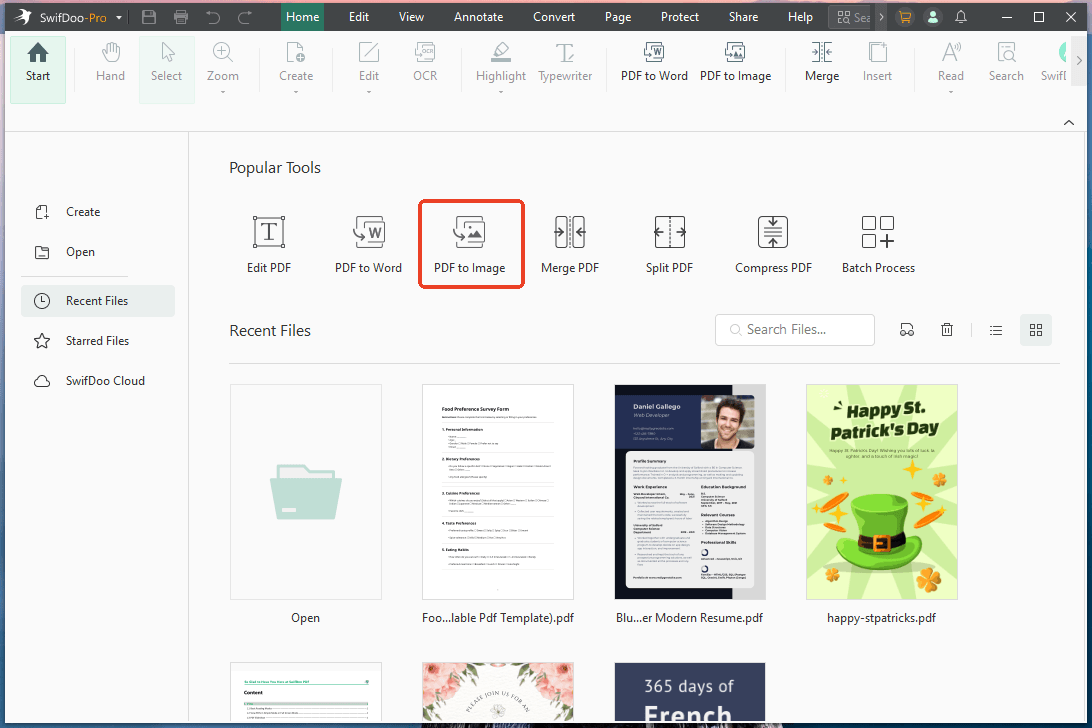
- Next, add your PDF file to the workspace.
- Select your favorite picture format, set your resolution quality, and choose your layout style.
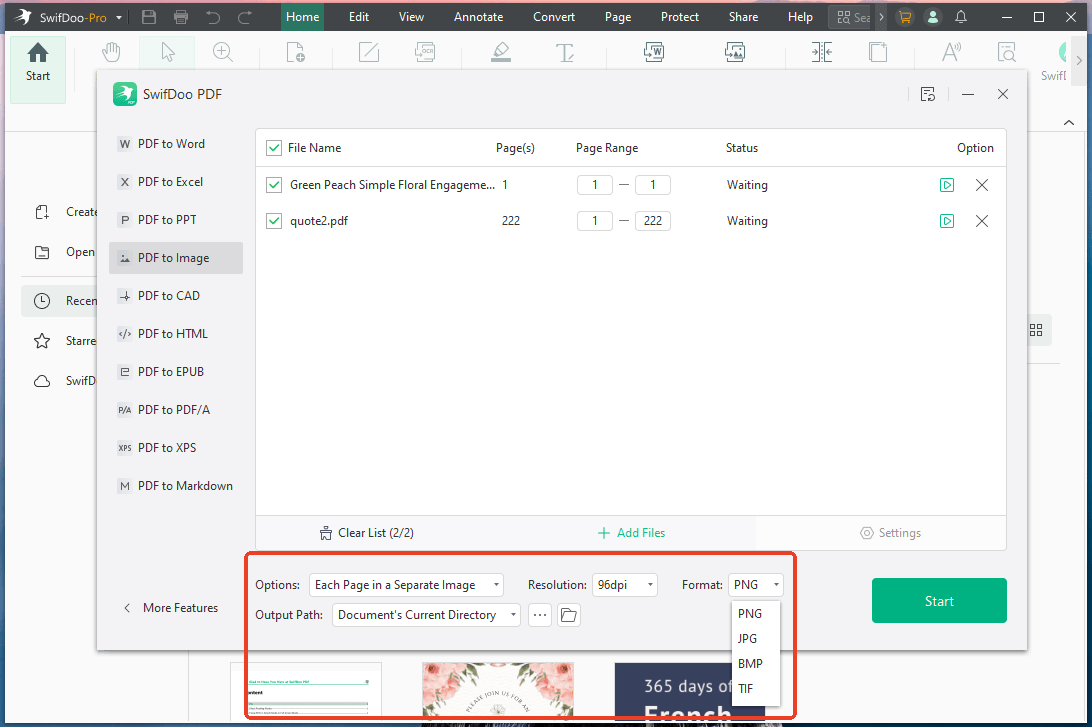
- Confirm the output path and click the Start button.
Steps to Insert the Image into Word:
- Open your Microsoft Word document.
- Click the spot on the page where you want the picture.
- Go to the top menu, click Insert, then Pictures, and choose This Device.
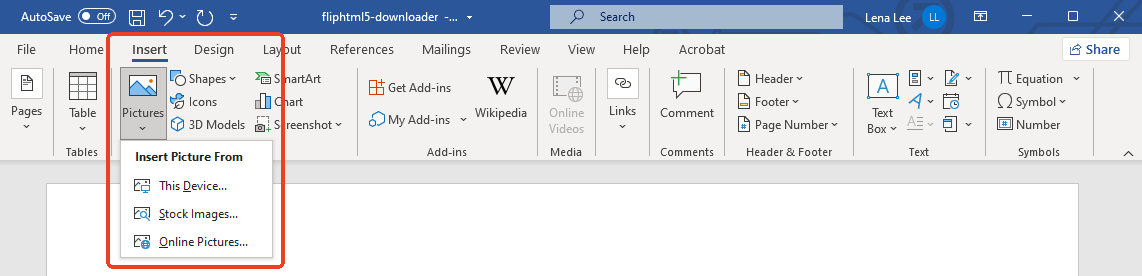
- Find your newly converted pictures and click to insert them into your document.
Aside from making pictures, it can also help you convert your PDFs to and from Word, Excel, and PowerPoint. Moreover, it is also a comprehensive PDF editor for Windows.
Just download and try SwifDoo PDF today for perfect document management!
Best For: Professionals who need high-resolution images, multi-page conversions, and complete control over their file formatting and quality.
Way 3. Insert a PDF into Word as an Image Online
Want to convert a PDF to an image but don't want to install software? Don’t worry, you can use an online converter. It’s fast as long as you have an internet connection. Just follow the steps below.
- Open your browser and visit a trusted online PDF to JPG converter website.
- Click the button to upload your PDF file and wait for a few seconds.
- Then, click the download button to get your images.
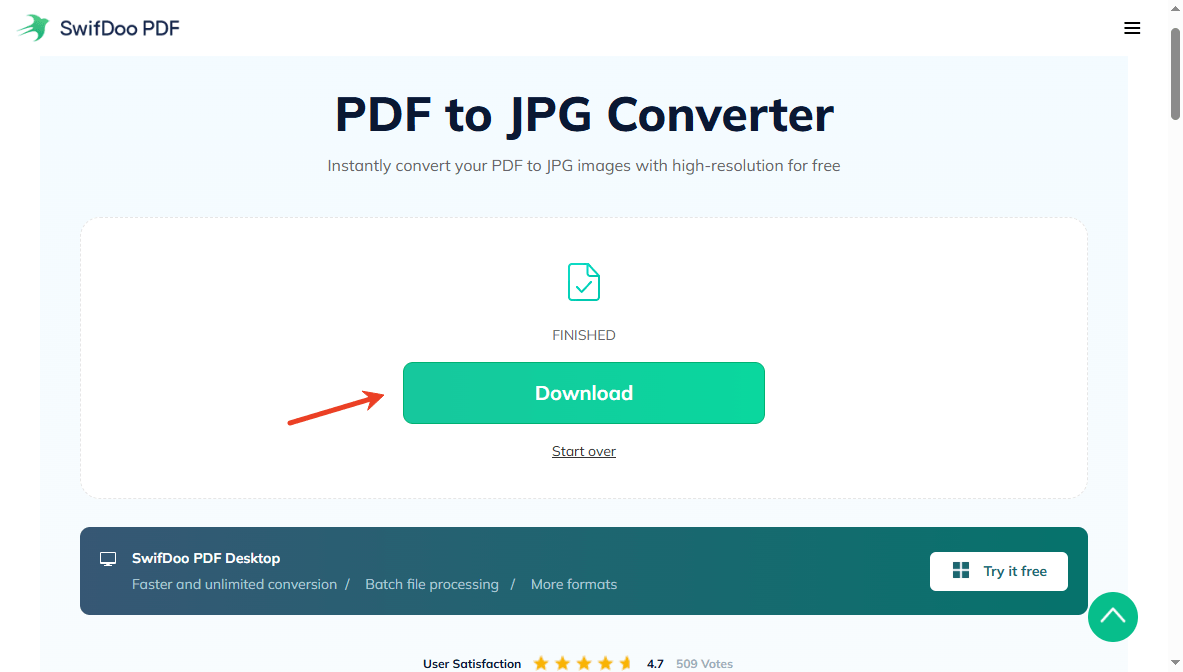
- Open your Microsoft Word document, go to Insert > Pictures, and add the web pictures to your page.
Best For: Users on borrowed computers, public library networks, or mobile devices who simply cannot download desktop software.
Way 4. Insert PDF as an Image into Word via Screenshot
If you only need to show a specific chart, a colorful graph, or a single important paragraph, taking a quick screenshot is the fastest trick. You can simply screenshot PDF sections to use them as pictures.
- Open the PDF. Zoom in on the page so the content looks clear.
- On Windows computers: Press the Windows Key, Shift, and S keys at the exact same time to open the built-in Snipping Tool.
- On Mac computers: Press the Cmd, Shift, and 4 keys at the same time.
- Your mouse will turn into a small crosshair. Click and drag a box over the exact area of the page you want to capture.
- Open your Microsoft Word document and click where you want the picture to go.
- Press Ctrl+V (or Cmd+V on Mac) to paste the picture directly onto the page.
Best For: Users who are in a major rush and only need to quickly grab a small, specific section of a PDF rather than saving the entire document.
Conclusion
That’s all about how to insert a PDF into Word as an image. If you need to put just one picture, screenshots, and the built-in tools of Microsoft are already sufficient. However, if you desire higher quality, you can first use SwifDoo PDF to convert your PDF into image format, and then insert it into Word.



