


Why Convert PDF to JPG Offline
Before we dive into the "how," let's look at why offline conversion is superior for anything beyond basic, non-sensitive files.
- Complete privacy & security: Privacy and security are the biggest factors. Your PDF file will be uploaded to a company’s server when you use an online PDF to JPG converter. In that case, you don’t know how long they’re stored and who has access to them. In contrast, offline tools handle PDFs locally on your computer, which has no security risks.
- Unlimited file sizes and pages: Though most online converters claim to be free, they always impose limits, such as daily limits, file size caps, or page limits. Offline converters can handle massive PDFs with hundreds of pages without any limitations.
- Total control over quality: Compared to online PDF converters, offline converters give you granular control over output resolution. For instance, you can customize the DPI.
In the following content, let’s learn how to convert PDF to JPG offline on Windows 11/10, Mac, Android, and iOS.
Top Method: SwifDoo PDF – The Best Offline PDF to JPG Converter for Windows
When it comes to a dedicated, all-in-one PDF solution, SwifDoo PDF stands out. You can use it to convert PDF to JPG, PNG, TIF, and BMP with ease. Additionally, it enables you to batch convert PDFs to JPGs in a few clicks, saving you hours of manual work. More importantly, SwifDoo PDF allows you to select the needed resolution. If you need, you can also use SwifDoo PDF to convert an image to PDF or combine images into one PDF.
Here, let’s learn how to convert PDF to JPG offline with SwifDoo PDF. Below is the step-by-step guide.
Step 1. Get SwifDoo PDF by clicking the download button below and follow the on-screen prompts to install it on your Windows PC.
Step 2. Launch this offline PDF to JPG converter and click Open PDF to import your PDF file. Then, go to Convert and select the PDF to Image option.
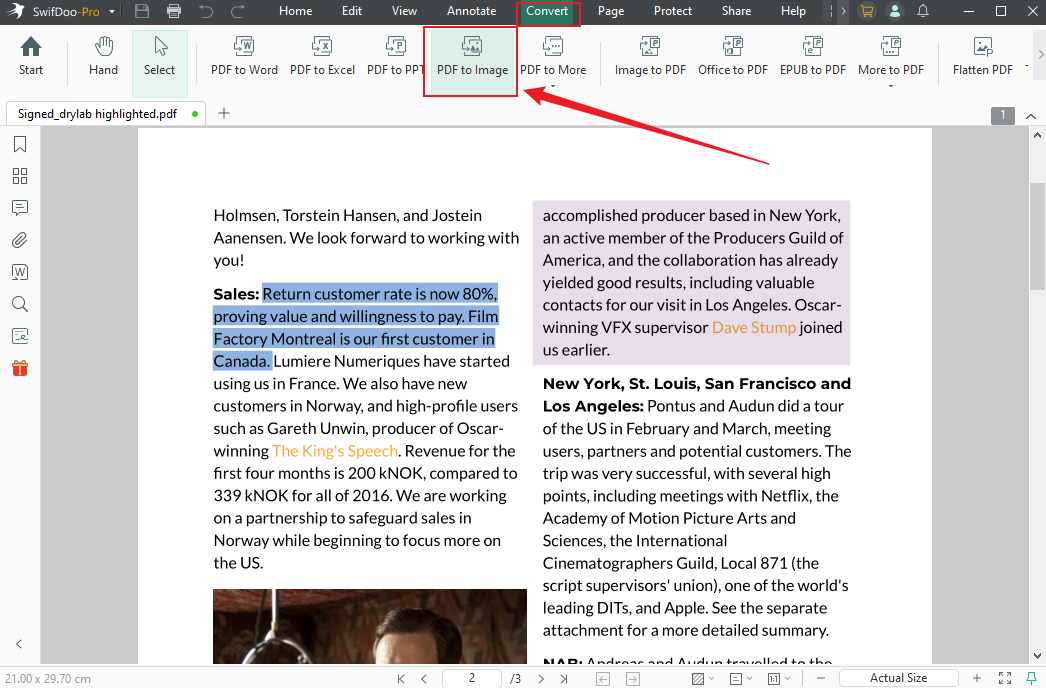
Alternatively, click the PDF to Image option from the Popular Tools section. Next, click Add Files to import your target PDF file. This option is quite suitable when you need to batch convert PDFs to JPGs.
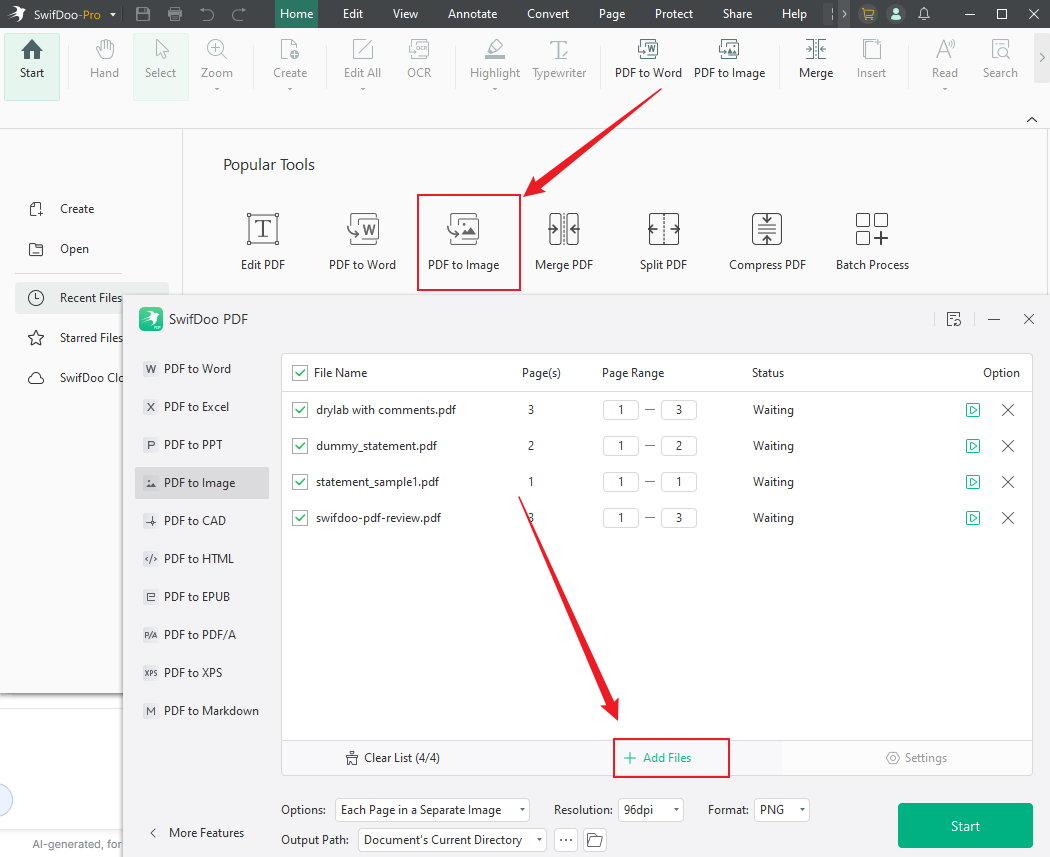
Step 3. Next, open the Resolution list and select the needed one. Expand the Format list and select JPG. Meanwhile, select a folder to save the JPG. At last, click Start.
How to Convert PDF to JPG Offline on Mac Using Preview
SwifDoo PDF is the best all-around tool for Windows. However, if you're on a Mac, you can use Preview, the built-in program for viewing and editing images and PDFs. You can use it to convert a PDF to an image with ease. Below is how to convert PDF to JPG on Mac in Preview.
Step 1. Double-click your PDF file to open it in Preview once you have set Preview as the default PDF viewer.
Step 2. Click File from the menu bar and select the Export… option.
Step 3. In the Export dialog, expand the Format dropdown and select JPEG. Optionally, use the Quality slider to control compression. Finally, choose the save location and click Save.
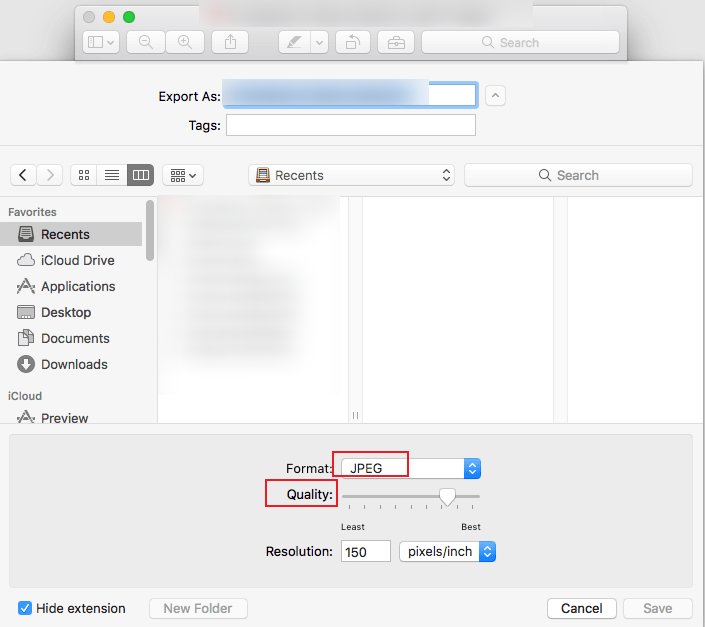
One thing you need to note is that Preview doesn’t natively support batch converting a multi-page PDF to multiple JPGs. In that case, you need to use Adobe Acrobat Pro. Just keep reading on.
How to Convert PDF to JPG Offline in Adobe Acrobat Pro
Adobe Acrobat Pro is a professional PDF editor for Windows and Mac. With its basic and advanced PDF editing tools, you can handle and modify PDFs effectively. What’s more, Adobe Acrobat Pro is an industry-leading PDF converter that can convert PDF to JPG, PNG, Word, and other formats. How to convert PDF to JPG in Adobe Acrobat? Below are the step-by-step instructions.
Step 1. Launch Adobe Acrobat Pro and open your target PDF document.
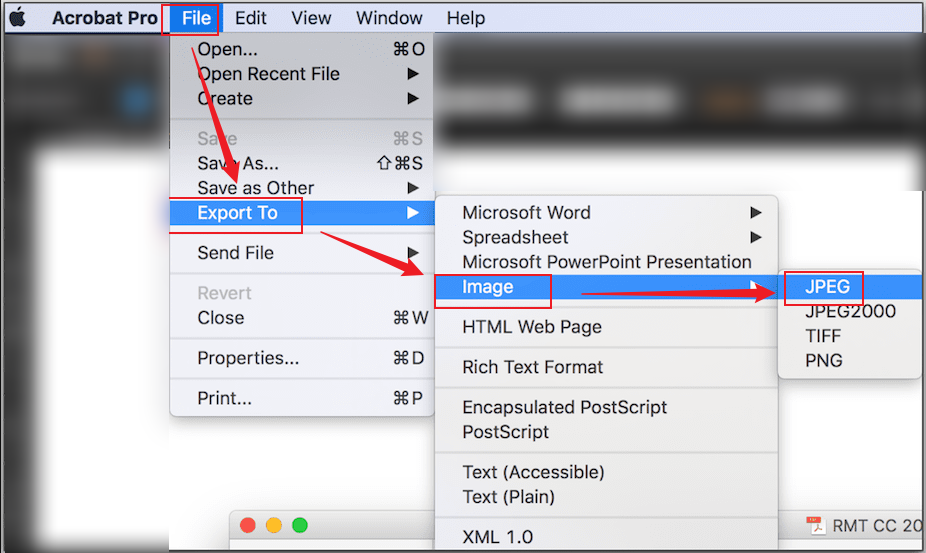
Step 2. Click Convert from the top toolbar and select Image format from the left pane. Next, select the JPEG option.
Step 3. Then, select a folder where you want to save the image. At last, click Save.
How to Convert PDF to JPG Offline on Android & iPhone
For Android and iPhone users, Adobe Acrobat Reader is a good choice. You can use Adobe Acrobat Reader to convert PDFs to JPGs on Android for free. However, you need to pay for an Acrobat Pro subscription to unlock the conversion feature on iPhone. In that case, you can try a reliable online converter, such as SwifDoo PDF Online Converter, Smallpdf, or iLovePDF, to convert PDFs to images on Android and iPhone for free.
A Quick Comparison of Offline PDF to JPG Conversion Tools
Which is the best method to convert PDFs to JPGs offline? Here’s a quick comparison table for your reference.
|
Feature |
SwifDoo PDF |
Adobe Acrobat Pro |
Preview (Mac) |
|
Price |
Affordable / Free tier available |
Expensive (Subscription) |
Free (Built-in) |
|
Platform |
Windows |
Windows & Mac |
Mac |
|
Batch Conversion |
Yes |
Yes |
No (Single page at a time) |
|
DPI Control |
Yes (Granular control) |
Yes |
No (Only quality slider) |
|
Page Selection |
Specific pages or ranges |
Yes |
No (Must export individually) |
|
Additional Features |
Edit, annotate, OCR, AI tools, convert to 20+ formats |
Edit, annotate, OCR, sign |
Basic viewing and markup |
Final Verdict
How to convert PDF to JPG offline? For Windows users, Adobe Acrobat Pro is a professional choice. If you have a limited budget, try SwifDoo PDF, a cost-effective alternative to Adobe Acrobat. Additionally, SwifDoo PDF is ideal for beginners. You can also try Preview if you are a Mac user. The detailed steps are shown in the content above. I hope this article can be helpful to you.



