


Way 1: Convert PDF to Image and Insert It
Best for: Keeping your text and pictures clear, sharp, and high-quality.
If you want your presentation to look professional, this is the best method. When you simply copy and paste a file, it can lose its quality. To fix this, you can first convert PDF to image and then place that new picture into your slide.
To do this, you can try SwifDoo PDF, a fantastic and easy-to-use PDF converter. With SwifDoo PDF, you do not have to change the whole document if you do not want to. You can pick the exact pages you need. Plus, you can choose how clear you want the picture to be and pick your preferred format, such as PNG or JPG.
Here are the easy steps to insert a PDF into PowerPoint as an image using SwifDoo PDF:
Step 1. Get Your Image Ready
- Download, install, and launch the SwifDoo PDF on your computer.
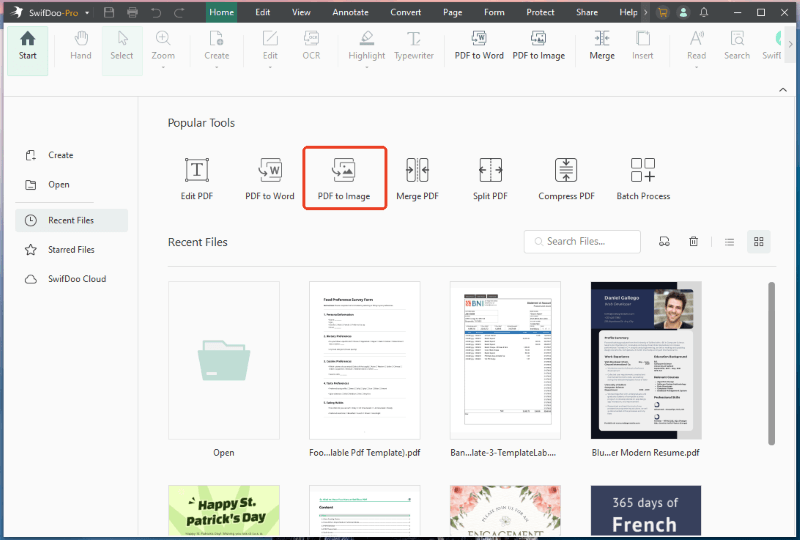
- On the home interface, click the PDF to Image button.
- A small window will pop up. Here, you can add your PDFs and change the page range.
- Next, adjust the resolution and choose your image format. We suggest picking "PNG" because it keeps words looking very sharp.
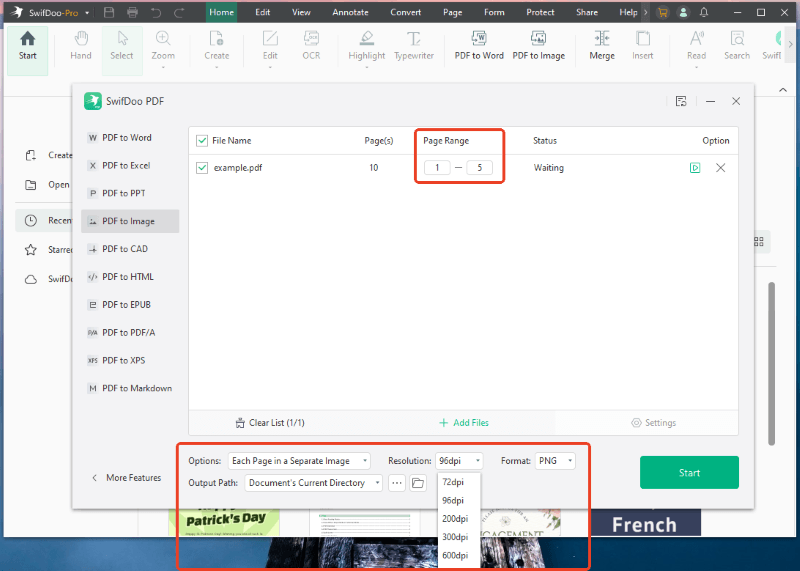
- Confirm the output path and click the Start button.
Note:
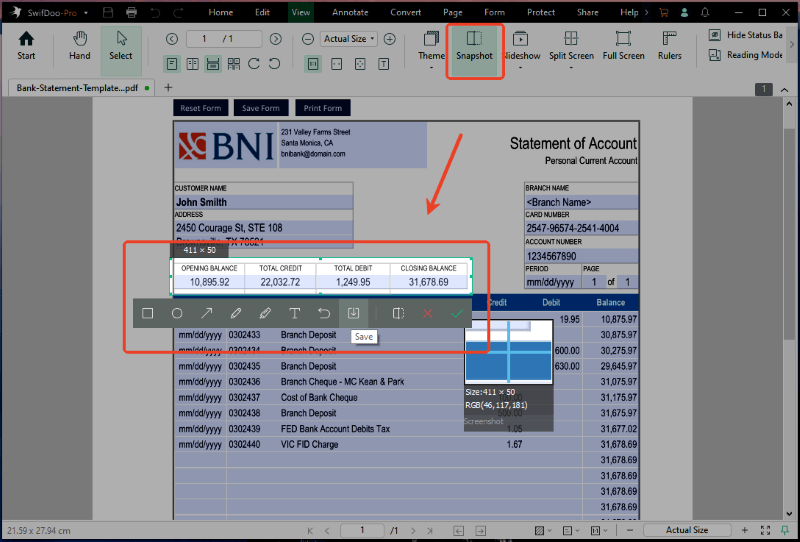
If you only need a part of the content on the page, you can use the "snapshot" tool to capture that specific part.
Open your PDF in SwifDoo PDF > Go to the right page > Click the Snapshot button under View > Use your mouse to select the special part > Click the Save button.
Step 2. Put the Image into PowerPoint
- Open your PowerPoint presentation.
- Go to the exact slide where you want the picture to show up.
- Look at the menu at the very top and click on Insert.
- Click on Pictures, and then select This Device.
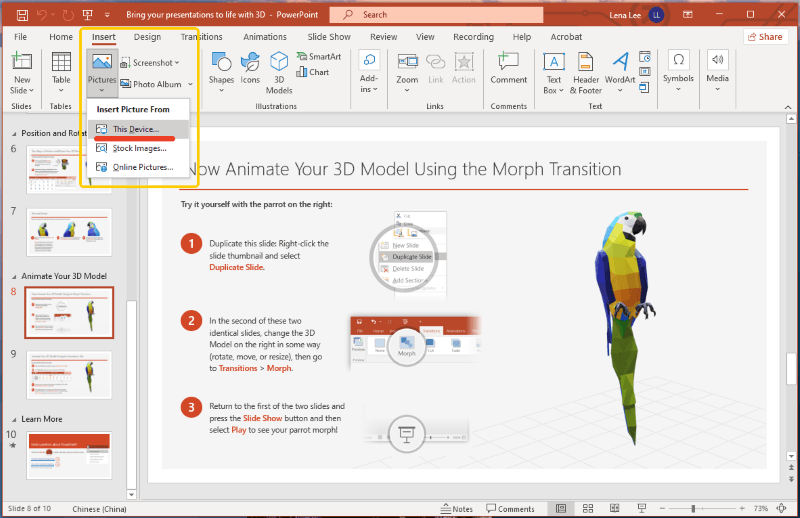
- Find the picture you just saved from SwifDoo PDF and click Insert.
Now you have successfully added your document to your slide! You can click on the picture to move it around or make it bigger.
If needed, SwifDoo PDF can also help you convert your PDFs into PowerPoint, Microsoft Word, and Excel files. More than that, SwifDoo PDF is a full PDF editor. It can help you edit text inside a PDF, highlight anything, and add signatures or passwords. Because of its great features and simple design, many people think it is the best PDF editor for Windows and Mac.
If you work with PDFs often, you should definitely download SwifDoo PDF and give it a try. It can significantly enhance your efficiency!
You May Also Like:
How to Insert PDF into Word as Image: 4 Easy Methods
This guide will show you how to insert PDF into Word as image using built-in tools, screenshots, and helpful software like SwifDoo PDF.
READ MORE >Way 2: Use PowerPoint’s Screen Clipping Tool
Best for: Quickly accessing a small portion of the content of the PDF file without leaving the current presentation.
Don’t need the whole page? Maybe you just want to show a single chart or a short paragraph. In this case, you can use a built-in tool in PowerPoint. You do not need to download anything new for this. PowerPoint has a special "Screen Clipping" feature. It can take a picture of whatever is open on your computer screen.
Check to learn how to insert a PDF as an image into PowerPoint with the built-in feature:
- First, open your PDF document. Scroll down until you can see the exact part you want to use and leave this window open.
- Next, open your presentation and go to the slide where you want the picture to go.
- Look at the top menu and click on the Insert tab. Select Screenshot, then go to Screen Clipping.
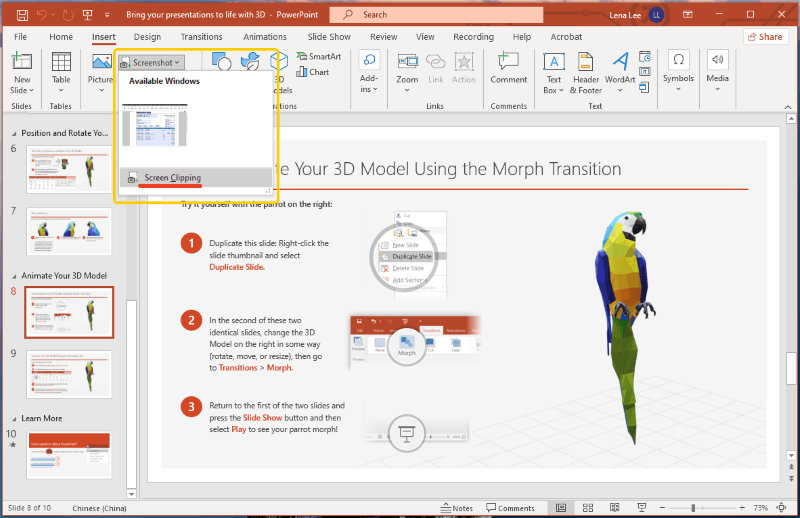
- When you click this, your PowerPoint will hide for a second. Your computer screen will turn slightly white or frosty.
- Click and hold the mouse button, then drag a box over the part of the PDF you want to capture.
- When you release the mouse button, the picture will automatically drop right onto your PowerPoint slide.
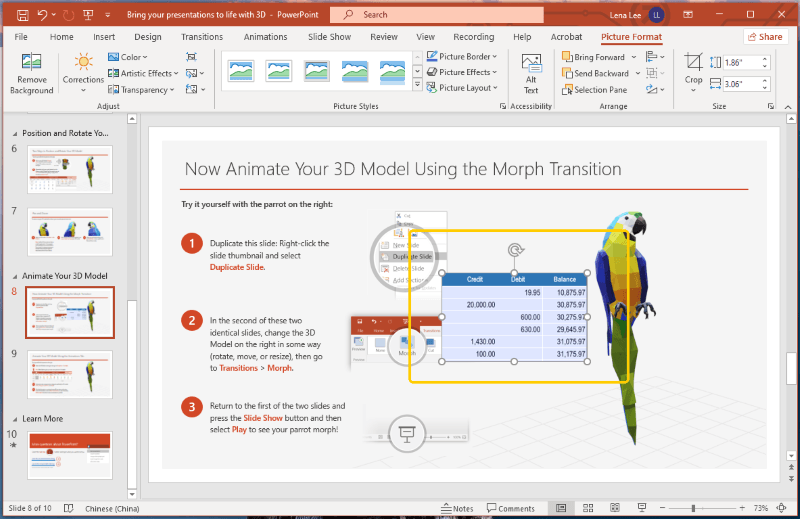
This is a very fast way to work. However, remember that the picture might look a little blurry if you make it too large on your slide.
Way 3: Use the System Screenshot Tool
Best for: Quickly capture the screen image for copying and pasting purposes.
If you do not want to use PowerPoint's built-in tool, you can use the screenshot tool on your computer. Both Windows and Mac computers have built-in tools that let you screenshot a PDF.
This is a great choice if you want to import a PDF into PowerPoint as an image using a simple copy-and-paste method. The details are as follows.
- Open your PDF to go to the section you want to copy.
- On your keyboard, press three keys at the exact same time: the Windows Key, the Shift Key, and the letter S.

- Click and drag your mouse to draw a box around the part of the PDF you want. As soon as you let go, the computer copies the picture.
- Open your PowerPoint slide. Right-click on the slide and choose Paste, or just press Ctrl + V on your keyboard. The picture will appear instantly.
Steps for Mac Users:
- Open your PDF file on your screen.
- On your keyboard, press three keys at the same time: Command, Shift, and the number 4.
- Your mouse pointer will change into a crosshair. Click and drag it over the area of the PDF you want to capture.
- When you let go, the computer will save this screenshot as a picture file on your desktop.
- Open your PowerPoint presentation. You can simply click the picture file on your desktop, drag it into PowerPoint, and drop it onto your slide.
Conclusion
That’s all about how to insert a PDF into PowerPoint as an image. You have three great options to choose from. If you just need a small piece of information, using PowerPoint's Screen Clipping tool or your computer's Snipping tool is very fast.
However, if you want your presentation to look perfect, sharp, and easy to read, the first method is the winner. Taking the time to use a proper tool like SwifDoo PDF to convert your file will give you the best results every single time. Anyhow, you can try each option one by one to find the one that suits you best.




