


Convert PDF to Excel Without Software Using Online PDF Converters
Online PDF converters are the most popular way to convert PDF to Excel without software installation. Most of them are available on Windows, macOS, Linux, Android, and iOS. What’s more, they offer an intuitive, user-friendly interface, making it ideal for beginners. Below are some online PDF to Excel converters for your choice.
- SwifDoo PDF Online Converter
- Xodo
- Smallpdf
- iLovePDF
- Adobe Acrobat Online
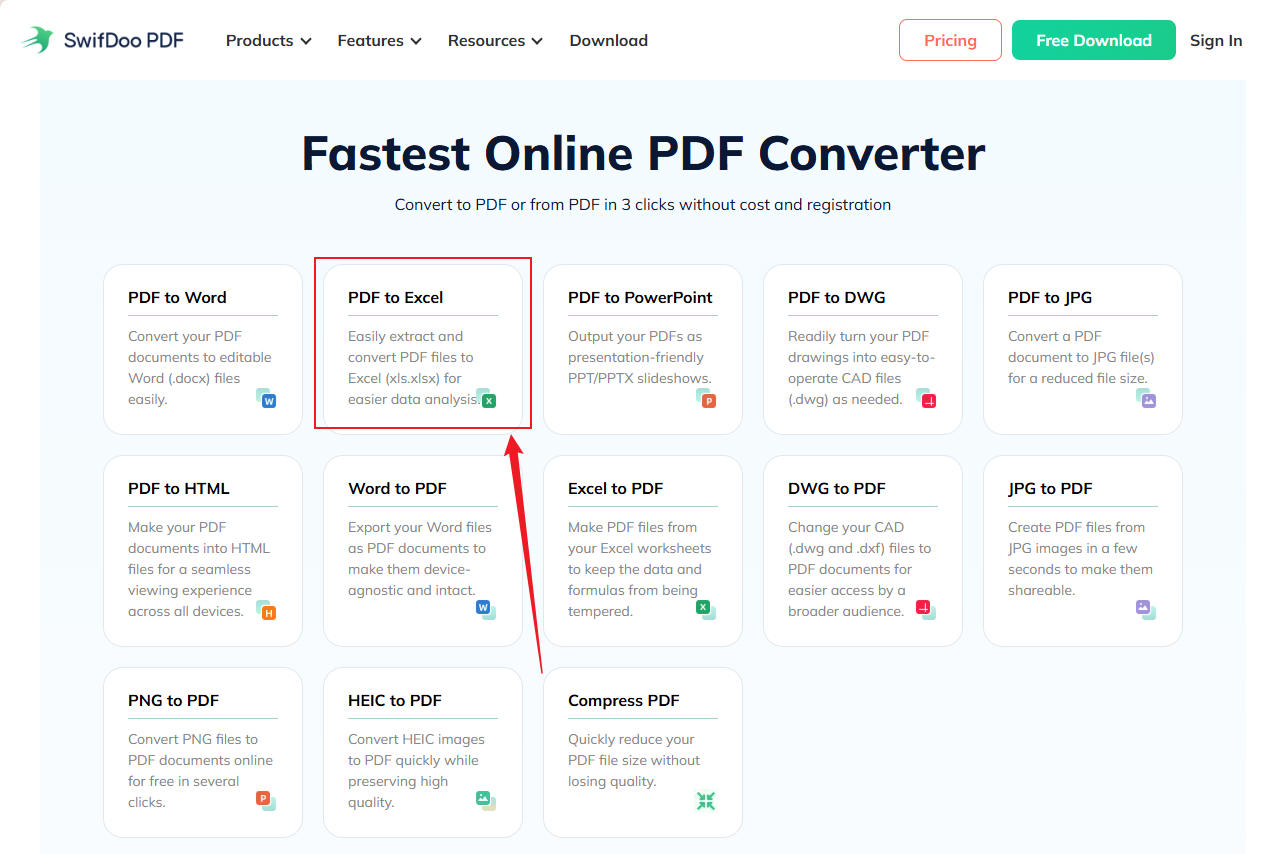
Among them, SwifDoo PDF Online Converter is a completely online PDF converter. In addition to converting PDF to Excel, it supports converting PDF to DWG, Word, PowerPoint, JPG, HTML, and turning Excel, Word, PPT, HEIC, and PNG to PDF. How to convert PDF to Excel without software in SwifDoo PDF Online Converter? Check the exact steps below.
Step 1. Open your browser, visit SwifDoo PDF Online Converter, and click the PDF to Excel option.
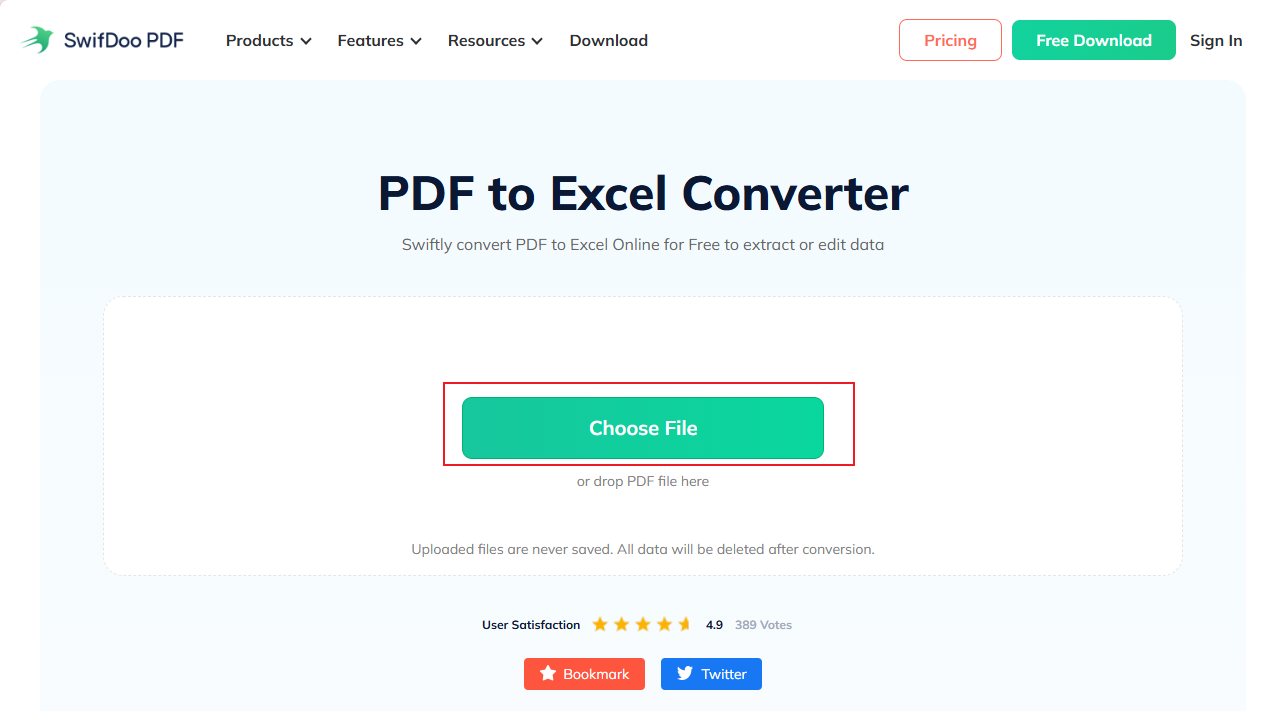
Step 2. Click Choose File to upload the PDF file you need to convert to Excel.
Step 3. Once uploaded, the conversion will start automatically. When the conversion process is completed, click Download to save the new Excel file.
Additionally, SwifDoo PDF Online Converter offers a desktop version with more advanced editing and conversion features. Moreover, it’s equipped with OCR to edit and convert scanned PDFs. If you often need to work with PDF files, you can try SwifDoo PDF.
Convert PDF to Excel Using Google Docs
Beyond a document processor, Google Docs offers a surprisingly effective way to extract data from PDFs, especially text-heavy ones. You can use Google Docs to convert PDF to DOCX, TXT, and other formats. Does Google Docs support converting PDF to Excel directly? The answer is no. However, you can use its feature to extract data and then copy the content into Google Sheets. How to do that? Follow the detailed guide below.
Step 1. Go to Google Drive and sign in. Then, click + New and File upload to upload your target PDF file.
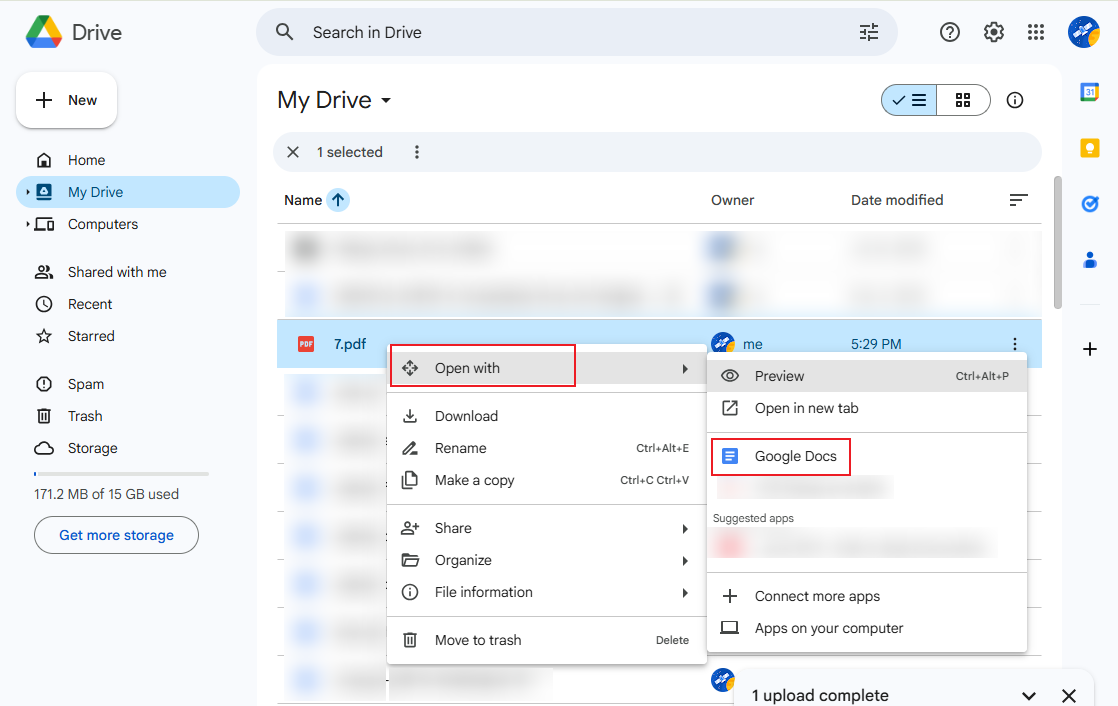
Step 2. Right-click on the newly uploaded PDF, move to Open with, and choose Google Docs. As a result, Google Docs converts the PDF into an editable Google Docs document.
Step 3. Copy the table and data you want, go to Google Sheets, and create a blank spreadsheet. Next, paste the copied content.
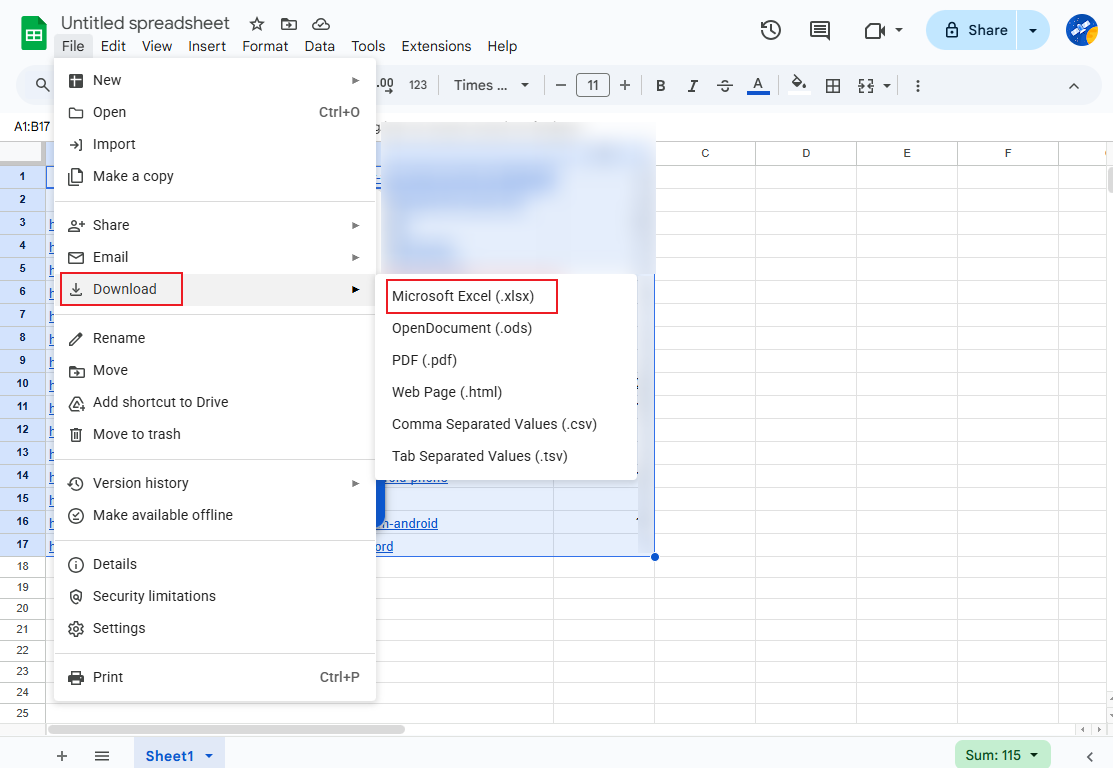
Step 4. Adjust the formatting of the Excel file, click File, move to Download, and select the Microsoft Excel (.xlsx) option.
How to Convert PDF to Excel with Google Sheets
Like Google Docs, Google Sheets doesn’t have a native feature to directly import or convert a PDF file into a spreadsheet. However, there are add-ons to help you convert PDF to Google Sheets and then to Excel. How to convert PDF to Excel in Google Sheets? Below is how:
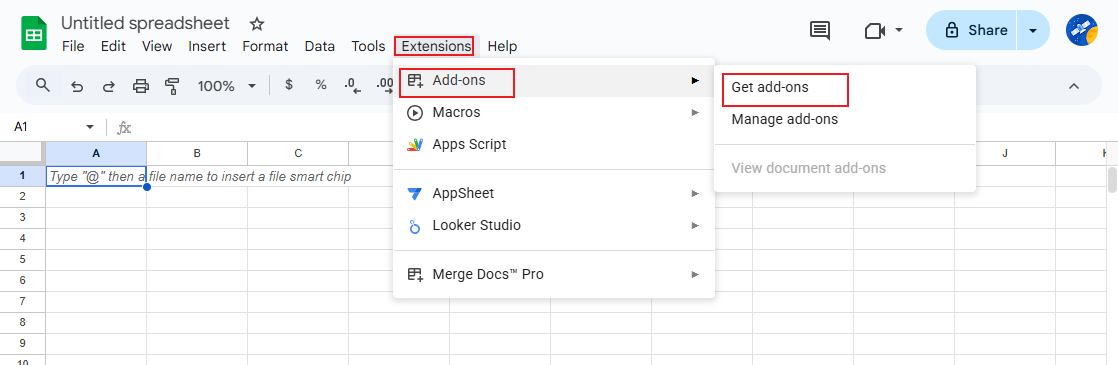
Step 1. Access Google Sheets and open a new or existing spreadsheet. Then, click Extensions, move to Add-ons, and click on Get add-ons.
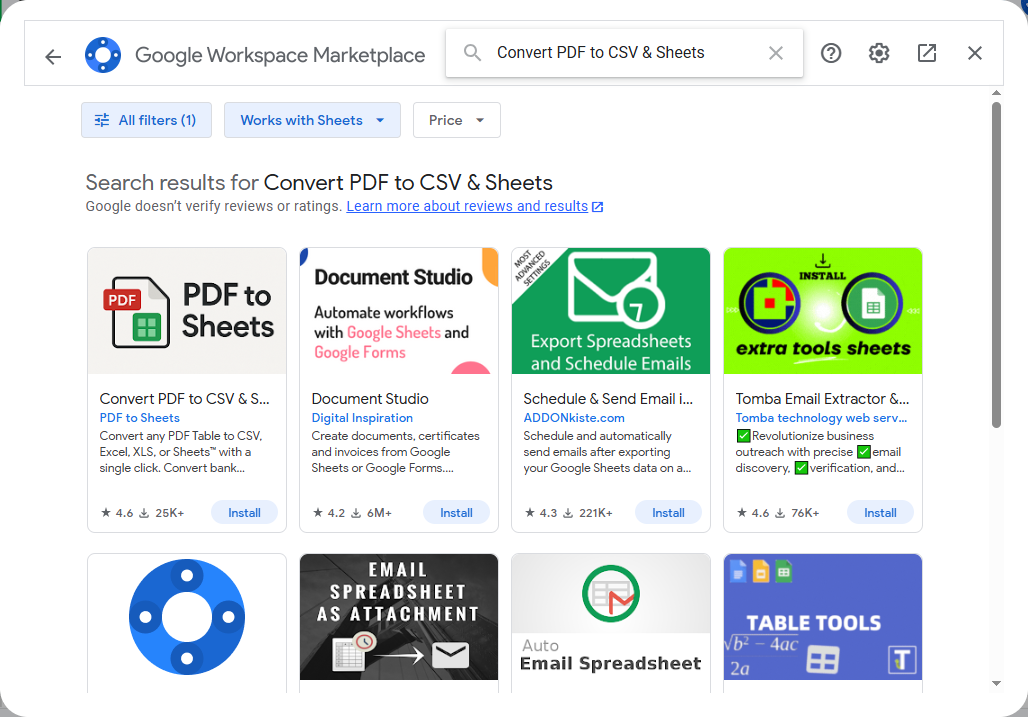
Step 2. Next, search for "PDF to Sheets" or "Convert PDF to CSV & Sheets" in the search box. Choose a reliable one and install it.
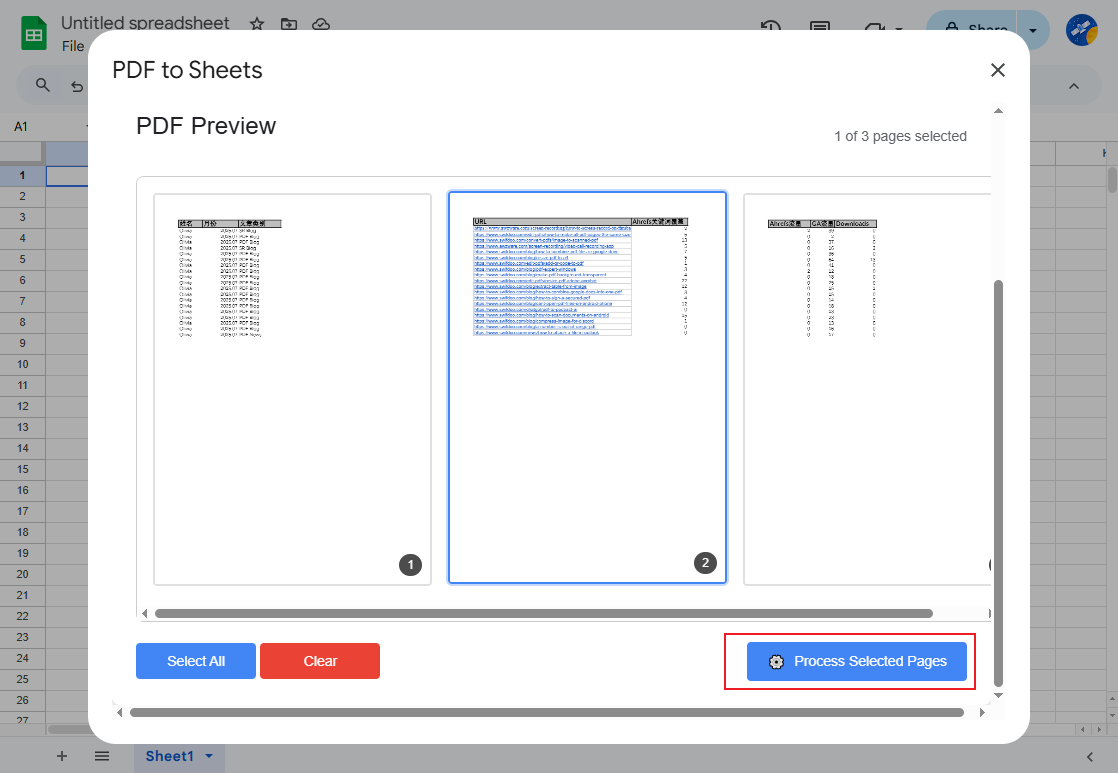
Step 3. After installation, go to Extensions and click the newly added add-on to launch it. Click Browse Files to upload the target PDF document. Select the page you want to convert and click the Process Selected Pages button.
If it generates a Google Sheet, open it again, go to File > Download, and click the Microsoft Excel (.xlsx) option.
Convert Scanned PDF to Excel with Browser-based OCR Tools
If your PDF is scanned or image-based, you’ll need OCR. Some online tools provide OCR-based PDF to Excel conversion directly in your browser. With OCR, you can recognize text in the PDF and make the PDF editable. Here, I have tested and picked up several reliable browser-based OCR tools.
- Smallpdf
- Adobe Acrobat Online
- iLovePDF
- FreeConvert.com
How to convert a scanned PDF to Excel without software? Here, I’d like to take Smallpdf as an example.
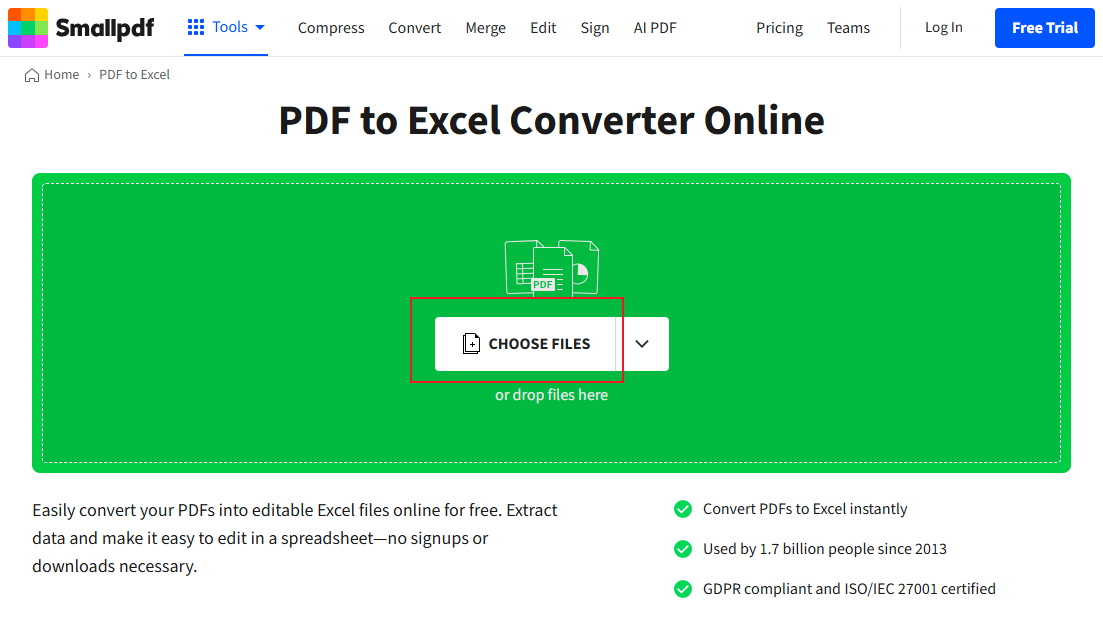
Step 1. Access Smallpdf’s PDF to Excel Converter website.
Step 2. Click CHOOSE FILES to import the scanned PDF file into Smallpdf.
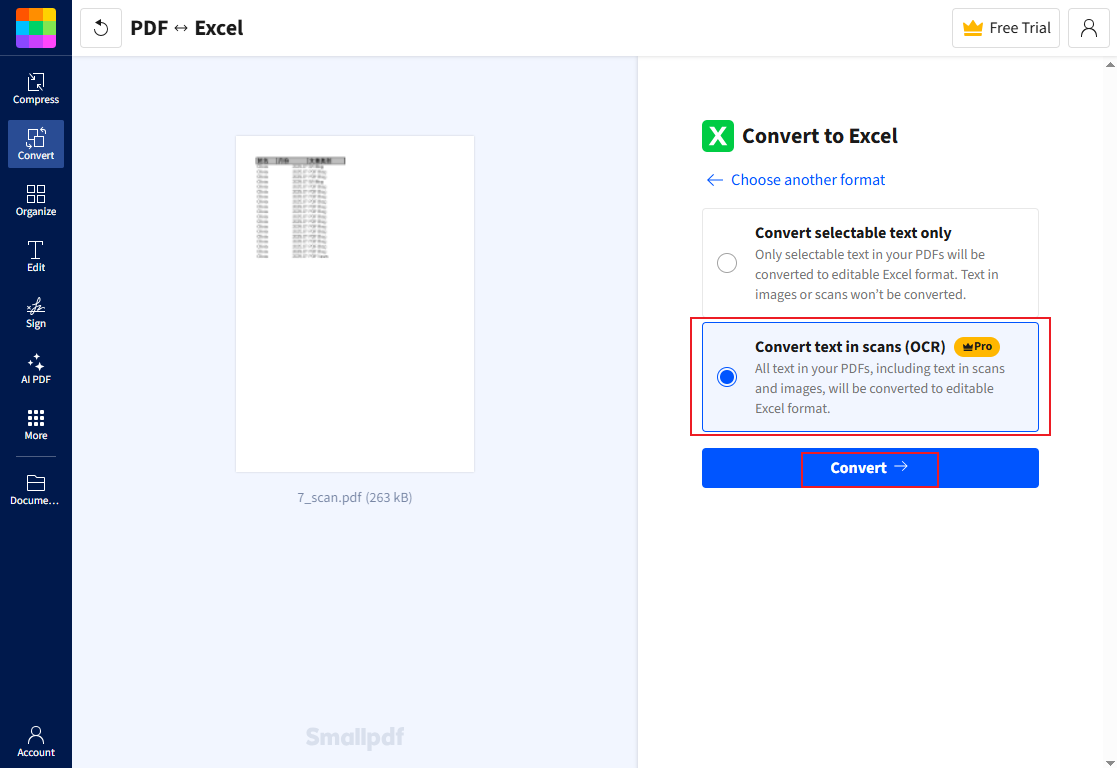
Step 3. Select the Convert text in scans (OCR) option and click Convert.
Step 4. Once the conversion is over, download and store the new Excel file to your device.
You need to purchase the Pro version of Smallpdf to unlock the OCR feature. If you need a free way to convert scanned PDFs, try SwifDoo PDF for Windows.
Is It Safe to Convert PDF to Excel Online
When using online tools, security is a common concern. Is it safe to convert PDF to Excel online? The answer is subjective. You need to use HTTPS-enabled websites. If you still have privacy and security concerns, avoid uploading confidential or sensitive data, and avoid using desktop PDF converters such as SwifDoo PDF and Adobe Acrobat Pro.
Final Thoughts
If you’re looking to convert PDF to Excel without software, you have plenty of reliable, free, and browser-based options. Whether you’re working with financial data, reports, or simple tables, online tools and Google services can get the job done quickly.




