Can You Convert a QIF File Directly to PDF
The short answer is: Not usually. A QIF (Quicken Interchange Format) file is a text-based file used to transfer financial data between personal finance applications. Meanwhile, instead of storing pages, fonts, and images like a PDF, a QIF file contains structured transaction information, including dates, payees, amounts, and account details. Hence, it can’t usually be opened or converted directly like a Word document or image.
Because of this difference, there is no universal QIF-to-PDF converter that can transform the file with a single click. Before you can save a QIF as a PDF, you need software that can interpret its financial data and present it in a readable format. In the following content, I will introduce you to 4 effective methods to convert a QIF file to PDF. Let’s check them one by one.
Method 1. Convert QIF to PDF Using Quicken
If your QIF file originated from Quicken or another finance application that supports the format, importing it into Quicken is the easiest and most reliable way to create a PDF. Meanwhile, this method can preserve transaction details, categories, account information, and report formatting much better than generic conversion tools. How to save a QIF file as a PDF with Quicken? Below are the exact steps:
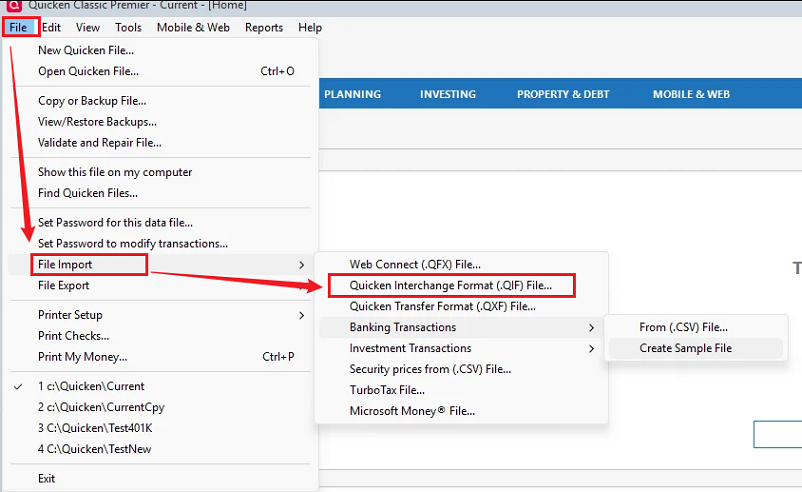
Step 1. Go to File > Backup and create a backup before importing your QIF file. Then, launch Quicken, go to File > File Import > QIF File, locate and select your .qif file, select the account where you’d like to import the transaction, and click Import to complete the import process.
Step 2. After the import finishes, open the destination account and verify whether the dates are correct, the amounts are accurate, the payees and categories are imported properly, and no duplicate transactions exist.
Step 3. Then, create a view of the data. You can open the account register that contains the imported transactions. Alternatively, you can also create a report that shows the desired data. Go to Reports and select a report, such as Banking Summary, Transaction Report, and Spending Report.
Step 4. Now, display the register or report. Press Ctrl + P to open the Print dialog, select Print Report or Print Register based on what you’re viewing. Next, select Microsoft Print to PDF (Windows) or Save as PDF (Mac) as the printer. Finally, choose the destination folder and click the Save button.
Advantages of Using Quicken:
- Preserves original transaction formatting.
- Maintains account structures and categories.
- Supports detailed financial reports.
- Produces professional-looking PDFs.
- Reduces formatting errors during conversion.
Limitations:
- Older QIF files may need adjustments before importing.
- Import settings vary between Quicken versions.
Method 2. Convert QIF to PDF Using Spreadsheet
If you don’t want to use Quicken or haven’t installed Quicken, you can use a tool to convert QIF to CSV first. Then, use a CSV-to-PDF converter, Microsoft Excel, or Google Sheets to convert the CSV file to PDF. How to turn a QIF file into PDF? Refer to the steps below:
Step 1. Convert the QIF file to CSV first. You can use the following tools: ProperSoft QIF2CSV, Univik QIF Converter, and Statement Extract.
Step 2. Launch Microsoft Excel, click File > Open to import the newly converted CSV file. Depending on your original QIF file, you may see columns such as Date, Payee, Category, Memo, Amount, and Balance. IF the columns don’t align correctly, use Excel’s Text to Columns feature.
Step 3. To make your spreadsheet easier to read, format the worksheet before exporting. For instance, you can adjust the column widths, bold the header row, and others.
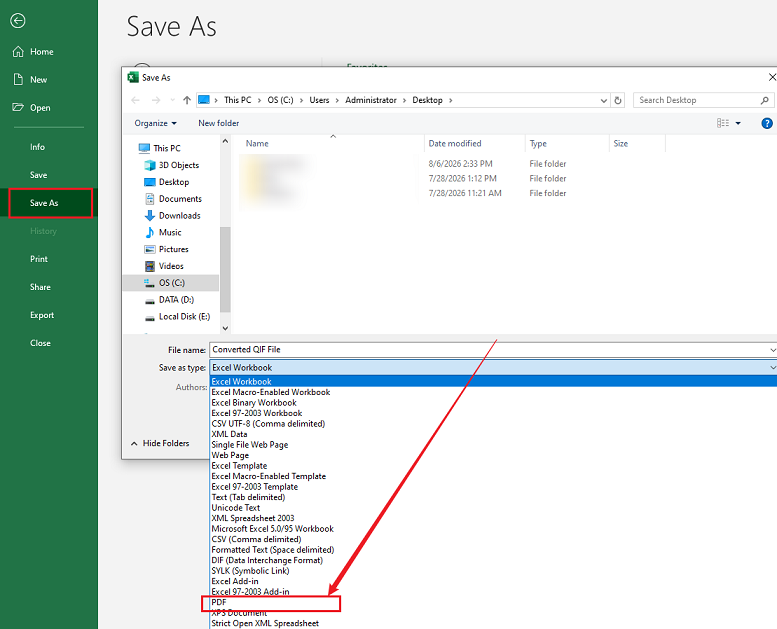
Step 4. Next, click File, select Save As, specify the saving path, and set PDF as the output format. Finally, click Save.
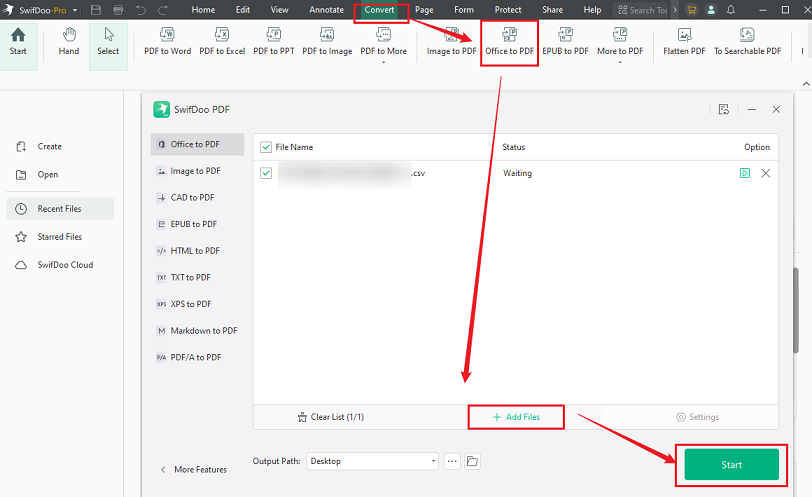
In addition to converting CSV to PDF in Microsoft Excel, you can also use SwifDoo PDF to complete the task in a few clicks. Go to Convert, select Office to PDF, click Add Files to upload the converted CSV file, and click Start to enable the conversion. Later, you can also use SwifDoo PDF to edit the PDF file.
Pros:
- Easy to edit transaction data.
- Great for creating customized reports.
- Flexible formatting options.
- Ideal for printing.
Cons:
- Requires converting QIF to CSV first.
- Formatting may need manual adjustments.
- Not suitable for preserving all Quicken report details.
Method 3. Open the QIF File as Text and Print to PDF
Additionally, you can try to open your QIF file in a text editor and then print it as a PDF. This method can also work well. Because a QIF file is essentially a plain-text file, you can open it in any text editor. Though this won’t produce a polished financial report, it is useful if you simply need a printable or shareable copy of the raw data. Here, let’s see how to do that:
Step 1. Locate your QIF file, right-click it, go to Open With, and select your preferred text editor, such as Notepad or TextEdit. Then, you can see transaction records represented by short field codes and values rather than a formatted table.
Step 2. Then, review the contents. Once the contents are correct, press Ctrl + P (Windows) or Command + P (Mac) to open the Print dialog.
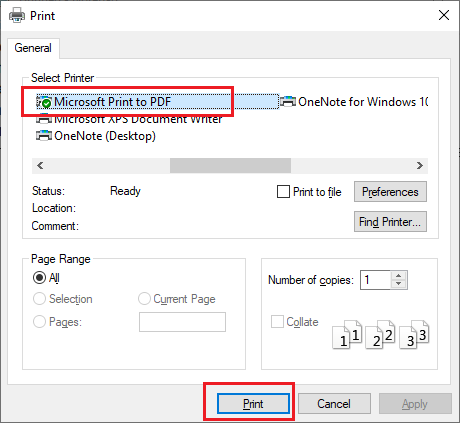
Step 3. In the Print dialog, select Microsoft Print to PDF or Save as PDF. Finally, configure other settings and click Print or Save to save the generated PDF.
Advantages:
- Doesn't require Quicken.
- No conversion software needed.
- Very fast.
- Works on nearly every operating system.
Limitations:
- Raw text formatting only.
- No tables or financial reports.
- Less suitable for presentations or professional documents.
QIF to PDF: Which Method Is Best
Each conversion method has its own advantages. Here, I prepare a comparison table to help you choose the right approach.
|
Method |
Difficulty |
Formatting Quality |
Free |
Best For |
|
Quicken |
Easy |
⭐⭐⭐⭐⭐ |
No |
Accurate financial reports |
|
Excel (via CSV) |
Moderate |
⭐⭐⭐⭐☆ |
Partly |
Editing transaction data before exporting |
|
Text Editor + Print |
Very Easy |
⭐⭐☆☆☆ |
Yes |
Quickly printing or archiving raw QIF data |
BONUS: Edit and Annotate the Converted PDFs with SwifDoo PDF
After getting a PDF file from a QIF file, you may need to edit the PDF. SwifDoo PDF is a reliable PDF editor that is worth trying. You can use it to edit PDF text, add annotations, flatten sensitive information, and OCR PDFs. What’s more, it is an excellent PDF converter that enables you to convert PDFs to and from a wide range of formats, such as PDF to EPUB, DOCX to PDF, HTML to PDF, XPS to PDF, and more. All in all, SwifDoo PDF is worth a try!
After converting your QIF files to PDFs, you can use SwifDoo PDF to complete the following common tasks:
- Highlight important income or expense entries.
- Add comments or annotations for clarification.
- Insert text boxes to explain specific transactions.
- Merge multiple financial statements into one document.
- Split large reports into smaller, more manageable files.
- Rearrange, delete, or organize pages.
- Compress PDFs for easier emailing and storage.
- Protect documents with passwords for added security.
- Print or share polished, finalized reports.
Final Words
How can you make financial records easier to read, print, and archive? It is a good idea to convert QIF to PDF. However, there is no direct way to convert a QIF file to a PDF since QIF files are designed to exchange transaction data. If you need the highest-quality results, Quicken would be the best option because it can preserve transaction details and report formatting. Alternatively, you can use the other 2 methods mentioned in this article.