


Why Convert JPG to PDF Offline?
Why offline conversion matters? Follow me to learn the benefits of converting JPG to PDF offline. Also, you can skip this section to learn the exact methods.
- No internet required: You can turn a JPG into a PDF without internet required, making it ideal for travel or restricted networks.
- Data privacy: You don’t need to upload your files to any third-party servers.
- No file size limits: Most online converters have file size limits on free versions. Offline tools don’t have such limitations.
- Faster processing: You don’t need to wait for uploads or downloads.
If you need to handle images or PDFs with sensitive information, an offline tool is the safer choice. In the following content, let’s learn how to convert JPG to PDF offline.
How to Convert JPG to PDF Offline on Windows
For Windows users, you can use its built-in tools to complete the JPG to PDF conversion. Also, you can use third-party converters to convert JPG to PDF with OCR or other features. Here, let’s check them one by one.
Method 1: Use Microsoft Print to PDF
If you don’t want to install any software, use Microsoft Print to PDF. This method can only meet the basic need for conversion. If you need to convert multiple JPGs in bulk or adjust the page size, try SwifDoo PDF or Adobe Acrobat.
Follow the steps below to convert a JPG to a PDF without an Internet connection.
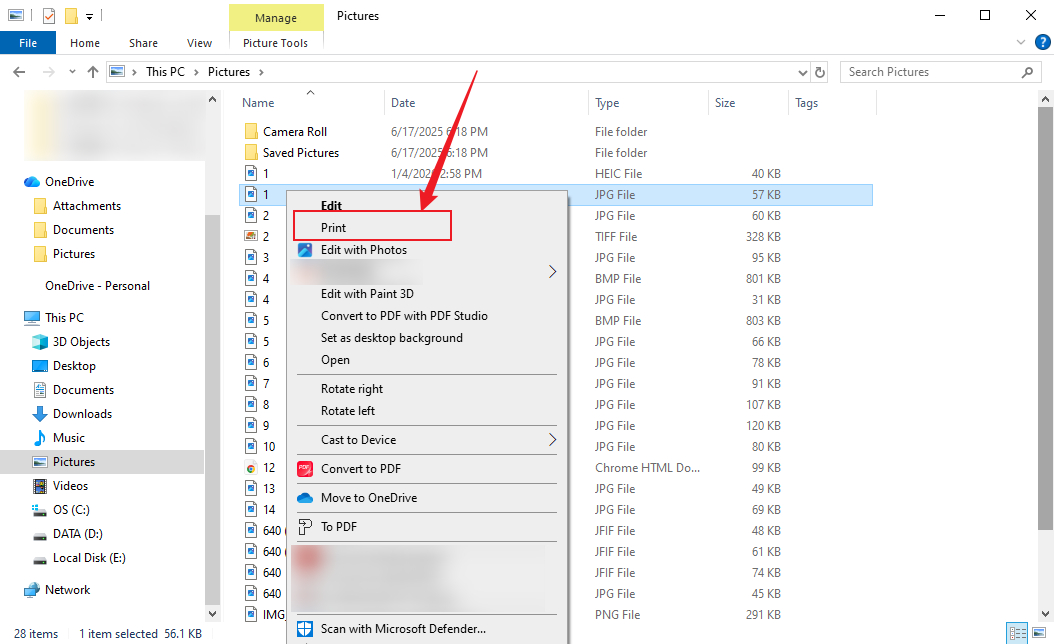
Step 1. Locate the JPG image and right-click it.
Step 2. Click Print from the list.
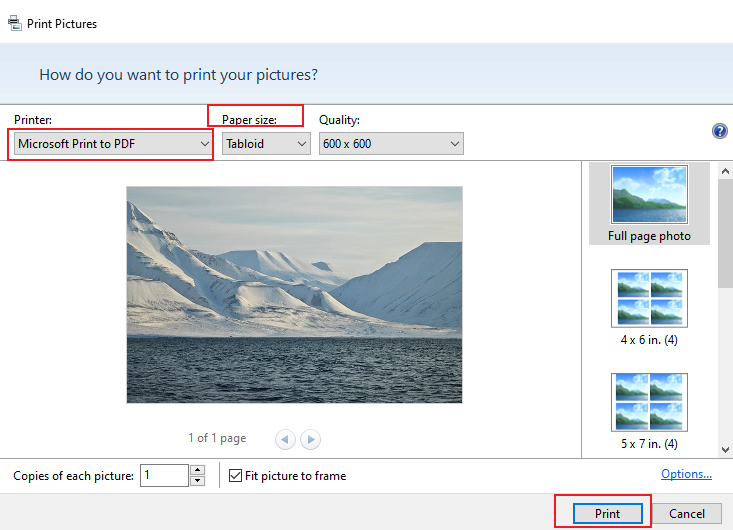
Step 3. Open the Printer list and select Microsoft Print to PDF. Meanwhile, you can set the paper size to Tabloid, A4, or others. Finally, click Print and choose a folder to save the PDF.
Method 2: Use SwifDoo PDF (with OCR)
SwifDoo PDF is a full-featured PDF converter that enables you to convert PDFs to and from images, Word, CAD, PowerPoint, and other formats. Working as an image to PDF converter, SwifDoo PDF enables you to handle JPG, PNG, BMP, and TIF images. You can use it to convert JPG to PDF offline effectively. Meanwhile, it allows you to batch convert JPGs to PDFs. How to turn JPG into PDF on Windows with SwifDoo PDF? Follow the instructions below:
Step 1. Download and install this offline JPG to PDF converter on your Windows PC. Then, launch this converter.
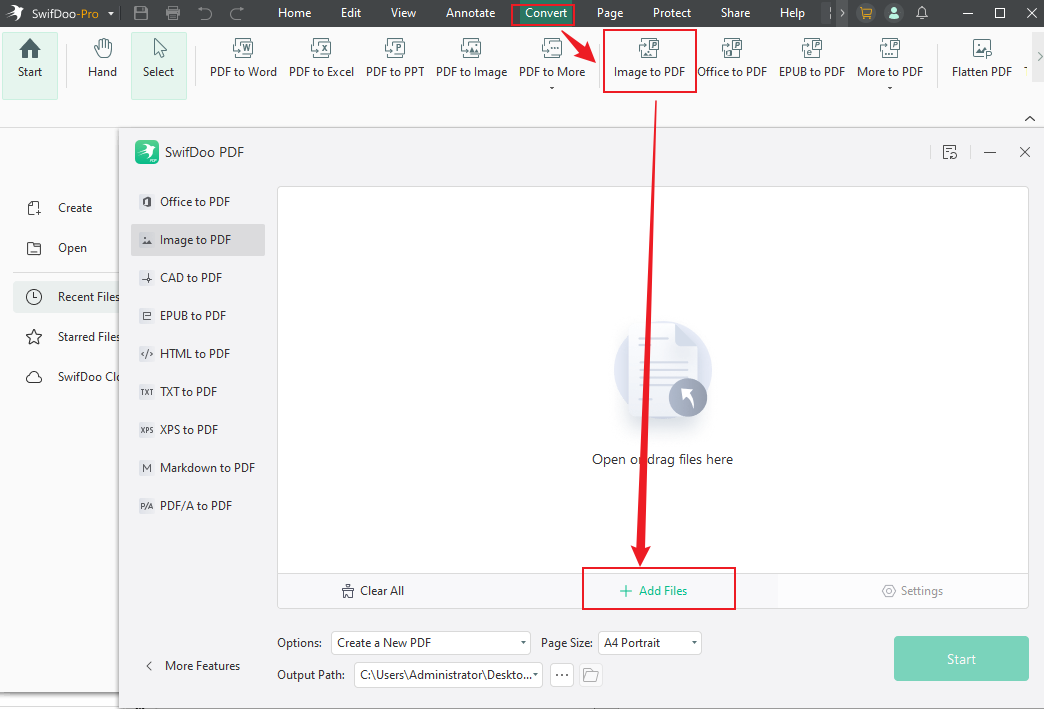
Step 2. Click Convert from the top menu and choose the Image to PDF option. Next, click Add Files to import your JPG files.
Step 3. Expand the Options list and select the Create a New PDF option to convert all JPGs into one PDF. Or, select the Create Multiple PDF Documents option to convert JPGs to several PDFs. Meanwhile, customize the Page Size as needed.
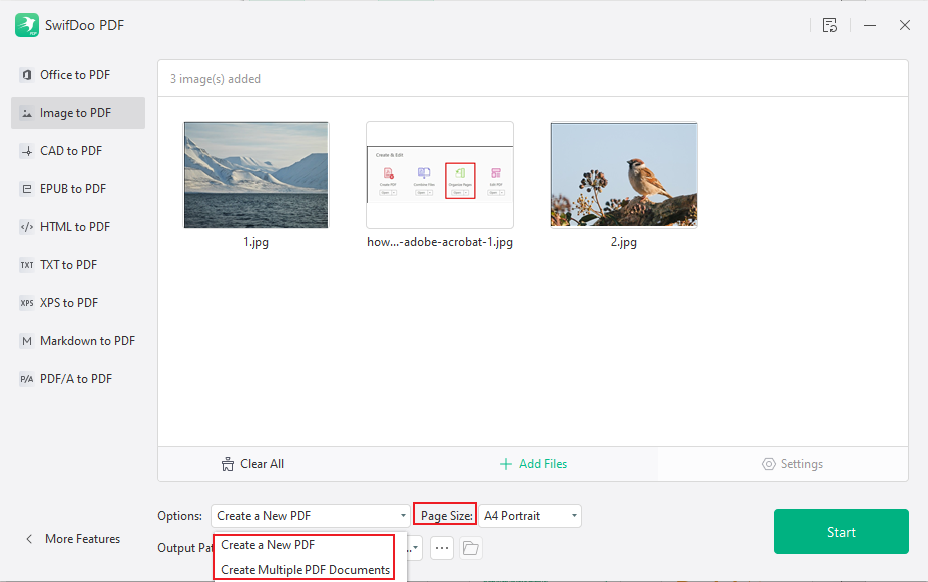
Step 4. Next, select a folder to save the PDF files and click Start to initiate the JPG to PDF conversion process.
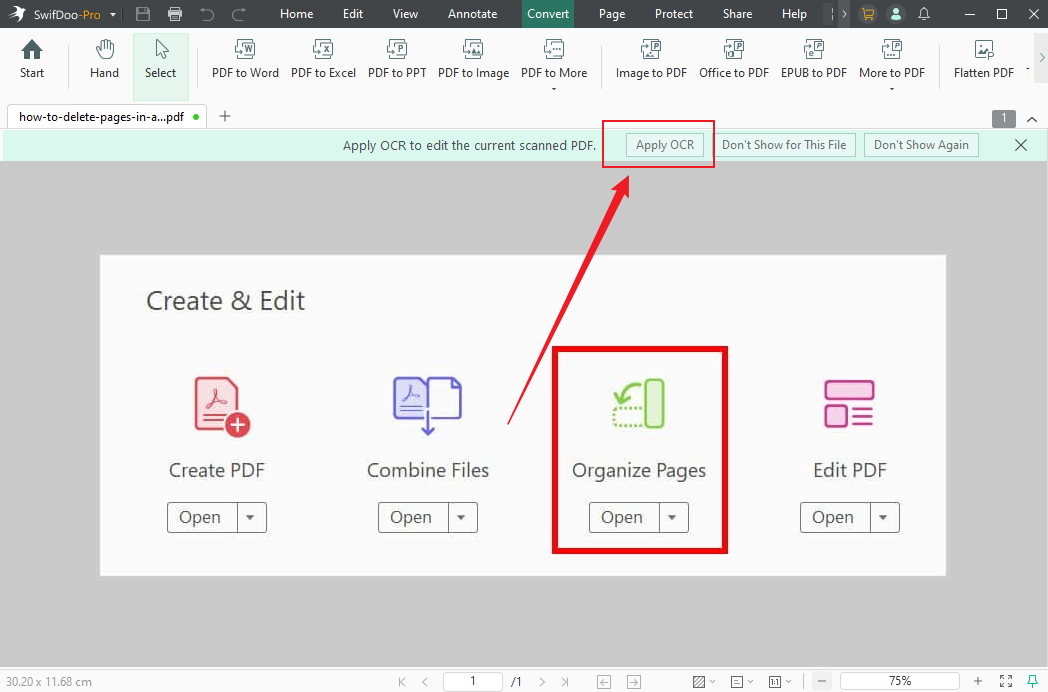
When the conversion is over, the PDF file will open in SwifDoo PDF. You can click the Apply OCR button to make the PDF editable and searchable. Next, use various features to edit the PDF in SwifDoo PDF.
Method 3: Use Adobe Acrobat
Adobe Acrobat is a professional PDF tool. It enables you to convert JPG to PDF with ease. Additionally, it allows you to create a PDF from images, which is also a way to turn JPG into PDF. Here, let’s check how to convert a JPG file to PDF in Adobe Acrobat.
Step 1. Run Adobe Acrobat on your Windows PC.
Step 2. Click File and select the PDF from File option from the Create list.
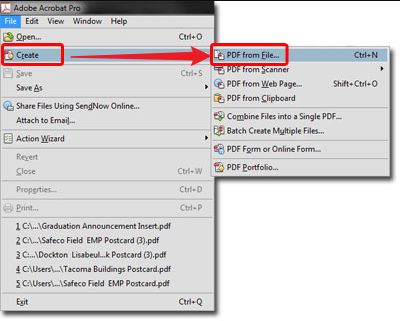
Step 3. A new dialog will pop up, click Image or All Files to select your JPG file.
Step 4. Then, Adobe Acrobat will automatically convert the image into a PDF and open it. Finally, go to File > Save As to save the newly created PDF.
How to Turn JPG into PDF Without Internet on Mac
Both built-in features and third-party programs are also available for Mac users to convert a JPG to a PDF offline. Here are some options for you to choose from:
- Preview: macOS built-in tool to convert images to PDFs easily.
- JOPDF: Convert JPG and other images to PDFs for free, offering other useful editing and annotation features.
- Adobe Acrobat: Professional PDF converter and editor.
Here, I’d like to show you the exact steps to convert a JPG to PDF offline on Mac using Preview.
Step 1. Open your JPG image in Preview.
Step 2. Click File and select the Export… option.
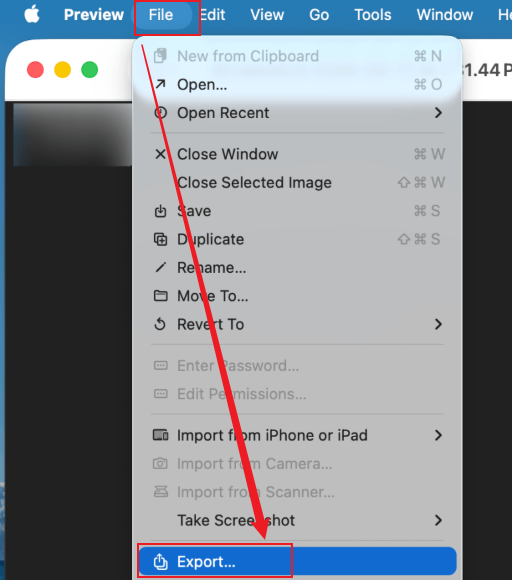
Step 3. In the new window, open the Format list and select PDF. Later, you can rename the PDF and click Save.
How to Convert JPG to PDF Offline on Mobile
Are there any offline JPG-to-PDF converters for Android and iPhone? Of course! You don’t even need third-party applications since both Android and iPhone support offline conversion. Their built-in features can help you turn a JPG into a PDF. Let’s have a look.
#On iPhone
Step 1. Locate the target JPG image in the Photos app and tap the Share icon.
Step 2. Scroll down to tap the Save to Files option, select a folder, and hit Save.
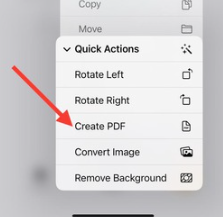
Step 3. Next, open the Files app and locate the image. Long-press the JPG image, move to Quick Actions, and tap the Create PDF option. Then, you can get a PDF file in the same folder.
#On Android
Step 1. Open the JPG image in the Google Photos app or your Android’s Gallery app.
Step 2. Tap the three-dot icon and select Print.
Step 3. Open the printer option and tap the Save as PDF option. Customize other settings and tap Save.
Best Offline JPG to PDF Converters
In addition to the tools mentioned above, the following converters are worth considering:
- Adobe Acrobat – Professional-grade features, batch processing
- PDFCreator – Free and lightweight Windows tool
- IrfanView – Great for bulk image conversion
- GIMP – Advanced editing before export
A Quick Comparison for Your Reference:
|
Converter |
Best For |
Skill Level |
|
Adobe Acrobat |
Professional use |
Advanced |
|
PDFCreator |
Free conversions |
Beginner |
|
IrfanView |
Batch processing |
Intermediate |
|
GIMP |
Editing + exporting |
Advanced |
Conclusion
Converting JPG to PDF offline is simple once you know the right tools. For most users, built-in options like Microsoft Print to PDF or Preview are more than enough. If you need advanced features or batch processing, tools like SwifDoo PDF provide greater control.
The key advantage of offline conversion is privacy and reliability—your files stay secure, and you’re not dependent on an internet connection.



