How to Export Figma Slides to PDF
Figma is a free online design tool that lets users create and present ideas visually through its Slides feature, which works like a lightweight presentation workspace inside the editor. Slides help teams share concepts, prototypes, and storyboards seamlessly. Best of all, you can download Figma slides as a PDF using the built-in features without a third-party PDF converter, making exporting simple and efficient for all users.
Check out how to export Figma to PDF in a few clicks.
Step 1: Open the Figma App.
Open your web browser and go to Figma’s official website. To continue, enter your Google credentials or email ID. Figma also offers a desktop application for Windows and macOS that you can download and use.

Step 2: Open the Figma File You Need to Export to PDF.
When you’re in your workspace, click to open the Figma slides you want to export to PDF. You need at least “can view” access to export the entire slide deck.
Note. If you don’t want the whole deck, you can just pick the slides you wish to. In the export modal, you’ll have the choice to export “all slides in the deck” or only “selected slides.”
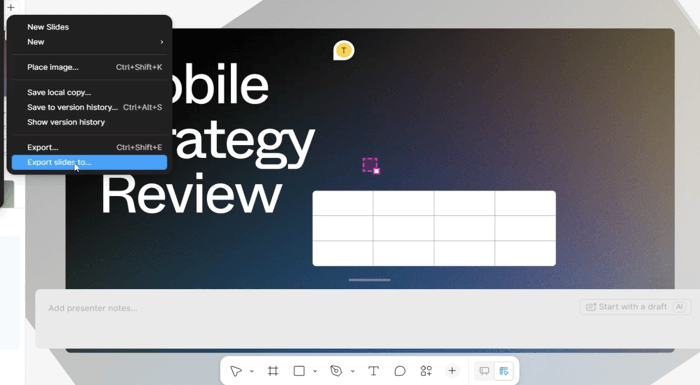
Step 3: Configure the Export Settings.
From the export modal, adjust the export settings. You can choose your format — pick PDF. You can also select a color profile (sRGB or Display P3) and choose the PDF quality level.
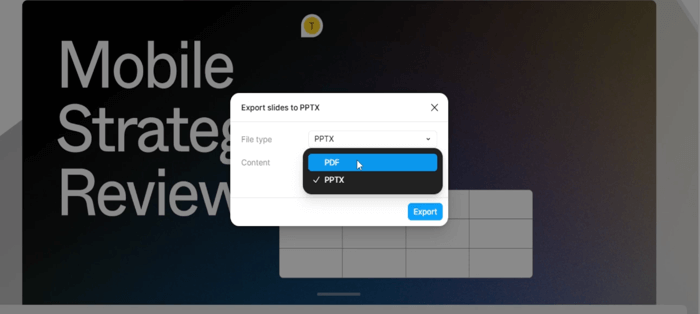
Step 4: Export the Figma Presentation to a PDF.
Select Export to begin the process, then export and save the Figma presentation slides as PDF. If you're working in Figma in a browser, the PDF will be saved automatically to your browser’s default download folder.
On the other hand, if you’re using the desktop app, you’ll be asked where to save the file.
How to Export Multiple Frames in Figma as One PDF
Figma makes sharing designs simple, and you can export Figma to PDF in just moments. While you can export a PDF from a single Figma frame or all frames easily, exporting only specific multiple frames requires a quick copy-and-paste action into a new file or page. In addition, Figma allows you to export selected frames to a PDF of multiple pages, which adds flexibility to how you present your work.
Learn how to download a Figma file as a PDF in a few clicks.
Step 1:Open Figma and Prepare the Frames
Launch Figma on your device. Make sure each frame is arranged correctly and grouped so they appear in the correct order when exported.
Step 2: Select the Figma Frames
Choose the Figma frames you desire to export to a PDF with multiple pages.
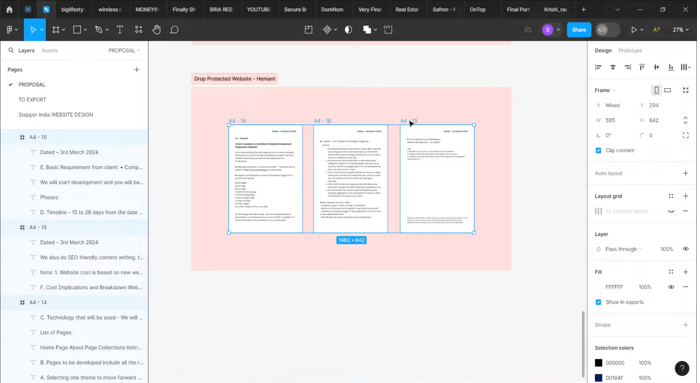
Step 3: Copy and Paste the Selected Figma Frames
Press Ctrl + C or Cmd + C to copy all the selected frames you want to export from their original location. Next, add a new page or open a clean file, paste in the copied frames, and keep them selected.
Step 4: Export and Save the Figma File as a PDF
Click the icon below the Home tab in the top-left corner. Click File in the menu bar and choose Export frames to PDF… Enter a File Name in the window that appears, then click the Save button. This way, Figma will export the multiple frames to a single PDF.
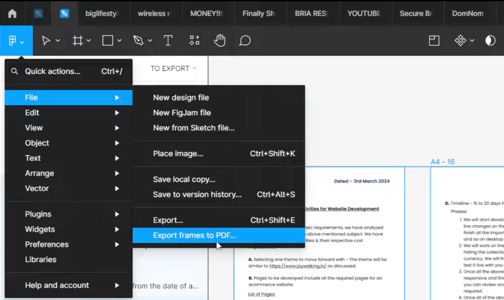
After saving, navigate to the storage location to open the file and verify that your Figma frames have been exported as a PDF. All your frames will appear in a single PDF file.
- Export a single frame to a PDF: To export just one frame, simply select that frame, go to the right-hand Export panel. Then, choose PDF as the format and click Export to download it instantly.
- Figma export all pages to a PDF: To export all the frames as one PDF, click outside any selection and open the Export settings. Then, choose PDF, and Figma will automatically include every frame in the file.
Export Figma to PDF with a Plugin
A quick alternative to the built-in export feature is using a Figma PDF export plugin, which offers more control over formatting and output quality. With these tools, you can easily batch-process frames, preserve layout accuracy, and generate multi-page documents effortlessly. They’re especially useful for complex presentations or design systems. In just a few clicks, the plugin will convert and export Figma to PDF with smooth, professional results.
Discover how to export a Figma file to a PDF using a plugin in a few clicks.
Step 1: Launch Figma in your web browser. And enter your email credentials to proceed.
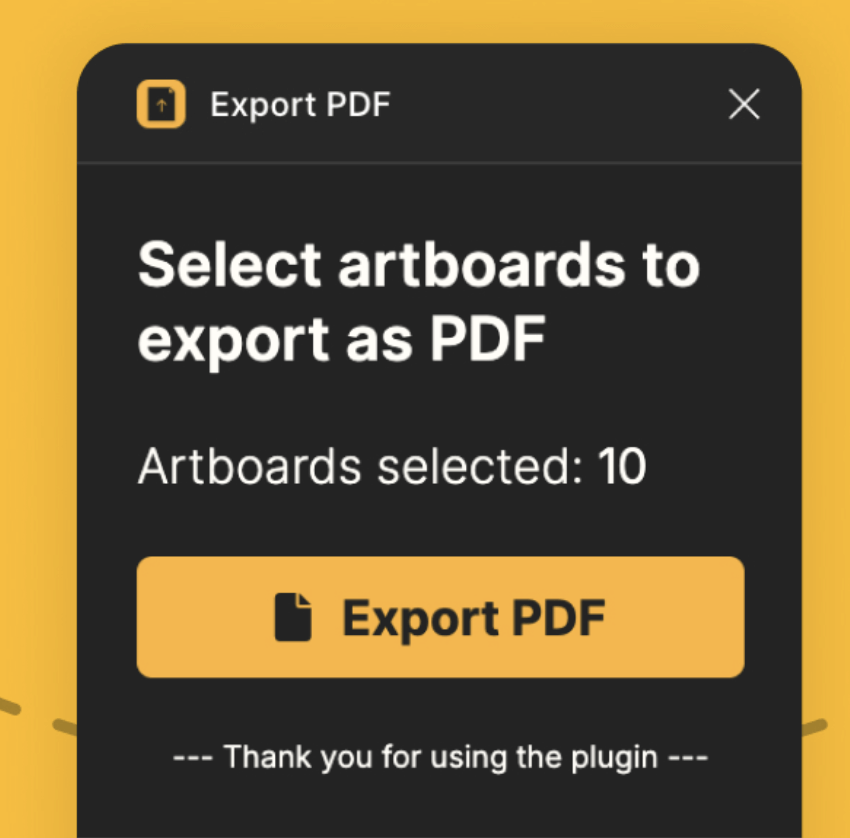
Step 2: Select all the Figma slides or frames you need to export, then save them as a PDF.
Step 3: Click Export PDF. The plugin status will give you an update on the process.
Step 4: The pop-up will prompt you to save the PDF to your desired location on your local system. By default, the PDF name will match your Figma file name.
Step 5: The Relaunch Export PDF Plugin option will appear in the Figma property panel on the right-hand side. Use it to export Figma frames or slides as one PDF at speed.
Bonus: Top PDF Converter & Editor for Windows
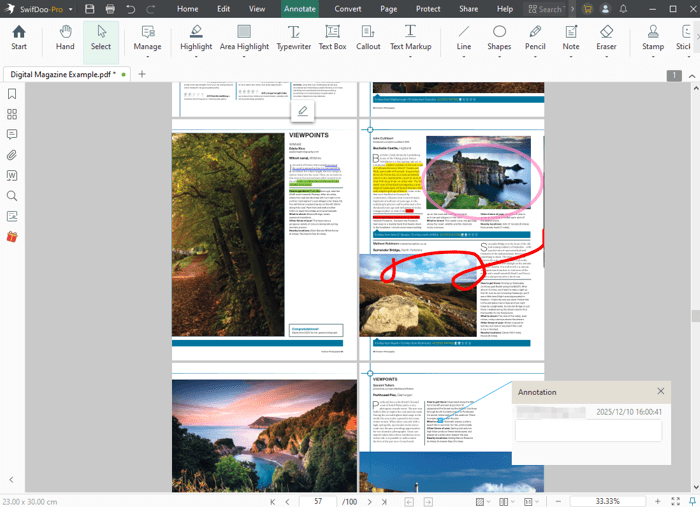
Once you export Figma to PDF, additional edits, annotations, or markups may be necessary prior to distribution. This is where SwifDoo PDF becomes extremely helpful, offering quick tools for refining your exported designs. SwifDoo PDF is a reliable, fast, and versatile tool to work with PDFs.Whether you want to review layouts, add comments, or make visual adjustments, SwifDoo makes post-editing your Figma PDFs smooth and effortless.
It also includes powerful conversion tools that let you convert PowerPoint slides PPT or PPTX to PDF or convert PDF back to slides, making it ideal for presentation workflows. Whether you export a Figma design to a PDF for clients or export frames to PDF in Figma for team reviews, SwifDoo provides every tool needed to polish and manage your files.
Here are some SwifDoo PDF features that you may need for the exported Figma PDF.
- It lets you highlight text, draw on the PDF, and add annotations or visual notes.
- You can quickly add sticky notes to the PDF to provide comments or reminders for team members.
- Allows you to insert, delete, or reorder pages in your exported Figma PDF for better organization.
- You can split or merge separate PDF pages or files, combining multiple Figma exports into a single document.
- Efficiently shrink PDF files, safeguard them with passwords, and convert to other formats, giving you full control over your Figma exports.
Quick Wrap Up
That’s all, friends. You now know how to export a file from Figma to PDF quickly and efficiently. In this Figma to PDF export guide, we covered all the essential methods for beginners. Now you can export a single frame, multiple frames, or slides, and even use plugins for advanced control. After exporting, SwifDoo PDF provides features to organize, annotate, and refine your PDF documents. This makes sure your designs are professional and ready for presentation.