


Can You Convert Apple Books to PDF?
Yes, you can. However, conversion may vary depending on the file type and the book's limitations.
Most non-protected books can be converted easily, especially when you need to convert EPUB to PDF, using built-in tools or trusted platforms. However, DRM-protected Apple Books often require third-party applications to convert them. All in all, you can use a variety of methods to achieve this conversion.
How to Convert Apple Books to PDF on Mac
Converting Apple Books to PDF on a Mac is hassle-free with macOS’s native printing tools. Using the Save as PDF option, any Apple Books title can be saved as a portable file without additional apps.
Like other EPUB to PDF converters, it preserves the book’s design, pictures, and formatting. All in all, it’s a quick and reliable way to keep your content accessible across devices.
Learn the easiest method for how to export Apple Books to PDF on Mac in a few clicks.
Step 1. On your Mac, open the Apple Book file you wish to save as a PDF.
Step 2. Go to File and click Print. Or, press Cmd+P as an alternative to open the print window.
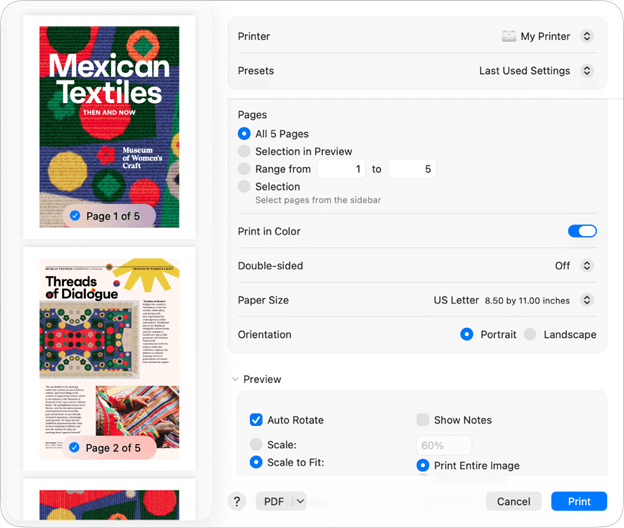
Step 3. Tap the PDF button in the bottom-left corner of the print dialog window. Or, click the downward arrow icon to open the PDF pop-up menu.
Step 4. Select Save as PDF from the dropdown menu. Also, choose a location and file name. Then, tap Save.
How to Convert Apple Books to PDF on iPhone/iPad
Converting Apple Books to PDF on an iPhone or iPad depends on the file type you’re using. If it’s a book created in Apple Pages, you can export it and save the file as PDF on iPhone. For non-Apple books, an online EPUB converter may be needed. In some cases, sending the file to a Mac for conversion can offer the most accurate results.
Learn how to convert Apple Books to PDF on iPad/iPhone using the Pages app in a few clicks.
Step 1. Open the book in the Apple Pages app on your iPhone or iPad.
Step 2. Open the document and tap the three dots icon.
Step 3. Next, select Export and choose PDF as the format.
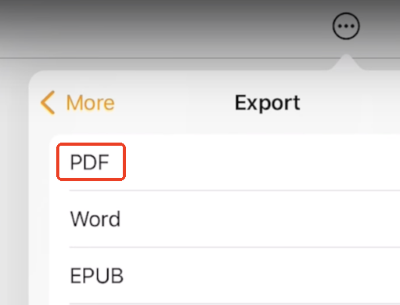
Step 4. Choose a location or select how you want to share the PDF, such as by email or by saving it to Files.
Bonus Tip: How to Read and Edit PDFs After Conversion
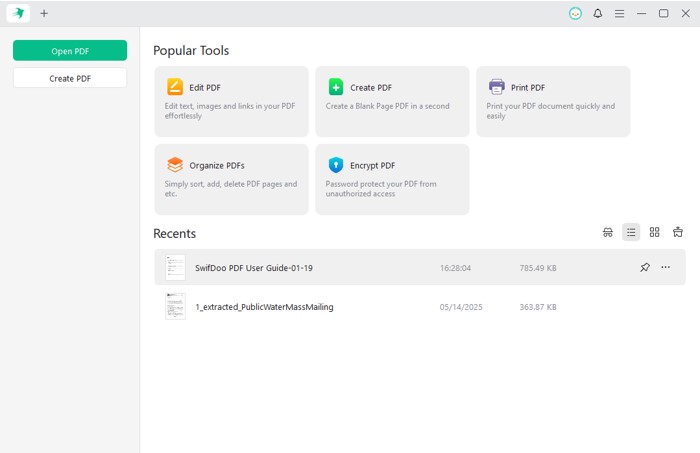
You have learned how to convert Apple Books to PDF on Macs, iPhones, and iPads. However, you can make the most out of PDFs with SwifDoo PDF. It is helpful for reading, editing, and annotating PDFs after conversion.
It offers a variety of reading themes and powerful features to enhance your reading experience. Besides that, you can use SwifDoo PDF to read your documents aloud, and you can multitask. Overall, it is a powerful, versatile, yet lightweight PDF management tool at your service.
Key Features of SwifDoo PDF
- Read aloud, or annotate and add bookmarks, comments, and sticky notes to PDFs for better organization
- Effectively edit a PDF on Mac, Windows, iPhone, and iPad to meet your preferences
- Password-protect your books or documents to prevent unauthorized access and use
- Employ SwifDoo AI to break down complex concepts or translate them into your native language
- Use SwifDoo AI to analyze the document content and even chat with it
Try it now!
For Mac:
For iPhone and iPad:
Quick Wrap Up
Converting Apple Books to PDF is a practical way to make your content more accessible, portable, and compatible across devices. Whether you use built-in macOS tools, iPhone or iPad export options, or third-party converters, each method helps you convert Apple Books to PDF with ease.
With the right approach, managing your digital books becomes simple and efficient. You can also use SwifDoo PDF to read, share, and save your files after conversion. Hope this guide is helpful.



