


Converting a fillable PDF to a regular PDF locks the content, maintains its original layout, and makes sharing much easier. In this guide, you’ll learn five reliable ways to convert fillable PDF to regular PDF efficiently.
Method 1. Flatten a Fillable PDF to a Regular PDF in SwifDoo PDF
SwifDoo PDF is an easy-to-use tool that lets you flatten PDFs and safeguard your documents. With SwifDoo PDF, you can remove fillable fields in a PDF effortlessly, turning interactive forms into non-editable documents. This ensures your information stays intact and prevents accidental changes. For those who want to learn how to flatten a PDF to a non-editable PDF, SwifDoo PDF makes the process simple and efficient.
Check how to convert a fillable PDF to a regular PDF in SwifDoo PDF with its flatten feature.
Step 1. Click the button below to download and install this excellent PDF flattener, SwifDoo PDF.
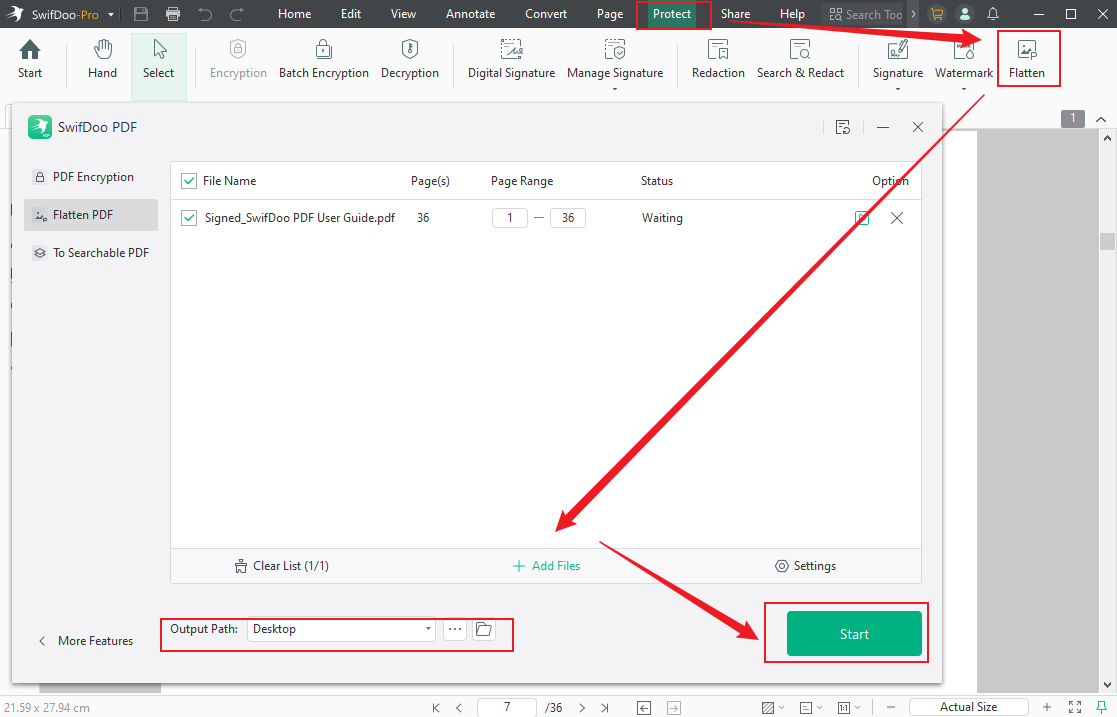
Step 2. Launch the program and navigate to the Protect tab in the top menu bar. And select the Flatten option in the secondary menu bar.
Step 3. A window will appear. Click +Add Files to import the target PDF file(s) you wish to flatten.
Step 4. In the Output Path, select a location (folder) to save the flattened PDF. And tap Start to flatten the PDF file.
Pros:
- Create, view, edit, and annotate PDF files in one click
- Perform multiple conversions, including converting PDF from/to Word, Excel, PPT, and Image formats
- Losslessly compress, merge, and split PDF files for better organization
- Password-protect and electronically/digitally sign a PDF
- Supports AI to summarize, translate, analyze, and chat with PDFs
Cons:
- SwifDoo PDF for Mac has fewer features than the Windows version
Method 2. Convert a Fillable PDF to a Regular PDF by Printing to PDF
Your device’s Print to PDF function provides a simple way to convert a fillable PDF to a regular PDF. Using a virtual PDF printer, you can quickly flatten a PDF on almost any device or operating system. It makes an image version of your PDF, similar to taking a screenshot of the original. This preserves the original content and layout, making the PDF non-editable.
Learn how to convert a fillable PDF to a regular PDF by printing to PDF.
Step 1. Open the fillable PDF in any PDF reader, like Chrome browser, to start the conversion process.
Step 2. Open File > Print. Or press Ctrl+P on Windows and Cmd+P on Mac.
Step 3. In the Print window, choose the Print to PDF option. This will typically be named:
- Windows PC: Microsoft Print to PDF.
- macOS: Save as PDF.
- Web browsers like Chrome: Save as PDF.
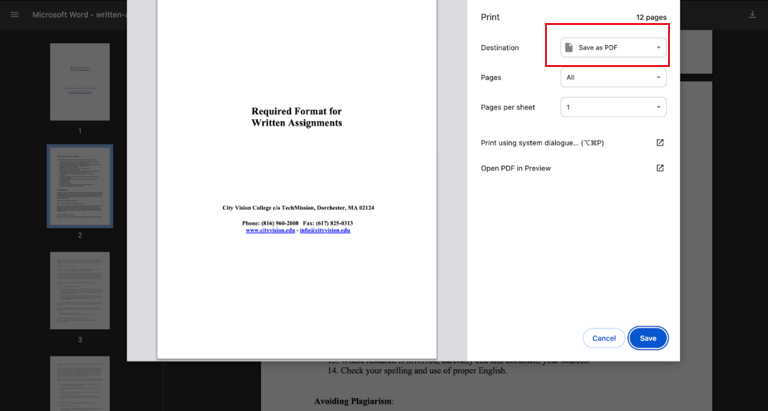
Step 4. Tap Print or Save. Choose where to save the PDF and provide a name.
Pros:
- Compatible with most modern operating systems and web browsers
- Does not require downloading or installing additional software
- Offers an intuitive and high-speed method for flattening
- Retains the visual appearance of the filled form very well
Cons:
- The PDF loses all editable layers and cannot be edited or searched anymore
- May strip or modify PDF metadata when creating the new file
Method 3. Convert Fillable PDF to Regular PDF Using Mac Preview
Preview, the built-in Mac app, is often used to open and view PDFs. But Preview makes it easy to turn a fillable PDF into a regular, non-editable file. Exporting the file as a PDF from Preview effectively makes all form fields non-editable. This makes the file non-editable and ready for secure sharing or printing without worrying about accidental changes.
Find out how to convert an interactive PDF into a regular PDF using Preview on Mac.
Step 1. Navigate to the Applications folder, then open the Preview app.
Step 2. Once you launch the Preview app, import the PDF.
Note. You can drag and drop the file into the interface or use the File menu to open it.
Step 3. Use the Print command or Command+P shortcut keys to open the printer dialog.

Step 4. After that, use the PDF menu to select Save as PDF. That’s it. The resulting output file will not be editable because you flattened the PDF in Preview on Mac.
Pros:
- Does not require download or installation (readily available)
- Simple and fast conversion with the export function
- The original formatting, images, and text remain intact after conversion
Cons:
- Cannot edit or selectively remove form fields beyond flattening
- Only converts one PDF at a time; no batch conversion
- Lacks advanced PDF tools like annotations, secure password protection, and compression options
Method 4. Flatten Fillable PDF to Regular Version Online via Smallpdf
Online tools let you flatten a fillable PDF quickly and easily from any device, no installation needed. Users can make PDFs non-editable while maintaining their format and ensuring safer, professional documents. Of these options, Smallpdf is notable for being reliable and easy to use.
Smallpdf is a powerful PDF editor that simplifies document management for both personal and professional use. It allows you to make a PDF non-editable, remove fillable fields, and keep your content secure. With a clean interface and fast processing, Smallpdf handles PDFs efficiently, making it an excellent choice for anyone looking to flatten fillable PDFs online.
Check out how to flatten a fillable PDF to the regular version with Smallpdf.
Step 1. Open Smallpdf on your web browser and choose Flatten PDF.
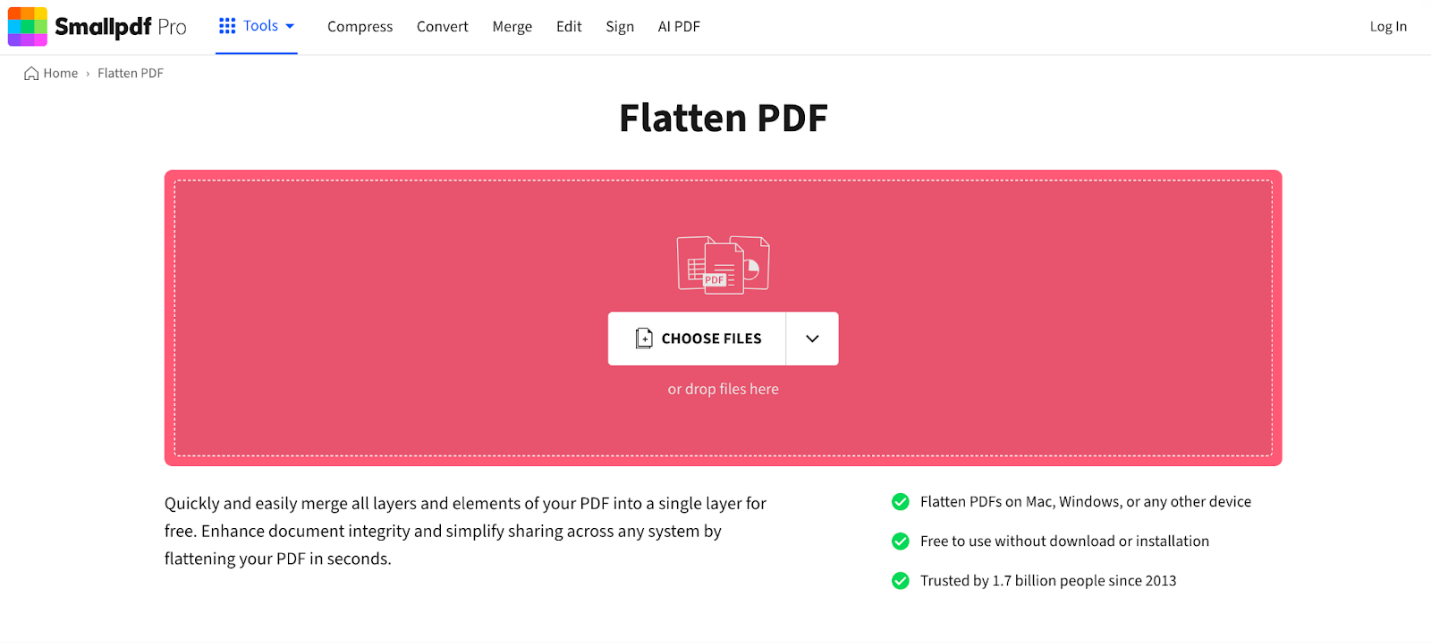
Step 2. Tap Choose Files. And import a fillable PDF document into the workspace.
Note. Smallpdf flattens your file on its own, with no further actions needed.
Step 3. Once ready, click Download to save the regular PDF to your device. When saved, the form fields, comments, and other layers are secured and fixed.
Pros:
- User-friendly drag-and-drop design lets anyone flatten PDFs fast
- Can be used directly in a browser without installing software
- Offers compression, editing, merging, and other PDF features
Cons:
- Large PDFs may require a paid plan or may upload more slowly
- Not ideal for confidential documents due to potential risks
- Requires an active internet connection to work
Method 5. Convert Fillable PDF to Regular PDF Using Adobe Acrobat Pro
Adobe Acrobat Pro is a strong tool for handling PDFs, perfect for turning interactive forms into regular documents. You can quickly flatten a PDF in Adobe, removing editable fields and preserving the original design. This makes your file completely non-editable while keeping it professional. Acrobat Pro delivers precision, reliability, and complete control over your PDF conversions.
Here’s how to flatten a fillable PDF to a regular PDF with Adobe Acrobat Pro.
Step 1. Launch Adobe Acrobat Pro and open your PDF.
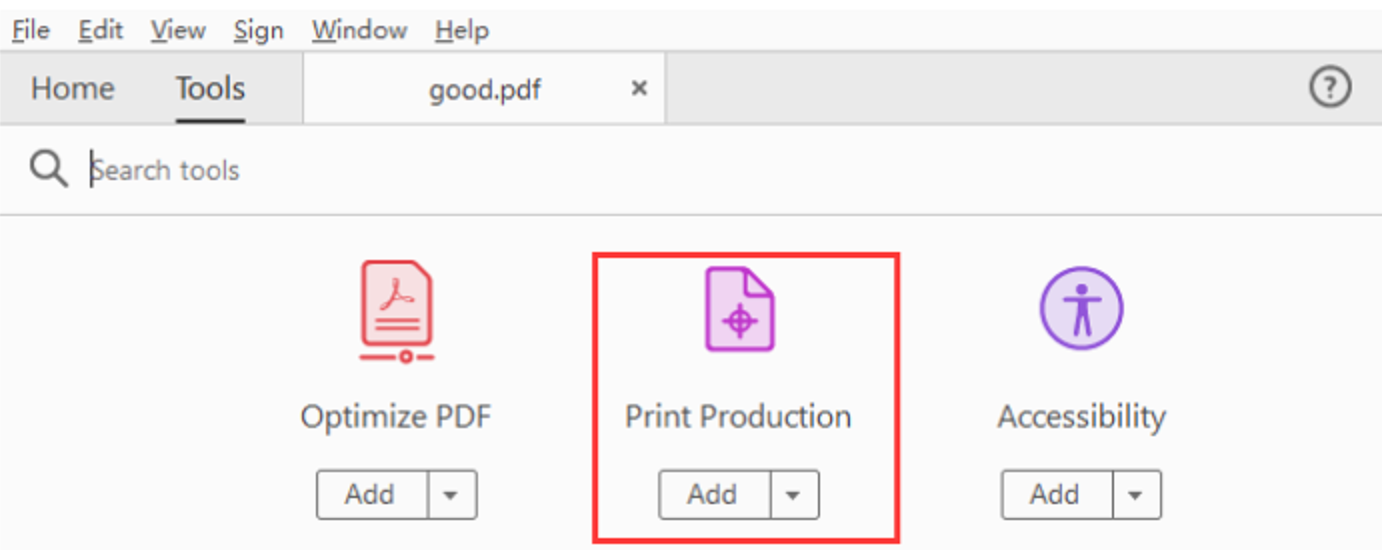
Step 2. Tap Tools in the top menu, scroll down, and click Print Production.
Step 3. Hit the Flattener Preview option in the Print Production panel.
- Check Convert All Text to Outlines.
- Ensure the Rasterize All Vector option isn’t checked unless needed.
- Check Flatten form fields and annotations (if available).
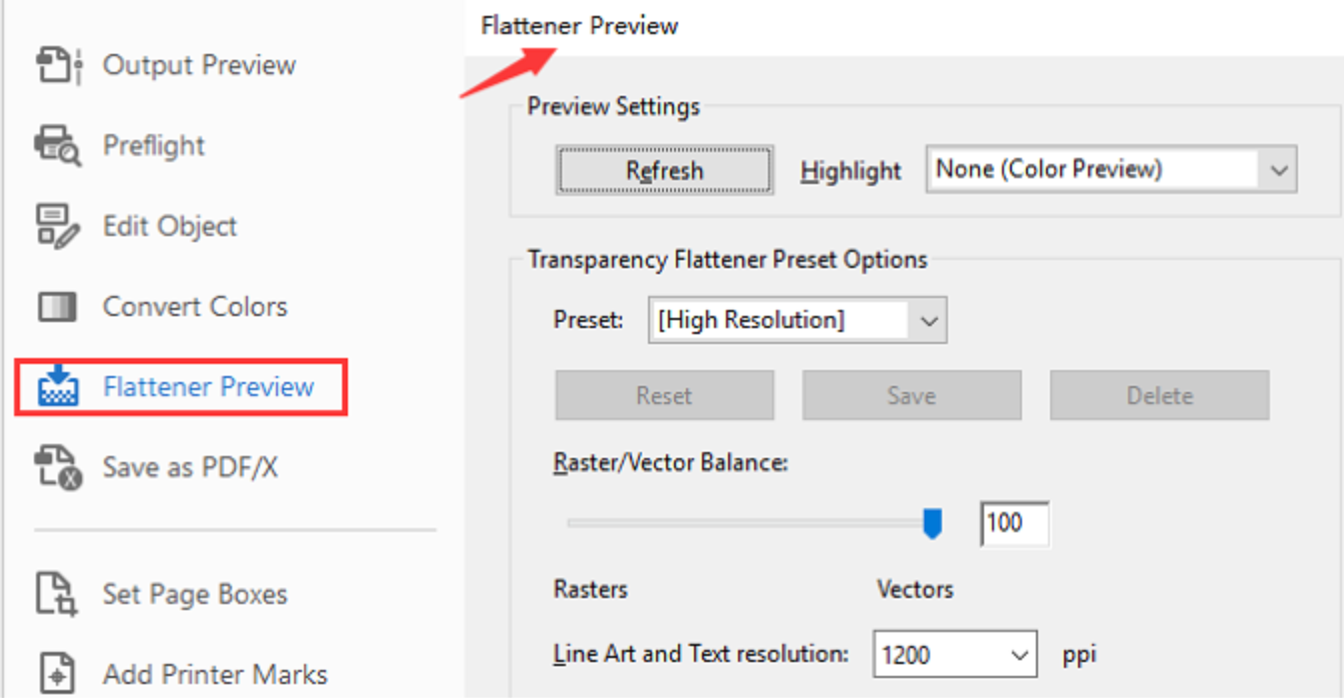
Step 4. Click Apply. And save the PDF under a new name to keep a backup.
Pros:
- Enables careful adjustment of flattening, including optimizing quality
- Handles complex forms with scripting and intricate layouts reliably
- Keeps your PDFs looking polished and non-editable
Cons:
- Requires payment, making it an expensive option
- Can be hard to learn for beginners
Final Words
Converting a fillable PDF to a regular PDF is essential for preserving content, ensuring security, and preventing unwanted edits. Whether you use desktop apps, built-in features, or online tools, each method reliably flattens your documents. The right method varies based on your device, work style, and privacy preferences. These proven methods let you make PDFs non-editable with confidence, ready for sharing, printing, or archiving.



