


In this guide article, let’s discuss:
- Whether Copilot can read PDFs
- How to use Copilot to read PDFs
- The limitations of Copilot with PDFs
- The alternative AI PDF reader for deeper document analysis
By the end of this article, you’ll learn the best ways to use AI to read, summarize, and manage PDF documents efficiently. SwifDoo PDF is an AI-powered PDF editor and reader that can smooth your PDF workflow.
Overview of Copilot
Understanding what Microsoft Copilot is can help us know how Copilot interacts with PDFs. Copilot is an AI-powered assistant developed by Microsoft, which integrates large models with Microsoft services. Thus, Copilot can interact with files, web pages, and various forms of content. Moreover, it can help you summarize documents, write emails, answer questions, and automate workflows.
However, note that Copilot's file support and document-reading capabilities vary depending on where it is used. It can directly affect how Copilot works with PDF files.
Can Copilot Read PDFs
The short answer is: Yes, Copilot can read PDFs. However, it can only work in certain situations and with some limitations. Copilot doesn’t universally open and analyze PDFs directly across all environments. Instead, its ability to read PDF files depends on where you are using Copilot and how the PDF is provided.
When Can Copilot Read PDFs?
Here, let’s see when you can use Copilot to read PDF documents. Also, in the following situations, Copilot can work with PDFs.
- Copilot in Microsoft Edge: If you open a PDF in the Microsoft Edge browser, Copilot can read the content of the page.
- Copilot with Uploaded Documents: In some Copilot interfaces, such as Copilot Chat, you can upload PDF files directly. Then, you can prompt Copilot to read or rewrite PDFs.
- Copilot in Microsoft 365: In Copilot for Microsoft 365, the AI can interact with documents that are stored in OneDrive or SharePoint.
Limitations of Using Copilot to Read PDFs
Although Copilot can read PDF content, it still has several limitations.
- Limited file interaction: Unlike professional PDF tools, Copilot cannot directly edit or deeply manipulate PDF files.
- Difficulty with scanned PDFs: If the PDF is scanned or image-based, Copilot may struggle to read it unless OCR is applied first.
- Content length limits: If the file size is too large to exceed the AI model’s context window, Copilot can only analyze a portion of the document.
- Feature availability depends on the platform: Not all versions of Copilot support file uploads or full document analysis, especially free versions.
How to Read PDFs in Copilot
How can you read and analyze PDFs in Copilot? Here are several practical methods for you to choose from. Let’s check them one by one.
Method 1. Use Copilot in Microsoft Edge
Step 1. Open your Microsoft Edge browser.
Step 2. Directly drag and drop the target PDF document into Edge.
Step 3. Then, the PDF file will be displayed in Edge. Click the Copilot icon in the Edge sidebar.
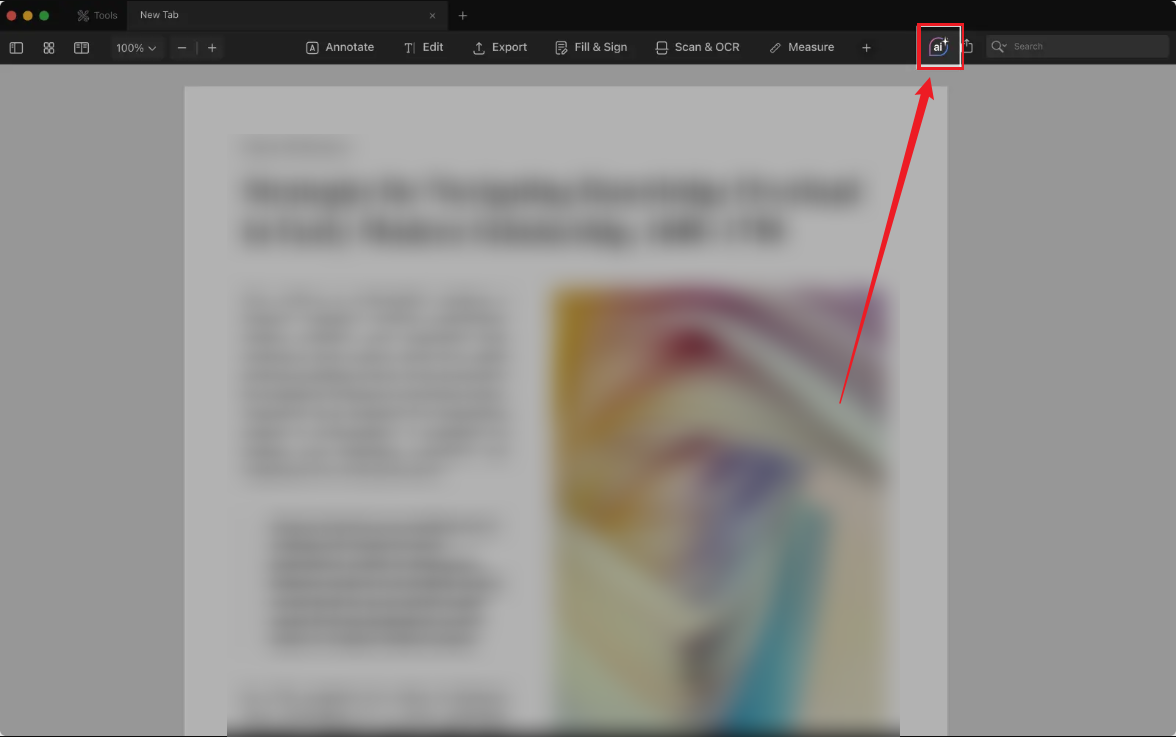
Step 4. You can ask Copilot questions about the PDF. For example, ask Copilot to summarize this PDF in bullet points or list the key statistics mentioned.
Method 2. Upload the PDF to Copilot Chat
Some Copilot chat interfaces let you upload documents, such as PDF, DOCX, XLSX, or other file types. Then, you can make Copilot read them. Below are the exact steps.
Step 1. Open Copilot chat first.
Step 2. Click the + icon, select “Add images or files”, and then locate and choose the PDF you want to upload.
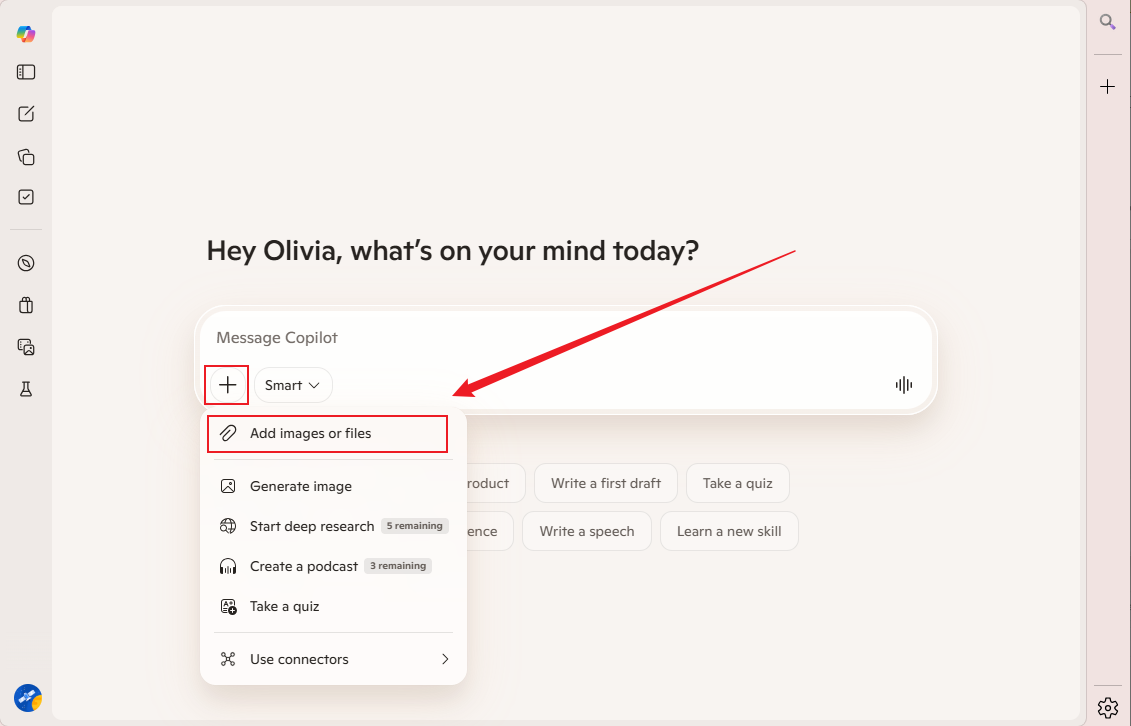
Step 3. Next, enter a prompt into the chat box, such as “summarize this PDF”.
Step 4. Finally, press Enter. Copilot will analyze the PDF and generate responses based on the content.
Method 3. Copy Text from the PDF into Copilot
If the direct upload feature is not available, you can still use Copilot to read PDFs by copying text. Here, let’s see how to do that.
Step 1. Open your PDF in Microsoft Edge or with another PDF viewer.
Step 2. Copy the relevant sections of text.
Step 3. Paste it into Copilot chat.
Step 4. Ask for analysis or summarize as needed.
Alternative Way to Read and Handle PDFs with AI
From the above, we know that Copilot offers useful AI assistance but is not specially designed as a dedicated PDF editor or reader. If you have other needs for advanced PDF processing, SwifDoo PDF would be a better choice.
SwifDoo PDF is an excellent PDF editor with both traditional editing features and AI-powered capabilities. Its SwifDoo AI feature enables you to summarize, explain, translate, proofread, rewrite, and chat with PDFs. What’s more, SwifDoo PDF has OCR technology to handle scanned PDFs. Additionally, you can use it to read PDFs aloud without viewing them. For other features of SwifDoo PDF, install it and explore its features.
Here, let’s learn how to use its SwifDoo AI feature to read and analyze a PDF.
Step 1. Download and install SwifDoo PDF first. Launch it and click Open to import the target PDF file.
Step 2. Click the SwifDoo AI option under the Home tab or from the right sidebar.
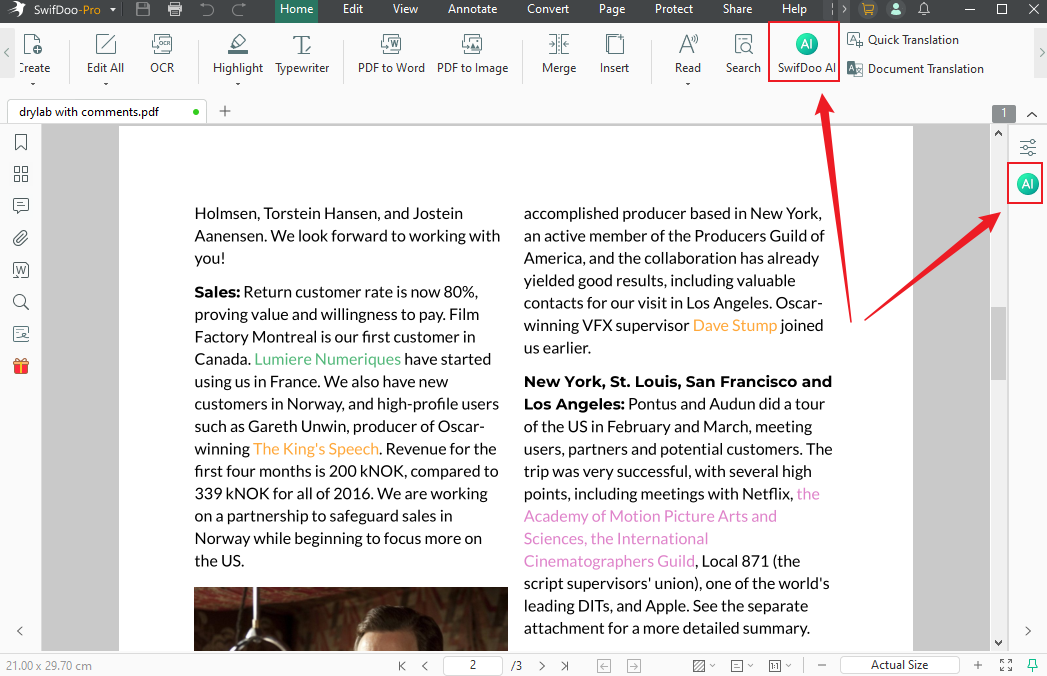
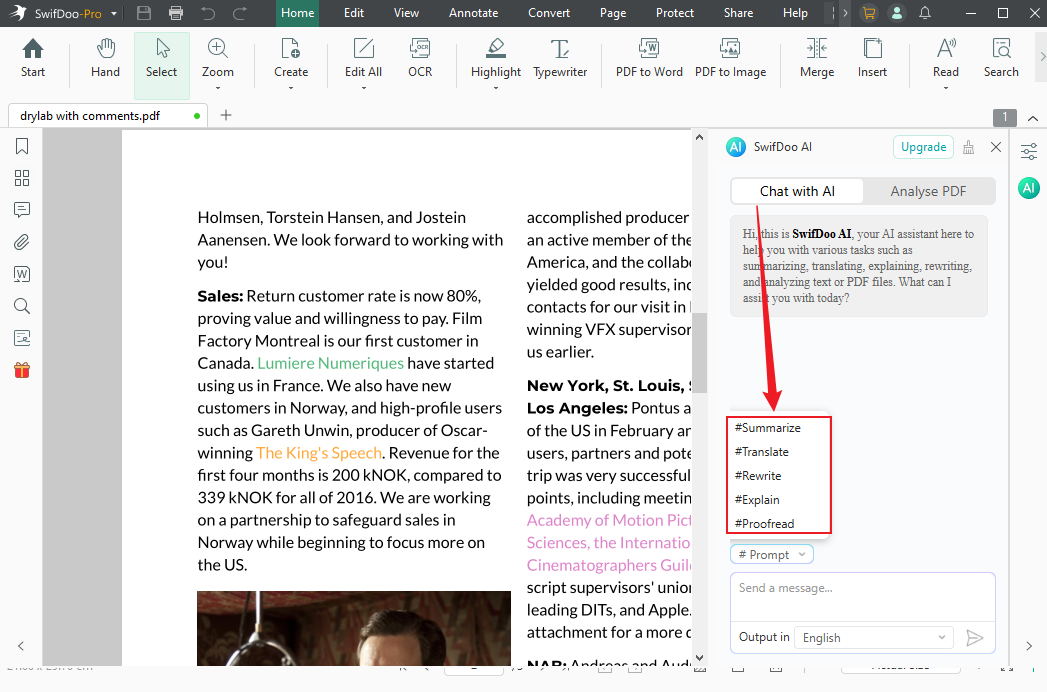
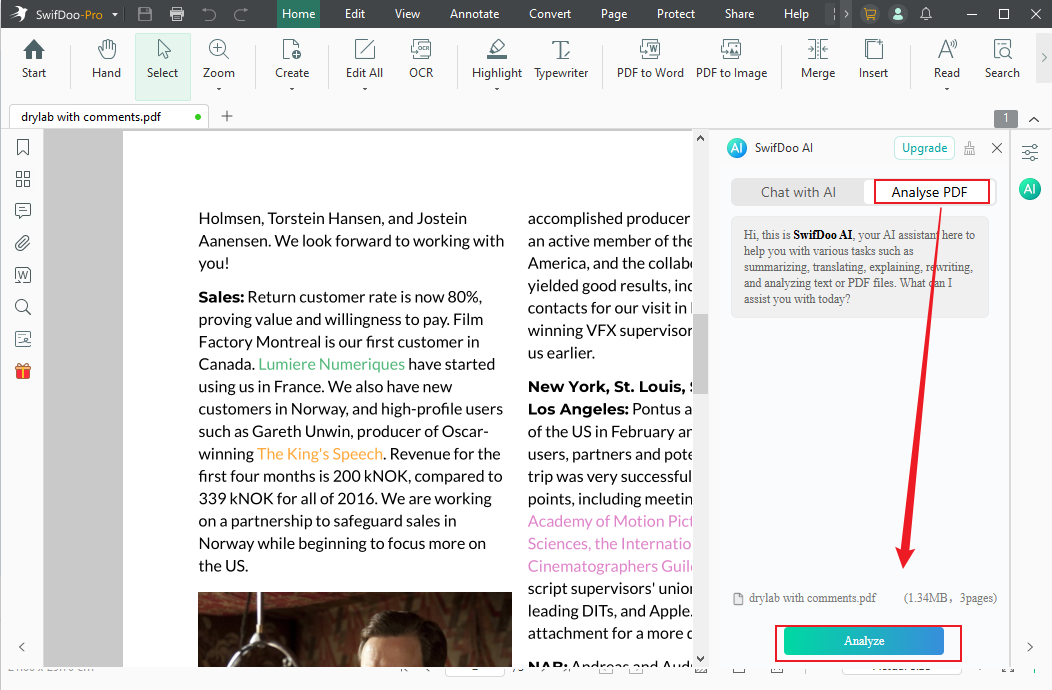
Step 3. Here are 2 options for you: Chat with AI and Analyze PDF.
#Chat With AI: Open the Prompt list to summarize, translate, rewrite, explain, or proofread your PDF.
#Analyze PDF: Click the Analyze button to analyze your PDF file.
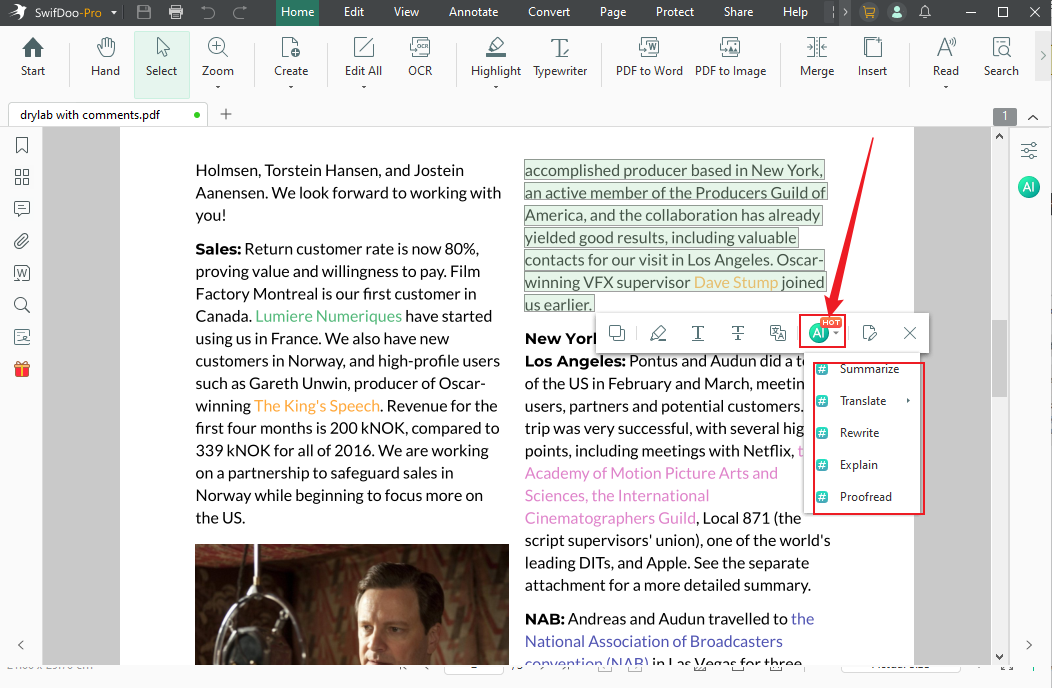
Alternatively, you can select the text or paragraph and click the SwifDoo AI icon to use the AI features as needed.
Final Words
Can Copilot read PDFs? After reading this article, we know that Copilot can read PDFs, but with limitations. You can use Copilot to analyze PDF content in certain situations, such as Microsoft Edge, Copilot chat, and Microsoft 365. However, Copilot is not a dedicated PDF tool and can’t handle scanned PDFs. If you need advanced PDF capabilities, SwifDoo PDF can help you streamline your workflow.



