


What Is Active Content in a PDF?
Active content refers to any element inside a PDF that can execute code, trigger actions, or interact with your system beyond simply displaying static text and images. Unlike a photograph or a plain text document, a PDF with active content is essentially a small program.
Common Types of Active Content
- JavaScript: The most prevalent form. PDFs support JavaScript for legitimate purposes like form validation and calculations, but attackers abuse it to execute malicious payloads.
- OpenAction and Launch actions: Instructions that tell the PDF reader to perform specific tasks automatically when the document opens. These can launch external applications or URLs without user consent.
- Embedded files: Files bundled inside the PDF — sometimes executables, sometimes documents designed to exploit vulnerabilities in the reader software.
- XFA forms: A legacy Adobe form format that supports complex scripting and is often exploited because many readers handle it inconsistently.
Top 8 Free PDF Forms Creator Programs You Must Know in 2026
With a PDF forms creator, you can easily get fillable PDFs. Click here to learn the best 8 free PDF forms creators, and get an easy way to make PDFs fillable.
READ MORE >Is PDF JavaScript Dangerous?
Yes when it comes from an untrusted source. Attackers embed malicious JavaScript into PDFs and distribute them via email attachments, compromised websites, or even social media links. That’s why you need to remove active content from PDF when you can’t sure of the source.
How to Check If a PDF Contains Active Content
Before you remove active content from PDF, you need to know what you're dealing with. Here are three ways to inspect a PDF for active content.
#1: Use Your PDF Reader's Security Settings. Most PDF readers, including Adobe Acrobat and SwifDoo PDF, warn about active content. SwifDoo PDF highlights active elements detected in the document — a useful starting point when you check a PDF for active content.
#2. Use Command-Line Tools. For technical users, some tools can scan PDFs and report the presence of JavaScript, OpenAction, Launch actions, and embedded files. Running pdfid suspicious.pdf produces a breakdown of potentially dangerous elements.
#3. Recognize the Warning Signs. Even without specialized tools, certain indicators suggest a PDF may contain active content. Files that are unexpectedly large for their visible content, documents from unknown senders, and PDFs that trigger prompts or open windows when clicked are all red flags.
After knowing these tips, let’s check how to remove active content from PDF.
Method 1: Remove Active Content Using SwifDoo PDF
SwifDoo PDF is a free desktop PDF editor for Windows, Mac, and Linux that includes a comprehensive set of security tools. Unlike online PDF cleaners that require uploading your document to a third-party server, SwifDoo PDF processes everything on your machine. For sensitive documents — contracts, legal filings, medical records — this distinction is critical.
SwifDoo PDF positions itself as an all-in-one PDF toolkit, but its security features deserve special attention. The application includes:
- Form flattening: Convert interactive form fields into static content, eliminating the risk of form-based exploits.
- Permission management: Adjust document permissions to prevent unauthorized actions.
- Batch processing: Clean multiple PDFs in a single operation, essential for IT administrators handling incoming document streams.
Tool 1: Flatten Forms to Remove Interactivity
Form flattening is a targeted approach to neutralizing one specific type of active content: interactive form fields. After flattening, the visual appearance of the form remains unchanged — text boxes, checkboxes, and signature lines are still visible — but they no longer accept input or execute associated scripts.
When you flatten PDF form fields, you're essentially converting a fillable document into a printed page. This directly addresses PDF forms by removing the interactive layer.
Step 1: Download and install SwifDoo PDF from the official website.
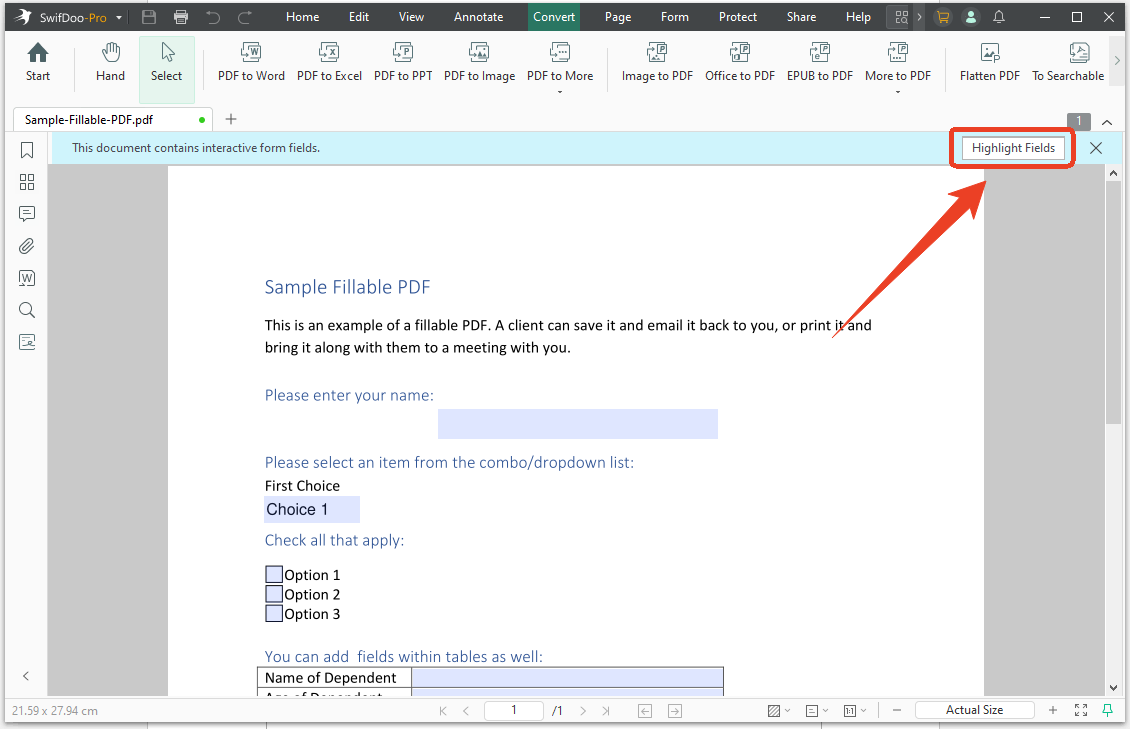
Step 2: Open the PDF, and SwifDoo PDF will automatically identify the active content and highlight it.
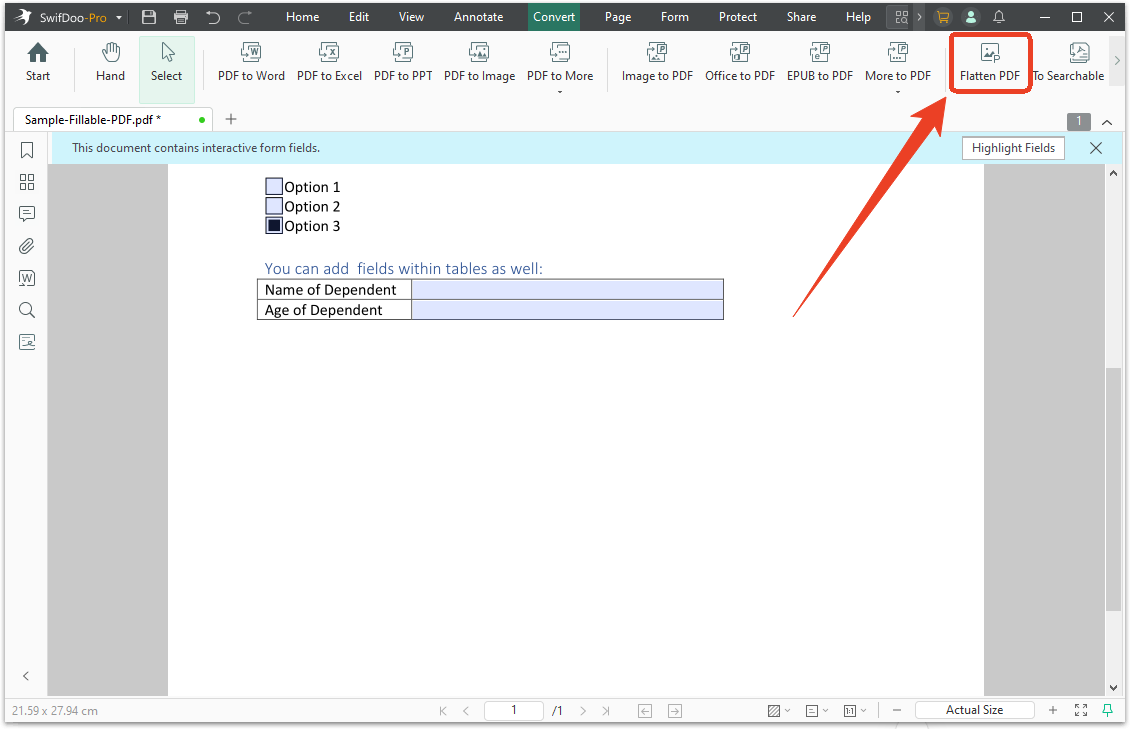
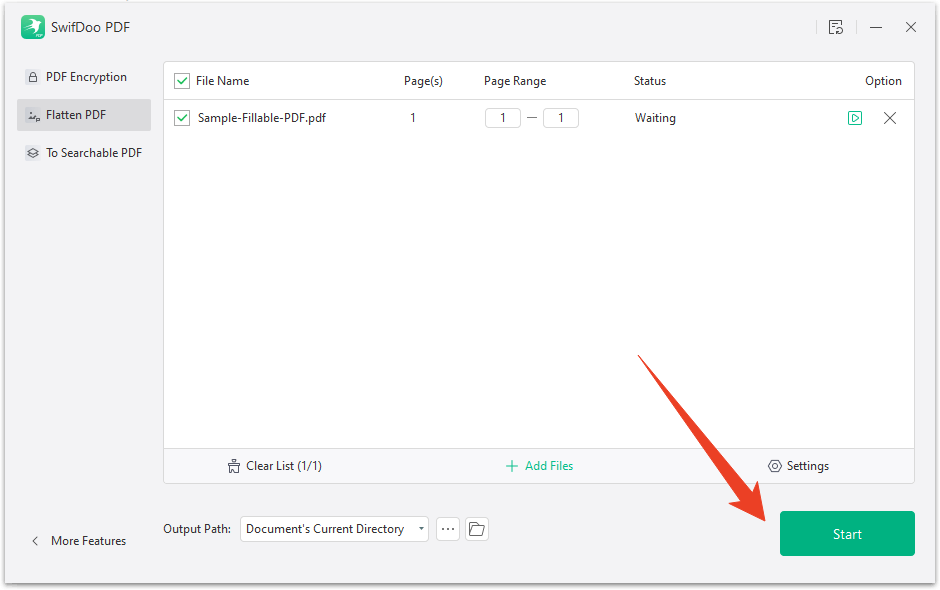
Step 3: In the Convert tab, choose Flatten PDF from the top menu.
Step 4: Choose the output path and click Start.
Step 5: Save the flattened file.
Tool 2: Convert PDF to Image to Eliminate All Active Content
To remove interactive form elements from a document, you can convert the PDF into images. This method doesn't just remove form fields or JavaScript — it eliminates every trace of code, embedded files, and interactive elements by rendering each page as a flat image.
SwifDoo PDF includes a PDF-to-image converter that supports PNG, JPEG, TIFF, and other formats. If you need to batch remove form fields from PDF files along with every other form of active content, image conversion is the most thorough solution.
To strip active content from a PDF, try the following steps:
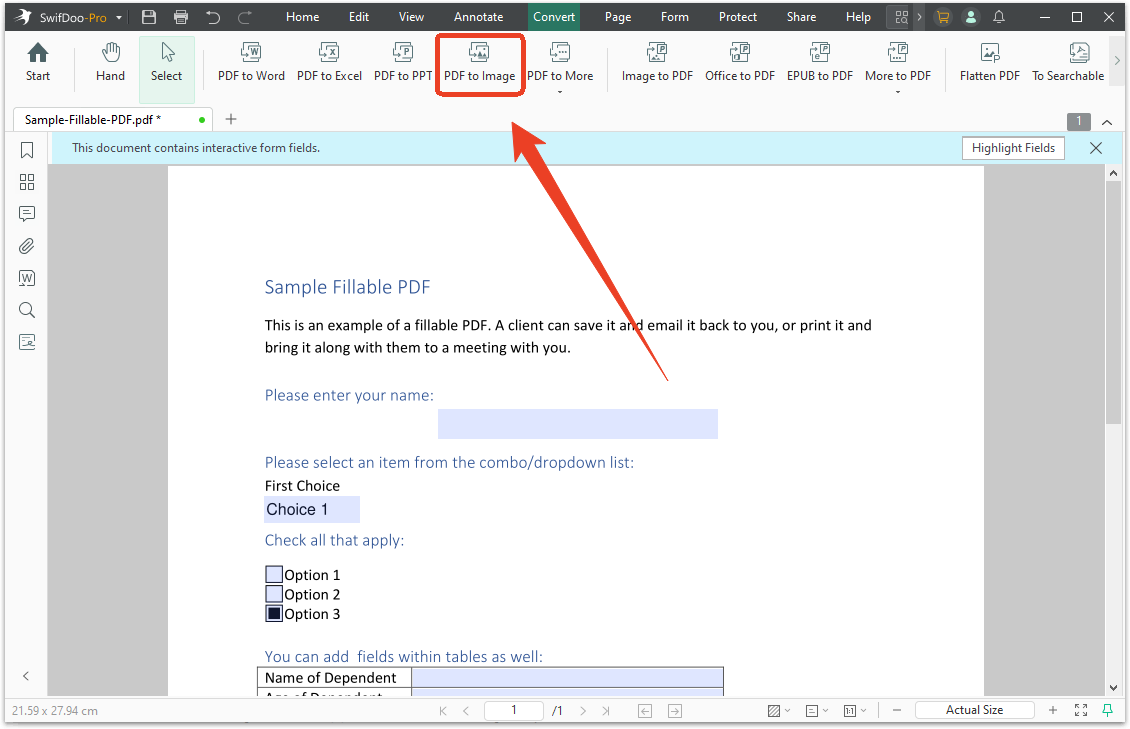
Step 1: Open the PDF in SwifDoo PDF and go to the Convert tab.
Step 2: Select PDF to Image and choose your preferred output format.
Step 3: Choose the resolution — higher DPI settings produce sharper images but larger files — and select the page range.
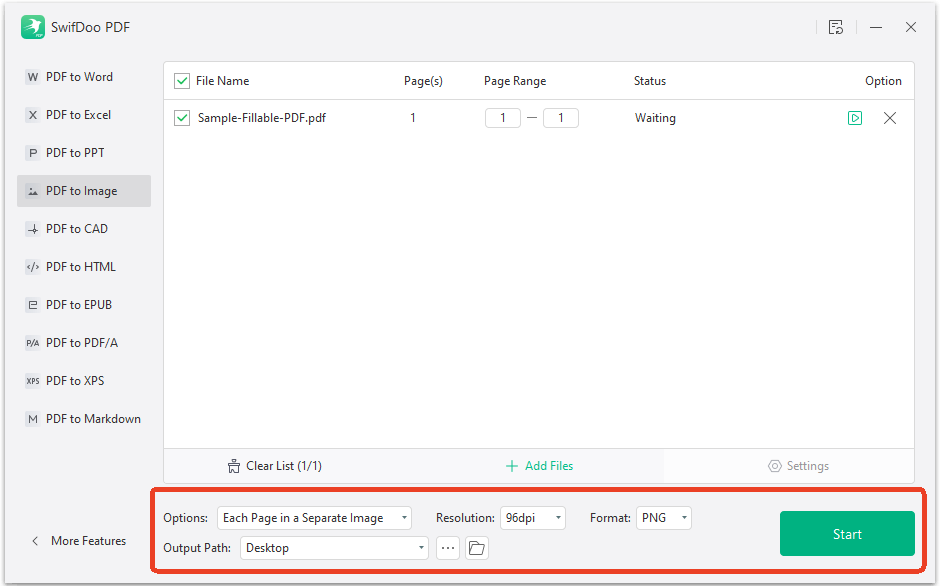
Step 4: Click Convert. SwifDoo generates image files for each page.
Method 2: Remove Form Fields and Associated Scripts
To remove form fields from PDF, you can try pdfQ PDF cleaner. This remover can delete active elements, including scripts, links, and embedded content, from your PDFs.
Step 1: Go to pdfQ’s “Remove Active Content” page and upload your PDF. Then the tool automatically detects active elements like scripts, links, and embedded files.
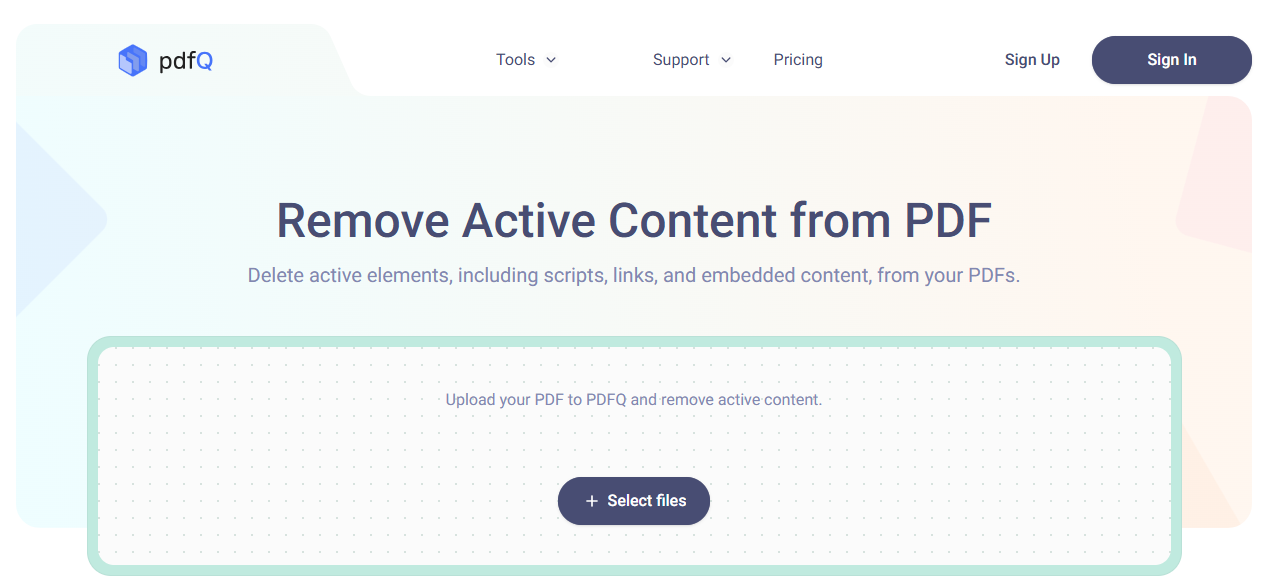
Step 2: Click Got it to confirm the removal of all detected active elements from your document.
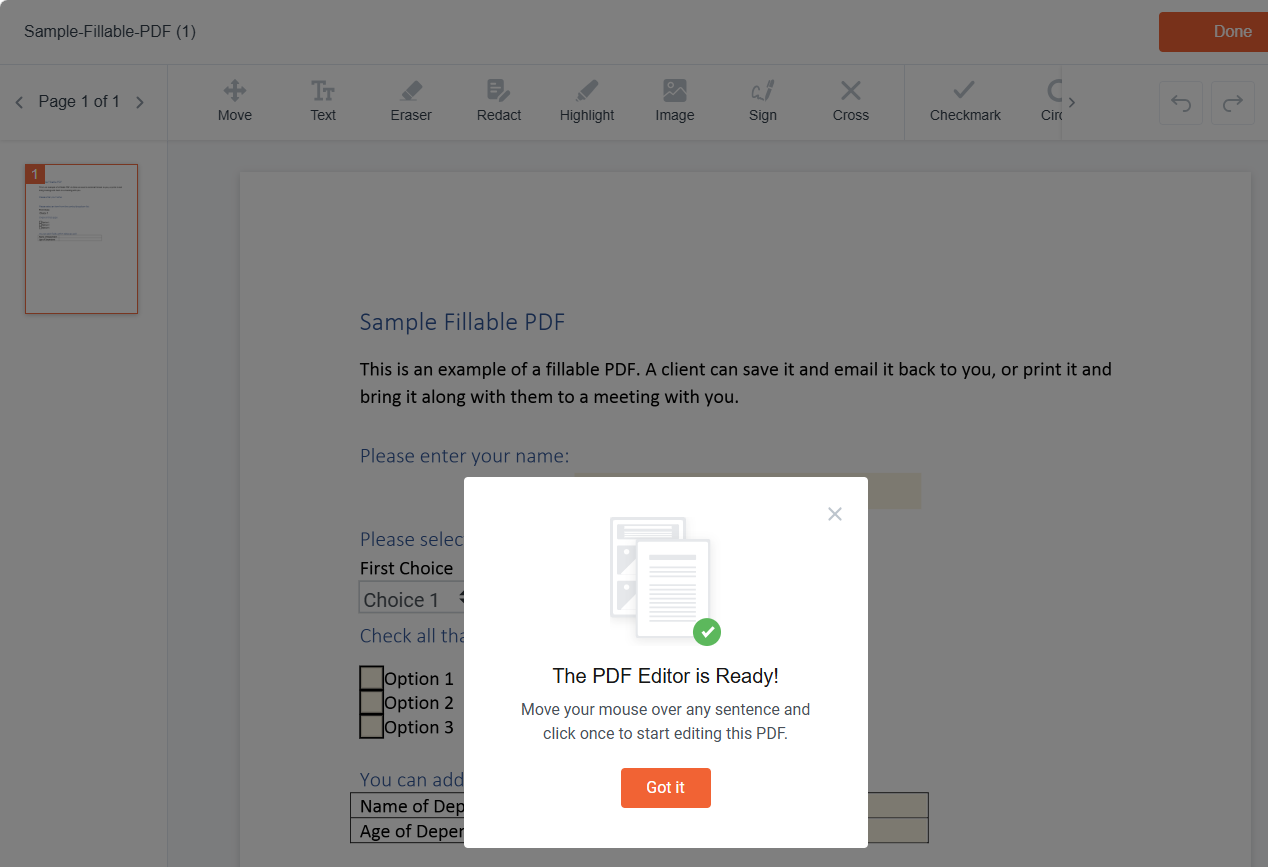
Step 3: Save and download the static, secure PDF without active content.
Method 3: Use Adobe Acrobat's Built-in Protection
If you worry about the risks hidden behind the JavaScript, Acrobat gives you better Adobe Acrobat, the original PDF application, includes several built-in features for managing active content. While not as comprehensive as a dedicated cleanup tool, these options provide a baseline level of protection.
#1. Disabling JavaScript in Adobe Acrobat
The most basic protective measure is to disable JavaScript execution entirely. Navigate to Edit > Preferences > JavaScript and uncheck "Enable Acrobat JavaScript." This prevents any PDF from running scripts while Acrobat is open. While this doesn't remove JavaScript from the file itself, it prevents execution during your session.
#2. Enhanced Security Settings
Adobe Acrobat's Enhanced Security mode provides additional protection by restricting actions that PDFs can perform. When enabled, Acrobat blocks potentially dangerous operations — including launching external applications and writing to system directories — unless the document is in a trusted location.
#3. Privileged Locations
Acrobat allows you to designate "privileged locations" — folders or specific files that are exempt from security restrictions. Documents in these locations can run JavaScript and perform actions that would otherwise be blocked.
Conclusion
Removing active content doesn't have to mean uploading your documents to a stranger's server. The five methods in this guide cover every major type, including form fields, JavaScript, embedded files, and automatic actions. When you remove active content from PDF files locally, nothing leaves your device, and nothing is left to chance.
Now, download SwifDoo PDF and start sanitizing your PDFs today.


