


Why Does ChatGPT Say "No Text Could Be Extracted From This File"?
Before diving into fixes, let's understand what triggers the "no text could be extracted from this file ChatGPT" error. ChatGPT doesn't "read" PDFs the way humans do. It relies on an internal parser that looks for an embedded text layer. When that layer is missing, corrupted, or blocked, the extraction fails. Here are the six most common causes:
-
Your PDF is a scanned image. Scanned documents are essentially photographs of paper. There's no text layer to extract, just pixels arranged to look like letters.
-
The PDF has encryption or permission locks. Password-protected or restricted files block external tools from accessing content.
-
The file is too large. ChatGPT imposes file size limits. Oversized PDFs get rejected or partially processed.
-
The format is incompatible. Legacy PDF encodings, damaged metadata, or embedded custom fonts can break ChatGPT's parser.
-
Text encoding isn't recognized. Non-Unicode fonts or obscure character sets may be unreadable to AI.
-
ChatGPT servers are temporarily overloaded. Peak traffic can cause false negatives, returning errors even for valid files.
Now let's fix each of these.
![9 Best AI Tools for Students in 2025 [All Levels of Education]](https://img.swifdoo.com/image/best-ai-tools-for-students.webp)
9 Best AI Tools for Students in 2025 [All Levels of Education]
Are you looking for the best AI tools for students? Find the best AI learning and education tools to elevate students’ personalized experiences easily.
READ MORE >Fix 1: Check if Your PDF Is a Scanned Image
The most common reason behind "ChatGPT could not extract text from PDF" is surprisingly simple: your PDF has no text to extract. It's a scanned image.
So, how to check if your PDF is a scanned file?
Open your PDF in any reader. Try to click and drag your mouse across a line of text. If the cursor can't highlight individual characters, your PDF is a scanned image. There's no text layer embedded. ChatGPT sees a picture, not words.
How to fix the "no text could be extracted" ChatGPT error? Simply, use OCR to convert images of text into machine-readable characters. It's the only way to make scanned documents searchable and extractable. You need to choose a PDF editor with advanced OCR.
Before we go further, let me introduce a tool that will appear in several fixes throughout this guide. SwifDoo PDF is an all-in-one Windows desktop PDF editor that combines editing, conversion, OCR, text extraction, and compression into a single lightweight application.
How to OCR with SwifDoo PDF?
Step 1: Launch SwifDoo PDF and open your scanned file from it.
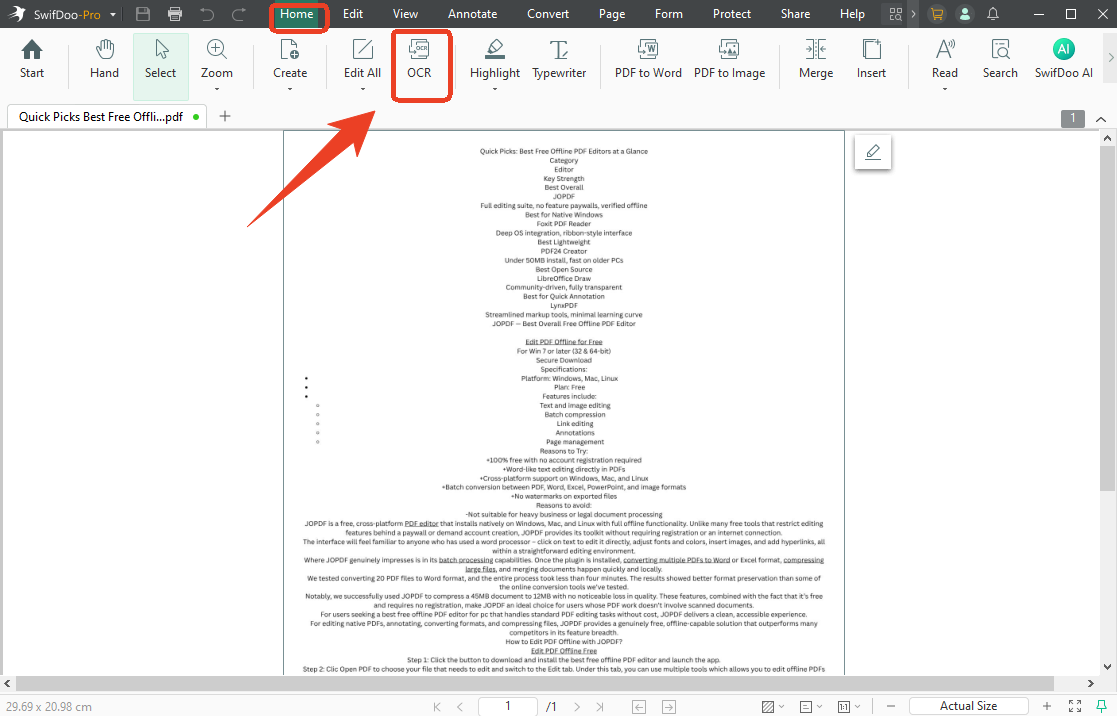
Step 2: Choose the OCR option in the Home tab.
Step 3: Configure the document language, output, page range, etc., and click Apply when you finish. Remember to choose the Searchable Text and Images (non-editable) option.
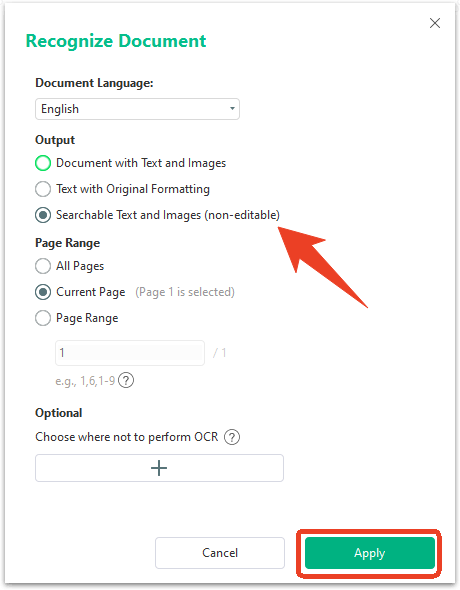
Then it will automatically recognize the document. When it finishes, the output file now contains a real text layer. Upload it to ChatGPT, and the "no text could be extracted" error disappears.
Fix 2: Remove PDF Encryption or Permission Locks
Sometimes the text is there, but it's locked behind security settings. ChatGPT's parser respects these restrictions and won't extract content from protected files. In this way, you can use SwifDoo PDF to remove the PDF encryption.
Step 1: Open the PDF in SwifDoo PDF and enter the password to unlock it.
Step 2: Go to the Protect tab and choose Decryption.
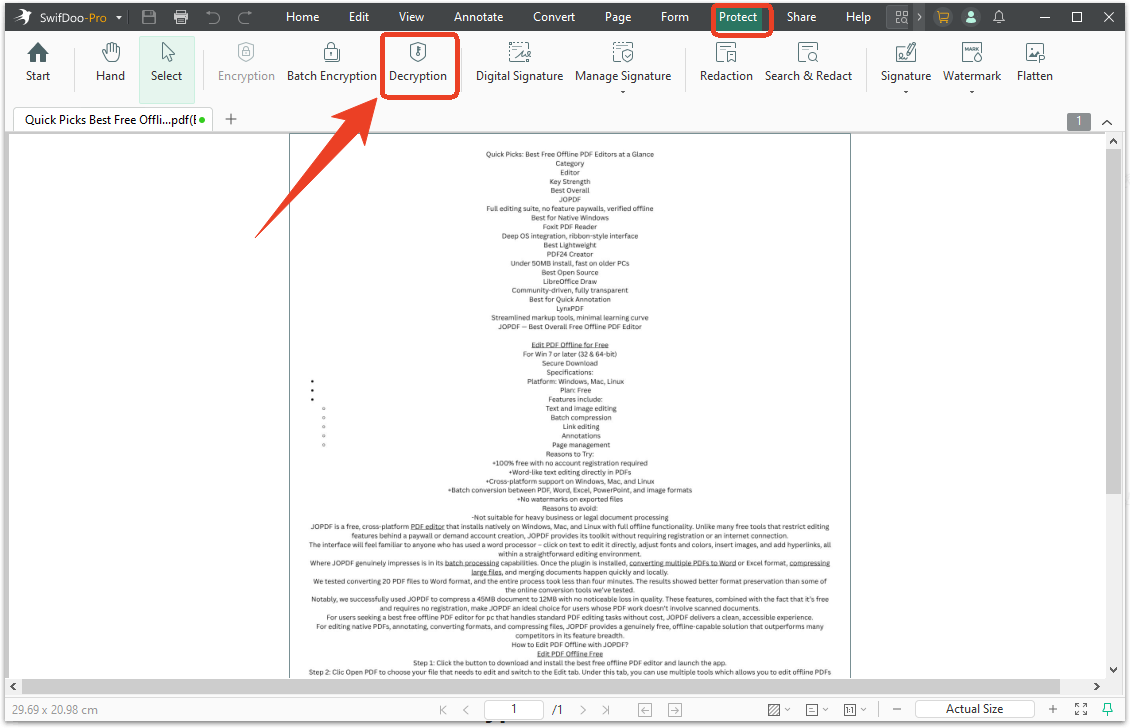
Step 3: When a prompt pops up, click Remove to confirm it. Then you can save the unprotected copy and upload it to ChatGPT.
If you don't have the password, contact the document owner and request an unprotected version. Legitimate restrictions on bank statements or government forms may be unremovable for security reasons. Always ensure you have the legal right to modify the document before removing security settings
![7 Best Open-source AI Tools of 2025 [Latest Update]](https://img.swifdoo.com/image/open-source-ai-tools.png)
7 Best Open-source AI Tools of 2025 [Latest Update]
Discover the 7 open-source AI tools that eliminate your cost and help with feature customization. Use the best platforms or models to work on your jobs.
READ MORE >Fix 3: Compress or Split Large PDF Files
ChatGPT's file size limit typically falls between 50MB and 100MB. If your PDF exceeds this threshold, the upload may fail silently or trigger the no text could be extracted from this file ChatGPT error as a misleading response.
How to Compress the PDF with SwifDoo PDF?
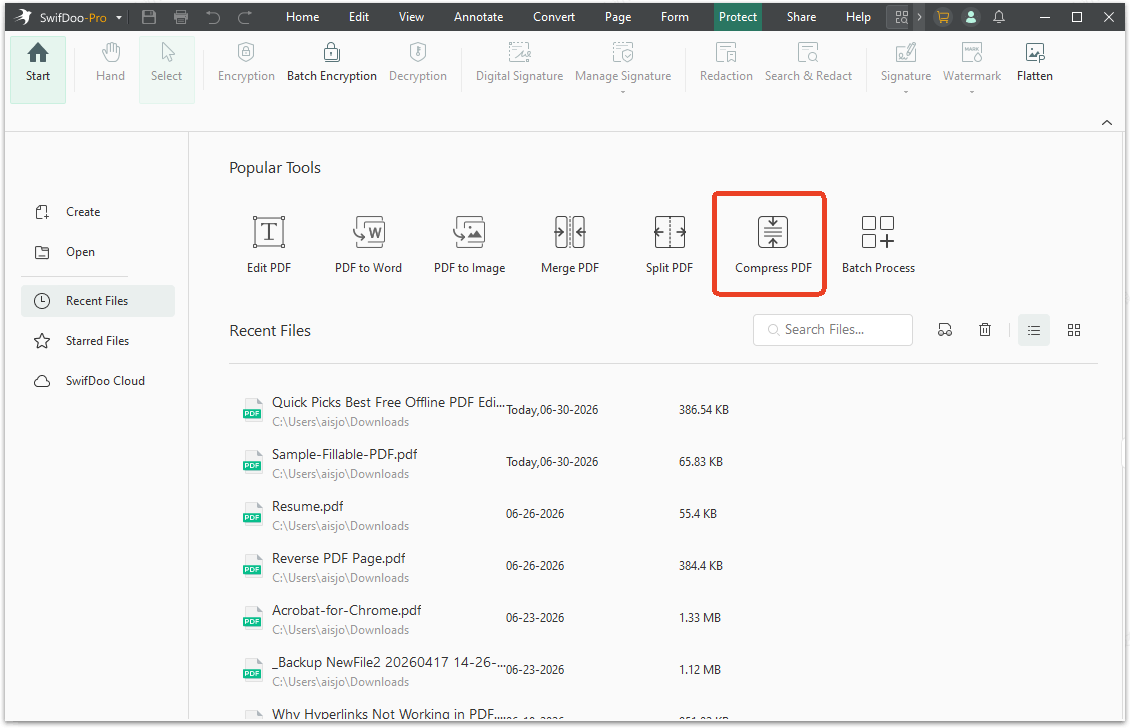
Step 1: Launch SwifDoo PDF and choose Compress PDF in the Popular Tools.
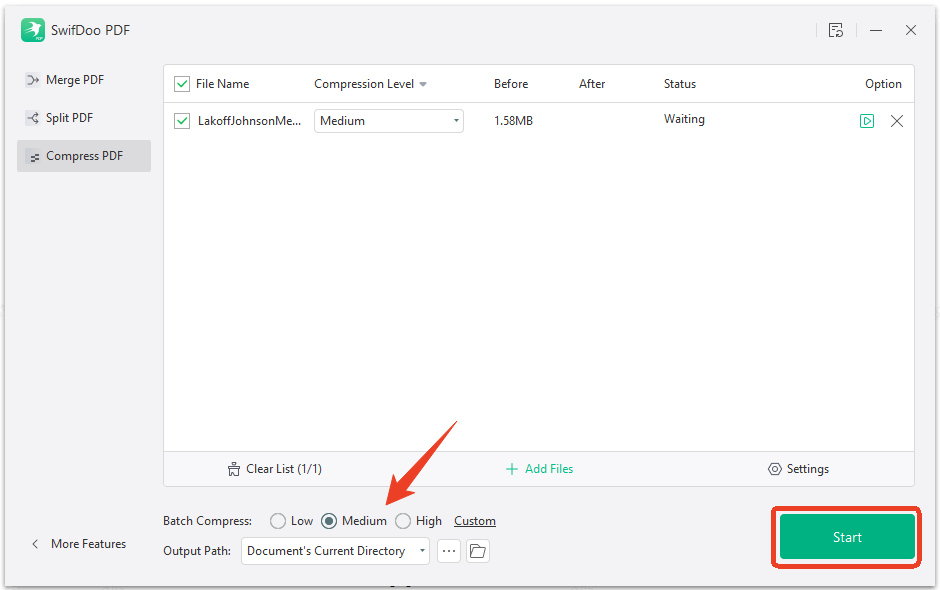
Step 2: Upload your PDF file and choose the compression level depending on how much you need to shrink.
How to Split the PDF with SwifDoo PDF?
Step 1: In the same interface as the SwifDoo PDF compressor, switch to Split PDF.
Step 2: Upload your file, set the output path, and click Start.
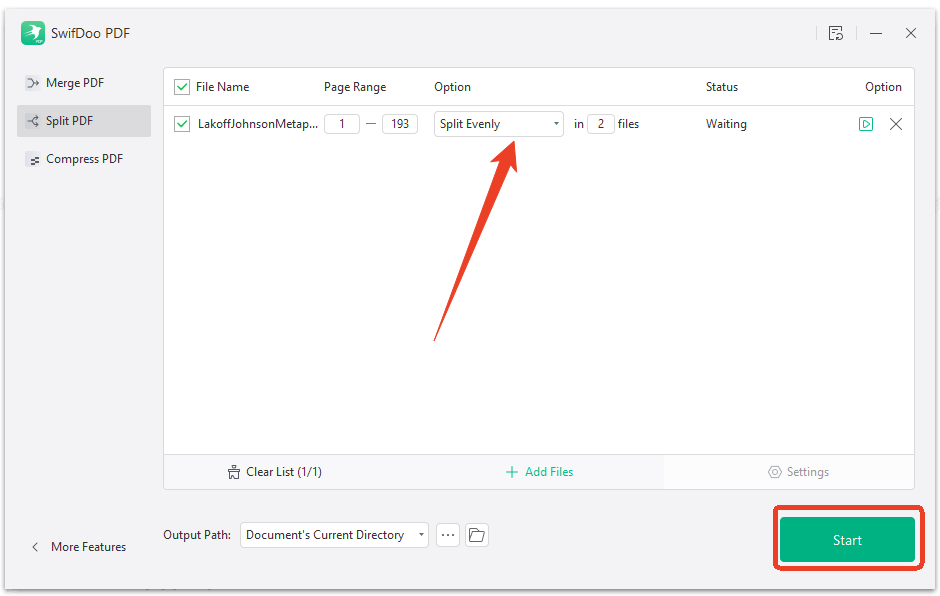
Step 3: After breaking the large file into smaller chunks by page range, upload each chunk separately to ChatGPT.
Both methods keep your content intact while bringing the file size within ChatGPT's limits.
Fix 4: Convert the PDF to a Compatible Format First
Older PDF standards, unusual encoding, or embedded custom fonts can confuse ChatGPT's parser. When ChatGPT text extraction failed repeatedly across different files, a format conversion often solves everything in one step.
How to convert your PDF into a format ChatGPT handles natively? SwifDoo PDF serves as an excellent PDF converter, including PDF to Word (.docx), PDF to Text (.txt), and Save as PDF/A.
Step 1: Launch SwifDoo PDF and open your PDF.
Step 2: Go to the Convert tab.
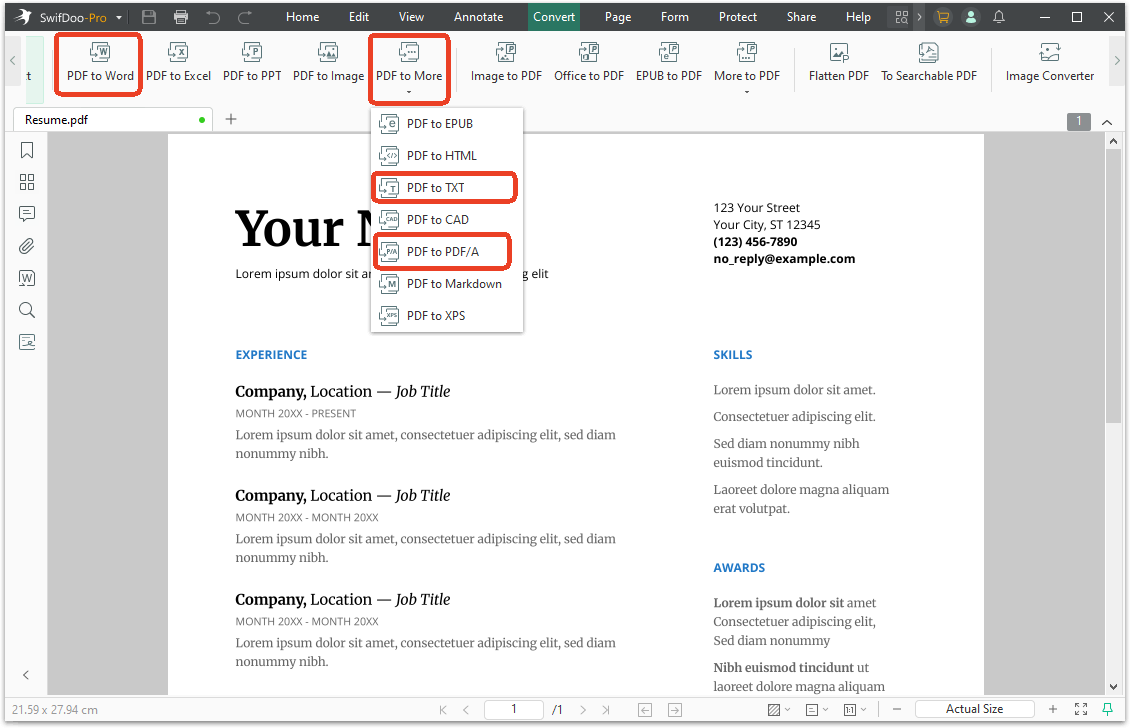
Here, you can choose PDF to Word option to complete the conversion. Alternatively, go to PDF to More > PDF to TXT or PDF to PDF/A. When you follow the prompts to complete the conversion, you can upload the converted file to ChatGPT and watch the error disappear.
Fix 5: Retry in a Different ChatGPT Session or Device
If you've verified that your PDF has extractable text and it still fails, the issue might be temporary. Server-side glitches can trigger "ChatGPT no text could be extracted", even on perfectly valid files.
-
Refresh your ChatGPT browser tab and start a new chat session.
-
Clear your browser cache and cookies, then log back in.
-
Switch to the ChatGPT mobile app and try uploading from your phone.
-
Wait and retry during off-peak hours (outside U.S. business hours).
Temporary overloads are rare but real. If the error appears suddenly on files that worked before, give it an hour and try again.
The Better Way: Skip ChatGPT's PDF Limits with SwifDoo PDF's AI
Here's a question worth asking: if you're using ChatGPT to extract and analyze PDF content, why not use a tool that has AI-powered PDF processing built directly into its core?
The "no text could be extracted from this file ChatGPT" error exists because ChatGPT treats PDF parsing as an afterthought. SwifDoo PDF approaches it from the opposite direction; it's a professional PDF engine first, now enhanced with AI capabilities that make ChatGPT's PDF struggles irrelevant.
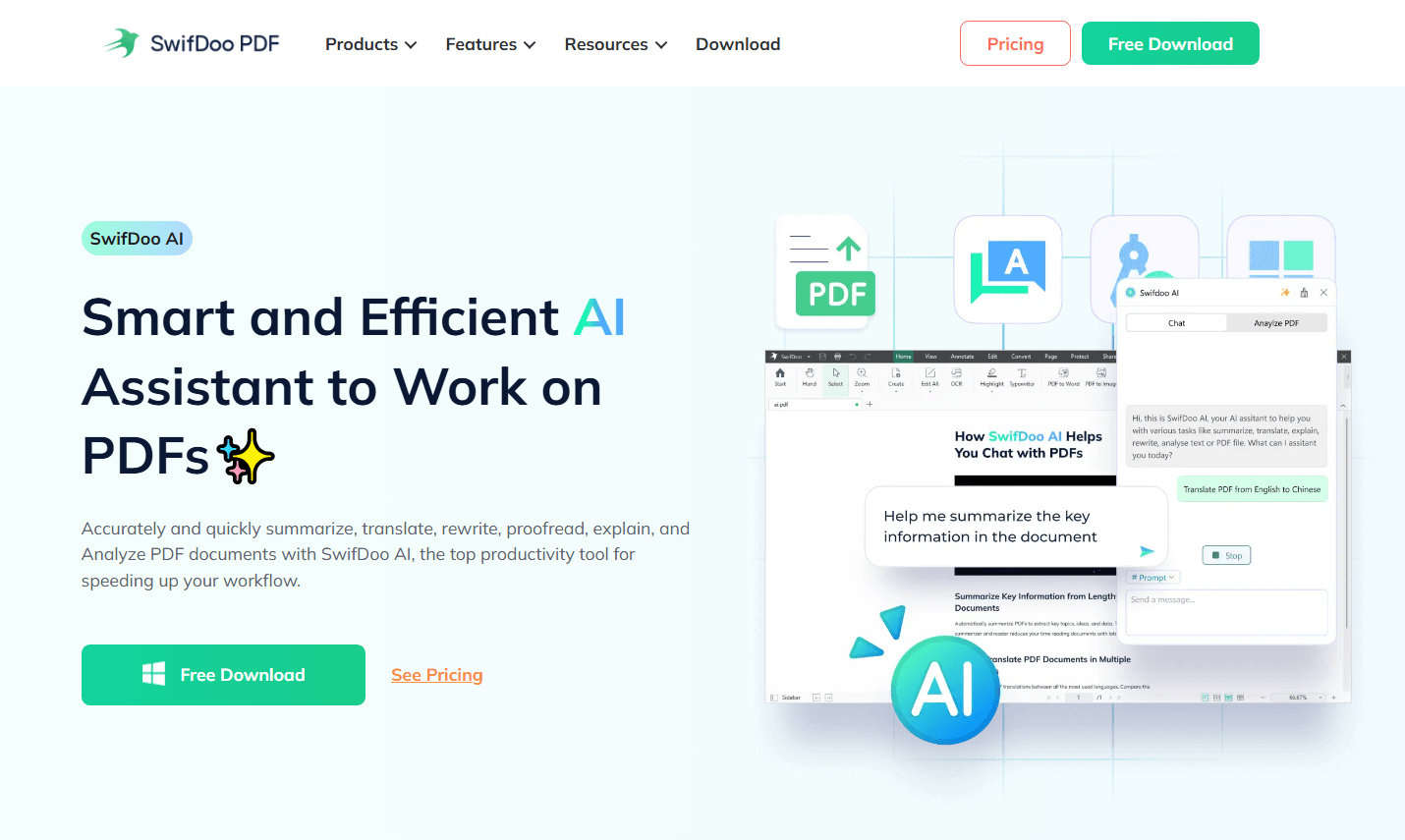
SwifDoo PDF's AI Features at a Glance
SwifDoo PDF AI integrates an AI-powered assistant directly into its interface. Instead of uploading files to a chatbot and hoping the parser cooperates, you can:
-
AI Summarize. Open any PDF in SwifDoo, select the AI tool, and ask it to generate a concise summary. The AI reads the actual text layer, so results are accurate and complete.
-
AI Chat with Your PDF. Ask questions about the document's content and get instant answers. The AI references the PDF directly, eliminating the extraction step that triggers ChatGPT's "no text could be extracted" error entirely.
-
AI Translate. Need the document in another language? SwifDoo's AI translates PDF content while preserving the original layout.
-
AI Proofread. Let the AI scan your PDF for grammar errors, awkward phrasing, or inconsistencies before you send it out.
Final Verdict
"No text could be extracted from this file ChatGPT." If this error has become a recurring obstacle in your workflow, it's time to stop troubleshooting and start restructuring how you handle PDFs. The six fixes in this guide cover every common cause. But the most reliable solution isn't a fix at all. It's a workflow change. Extract text with SwifDoo PDF first, then hand it to ChatGPT for analysis.


