


Can You Combine Signed PDFs?
Can you combine or edit signed PDFs? Yes, you can combine signed PDF files, but with important limitations due to how digital signatures work. Digital signatures in PDFs are not just visual marks. They are cryptographic seals. When you make any change, such as merging, adding pages, or editing, the signatures in the PDF file may be invalidated.
Can you combine signed PDF files without breading signatures? Here are three workarounds for you. Now, let’s walk through each method in detail.
Method 1. Combine Signed PDFs Without Breaking Signatures (PDF Portfolio)
The first method you can try is to create a PDF portfolio, which is best for preserving individual signatures. In this method, the PDF portfolio can contain the signed PDFs as attachments within a single master PDF file, without altering the originals. Some tools, especially Adobe Acrobat, allow you to combine files into a PDF Portfolio instead of a single flattened document. How to do that? Below are the exact steps for your reference.
Step 1. Launch Adobe Acrobat on your PC.
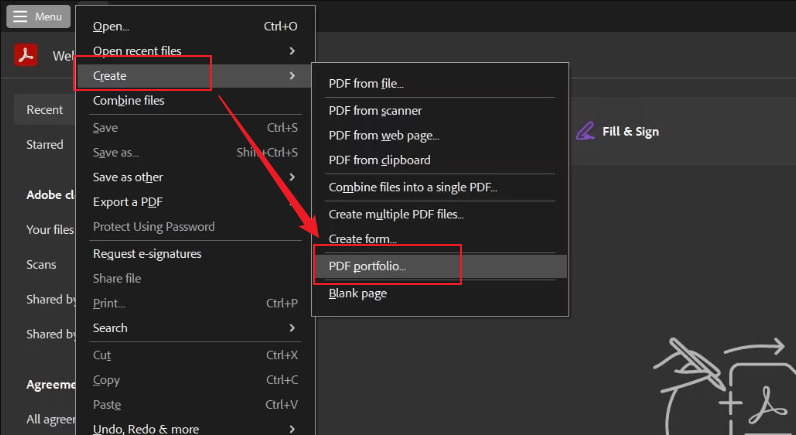
Step 2. Click File, move to Create, and select PDF Portfolio. Then, a new portfolio workspace will open.
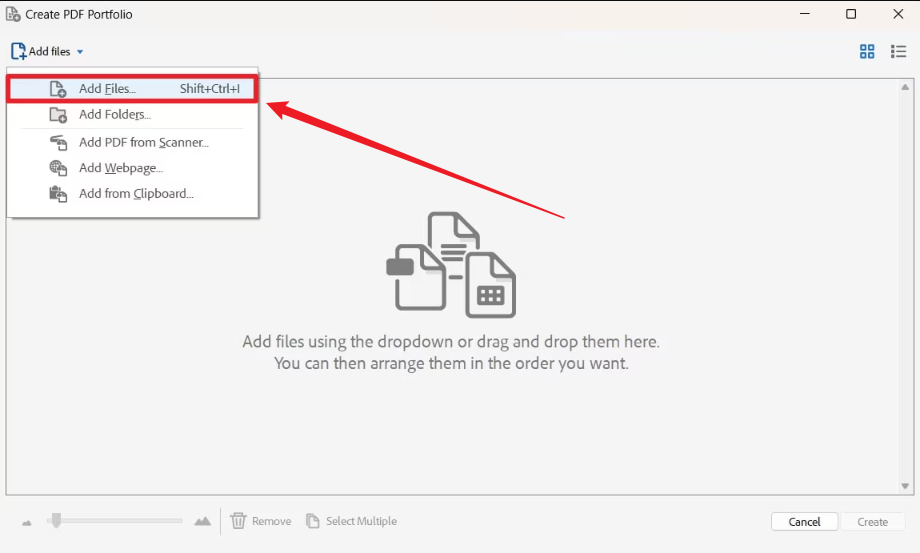
Step 3. In the workspace, click Add Files to select all signed PDFs you want to combine.
Step 4. Optionally, you can choose the portfolio layout. Finally, go to File and click Save As to save the PDF portfolio.
Method 2. Combine Signed PDFs and Re-Sign (Best Practice)
If you haven’t installed Adobe Acrobat Pro on your PC, you can try to remove signatures, merge, and then re-sign. In this way, you need to use a reliable tool like SwifDoo PDF to remove or clear the signatures from each file, then combine them into a single PDF. Later, add a new signature to the entire combined PDF file. You can refer to the tutorial below and have a try.
Step 1. Install the right PDF tool. Download and install SwifDoo PDF on your computer. Also, you can use other PDF tools that support adding and removing signatures as well as merging PDFs.
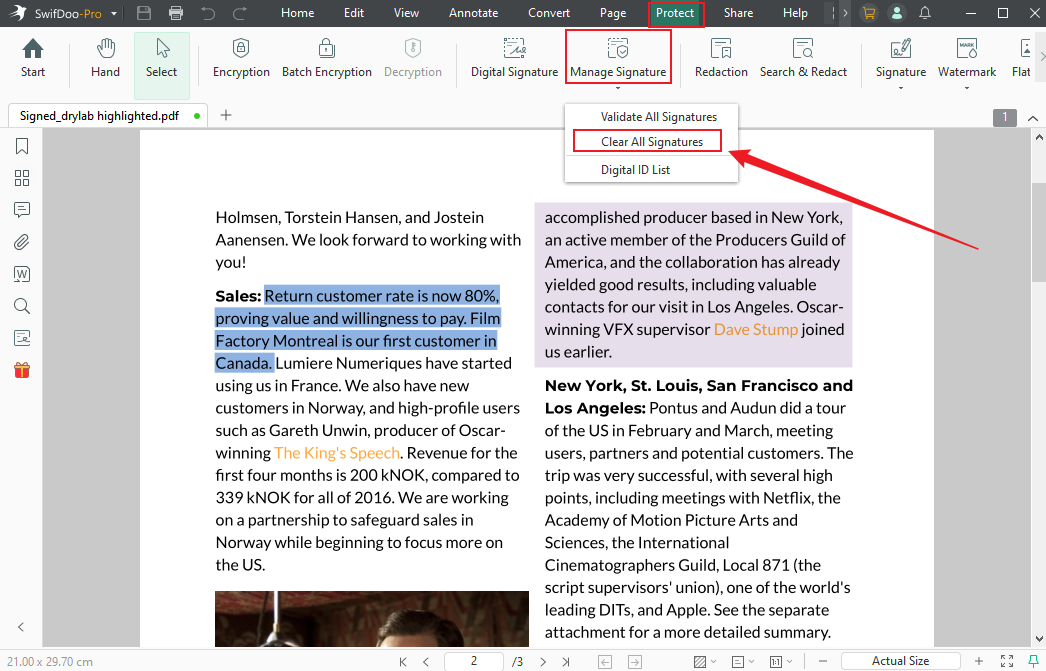
Step 2. Remove signatures from PDFs. Run SwifDoo PDF and click Open to import the target PDF file with a signature. Next, go to Protect, click Manage Signature, and choose the Clear All Signatures option. Then, click Clear to confirm. Later, save the PDF file. Repeat the operation to remove signatures from the PDFs you want to combine.
Step 3. Combine the target PDF files. Next, click the Merge PDF option under Popular Tools.
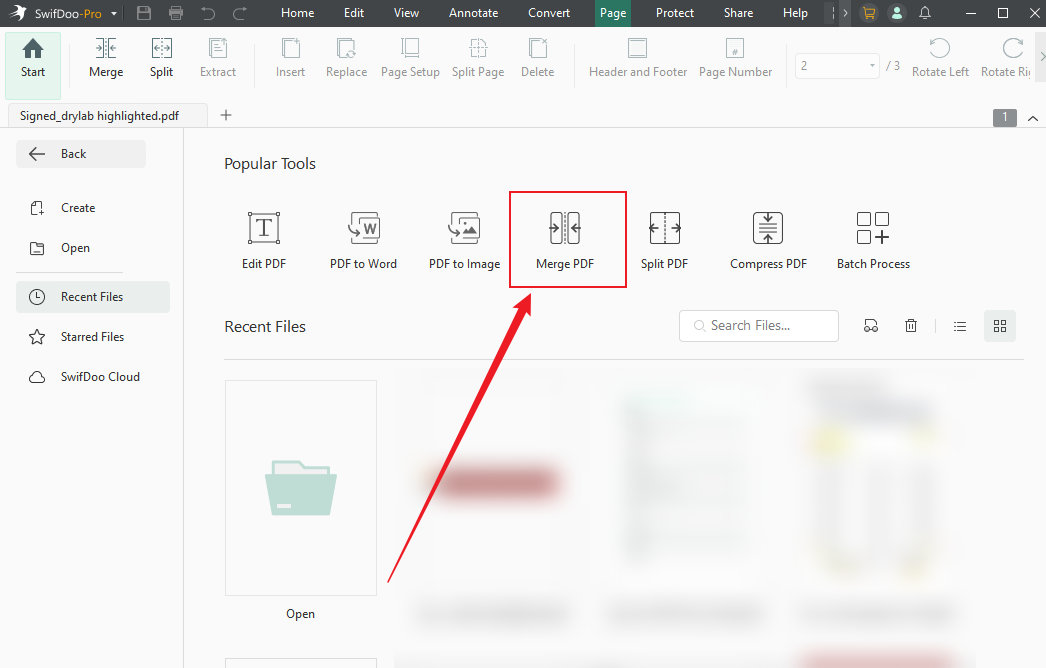
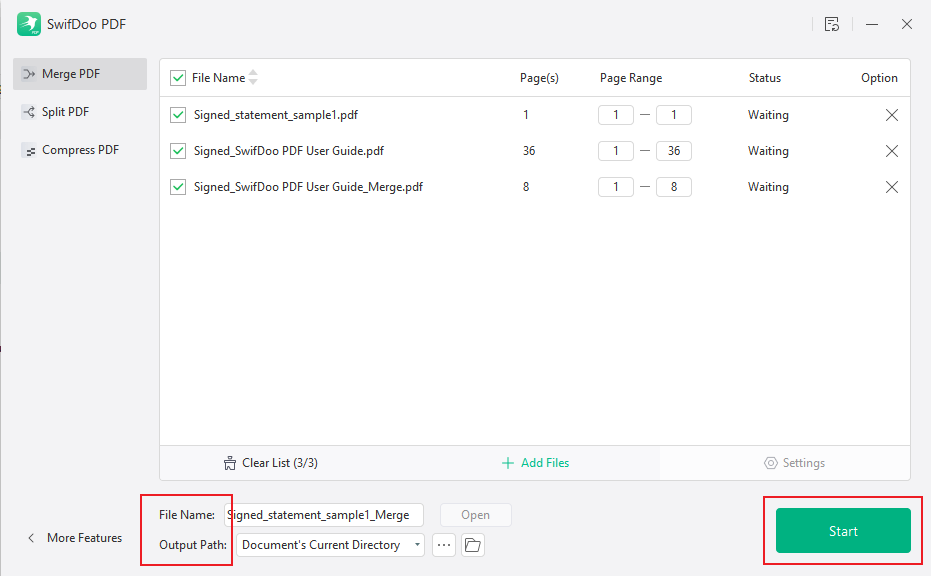
Then click Add Files to upload the PDFs whose signatures were just removed. Meanwhile, you can name the merged PDF file and choose a folder to save it. Next, click Start to combine them into a single PDF file.
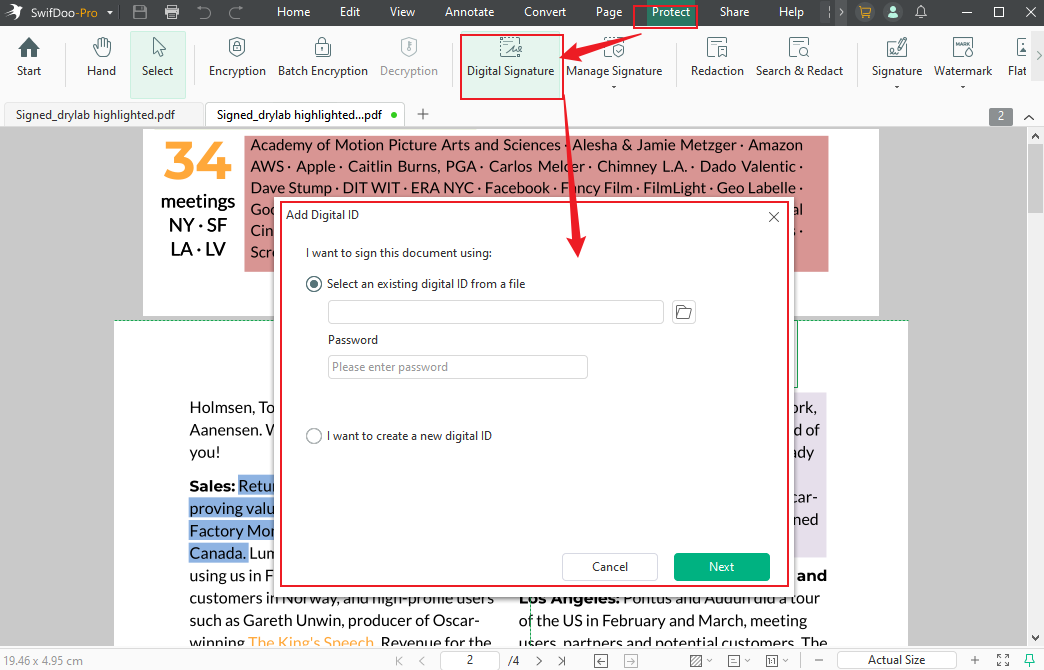
Step 4. Re-sign the PDF file. Once the combining process is finished, click Open in the File Name section to open the merged PDF in SwifDoo PDF. Then click the Protect tab in the top menu, and select the Digital Signature option to sign the PDF. Next, follow the on-screen prompt to add a digital signature to the PDF.
Step 5. Save the signed PDF. Finally, click Save to save the digitally signed PDF file.
Though this method can invalidate the original signatures, it makes the final combined file valid with a new signature. When to use this method to combine signed PDF files? It is quite suitable for the following cases:
- Reports that require final approval
- Contracts with multiple signed sections
- Documents submitted to clients or regulators
Method 3. Flatten the Signed PDFs and Merge Them
The last method you can try is to flatten the signed PDFs and merge them as a single PDF. This method can turn the signatures into static visual elements. In one word, the signatures are no longer verifiable as digital signatures; they only retain the appearance. If you have installed SwifDoo PDF, you can use it to flatten PDFs and merge them. Here are the steps.
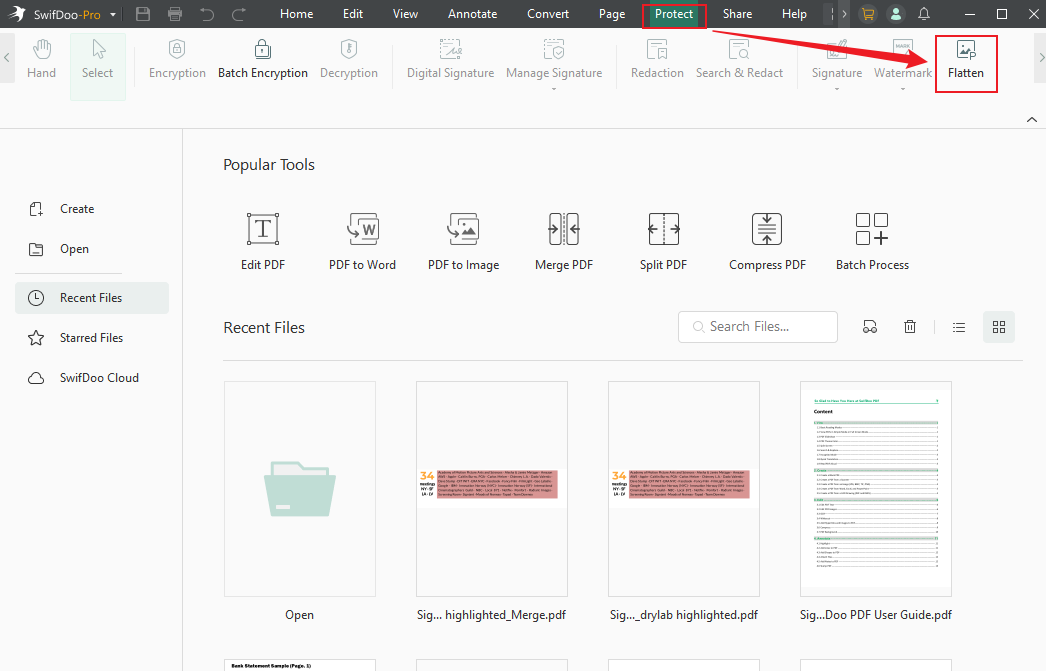
Step 1. Run SwifDoo PDF, go to Protect, and click Flatten.
Step 2. Click Add File to select the signed PDFs and click Open to import them. Then, click Start to flatten the signed PDFs.
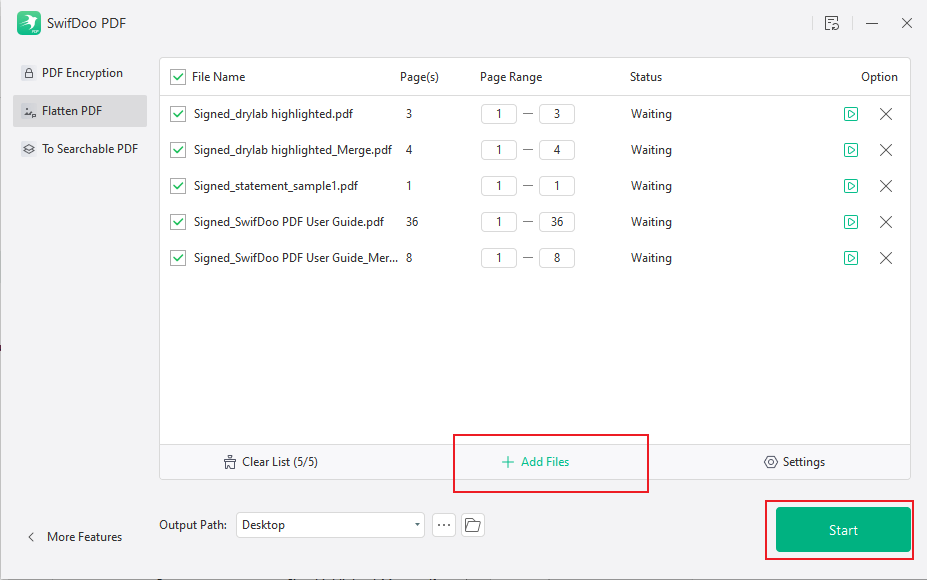
Step 3. Later, use the Merge PDF tool to combine the flattened PDFs in SwifDoo PDF.
Best Method to Combine Signed PDFs by Use Case
You need to choose the right method to merge signed PDFs according to the use case.
|
Scenario |
Recommended Approach |
|
Legal contracts |
Merge → Re-sign (SwifDoo PDF) |
|
Audit/compliance records |
PDF Portfolio (Adobe Acrobat) |
|
Visual-only signatures |
Flatten + merge (SwifDoo PDF) |
Final Thoughts
Owing to the nature of a digital signature, it can be invalidated if you edit the signed file. Can you combine signed PDFs without breaking digital signatures? There are no direct ways. Fortunately, there are 3 workarounds to merge signed PDFs effectively. You can select the exact method according to your use case. If you need to ensure the integrity of the PDF file, keeping the original signature is essential. In that case, use a PDF Portfolio.



