


Understanding Locked PDFs
Whether you're asked to enter a password, prevented from editing or printing, or dealing with a secured document from an organization, understanding the type of locked PDFs is the first step toward solving the problem. Generally, there are two main types of locked PDFs. They are:
- Open password protection: Also called user password protection. It is the most common form of PDF security. You are immediately prompted to enter a password when you open the PDF file. If you don’t enter the correct password, you can’t view the PDF.
- Permission password protection: Also called owner password protection. A PDF with permission password protection may open normally, but still restrict certain actions. For instance, you may be able to read the PDF but not edit text, copy content, or print pages.
After understanding the main types of locked PDFs, it’s time to learn how to open a locked PDF effectively.
Method 1. Open a Locked PDF with the Correct Password
If you know the password, opening the PDF is straightforward. This method works with virtually any PDF reader, including SwifDoo PDF, Adobe Acrobat, Preview, JOPDF, and mobile PDF apps. Once you know the correct password, it can be easy to open a locked PDF file. Below are the common steps:
- Open your PDF using your preferred PDF reader or editor, such as SwifDoo PDF.
- Then a dialog will pop up and ask you to enter the file's password. Enter the correct password and click OK to open and view the locked PDF.
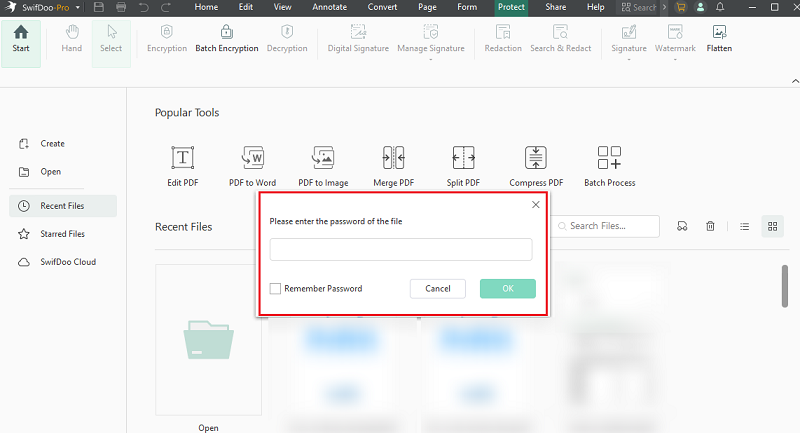
This method is the fastest solution to open locked PDFs when you know the password. Meanwhile, it can work with most PDF readers and editors.
Method 2. Manage PDF Security Settings with Adobe Acrobat Pro
If you need to review, modify, or remove PDF security settings after gaining access to the PDF, this method is suitable for you. In this method, we need to use Adobe Acrobat Pro, which provides advanced tools for checking permissions, removing restrictions, and managing PDF security when you have the required authorization. How to manage PDF security in Adobe Acrobat? Here is the guide:
- Open the locked PDF in Adobe Acrobat Pro and enter the right permission password.
- Go to All Tools and click the Protect a PDF
- Select Remove Security in the left pane, and a window will appear prompting you to enter the permission password. Once entered, click OK.
- Click OK again to remove the restriction. Finally, save the PDF without restriction.
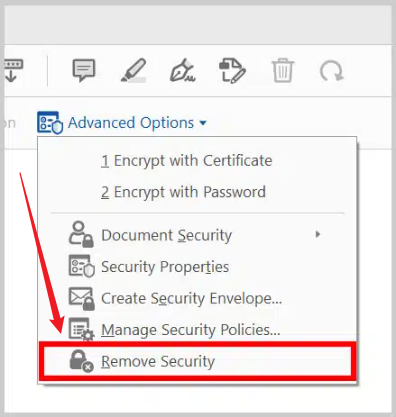
This method is quite useful when you need to remove password protection from your PDF or want to review its security settings.
Method 3. Open a PDF Locked for Editing or Printing
Some PDFs are protected from being edited, copied, or printed. How to open those locked PDFs for editing or printing? SwifDoo PDF is a good solution that offers a convenient way to remove restrictions. How to unlock a PDF for editing, copying, or printing in SwifDoo PDF? Follow the tutorial below:
- Click the button below to download and install SwifDoo PDF on your Windows PC, then launch it.
- Click Open to import the restricted PDF file that you want to edit or print. If the PDF is password-protected, enter the password to access the document.
- Once the PDF is opened, click the Protect tab from the top toolbar and select the Decryption
- If you know the permission password, tick the first Yes option and enter the password. If you don’t know, select “No, I don’t have a permission password” and click Next. Then, click Remove to remove the password.
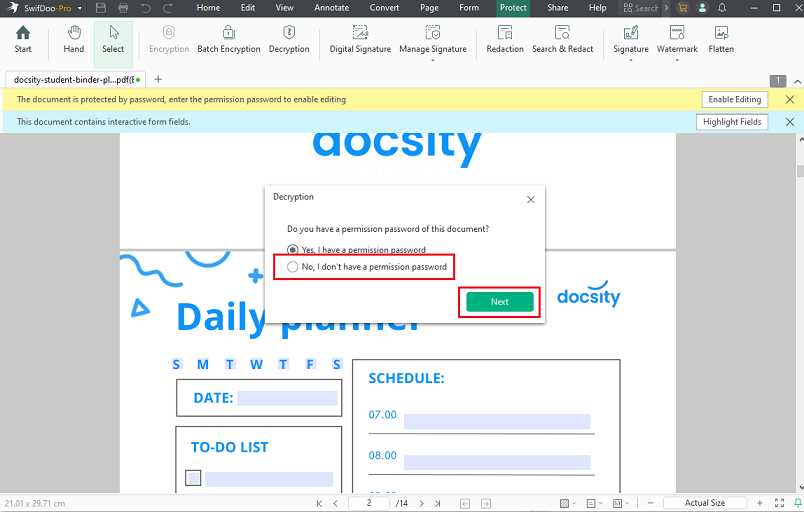
Later, you can get a new copy of the file without restrictions. You can edit the PDF file as needed. Additionally, you can use SwifDoo PDF to password-protect PDFs again.
Method 4. What to Do If You Forgot the PDF Password
What can you do if you forget the password of the PDF file? There are several legitimate ways to access those locked PDFs. In the following content, let’s check them one by one.
#Contact the PDF Owner
The quickest and most reliable way to access a secure PDF is to request the password from the owner directly when you receive it from others. Then the PDF owner may provide the password, send an unlocked version of the PDF, or update the PDF’s security settings to make access easier.
If the PDF belongs to your organization, consider contacting your IT department or document administrator, as they may have records of the password or access permissions.
#Locate the Original Source
When you download a password-protected PDF file from websites, banking platforms, or customer portals, you can try to identify where the PDF originally came from. Because most of those platforms would provide password instructions separately. For instance, the original source may provide an unlocked version of the PDF, a replacement copy with updated security settings, or password recovery instructions.
#Check Password Managers
Sometimes you might forget the password for a secure PDF file you created a long time ago. But actually, you have saved the password without realizing it. Hence, before assuming the password is lost, check any tools or systems that may have automatically stored credentials.
#Search Previous Communications
In addition, the password may have been shared when the document was first delivered. Reviewing past communications often helps recover access without needing additional assistance. You can check email conversations, Slack or Microsoft Teams messages, or cloud storage notifications.
Final Thoughts
Some PDFs require a password to view, while others restrict only editing, printing, or copying. How to open a locked PDF without passwords? It is not difficult to open a secure PDF.
If your main challenge is dealing with restrictions on editing, copying, or printing, SwifDoo PDF offers a practical solution for removing permission-based limitations and restoring full functionality to your PDF files. I hope this article is helpful to you.



