


Why Flatten a PDF on Mac
Flattening a PDF on Mac is a useful step to secure and optimize your document before sharing. It makes sure annotations, signatures, and form fields are merged into the main content, allowing you to make a PDF non-editable and more reliable across devices.
Below are a few reasons explaining why flattening is useful.
- Prevent editing. Locks all content so others can’t modify text, comments, or form fields.
- Reduce PDF file size. Merges layers and removes interactive elements to reduce file size.
- Preserve formatting. Keeps fonts, layouts, and annotations intact when viewed or printed.
- Improve compatibility. Ensures the correct display of the PDF on different devices and software.
How to Flatten a PDF in Preview on Mac
Preview is the built-in macOS PDF viewer that allows easy handling of basic editing tasks. It is a convenient method to flatten a PDF without any extra software, perfect for simple document finalization on your Mac. It’s especially useful for everyday users who need a fast and reliable way to flatten and finalize PDFs.
Here’s how to flatten a PDF in Preview on Mac.
Step 1. Open Finder. Right-click the PDF to flatten, then select Open With and choose Preview.
Alternatively, launch the "Preview" app from the "Applications" > "Utilities" folder. And import the PDF into Preview by dragging it into the Preview window.
Or use the File menu to open it.
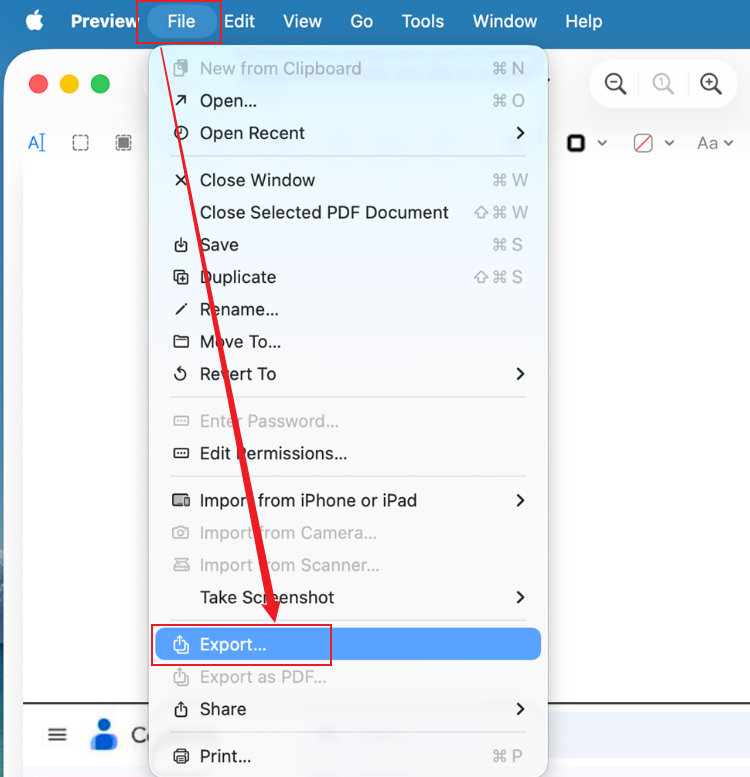
Step 2. Now, click File in the top menu in the left corner and choose Export… from the dropdown list.
Step 3. In the Export window, choose PDF from the Format dropdown menu.
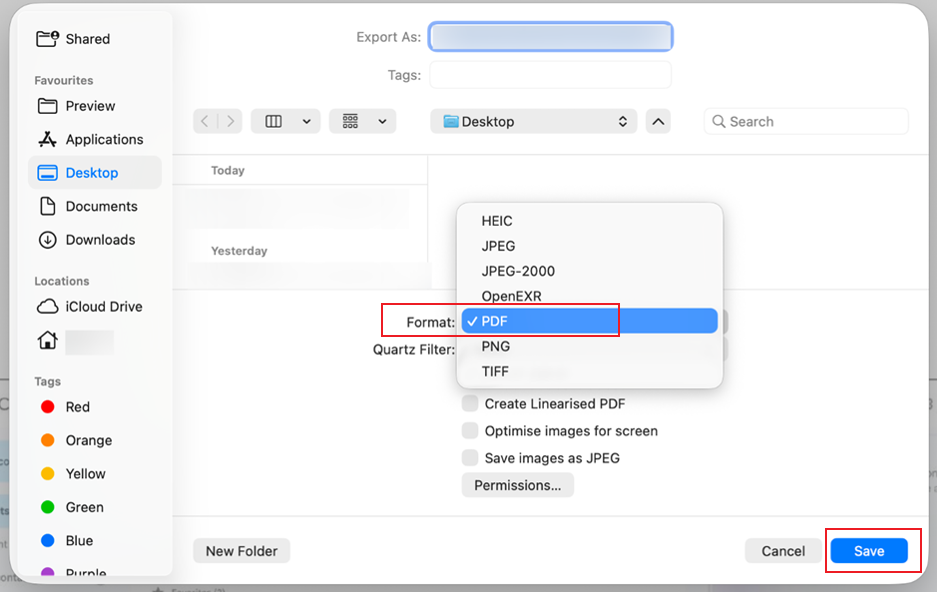
Step 4. Enter a new file name to keep the original PDF unchanged. Also, select Save to export the flattened PDF.
Flatten PDF with Print to PDF on Mac
The Print to PDF method is an easy, flexible option to flatten a PDF on Mac without Adobe Acrobat using a feature already available in macOS. It works with any applications, enabling smooth file processing across multiple programs. The method “prints” the PDF as a new, flattened PDF, consolidating everything into one secure, non-editable file.
Here’s how to flatten a PDF with the Print to PDF feature already built into Mac.
Step 1. Open your PDF in Preview. Or use an alternative PDF viewer app on your Mac to flatten the file.
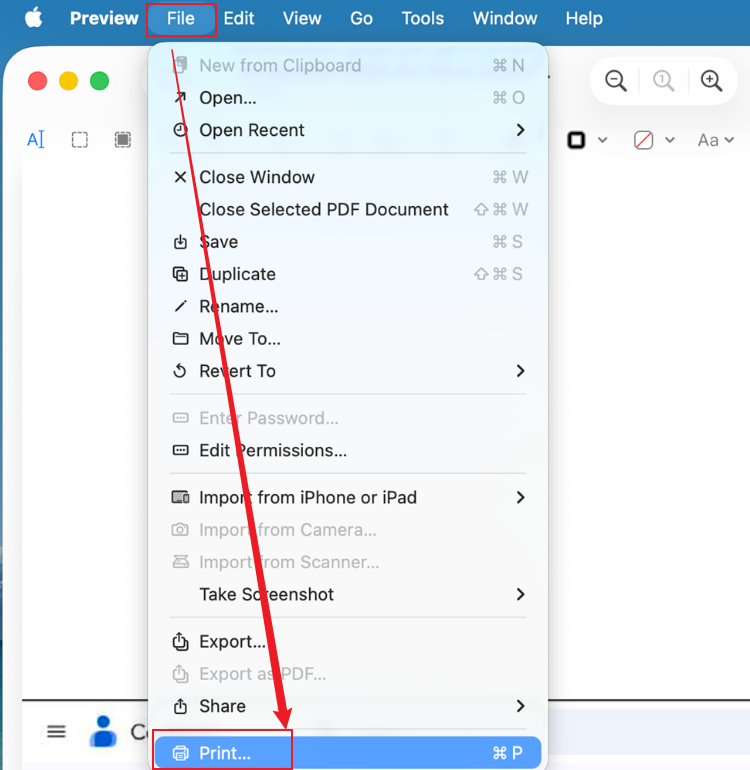
Step 2. In the top menu, select File, then Print.
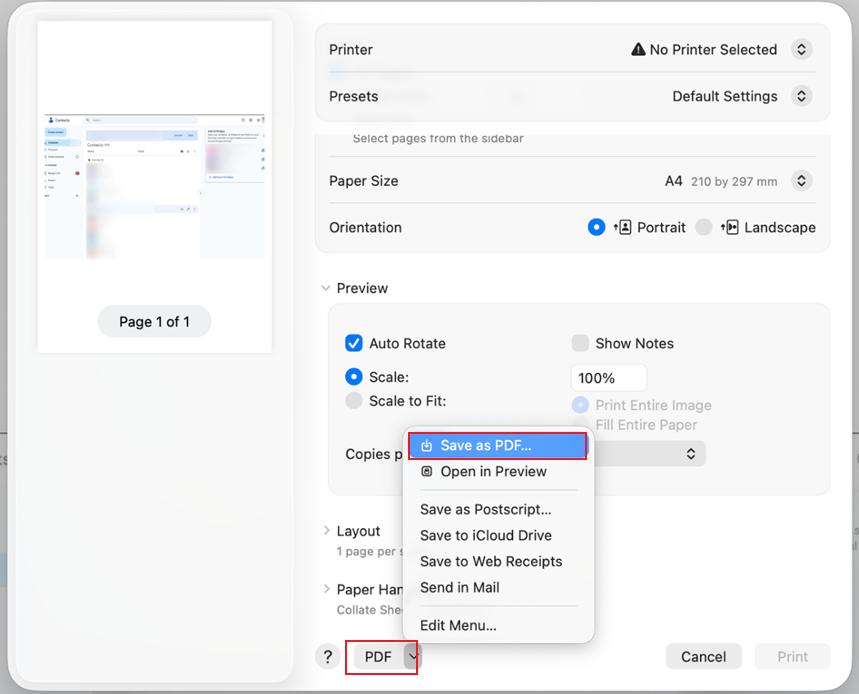
Step 3. In the Print dialog, hit the PDF dropdown located at the bottom left corner.
Step 4. Select the Save as PDF option in the dropdown menu. Finally, rename the file if needed, then press Save.
How to Flatten PDFs in Adobe Acrobat Pro
Adobe Acrobat Pro is a professional-grade Mac tool for handling PDFs with strong editing and security capabilities. It allows you to easily flatten a PDF form in Adobe Acrobat on Mac, ensuring all fields and annotations are permanently embedded. It also helps protect PDFs using permissions and encryption for stronger security and for a safer document sharing experience.
Option 1. Use Flattener Preview
The Flattener Preview in Adobe Acrobat Pro is perfect for users who require precise control over flattening a PDF before printing or exporting. It enables you to handle transparency and properly merge all elements for consistent output. This option is especially useful for professional printing and high-quality document preparation.
Check out how to flatten a PDF in Adobe Acrobat using Flattener Preview.
Step 1. Download and install Adobe Acrobat Pro on your Mac computer.
Hit "File" in the upper-left corner of the window. Then click “Open” from the dropdown menu and pick the PDF document you want to flatten.
Step 2. Go to the Tools menu and choose the “Print Production” tool. In the “Print Production” menu, choose the “Flattener Preview”.
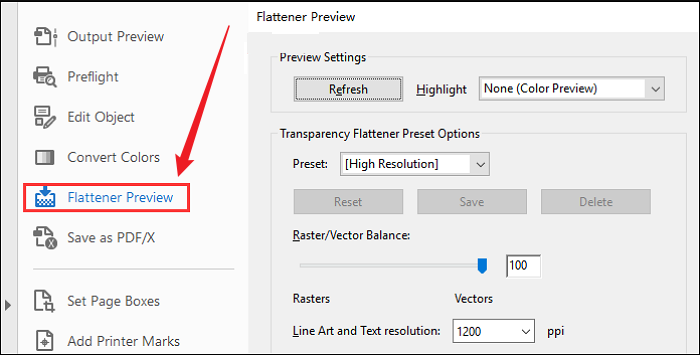
Step 3. Review and customize the settings in the dialog box according to your preferences.
For example, if you only want to flatten specific pages in the document.
Step 4. Now, press “Apply” and choose “Yes” when the confirmation box pops up.
Once flattened, tap File and select Save As to save it in your preferred folder.
Option 2. Use Preflight (Flatten Annotations & Form Fields)
The Preflight tool in Adobe Acrobat Pro is perfect for users seeking a more automated and dependable way to flatten annotations and form fields. It allows you to fix and standardize PDFs while ensuring all interactive elements are permanently embedded. This option is ideal for preparing files for archiving, printing, or secure distribution.
Learn how to flatten PDFs on Mac using Adobe Acrobat with the Preflight method.
Step 1. Download and launch Adobe Acrobat Pro on your Mac computer. And open the PDF you need to flatten with the program.
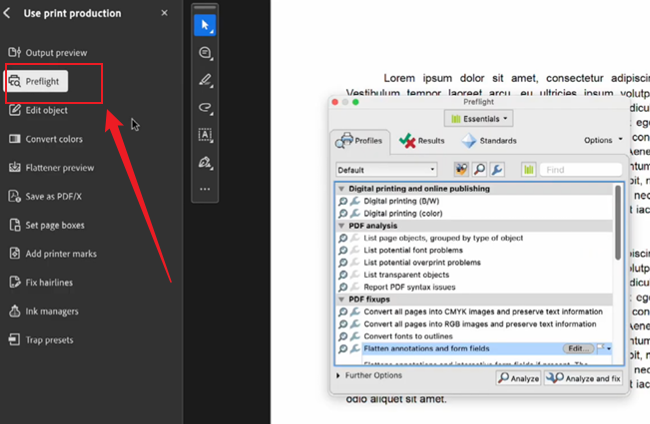
Step 2. Click Tools in the top menu and select Print Production. In the Print Production panel, select Preflight.
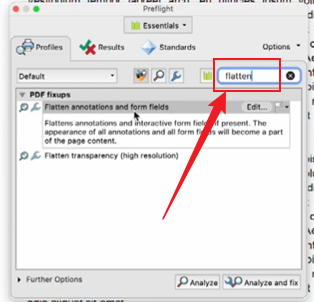
Step 3. Type flatten in the search bar within the Preflight window. And select the fixup option labeled Flatten annotations and form fields.
Step 4. Press Analyze and Fix to flatten the PDF. Then choose File and click Save As to save the new flattened PDF file.
How to Flatten a PDF on Mac Online
Besides the methods mentioned above, you can easily flatten PDFs online on a Mac without installing any software, making it a quick and convenient solution for basic needs. Many free tools allow you to flatten PDF on Mac online free without software in just a few clicks.
Here’s a list of some online tools for flattening PDFs.
- Smallpdf.
- iLovePDF.
- PDF2Go.
- Sejda PDF.
For example, Smallpdf is a widely used online tool that enables you to quickly flatten PDFs in your browser. It's simple to use and effectively merges annotations, form fields, and other elements into a static file. This makes it a practical choice when you require quick results without installing any additional software.
Find out how to flatten a PDF on Mac online using Smallpdf right in your browser.
Step 1. Access Smallpdf on your web browser. Then, go to Tools and choose Flatten PDF under More.
Step 2. Next, select Choose Files and import the PDF you want to flatten. You can also bring in your PDF file from Dropbox, Google Drive, and OneDrive.
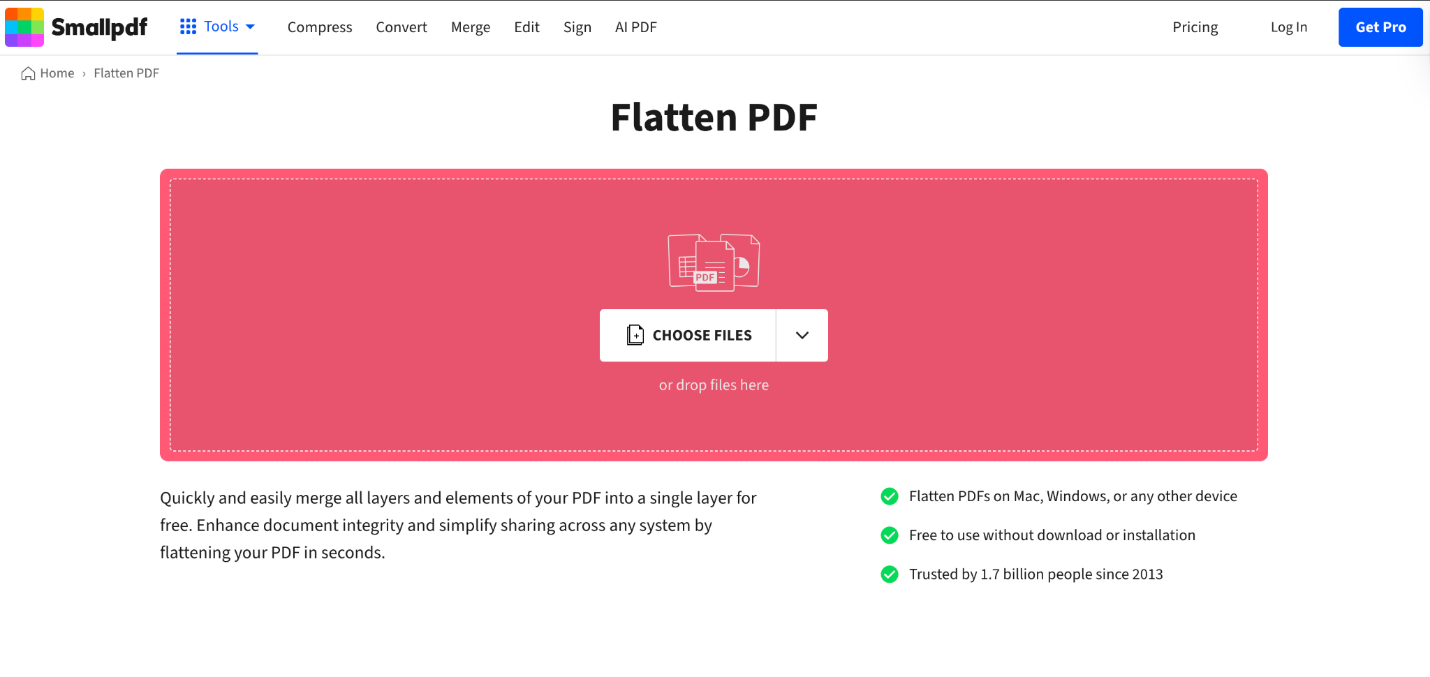
Or simply drag and drop the PDF directly into the web-based application.
Note. After your PDF file uploads, Smallpdf will instantly process and flatten the document.
Step 3. Finally, tap the Download button to save your flattened PDF file locally.
A Quick Wrap Up
Different methods are available for how to flatten a PDF on Mac, including built-in tools, Adobe Acrobat Pro, and online solutions. Each method gives different levels of control, depending on your needs and access to software. If you want the best way to flatten PDF on Mac for free, Preview or Print to PDF is usually the most convenient choice. Choose the method that best fits your workflow to keep your PDFs secure and ready to share.



