


Can You Flatten a PDF in Foxit for Free?
Yes—and no.
You can flatten a PDF in Foxit without paying, but the functionality is restricted to basic or temporary options. The built-in flatten feature is available in the paid version or trial of Foxit PDF Editor, not in the free reader. So if you were wondering how to flatten a PDF in Foxit Reader, you can’t.
Foxit does provide a free trial, allowing temporary access to this feature. If you’re using the free Foxit Reader, you won’t find a dedicated flatten tool, but you can use the “Print to PDF” workaround to merge all elements into a single layer, though it may impact quality or searchability.

After flattening, it is usually impossible to unflatten a PDF and restore original editability. This is because all layers and components are permanently merged into a single static file.
For an easier and cost-effective option, you can choose SwifDoo PDF, which offers built-in flattening along with simple tools for everyday PDF tasks. Give it a try to see if it fits your needs better.
How to Flatten a PDF in Foxit
Flattening a PDF in Foxit is a useful way to secure your document by turning all elements into a single, non-editable layer, which helps maintain consistent formatting and prevents further modifications or content shifting. It helps maintain formatting and ensures your file looks consistent across all devices and systems.
However, if you plan to edit a PDF in Foxit later, always save an original copy before flattening to keep future editing options.
Let us find out how to flatten a PDF in Foxit PDF Editor.
Step 1. Download and install Foxit PDF Editor to begin editing and managing PDFs with ease. Once done, open the target PDF file you plan to flatten.
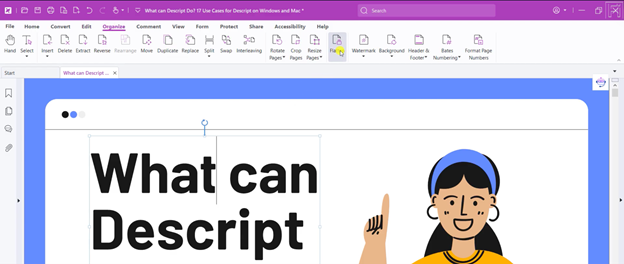
Step 2. Next, click the Organize tab from the top menu. And press the Flatten button located near the right side of the ribbon. This will open a small window on your screen with the necessary controls and choices.
Step 3. In the Flatten Pages dialog box, define which pages you want to flatten.
Press “All Pages” to flatten everything. Or type the page numbers manually.
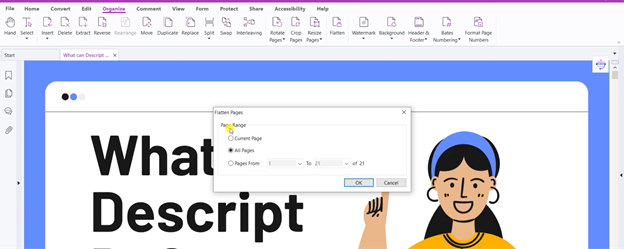
Step 4. Once done, click OK to apply it.
Another Easy & Low-Cost Method to Flatten a PDF
Now that you have seen the detailed steps to flatten a PDF in Foxit PDF Editor, it’s worth noting a few drawbacks of this method. The full flatten feature is tied to the paid version, and the free workaround may reduce quality or limit text searchability. It can also feel less straightforward for beginners.
Because of these limitations, many users look for a simpler, more affordable alternative, such as SwifDoo PDF. This is especially when they want to make a PDF non-editable without complications or extra steps.
SwifDoo PDF is a reliable, budget-friendly PDF tool that offers a built-in flatten feature to quickly convert a PDF into a non-editable version while preserving layout and content quality.
In addition to flattening, it lets you add password protection to lock your PDF against editing, giving you stronger control over access, security, and file sharing. It features a clean, user-friendly interface, making it practical for both new users and experienced professionals.
Here is how to flatten a PDF in SwifDoo PDF with ease.
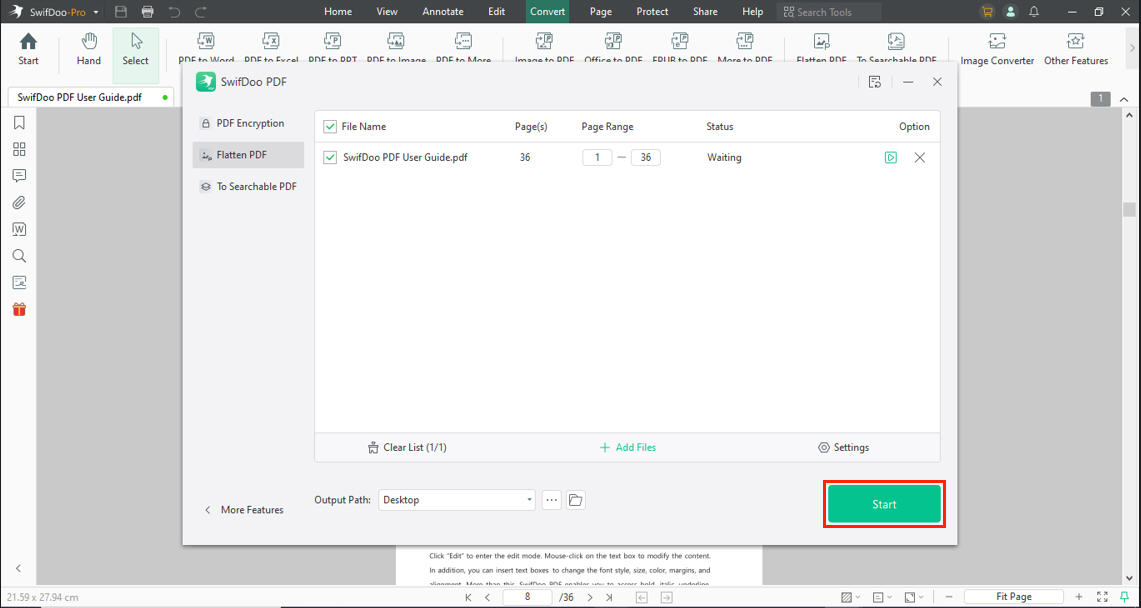
Step 1. Get and install SwifDoo PDF on your PC. Once launched, tap Open to import the target PDF file you need to flatten.
Step 2. Go to the Protect tab in the top menu bar and select the Flatten option from the secondary menu bar.
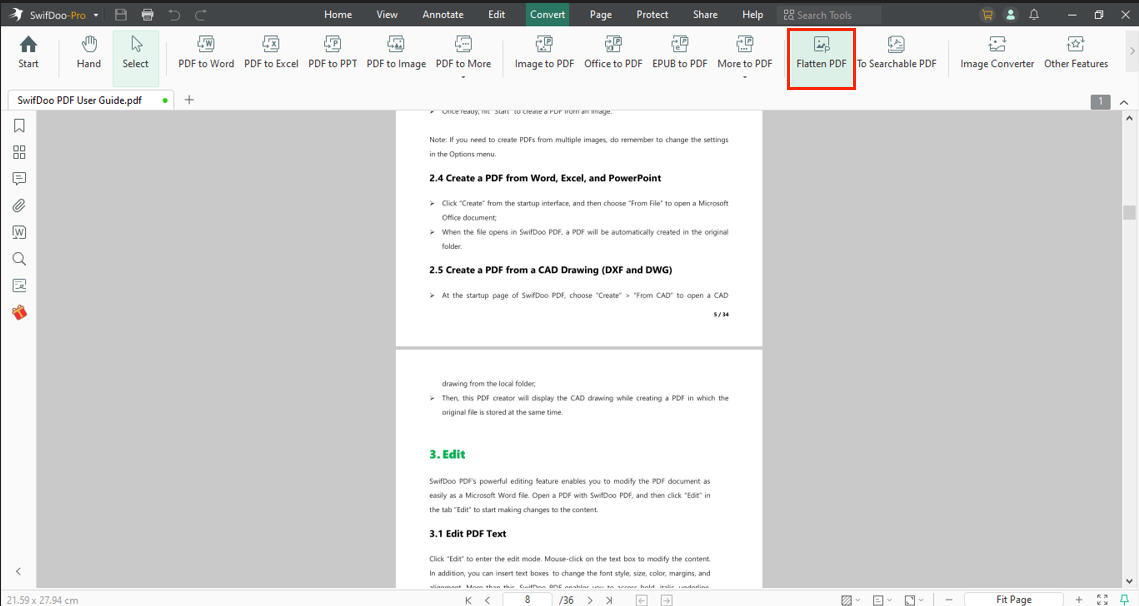
Step 3. A window will appear; select a folder in the Output Path section below to save the flattened PDF.
Step 4. Press Start to flatten the PDF file.
Other Features of SwifDoo PDF
- Edit text and images directly within PDF files.
- Transform PDFs to and from Word, Excel, PowerPoint, and additional formats.
- Add comments, highlights, and annotations for easy collaboration.
- Compress PDF files without significant loss of quality.
- Merge, split, and rearrange PDF pages for better organization.
- Helps lock a PDF from editing using password protection for enhanced security.
- Provide a simple and user-friendly interface for quick PDF management.
Conclusion
Understanding how to flatten a PDF in Foxit helps you secure your documents by merging all content into a single, non-editable layer while preserving formatting and consistency. Although Foxit offers this feature mainly in its paid version or via a temporary trial, there are still workable alternatives, such as print-to-PDF or third-party tools.
Users seeking a cost-effective, simpler solution can use tools like SwifDoo PDF to flatten and manage files with ease. In the end, the right choice depends on your priorities for convenience, cost, and document control.



