


Adobe Acrobat is one of the most effective and commonly used tools for professional PDF handling. When figuring out how to duplicate a page in PDF, Adobe Acrobat makes it quick and simple with its built-in page tools. However, before you begin, you must know that to edit PDFs in Adobe Acrobat, you’ll need Adobe Acrobat Pro (not the free Reader), which supports page duplication, editing, and advanced document control.
If you want to extract a page from a PDF for free, SwifDoo PDF is a great option. As a strong alternative to Adobe Acrobat, it offers a vast range of tools for tasks such as editing, annotating, converting, organizing, securing, and printing PDF files, all within an easy-to-use interface.
How to Duplicate a Page in Adobe Acrobat
Adobe Acrobat is extensively used for managing advanced PDF operations in both professional and corporate settings. This section guides you through how to duplicate a PDF page in Adobe Acrobat with built-in tools, making it simple to copy and reuse pages.
Method 1. Duplicate a PDF Page in Adobe Acrobat via the Organize Pages Tool
Using the Organize Pages tool in Adobe Acrobat is one of the most straightforward methods to copy pages in a PDF. It allows you to visually manage, rearrange, and duplicate pages with just a few clicks, making it ideal for users who need a straightforward, visual approach. This tool lets you duplicate a page in seconds, giving you full control over where the copy appears in your PDF.
Let us see how to duplicate a page in Adobe Acrobat using the Organize Pages tool in a handful of clicks.
Step 1. Install and open Adobe Acrobat on your computer or device. Then, open the PDF file where you wish to duplicate a page.
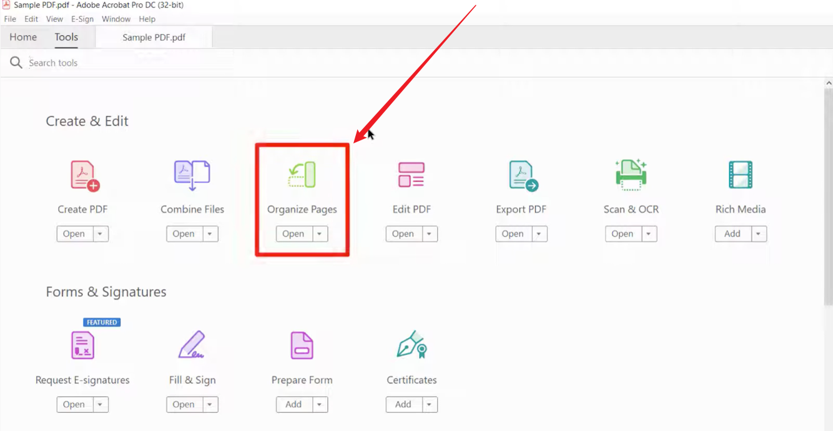
Step 2. Go to the All Tools tab in the main menu bar at the top. Then click the Organize Pages button to display a thumbnail view of every page.
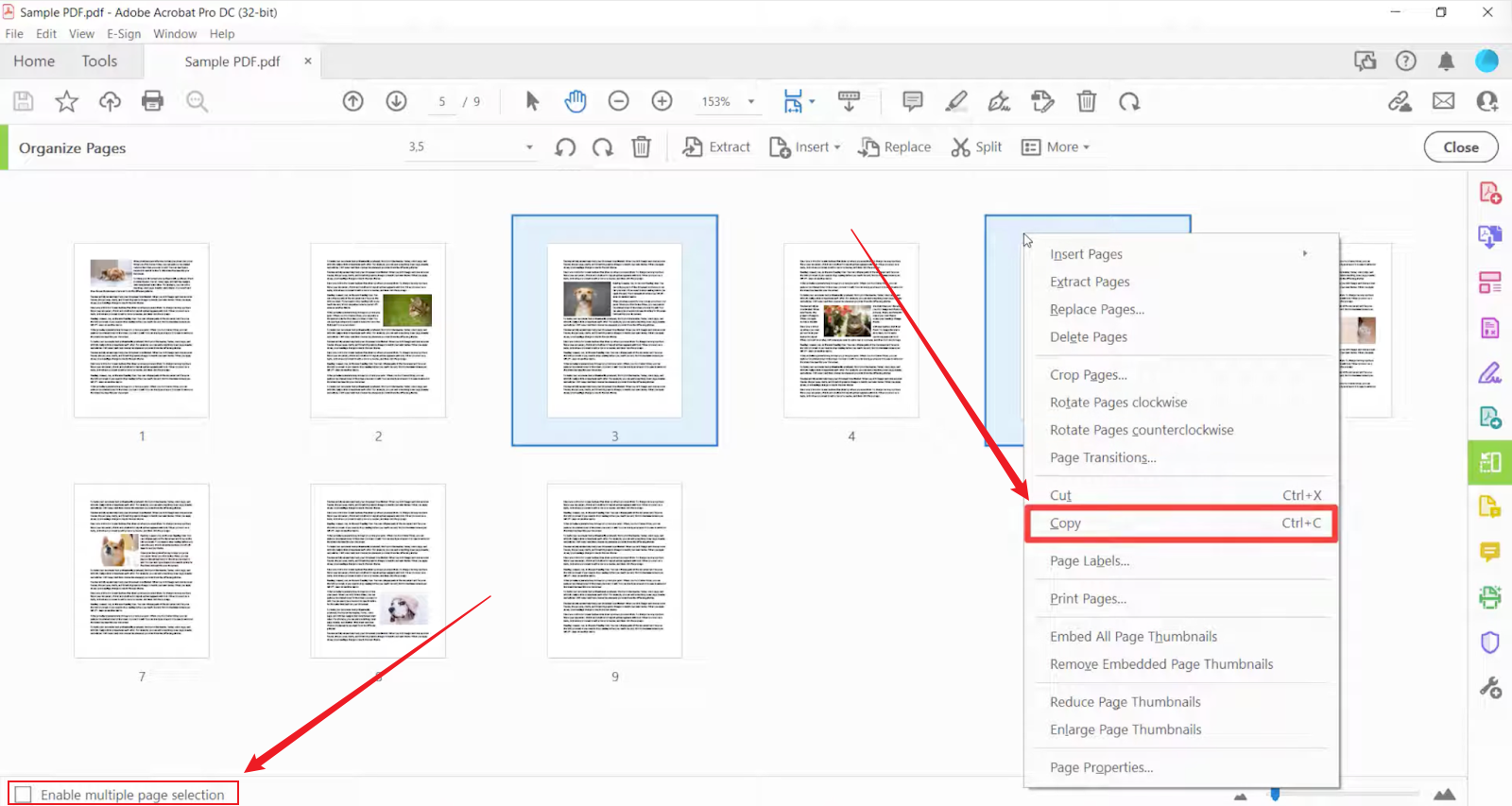
Within the Organize Pages screen, select the thumbnails of the page you want to duplicate.
Note. You can select multiple consecutive or non-consecutive pages using the Shift or Ctrl/Cmd keys on your Windows or Mac.
You may also see the Enable multiple page selection option at the bottom of your screen. This option lets you select multiple consecutive and nonconsecutive pages without using the keyboard.
Step 3. Once your pages are selected, right-click them and select Copy from the shortcut menu.
Step 4. Next, move your cursor to where you want to duplicate the pages. And then click the blue bar and select Paste from the shortcut menu.
Note. As another option, if available, you can use the Duplicate icon (two rectangles) in the toolbar.
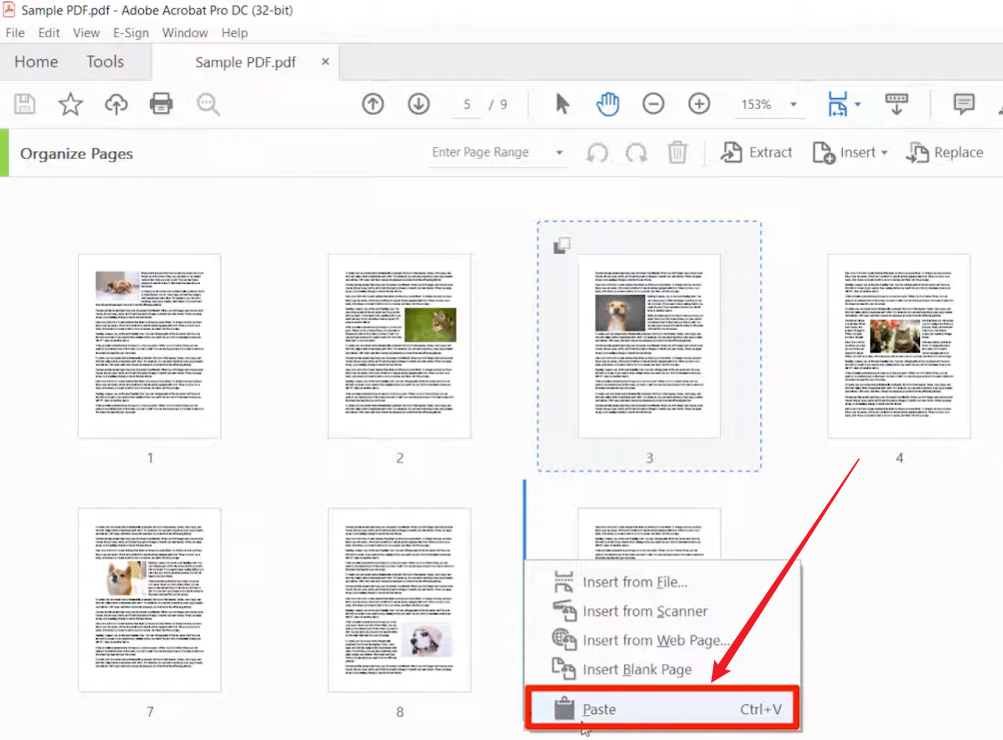
The duplicated page shows up right after the original page. You can move it to a different position if desired.
Step 5. Lastly, open File and choose Save to preserve your edits.
Method 2. Duplicate a Page Using Copy & Paste in Organize View
Another convenient way to duplicate pages in Adobe Acrobat is by using the Copy & Paste tool in the Organize Pages view. With this method, you can rapidly replicate any page without opening multiple menus, thanks to keyboard shortcut duplication. This method is especially valuable for large PDFs, particularly when you need to copy a single page or a small number of selected pages.
Let’s find out how to duplicate PDF pages in Adobe Acrobat through the Copy & Paste method in Organize Pages view.
Step 1. In Adobe Acrobat, open the program and click the All Tools tab. Then click the Organize Pages button.
Next, select the page thumbnails you want to duplicate.
Step 2. Use the Ctrl + C keys on Windows or Cmd + C keys on Mac to copy the page.
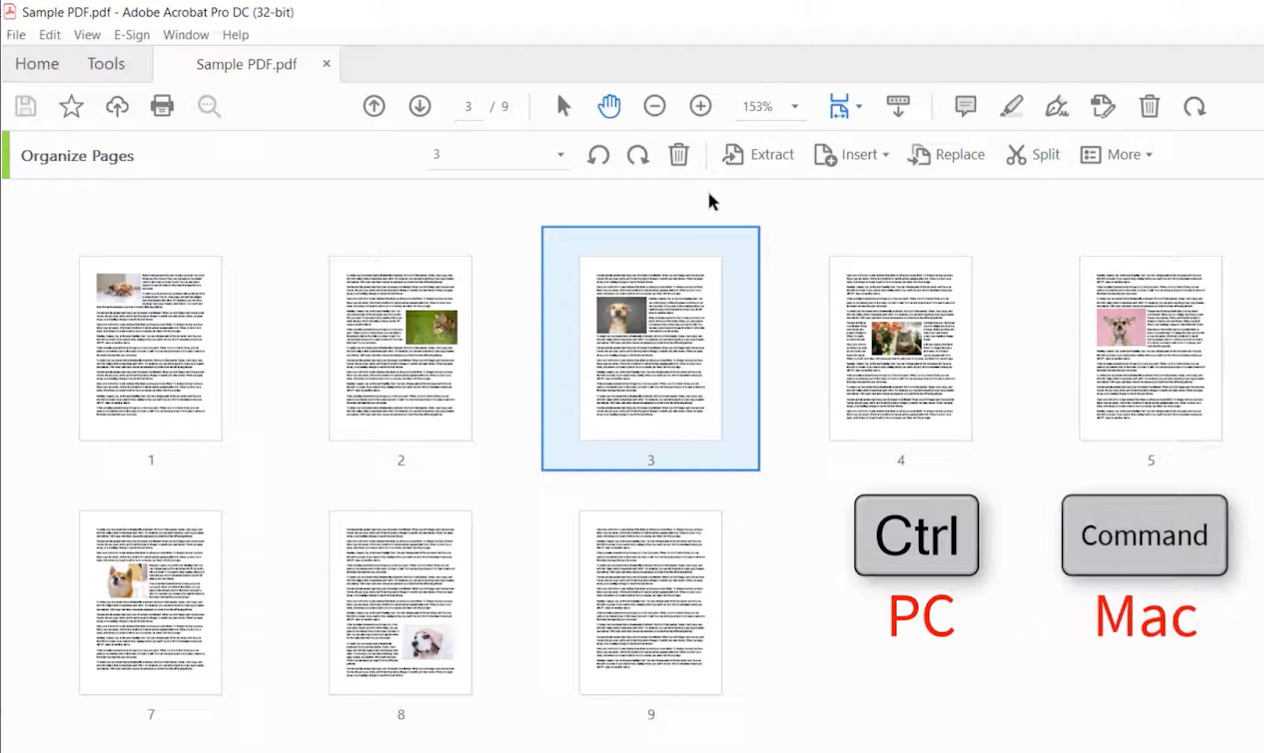
Note. To select multiple consecutive pages, choose the first page and then press and hold the Shift key as you select the last page.
To select multiple nonconsecutive pages, pick the first page and then press and hold the Ctrl/Cmd key on a PC or Mac.
Step 3. Now, press and hold the Ctrl key on a PC or the Option key on a Mac as you drag the pages to a new position.
Step 4. Then, release the pages and then the Ctrl key or the Option key when you see the blue line where you want to insert the duplication.
Note. It’s important to release the pages just a moment before releasing the Ctrl or Option key on your keyboard.
At the end, your copied pages should now be added to the PDF.
Alternative Ways to Duplicate a PDF Page
Because of Adobe’s steep learning curve and costly subscription, you might search for how to duplicate a PDF page for free; many tools outside of Adobe Acrobat can assist. Several Adobe Acrobat alternatives allow users to copy pages quickly and efficiently, using online platforms or free desktop software, so PDF editing is accessible to all.
#Using an Online PDF Tool
Working with an online PDF tool is fast, easy, and needs no software installation. It allows you to duplicate PDF pages from any device with an internet connection. These tools are perfect for fast edits, particularly if you don’t have Adobe Acrobat or other desktop applications.
Here’s a selection of online PDF tools that let you duplicate PDF pages efficiently.
- Smallpdf
- iLovePDF
- PDF Candy
- Sejda PDF
- PDF24 Tools
Of the many online PDF tools, Smallpdf stands out as an easy-to-use platform offering diverse PDF management features. Suitable for both beginners and pros, it allows easy and fast duplication of PDF pages without any software installation. Using its intuitive drag-and-drop interface, Smallpdf handles common PDF tasks smoothly and efficiently.
Let us see how to duplicate a page in PDF online with Smallpdf in just a few clicks.
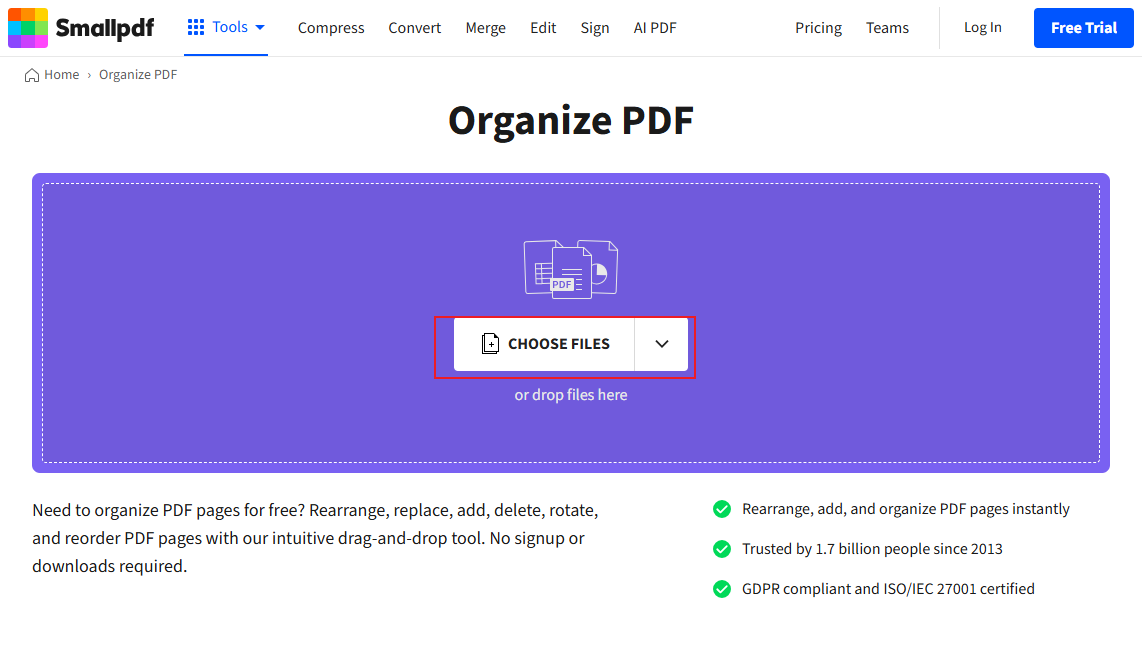
Step 1. Go to the Smallpdf Organize PDF tool on your web browser, such as Chrome or Safari.
Step 2. Click Choose Files to upload your PDF file. Or drag your PDF file directly into the program’s interface.
Step 3. Hover the cursor over the page thumbnail you want to duplicate.
Step 4. Then, use the menu options at the upper–right side of the page to copy/duplicate the selected page.
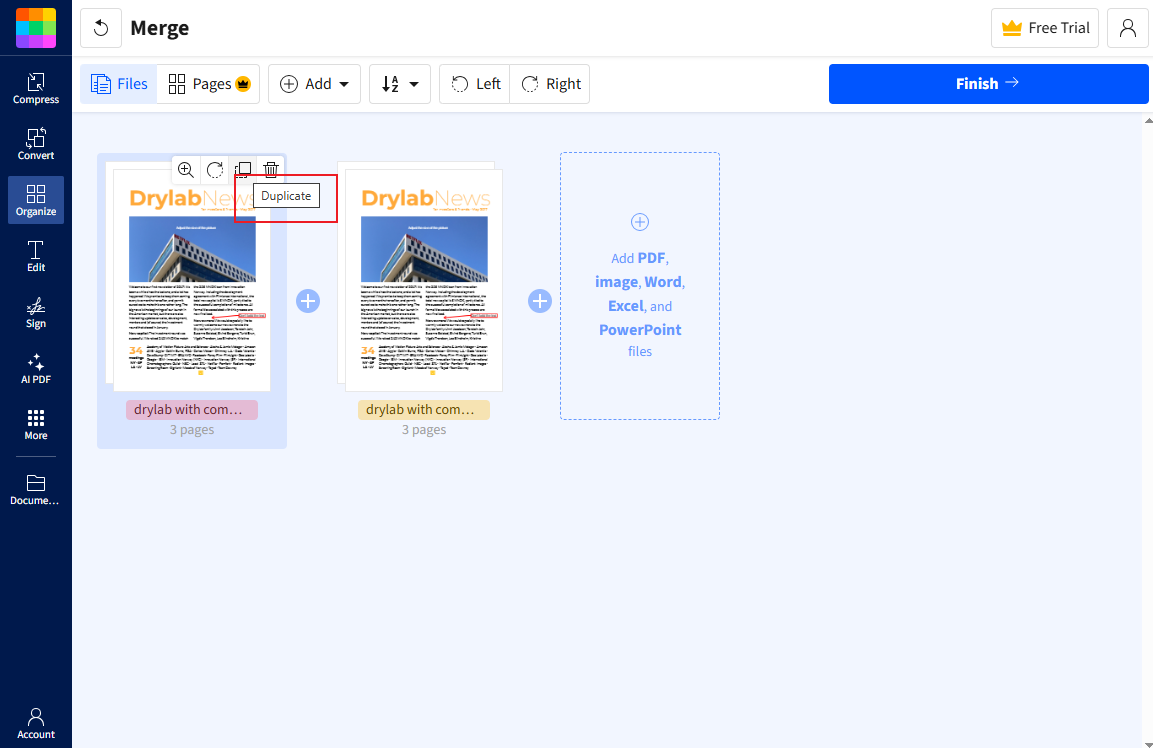
Note. The duplicate page will appear on the right side of the original page.
If needed, drag and drop the new page to your desired position.
Step 5. After finishing, click Finish in the top-right corner to apply your edits and download the PDF.
#Using a Free PDF Editor
JOPDF is a simple, lightweight, and reliable tool for managing your PDFs with ease. Using this tool, you can duplicate PDF pages for free within moments, saving time when rearranging or reusing your content. For work, study, or personal tasks, JOPDF lets you duplicate PDF pages efficiently and without hassle. Serving as a free PDF editor for Windows and Mac, it comes with a clean layout and practical tools for users of all skill levels.
Learn how to easily duplicate PDF pages for free with JOPDF in just a handful of clicks.
Step 1. Get JOPDF installed on your Windows or Mac system by downloading it from the official website.
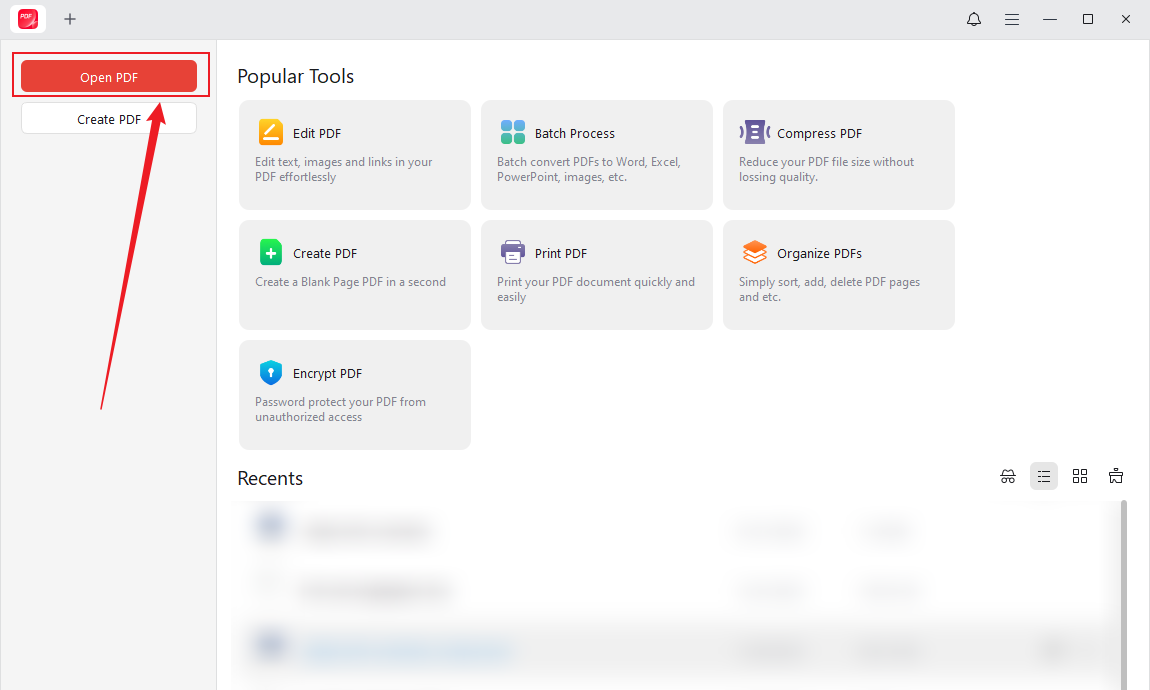
Step 2. After launching the program, select Open PDF to import the PDF where you plan to duplicate a page.
Step 3: Navigate to the Page tab and locate the page you need to duplicate. Then press Ctrl + C (or right-click to choose Copy).
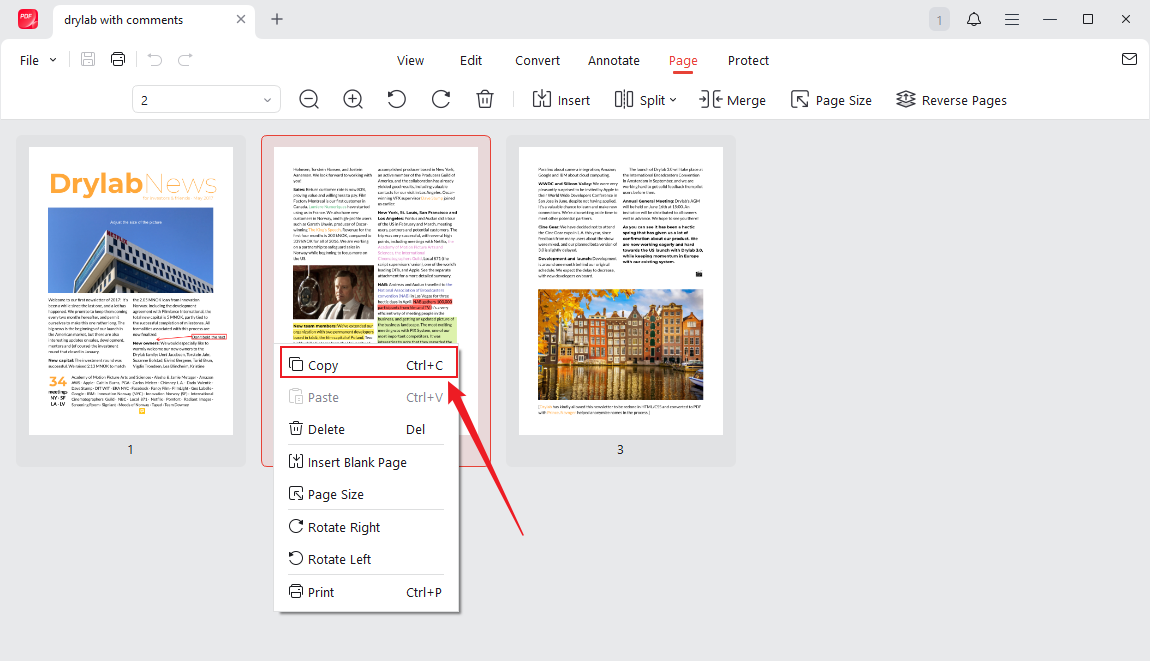
Step 4: Choose a different page and press Ctrl + V to paste the copied page after it (or right-click the page and select Paste).
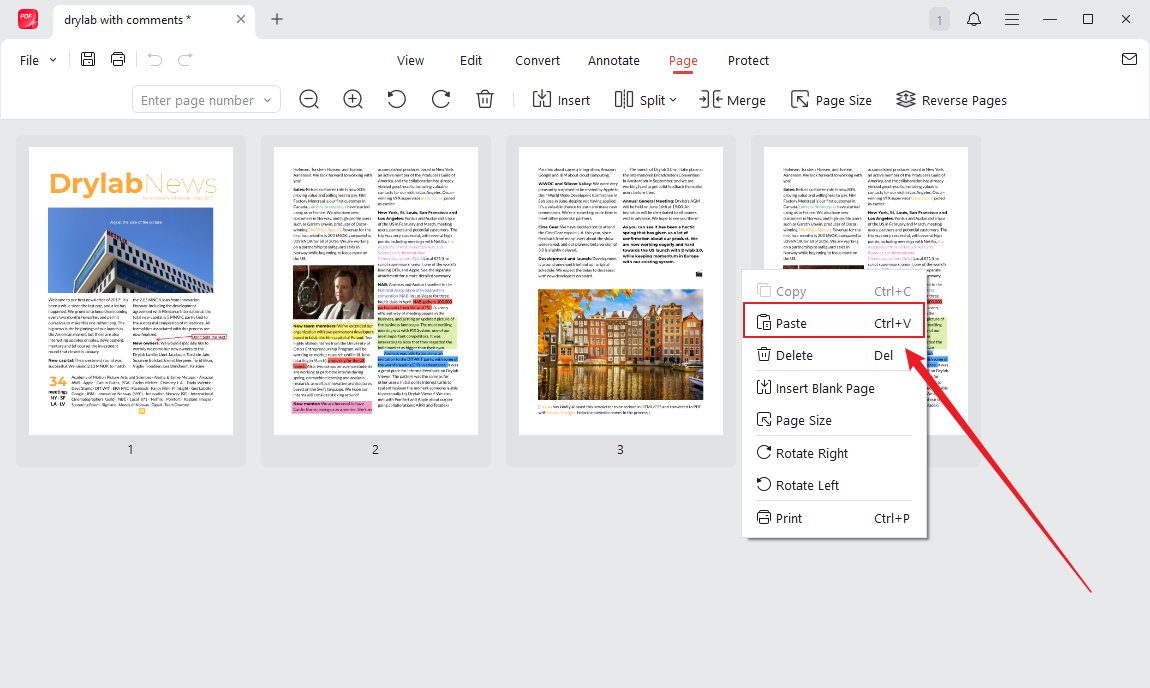
Note. You can duplicate a PDF page multiple times for free by pressing the paste shortcut multiple times.
As another option, you can duplicate a page in a PDF from the left side thumbnail pane. Once you’ve opened the PDF file, just scroll to the specific page thumbnail. And right-click to copy and paste it where you like.
Final Wrap Up
Duplicating pages in a PDF provides an easy and efficient method to organize and control your documents. Whether you’re figuring out how to duplicate a page in Adobe Acrobat or using free desktop or online tools, doing so can help save time and increase efficiency. With the right tools, copying pages has never been easier or more accessible.



