


What Does "Adobe Failed to Send a DDE Command" Mean?
You double-click a PDF file, expecting it to open instantly. However, Acrobat is not responding, and an error message appears: "Acrobat failed to send a DDE command." This error prevents you from opening your documents and completely disrupts your workflow. So, what does this error mean?
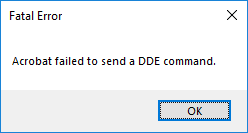
Well, DDE stands for Dynamic Data Exchange. It is an older communication method that Windows uses to talk to applications. When you double-click a PDF, Windows sends a DDE "handshake" to Acrobat, essentially saying, "I have a file here, please open it." However, when Acrobat fails to respond to this handshake correctly, the connection times out, and you see this error.
Although this issue is frustrating, it's not that difficult to resolve. Keep reading to find out how to fix it.
Fix 1: Try an Acrobat Alternative to Open Your PDF
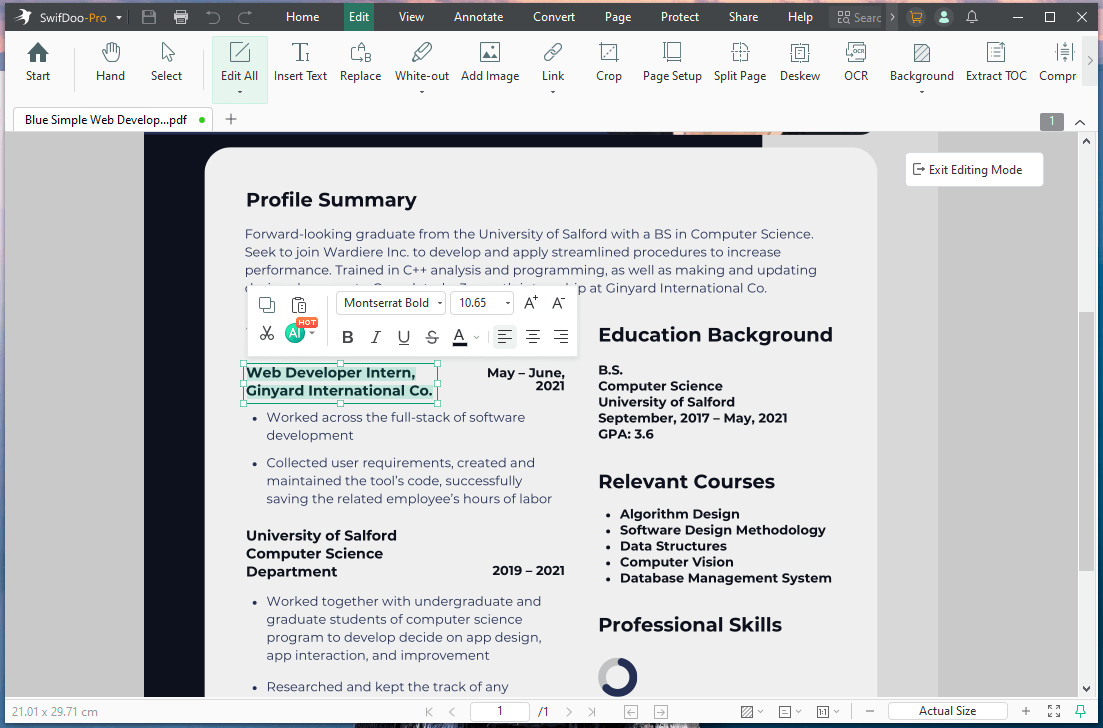
When you have a deadline and need to access a file right now, you can't afford to waste 30 minutes troubleshooting Adobe. The best immediate fix is to simply use another PDF reader that doesn't rely on these legacy protocols, such as SwifDoo PDF.
Why SwifDoo PDF? SwifDoo PDF is a lightweight, robust alternative to Adobe Acrobat. It quickly gained popularity for its faster operating speed and smaller size. It uses modern file association protocols, meaning you won't encounter the "DDE command" error.
In addition to PDF viewing, it can also help you edit, annotate, convert, compress, sign, and password-protect PDFs, just like Acrobat. Click the download button to get SwifDoo PDF and start!
To open the document, select Open and choose the PDF. You can now finish your work and troubleshoot Adobe later when you have free time.
More Acrobat alternatives:
![The 10 Best Adobe Acrobat Alternatives [2025 Updated]](https://img.swifdoo.com/image/adobe-acrobat-alternative.png)
The 10 Best Adobe Acrobat Alternatives [2025 Updated]
Need an Adobe Acrobat alternative to edit and do more with PDFs? Check the 10 affordable or free alternatives to Adobe Acrobat Reader, Pro, Sign, or Standard.
READ MORE >Fix 2: Restart Adobe Acrobat
Sometimes, a temporary glitch can cause the “Acrobat failed to send a DDE command” error. In this case, restarting can help solve the problem.
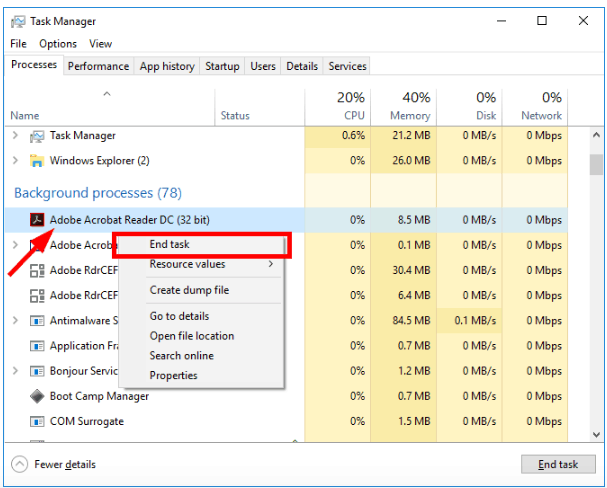
- Press Ctrl + Shift + Esc to open the Task Manager.
- Scroll through the Processes tab and look for Adobe Acrobat.
- Right-click on it and select End Task.
- Now, try double-clicking your PDF again.
Still failing? Restart your entire computer. This clears the DDE cache and resets the communication channels between Windows and your apps.
Fix 3: Repair the Acrobat Installation
Adobe Acrobat comes with a built-in "self-repair" tool. It scans your installation for missing or corrupted core files (including the ones responsible for receiving DDE commands) and automatically replaces them with fresh copies.
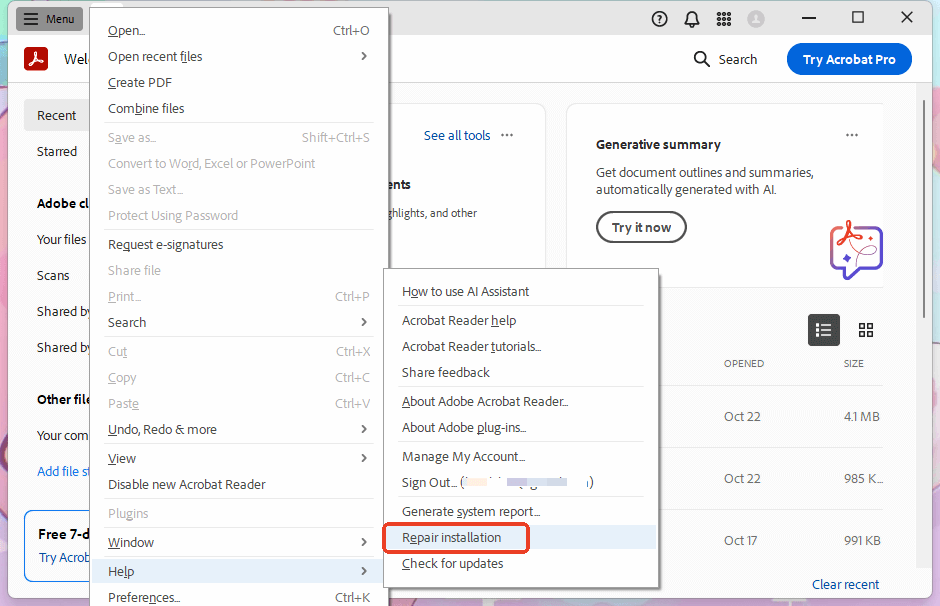
- Open Adobe Acrobat directly from your desktop icon.
- Go to the Help menu in the top bar.
- Select Repair Installation.
- Click "Yes" to confirm. Adobe will run a diagnostic scan and repair bad files.
- Once finished, restart your computer and test your PDF.
Alternative: If Acrobat is not opening at all, go to Control Panel > Programs and Features, right-click Adobe Acrobat in the list, and select Change > Repair.
Fix 4: Update Acrobat to the Latest Version
Acrobat failed to send a DDE command error, which is frequently caused by compatibility issues between an older version of Acrobat and a newer Windows update. Adobe releases patches regularly to fix these protocol errors. If you are running an outdated version, you are prone to these bugs.
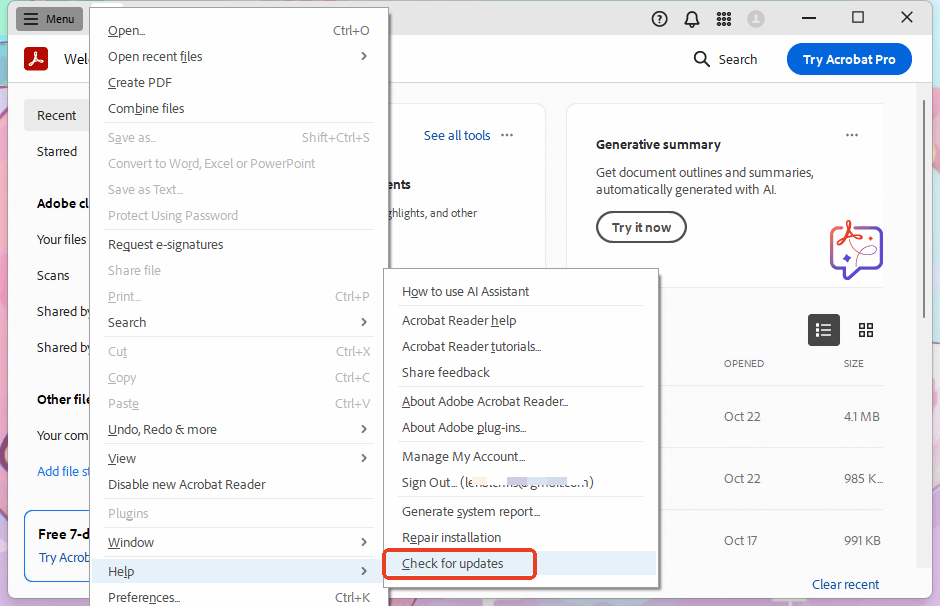
- Open Acrobat from your desktop shortcut.
- Go to Help > Check for Updates.
- The software will connect to Adobe servers. If an update is available, click Download and Install.
- Let the updater finish, then restart your PC.
Fix 5: Turn off Antivirus Software Temporarily
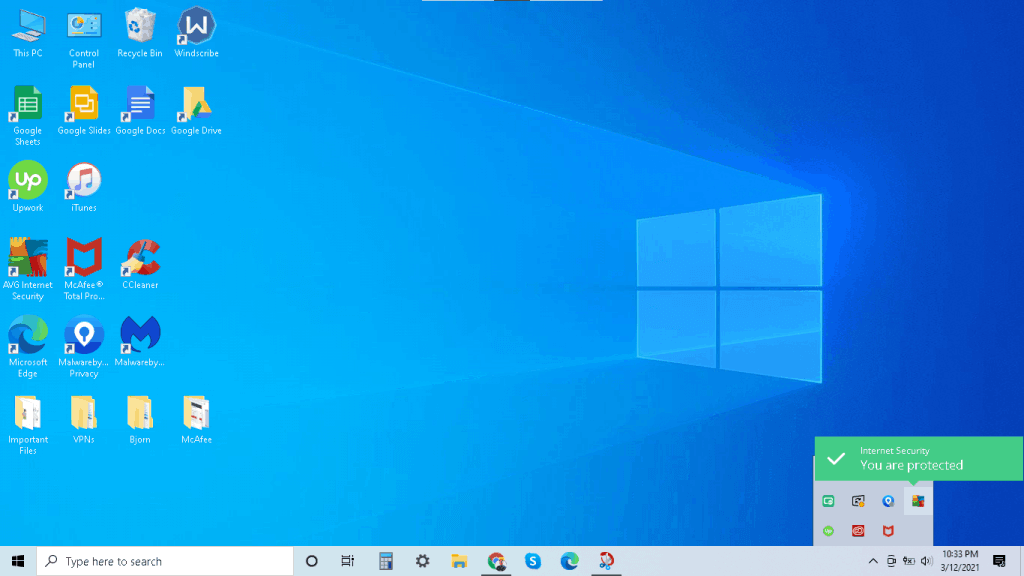
Aggressive antivirus software monitors how programs talk to each other. Sometimes, they mistake the DDE command "handshake" for malicious activity and block it. So, if you have installed such software, you can temporarily disable it to see if it works.
- Locate your antivirus icon in the Windows system tray.
- Right-click the icon and look for an option like "Disable Protection," "Pause for 10 minutes," or "Disable Auto-Protect."
- Once disabled, try to open your PDF.
Did it open? If yes, your antivirus is the problem. You don't need to leave it off permanently. Go into your antivirus settings and add Adobe Acrobat to the "Exclusions" or "Allow List", then turn your protection back on.
Fix 6: Edit the Windows Registry
This fix manually removes the complicated DDE instruction and forces Windows to use a simpler, direct method to open PDFs. However, incorrect modifications may affect system operation. To be on the safe side, you can create a system restore point or back up the registry.
Steps:
- Press Win + R on your keyboard to open the Run dialog.
- Type regedit and hit Enter. Click "Yes" to allow administrative access.
- Navigate through the folders on the left to this path: HKEY_CLASSES_ROOT\acrobat\shell\open\ddeexec.
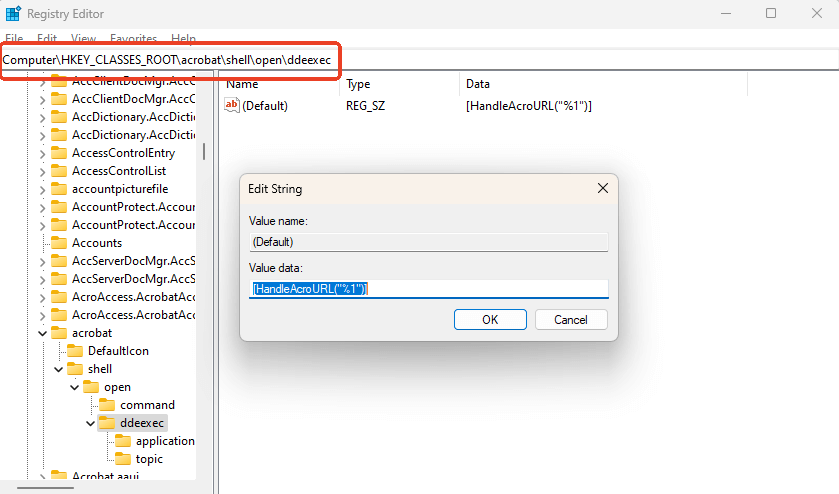
- In the main window on the right, double-click the (Default) key.
- If there is any value inside, delete it so the box is empty. Click OK.
- Now, navigate to this path (just slightly above the previous one): HKEY_CLASSES_ROOT\acrobat\shell\open\command.
- Double-click the (Default) key on the right.
- You will see a long string of text that looks like a file path, ending in something like ...Acrobat.exe" "%1".
- Look closely at the end. If it looks like ...Acrobat.exe" /u "%1", the DDE command is active.
- Remove the /u and the extra DDE command, so it simply ends with ...Acrobat.exe" "%1". (Ensure there are quotes around the %1).
- Close Registry Editor, then restart your computer.
Fix 7: Reinstall Acrobat
If the registry edit fails or feels too risky, a clean reinstall is the surest way to reset all file associations and DDE protocols. However, a standard uninstall often leaves behind broken preference files, which can cause the error.
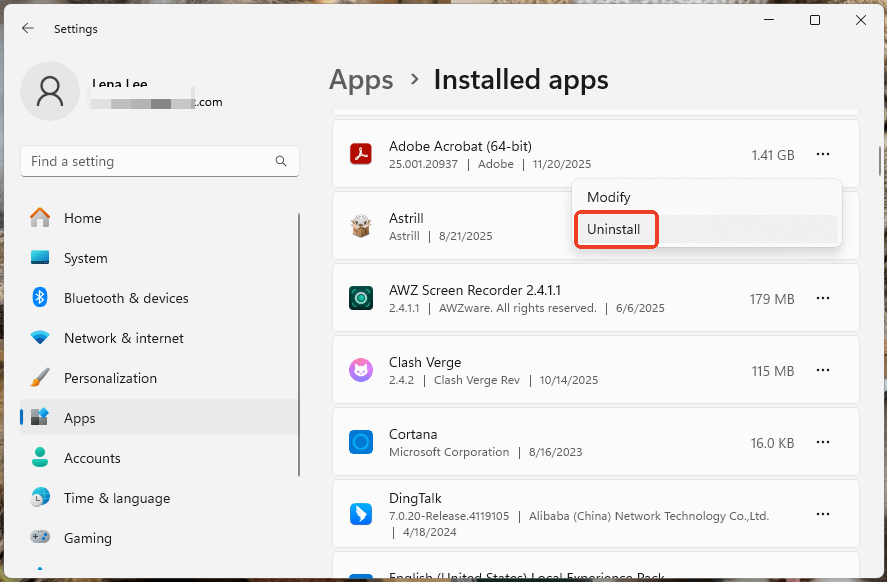
- Click Start and go to Settings.
- Click Apps and choose Installed App.
- Find Adobe Acrobat, click the three-dots icon, and select Uninstall.
Conclusion
That’s all you need to know to fix “Adobe Acrobat failed to send a DDE command”. We've covered 7 proven fixes to get that door open again. However, if you want to access the PDF document immediately, the smartest move is to switch to SwifDoo PDF. It offers a range of reading and editing tools to help you handle PDFs more easily.



