Can You Extract Text from a PDF Image
It is not difficult to extract text from scanned PDFs as long as you select the right OCR tool. In general, a PDF file can contain either real text or images of text. If the pages were created by scanning paper documents, the words you see are usually part of an image rather than an actual text layer. Hence, the ordinary copy-and-paste functions may not work.
In that case, you need to use OCR to solve this problem by recognizing characters in the image and creating machine-readable text.
4 Ways to Extract Text from a PDF Image
There are several ways to extract text from a scanned or image-based PDF. Here, I’d like to give you an overview of the 4 available ways for extracting PDF text.
|
Method |
Best For |
OCR Required? |
Typical Output |
|
PDF editor with OCR |
Regular PDF work |
Yes |
Searchable or editable PDF |
|
Online OCR tool |
Quick extraction |
Yes |
Text or searchable PDF |
|
Google Drive + Google Docs |
Free extraction |
Yes |
Editable text |
|
Microsoft OneNote |
Simple image-based documents |
Yes |
Copyable text |
Then, let’s check each way one by one. I will introduce you to several reliable OCR tools and show you step-by-step instructions.
Way 1. Use a PDF Editor with OCR
If you regularly work with scanned or image-based PDFs, a desktop PDF editor with OCR is a practical choice. Meanwhile, instead of converting the PDF into several separate files, you can recognize the text directly within the document. Here, I have rounded up several excellent PDF editors with OCR for your choice.
- SwifDoo PDF
- JOPDF
- Adobe Acrobat Pro
- Foxit PDF Editor
- Nitro PDF Pro
- …
SwifDoo PDF is a lightweight PDF editor with OCR that recognizes text in PDFs. You can use it to handle scanned and image-based PDFs. Its local OCR workflow lets you select the document language, output method, and page range. Depending on your selected output, the recognized PDF can be made searchable or editable. Hence, you can also use it to edit scanned PDFs.
As a feature-rich PDF editor, SwifDoo PDF offers a wide range of editing tools. For example, it enables you to edit images in PDFs, extract images from PDFs, add text boxes to PDFs, fill out and sign PDF forms, and make other edits.
How to Extract Text from a PDF Image with SwifDoo PDF
- Click the button above to download and install SwifDoo PDF on your Windows PC, and then launch this program.
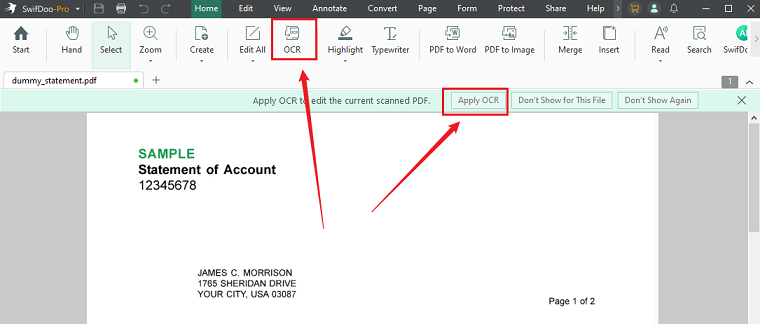
- Click Open PDF to import the target PDF image. Then, SwifDoo PDF can automatically recognize the PDF image as a scanned PDF. Here, you can click the Apply OCR button in the top banner or select OCR in the top menu.
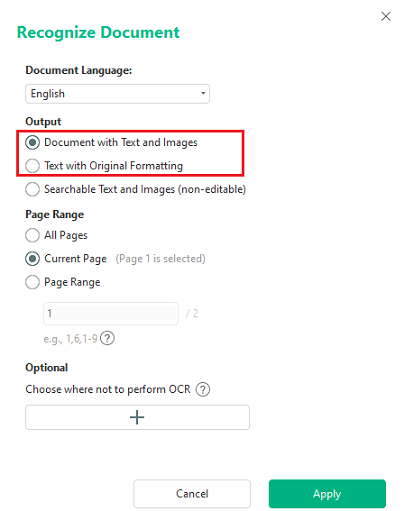
- In the Recognize Document window, select the PDF image’s primary language to improve recognition accuracy. Next, choose the desired output option, such as “Document with Text and Images” or “Text with Original Formatting”. Optionally, specify the page range if you only want to OCR certain pages.
- Now, click OK to start the OCR process. When recognition is complete, the resulting PDF will open in SwifDoo PDF. Here, you can copy and extract text from the PDF.
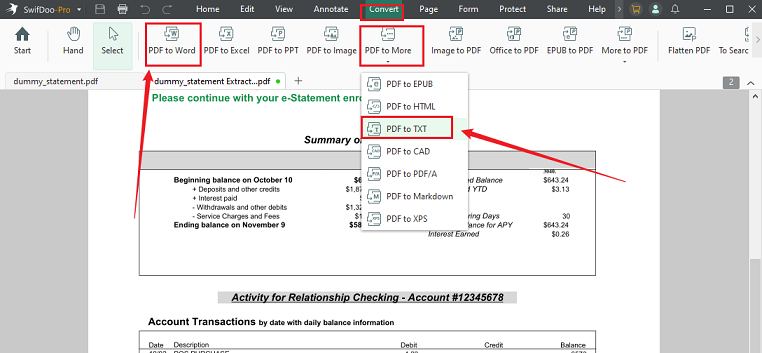
In addition, SwifDoo PDF can convert an OCR-processed PDF to a text file. After OCR, go to Convert > PDF to More > PDF to TXT to extract the recognized content as a TXT file. Alternatively, you can use its PDF to Word tool to extract text from the image PDF and save it as a Word file. Its PDF to Word tool can apply OCR during the conversion process.
Pros
- Recognizes text directly from scanned and image-based PDFs.
- Can create searchable or editable PDFs.
- Lets you select the document language.
- Allows you to specify which pages to process.
- Can convert an OCR-processed PDF to TXT.
- Lets you continue working with the PDF after OCR.
Cons
- The OCR feature is currently available on the Windows version of SwifDoo PDF.
- Complex documents may still require manual correction.
Way 2. Extract Text from a PDF Image Online
When you only need to extract text from a PDF occasionally, an online OCR tool can be convenient. Here are some reliable online OCR tools you can choose from:
- Smallpdf
- iLovePDF
- Adobe Acrobat Online
- Lido
Smallpdf’s PDF OCR tool is designed to recognize text in scanned or image-based PDFs and make the resulting text searchable and selectable. Then, you can copy the recognized text or convert the document to an editable format. Below is how to extract text from an image-based PDF online with Smallpdf:
- Open your browser and open the Smallpdf PDF OCR
- Click CHOOSE FILES to upload your PDF image from your computer. Also, you can upload files from Dropbox, Google Drive, and OneDrive.
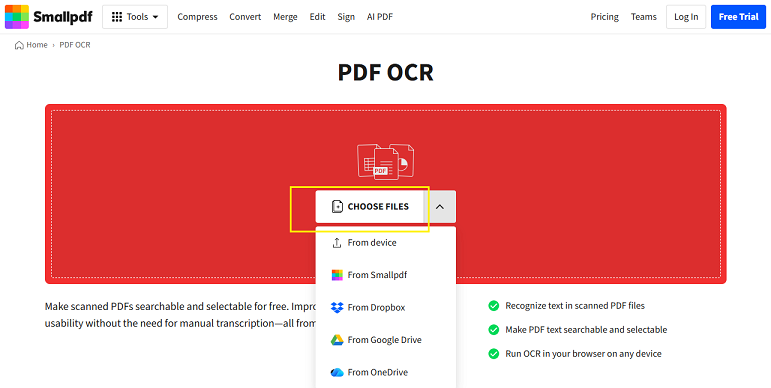
- Then, just wait for Smallpdf to process the document with OCR. Once the recognition process is over, click Download to save the resulting PDF. Alternatively, expand Export As and select the “Word (.docx)” option if you need editable text.
Pros
- Dedicated online PDF OCR tool.
- No software installation required.
- Works directly with scanned and image-based PDFs.
- Makes recognized text searchable and selectable.
- Can export extracted content to Word.
- Works in a browser across different devices.
Cons
- Requires uploading the PDF to an online service.
- Some advanced OCR/conversion features may require a paid plan or trial.
- OCR accuracy depends on scan quality, resolution, contrast, and document layout.
For contracts, financial documents, or other sensitive files, an offline tool, such as SwifDoo PDF, is more appropriate.
Way 3. Extract Text from an Image PDF with Google Drive
Google Drive and Google Docs can also provide a convenient way to extract text from certain scanned PDFs without installing dedicated OCR software. Here, let’s refer to the detailed instructions below:
- Open Google Drive in your browser and go to New > File upload to upload your scanned PDF.
- Right-click the uploaded PDF and select Open with > Google Docs. Then wait for Google Docs to process the document.
- Next, review the recognized text in the resulting Google Docs file. Now, you can extract the text you need.
- Finally, you can go to File > Download to save the document as a PDF or Word file as needed.
Pros
- Convenient for someone who is already using Google Drive
- No dedicated OCR software installation required
- Useful for basic text extraction
- Suitable for simple scanned documents
Cons
- Complex layouts can be difficult to reproduce
- Formatting may change
Way 4. Extract Text from an Image-Based PDF with OneNote
Microsoft OneNote can also be used as a workaround for extracting text from images. Its built-in OCR lets you extract text from images or PDF file printouts. This can work in the desktop version of OneNote for Windows and Mac. Here, you should note that it is not available in OneNote for the web. Below are the exact steps to extract text with OneNote:
- Open your OneNote desktop app and go to the desired notebook.
- Go to Insert > File Printout to select your PDF image and insert it. Then OneNote will convert the PDF pages into images.
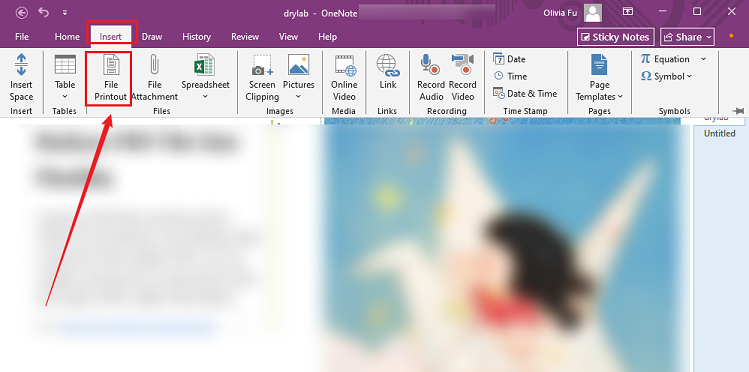
- For a single PDF image, right-click and select Copy Text from Picture. For a multi-page PDF printout, right-click any page image and select either Copy text from this Page of the Printout or Copy Text from All the Pages of the Printout.
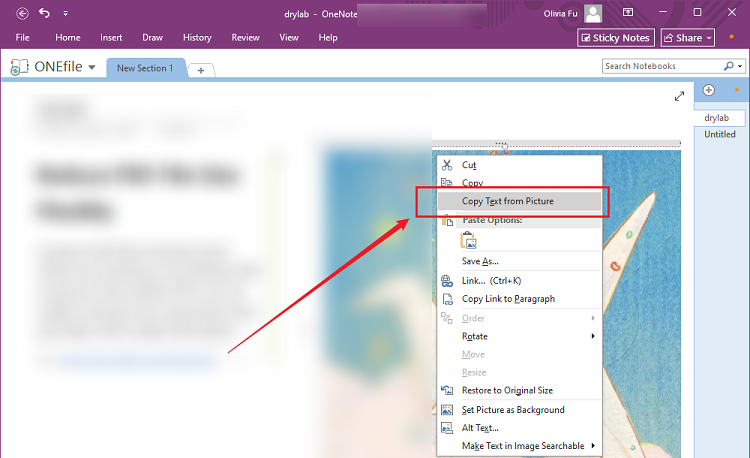
- Next, open OneNote, Word, Notepad, or another text editor and paste the recognized text.
Pros
- The OCR feature is available without payment
- Can work on Windows and macOS
- Deep Microsoft 365 integration
- Simple for small amounts of text
Cons
- It is not primarily a PDF OCR workflow
- Its user interface is not intuitive and requires a learning curve
Final Takeaway
If your PDF is actually a collection of scanned images, you cannot reliably extract its content through ordinary copy and paste. In that case, OCR is the key step for extracting text from a PDF image. If you occasionally handle PDF images, an online OCR service or Google Docs may be sufficient. If you regularly work with scanned PDFs, a desktop PDF editor with OCR like SwifDoo PDF can provide a more integrated workflow for recognizing, searching, copying, and editing text. Now, select a tool and try it out.