


Can You Compress a PDF in Preview?
Yes. Preview on macOS makes it easy to reduce the PDF file size on Mac.
Reducing file size ensures smoother file handling while keeping documents accessible and readable. It is especially useful for large documents with images or scanned pages. Preview provides a simple, effective way to optimize PDFs while maintaining sufficient quality for viewing, sharing, and record-keeping.
Steps to Compress a PDF in Preview
Reducing the size of a PDF in Preview is quick and straightforward. This section explains two built-in techniques to compress a PDF in Preview on Mac. The first approach uses the Export feature for straightforward, fast compression, while the second uses advanced settings to control file size and output quality more effectively.
1. Use the Export Feature
The Export feature in Preview is the quickest way to compress a PDF on a Mac. It lets you automatically shrink file size with minimal effort. See how to reduce size of a PDF in Preview through the Export feature.
Step 1. Start the Preview application on your Mac.
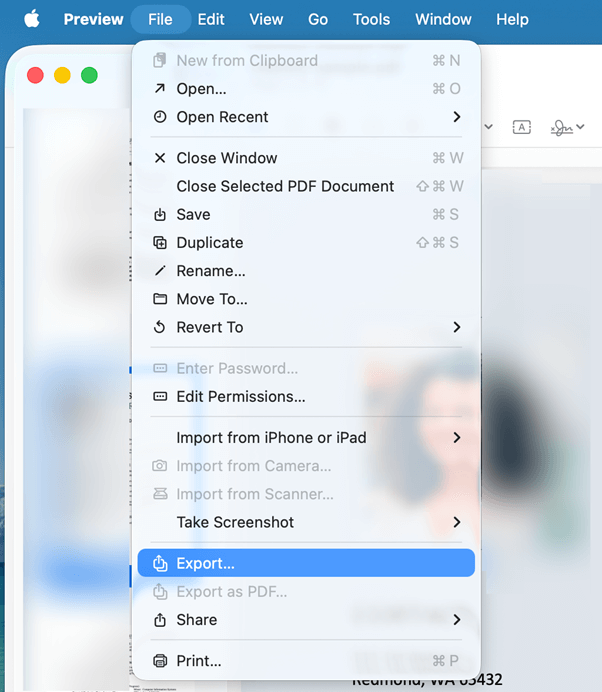
Step 2. Open the PDF you want to reduce in size. Next, select the File menu at the top and choose the Export… option.
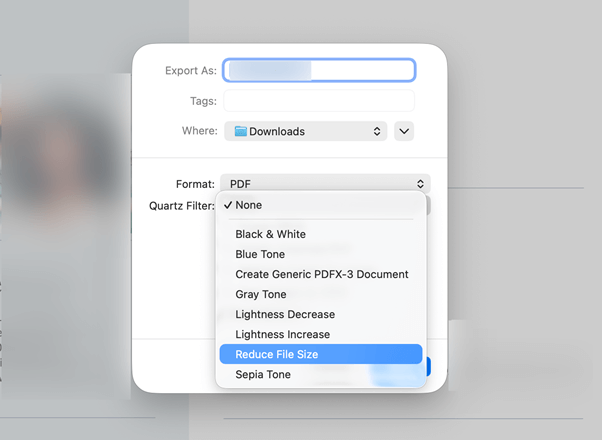
Step 3. From the Quartz Filter menu, select Reduce File Size.
Step 4. Finally, press Save to save the compressed PDF.
If you’re asked whether you want to replace the existing file, do one of the following:
- Replace the existing file: Tap Save.
- Choose a different filename for the new file: Click Cancel, type a new filename in the Export As field, and then press Save.
2. Advanced Features to Compress PDF
Advanced features in Preview let you compress a PDF with greater control over quality and file size. These settings are useful when you want better results than basic compression while keeping the document clear and readable.
Find out how to compress a PDF in Preview on Mac using advanced features.
Step 1. Go to the Preview app on your Mac.
Step 2. Open the PDF you want to reduce in size. Next, select the File menu at the top and choose the Export… option.
Step 3. In the window that pops up, opt for any of the following tickboxes:
- Create Linearised PDF: Optimise the PDF for fast loading and viewing in web browsers.
- Optimise images for screen: Optimise images for screen viewing to reduce file size.
- Save images as JPEG: Convert images to JPEG format, which uses image compression.
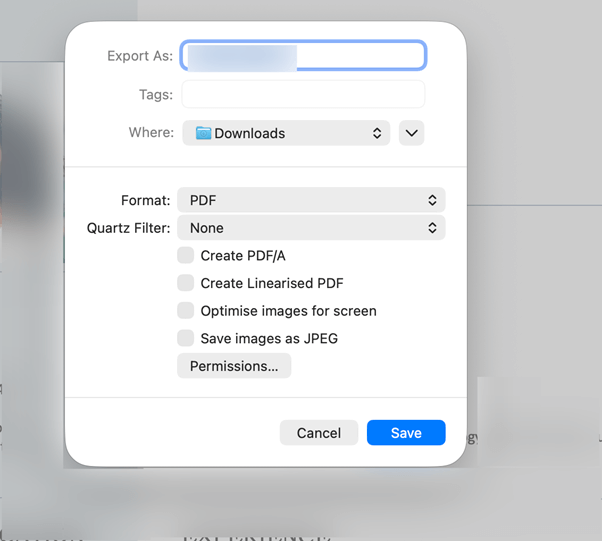
Step 4. After you’ve chosen the preferred option, press Save.
Bonus Tip: How to Edit and Manage PDFs Easily
You’ve seen the most straightforward native ways to compress a PDF on Mac for free, without extra tools. However, Preview has drawbacks; although fine for basic tasks, it does not offer advanced editing features.
For instance, you cannot edit a PDF with Preview, make major text changes, or modify advanced elements without specialized PDF software. This is where SwifDoo PDF proves to be a great choice.
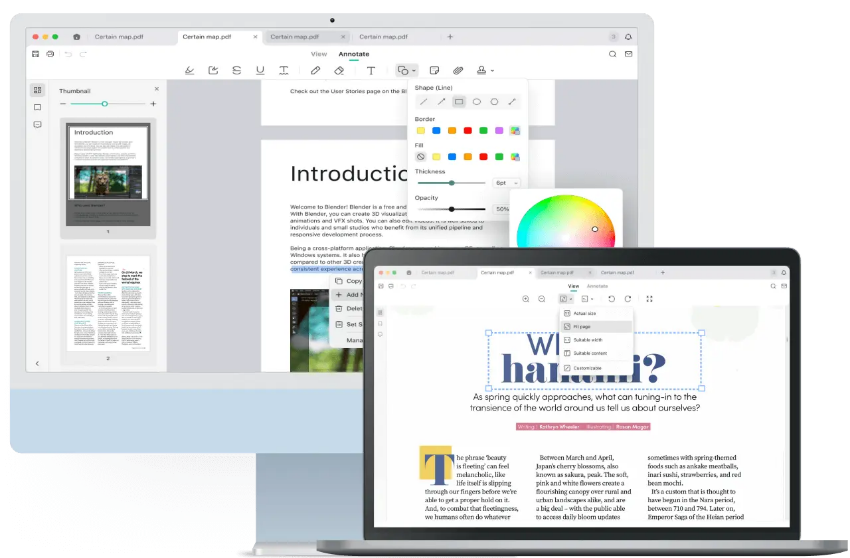
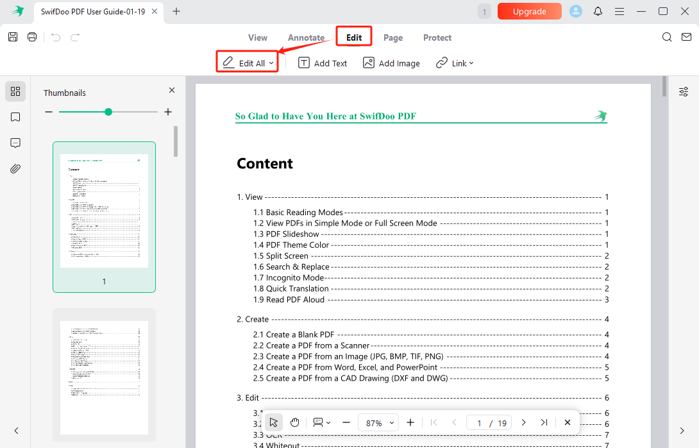
SwifDoo PDF is a robust tool that allows users to edit documents easily. As the best PDF editor for Mac, it allows you to modify existing text, add or remove content, adjust fonts, and reorganize pages with precision. Its user-friendly interface makes PDF editing simple, efficient, and precise, even for documents that Preview cannot handle.
⭐ Key Features of SwifDoo PDF
- Read, annotate, highlight, compress, merge, and split PDF documents.
- Convert PDF documents to and from other formats like Word, Excel, PowerPoint, and images.
- Works seamlessly across all devices, including Windows, macOS, iOS, and Android, as well as online (web) services.
Ready to manage all aspects of your documents? Download SwifDoo PDF today and easily change text in PDF without limitations. Whether you need to update, correct, or enhance your files, SwifDoo PDF makes editing fast, precise, and hassle-free. Enjoy using a professional PDF editor to streamline your Mac workflow.
A Quick Wrap Up
When handling PDFs on a Mac, keeping file size under control is important. Here, we’ve looked at simple and advanced options for how to compress a PDF in Preview on Mac.
Preview makes reducing file size simple without extra tools, but it cannot handle advanced editing tasks. For higher-level tasks, such as editing text or making precise edits, tools like SwifDoo PDF can complement Preview and optimize your PDF workflow. Hope this guide is helpful!



