


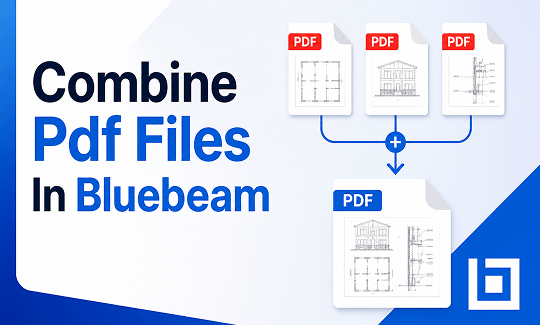
Steps to Combine PDF Files in Bluebeam
Bluebeam is a very big program. It has many buttons, menus, and tools. When you first look at it, it can seem a little scary. But do not worry. To combine PDF files in Bluebeam Revu, you only need to click your mouse a few times. Let us break the process down into very easy, clear steps.
Step 1: Find the Combine Tool
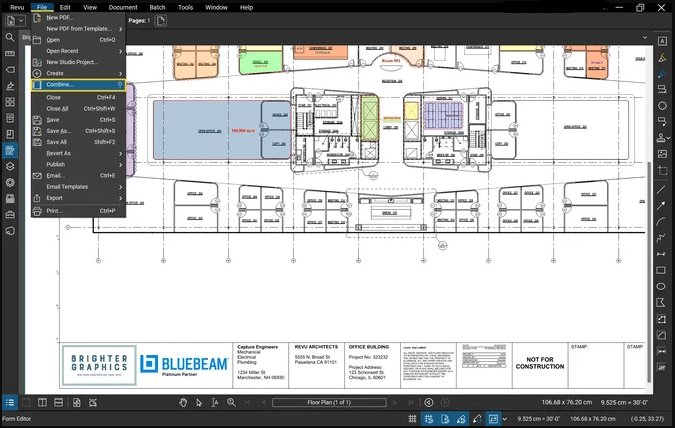
First, open the program. Look at the very top left corner of your computer screen. Click your mouse on the word file. A long list of choices will drop down.
Find Combine and click it. A new, smaller box will pop up in the middle of your screen. This box is the special tool where all the magic happens.
Step 2: Add Your Files
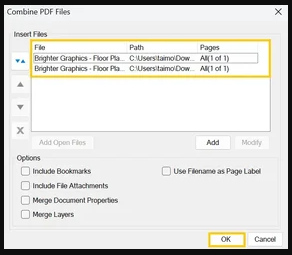
Now, you need to tell the program which specific files you want to put together. In the new box, look for a button that says Add. Click it and select all the documents you want to merge.
Step 3: Put Them in the Right Order
After you add your files, you will see a list of their names in the box. Check the list carefully. Are they in the correct order? If not, click on a file name to select it. Then, look for the little arrows on the right side of the box.
Use the "Up" arrow to move the file higher in the list. Use the "Down" arrow to move it lower. When you merge PDF files in Bluebeam, the file at the very top of your list will become page one.
Step 4: Finish and Save Your Work
When everything looks perfect, click the OK button at the bottom of the box. The program will handle the work and compile your files into a single brand-new document.
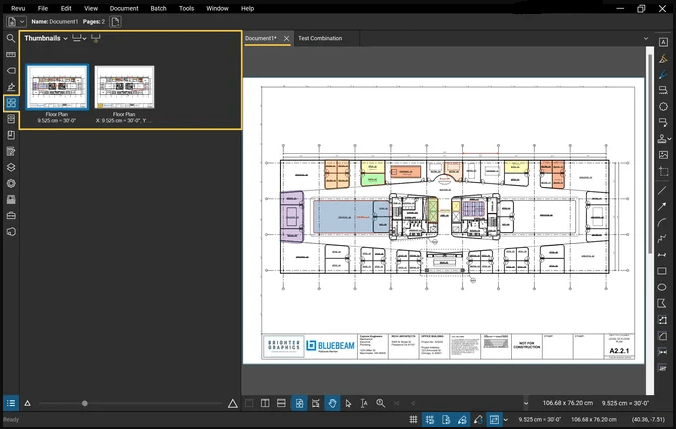
However, this new document does not have a real name yet, and it is not saved. You must save it so you do not lose your work. Go back up to File and click Save As. Type a name for your new file and save it to your computer.
Why Can’t I Combine PDF Files in Bluebeam?
You might follow all the steps perfectly, but the program stops working. Why does this happen? Here are a few simple reasons and how to easily fix them.
Reason 1: Locked Files and Passwords
The person who created this file might have encrypted it to ensure the security of the information. Because of this lock, you cannot easily combine password-protected PDF files.
If a file is locked, the program will block you from doing anything with it. To fix this, you must first unlock the file. You can click the button below to download SwifDoo PDF, a PDF password remover. It can even help you remove the merge permission without a password.
Reason 2: Broken Files
If a file is broken, the program cannot read the computer code inside it. It will stop the job completely. To fix this problem, try downloading the file again from the internet. Or ask the person who emailed it to you to resend it.
Here are more solutions:
How to Repair A Corrupted PDF File | 7 Ways
PDF files became corrupted? No worries! This guide will tell you how to repair a corrupted PDF file to retrieve important information.
READ MORE >Reason 3: Old Software Versions
Are you using a very old version of the Bluebeam program? Old programs can have bugs. Bugs are little errors in the computer code. They stop things from working right. To fix this, you might need to update your software to the newest version available.
Is Bluebeam a Good Tool for PDF Combining?
You might be asking yourself right now, is this program really the best choice for this job? The answer is: it depends on who you are and what your job is.

Bluebeam is very powerful. People who build huge houses, design city bridges, and draw maps use it every day. It has hundreds of special tools just for them. If you need to do very complex work, measure things on a screen, or deeply edit a PDF in Bluebeam, it is a great choice.
But, because it has so many tools, it can be very hard to use.
❌ It is also very expensive to buy. If you only need to do simple tasks, you might want something much easier and cheaper.
Another Easier Way to Combine PDF Files
If Bluebeam feels too hard, too messy, or too expensive, there is wonderful news. There is a much easier way to handle your documents. You can try SwifDoo PDF.
SwifDoo PDF is a great choice for normal people who want things to be simple. It is fast, very lightweight, and incredibly easy to learn. The screen is clean and nice to look at. The buttons are big and clear. Because it is so easy to use without any headaches, many people call it the best PDF editor for Windows.
Steps to combine using SwifDoo PDF:
- First, download SwifDoo PDF and install it.
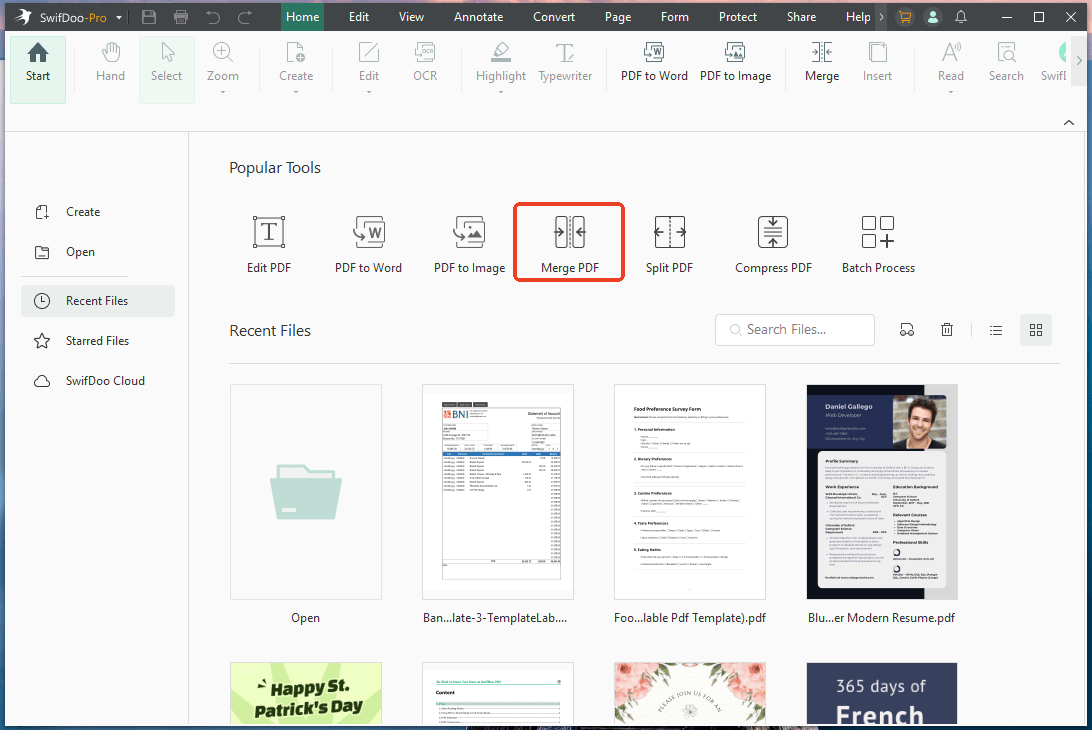
- On the very first screen, click the button that says Merge PDF.
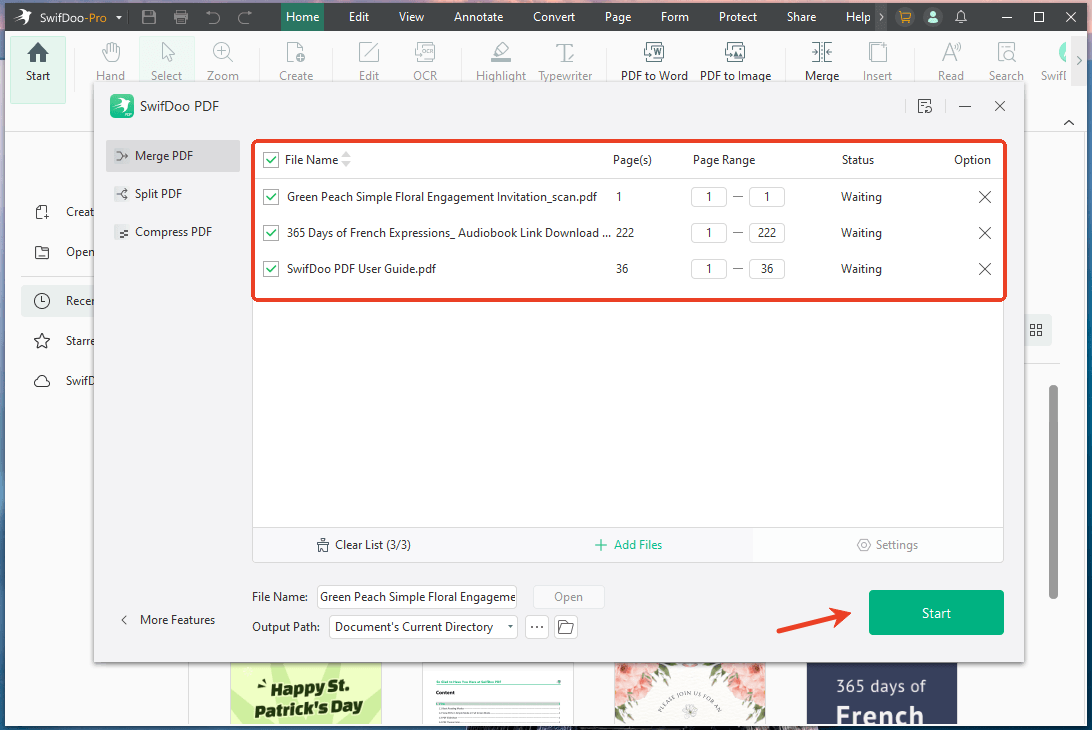
- A simple box will open. Just click your files, hold your mouse button down, and drag them into the box. Let go of the mouse button to drop them in.
- Name the file, select an output path, and click the Start button. That is it! Your new file is ready in just a few seconds.
SwifDoo PDF is not just for putting pages together. It has many other simple features that help you every day. For example, you can easily change text in the PDF, make huge files smaller so they fit in an email, or cut one big file into smaller pieces.
In short, it is the perfect tool for everyday use. Try it today and take control of your files!
Conclusion
That’s all about how to combine PDF files in Bluebeam. Now you know the exact steps to get the job done. While Bluebeam is a very strong tool for experts and builders, it can be too confusing for simple daily jobs.
Putting documents together should be a quick and simple task, not a frustrating one. If you want a stress-free way to manage your documents, give SwifDoo PDF a try. It can help you merge all files in just a few clicks.



