


Why Does Adobe Say “The Document Could Not Be Printed”?
If your PDF won’t print from Adobe but prints from other programs, the issue usually falls into one of these categories as follows:
- Corrupted PDF files: Damaged or partially downloaded PDFs can trigger Adobe Acrobat print errors.
- Outdated Adobe Reader: The older versions of Adobe Acrobat or Adobe Acrobat Reader may conflict with modern printer drivers.
- Printer driver problems: An incompatible or corrupted driver is one of the most common causes of Adobe Reader printing issues on Windows 10/11.
- Protected mode conflicts: Sometimes, Adobe's enhanced security can prevent PDFs from being printed.
- Large or complex PDFs: If the PDFs contain high-resolution images or heavy graphics, it can also cause printing failure.
- Print spooler errors (Windows): The Windows print spooler service can freeze or become corrupted.
10 Fixes for “Adobe The Document Could Not Be Printed”
In this section, let’s learn how to fix the error “Adobe the document could not be printed”. Follow me to check them one by one.
Fix 1: Restart Adobe and Your Printer
Before diving into advanced solutions, you can try restarting your Adobe Acrobat or Adobe Acrobat Reader.
- Close your Adobe completely and turn off your printer.
- Restart your computer and turn the printer back on.
- Launch Adobe, open the target PDF, and try printing it again.
Fix 2: Update Adobe Acrobat and Reader
Outdated software is a major reason why Adobe Reader document could not be printed errors appear. In that case, you need to update the outdated one to the latest version. Below is how:
- Open Adobe Acrobat or Adobe Acrobat Reader.
- Click Help from the top menu.
- Select the Check for updates option.
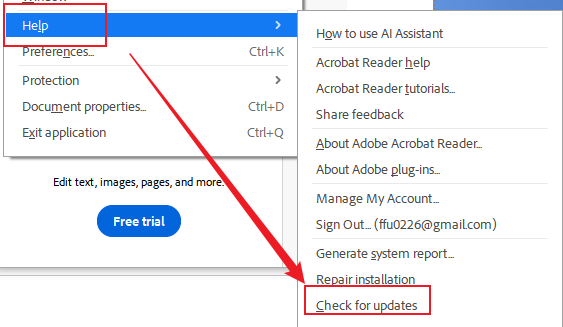
If an update is available, install it and restart your system.
Fix 3: Print as Image
The most effective solution to fix this error is to print the PDF as an image. How to do that? Follow the steps below.
- After opening the PDF in Adobe, press Ctrl/Cmd + P to enable the Print dialog.
- Click the Advanced button.
- Tick the Print as Image checkbox and click OK to save the change.
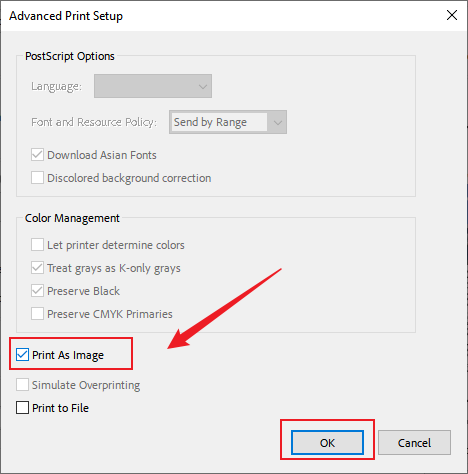
- Click Print.
Printing a PDF as an image can bypass complex font rendering and vector processing that may cause the Adobe Acrobat print error.
Fix 4: Repair Adobe Installation
Though the above printing solution is the most effective one, printing can fail if Adobe’s internal files are damaged. Then, you can try to repair the Adobe installation.
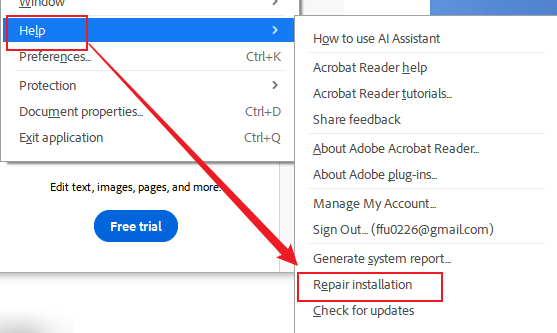
- Open Adobe first.
- Go to Help.
- Click the Repair Installation option. Next, confirm the operation and restart Adobe for printing.
Fix 5: Update or Reinstall Printer Drivers
How do I update the printer driver on Windows 10/11? Follow the guidance below:
- Press Windows + X and click the Device Manager option.
- Locate and expand the Printers list.
- Right-click on your printer and choose the Update driver option.
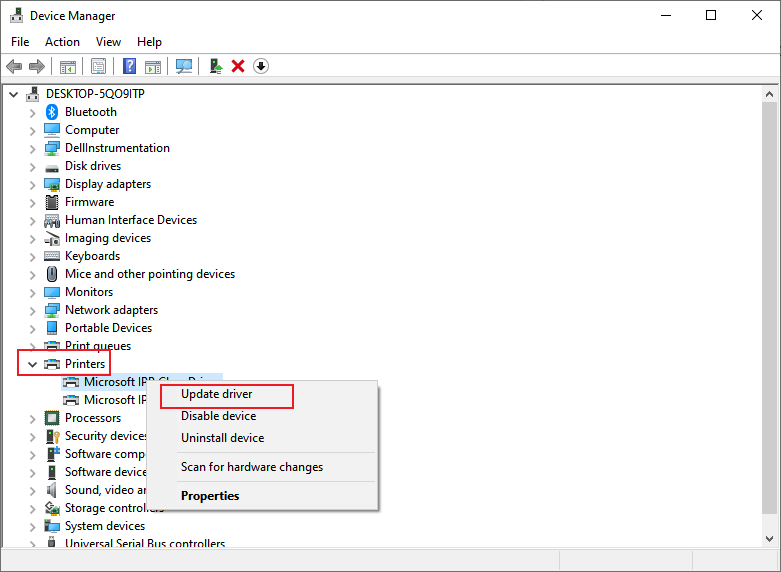
Then try printing a PDF in Adobe again. If updating doesn’t work, try uninstalling the printer, restarting your PC, and reinstalling from the manufacturer’s website.
Fix 6: Clear the Print Spooler (For Windows Only)
If the print queue is stuck, Adobe may fail to print. Hence, you can try clearing the print spooler.
- Press Windows + R to enable the Run dialog.
- Type into services.msc and press Enter.
- Find and locate Print Spooler, right-click on it, and click Stop.
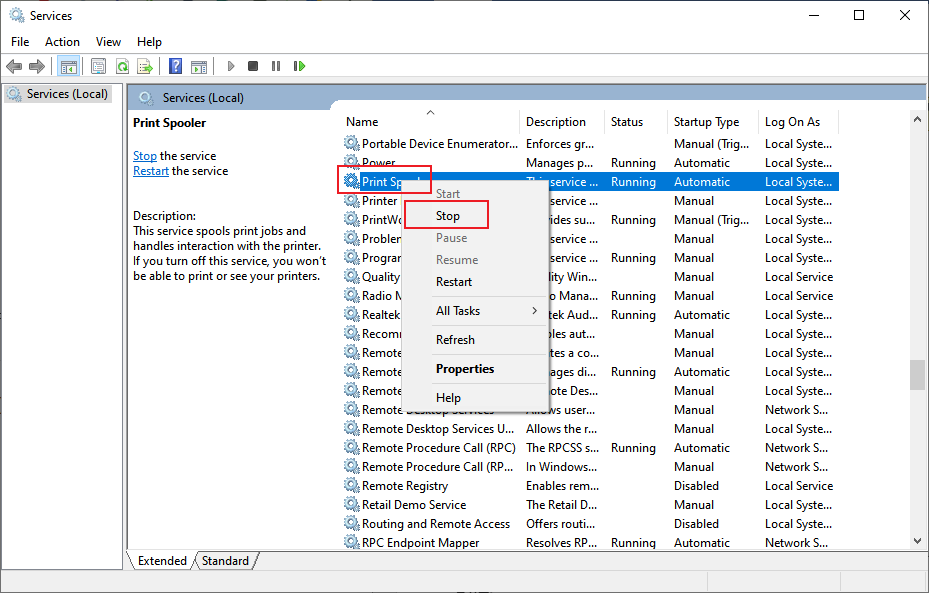
- Next, navigate to: C:\Windows\System32\spool\PRINTERS
- Delete all files inside and restart the Printer Spooler service to try printing again.
This fix addresses many cases of Adobe Reader printing issues reported by Windows 10 users.
Fix 7: Save the PDF as a New File
In addition, you can try to save the corrupted PDF as a new file.
- When the PDF is opened in Adobe, click File and select the Save As option.
- Rename the new PDF file and save it.
- Reopen the PDF in Adobe again and try printing.
Fix 8: Disable Protected Mode
Sometimes, Adobe’s security feature can block printing. To resolve “Adobe the document could not be printed”, disable the protected mode.
- Click Edit from the top menu bar and select Preferences.
- Click the Security (Enhanced) option from the left bar.
- Then, uncheck the Enable Protected Mode at startup option.
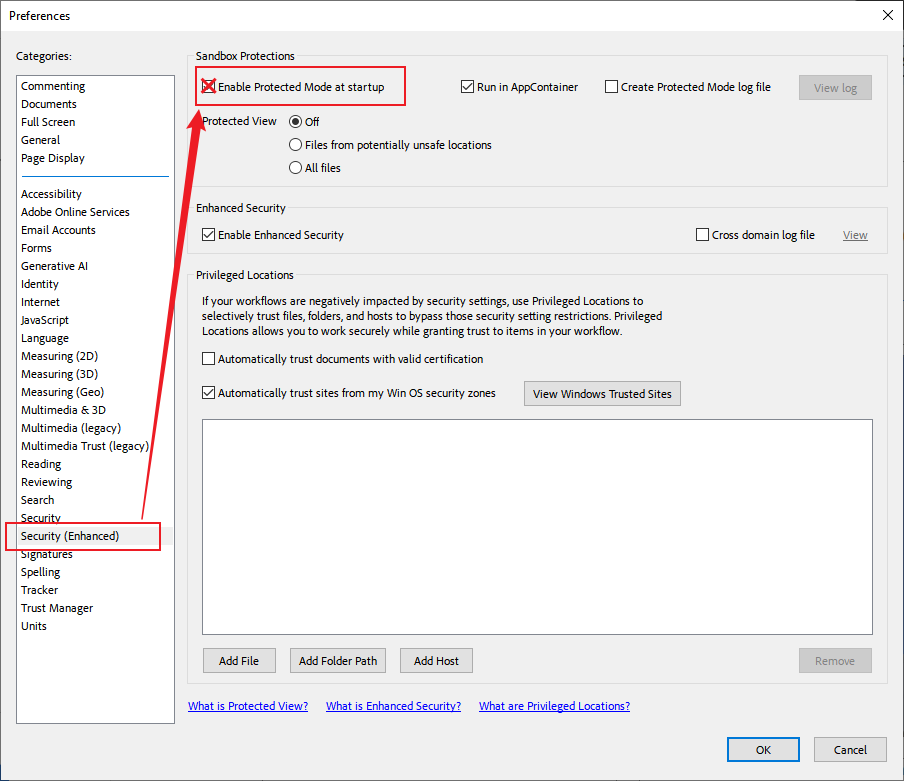
Next, restart Adobe to print the PDF file. After that, you need to check the Enable Protected Mode at startup option. You can only disable this temporarily for testing.
Fix 9: Check PDF Security Permissions
Additionally, some secured PDFs restrict printing. You need to check if your PDF is locked from printing. Generally, go to File > Properties > Security and look for Printing: Allowed or Not Allowed.
If printing is restricted, you need to ask for permission from the file owner. Or, you can use SwifDoo PDF to unlock PDFs for printing.
Fix 10: Reduce PDF File Size
Large PDF files with heavy graphics may crash during processing. So, you can try to reduce the PDF file size. You can try compressing the PDF file, compressing images within the PDF, and removing unnecessary PDF pages and layers. SwifDoo PDF is one of the best free PDF compressors, reducing file size for free.
How to Fix Adobe Acrobat Not Printing on Mac
In addition to the above solutions, you can try the following fixes to resolve Adobe Acrobat not printing on Mac.
1. Reset Printing System
- Go to System Settings and click Printers & Scanners.
- Right-click in the printer list.
- Select Reset printing system and re-add your printer.
2. Use macOS System Dialog
- Click Print
- Click on Use system dialog.
- Then, print from the macOS interface.
3. Update macOS and Adobe
What’s more, try to update macOS and Adobe to resolve the compatibility issues between them. Incompatibility between Adobe and macOS can also cause printing failures. In addition to printing PDFs in Adobe, you can print PDFs in Preview.
How to Fix Adobe Reader Printing Problems on Windows 10/11
If you are a Windows user, you can try the following solutions:
- Update Windows
- Reinstall printer drivers
- Clear spooler
- Disable Protected Mode in Adobe
- Run Adobe as Administrator
In addition, you can try an alternative to Adobe Acrobat to edit and print PDFs. Many options are available, such as SwifDoo PDF, PDFelement, Foxit PDF Editor, and more. Among them, I strongly recommend SwifDoo PDF owing to its low cost.
Final Thoughts
The “Adobe the document could not be printed” error may seem frustrating, but in most cases, it’s fixable within minutes. In the content above, I introduce 10 feasible solutions, ranging from restarting Adobe to reducing PDF file size. Furthermore, you can use SwifDoo PDF, a cost-effective alternative to Adobe Acrobat, to edit and print PDFs.



