Why Is My PDF So Low Quality?
Before you can fix the problem, it is very helpful to understand why it happened in the first place. Here are the most common reasons why your file looks bad:
When you use a physical scanner or a phone-scanning app, the resulting PDF does not contain real typed text. It is just a photograph of a piece of paper. If the camera or scanner setting was set too low to save space, the picture will look fuzzy. When you zoom in, the words will look blocky.
When people make a PDF from programs like Microsoft Word or Canva, they have to choose a setting. Often, they choose a setting called "Smallest File Size" or "For Web." This makes the file small enough to email easily, but it permanently ruins the pictures and text to get that small size.
Way 1. Use SwifDoo PDF to Fix a Blurry or Scanned PDF
If your document is just a scanned picture of a page, you need a special kind of tool to read the text. SwifDoo PDF can help you make it. It uses smart technology called OCR (Optical Character Recognition).
OCR will look at the blurry picture, figure out what the letters are, and turn them back into real, sharp text.
Here is how to OCR a PDF using SwifDoo PDF:
- First, download and install SwifDoo PDF on your computer. Open the program, and then open your blurry document.
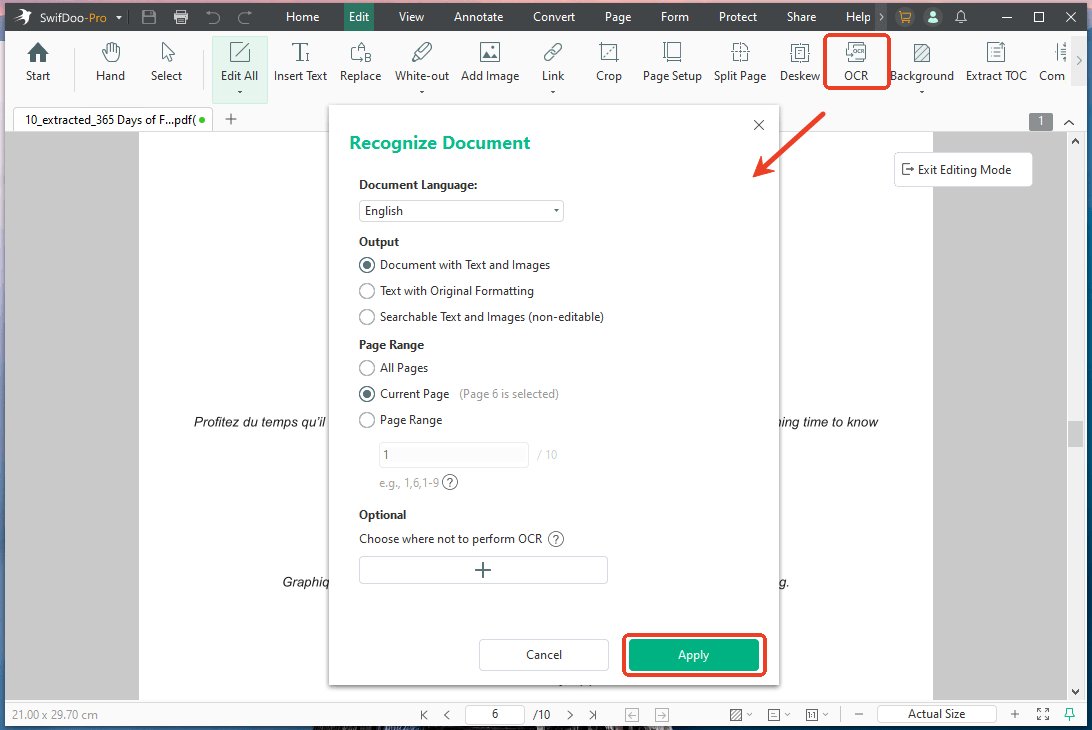
- Look at the top menu bar on your screen. Go to Edit > OCR.
- A menu will pop up. You need to tell the program what language the document is written in (like English or Spanish). Then, please set the output settings and page range.
- Click the Apply button. The software will now read the blurry picture and replace it with crisp, perfectly typed text.
- Now that the text is real and no longer a picture, you can actually click on it. This means you can easily change text in PDF if you want to update a sentence.
- When OK, click the Save button to save your new, beautiful document.
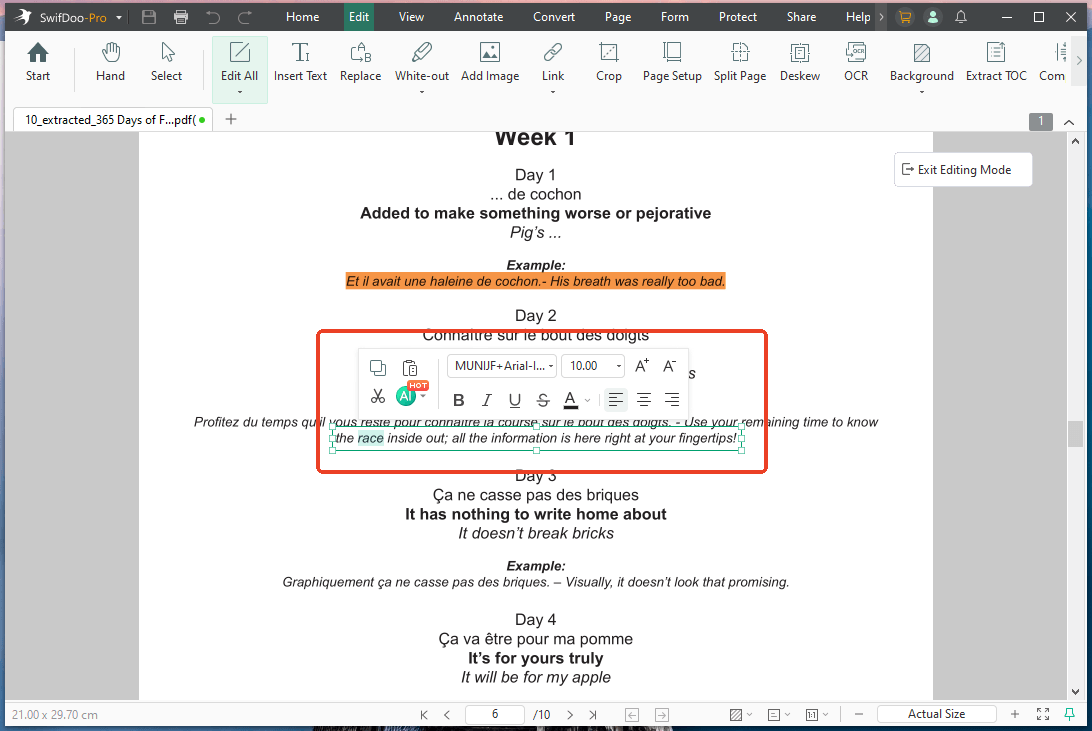
Using a program like SwifDoo PDF is the absolute best way to fix a blurry PDF because it takes the messy picture and completely rebuilds it. Plus, you can continue to edit the PDF without effort. Try it now!
Way 2. Use Adobe Acrobat Pro to Change Display Resolution
Maybe the file itself is perfectly fine, but the program you are using to view it is taking shortcuts. Programs do this to save memory and make the file load faster on your screen. You can change a few settings in Adobe Acrobat Pro to easily sharpen a PDF on your monitor.
If the lines and words look jagged on your screen, follow these easy steps:
- Open your document in Adobe Acrobat Pro.
- Click on Edit at the top left of your screen. Then, click on Preferences at the very bottom of the list. If you use a Mac computer, click on Acrobat at the top, and then Preferences.
- A new window will open. Look at the list on the left side and click on Page Display.
- Find the section in the middle called "Rendering." You will see a list of checkboxes. Make sure that Smooth Text, Smooth Line Art, and Smooth Images all have checkmarks next to them.
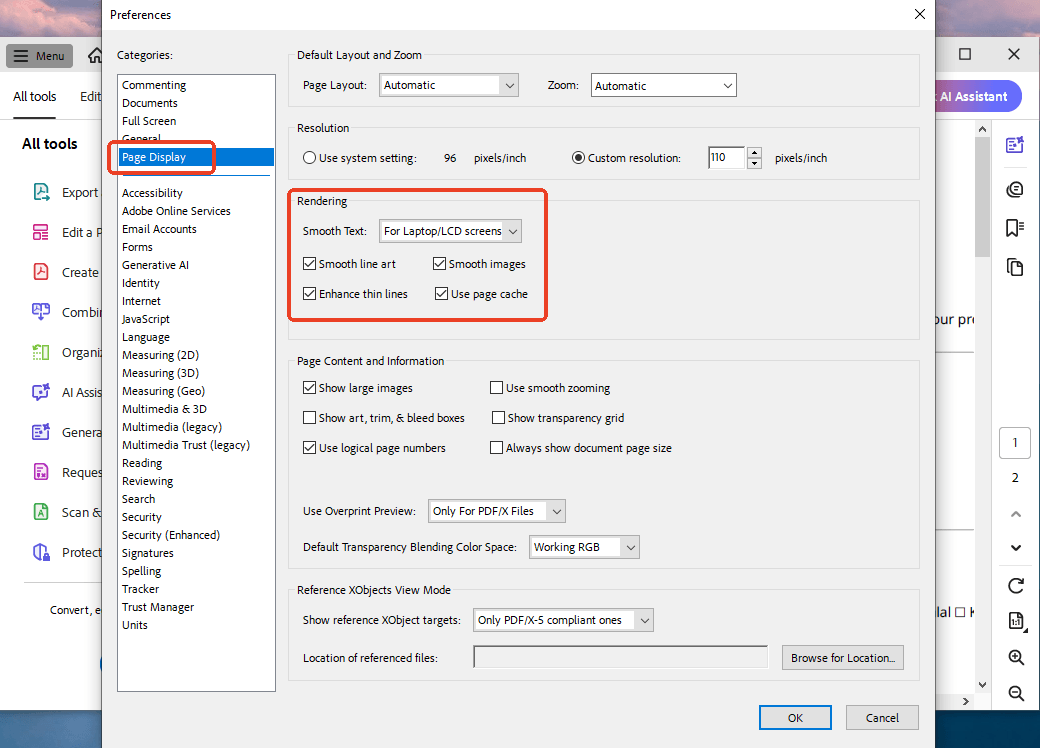
- You can also look at the "Resolution" setting just above that. You can tell the program to use a custom resolution, like 110 pixels per inch, to make things look bigger and clearer.
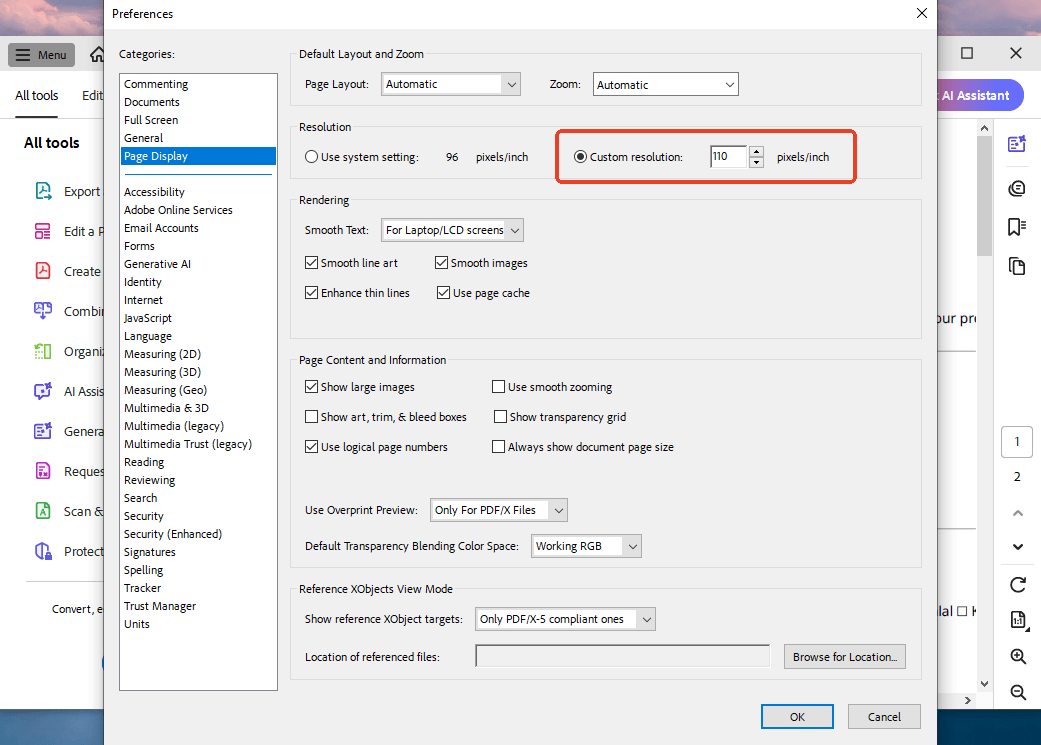
- Click the OK button at the bottom.
You should instantly see the file look much clearer. This is a quick way to improve PDF quality without changing the file itself.
Way 3. Improve PDF Quality Online Free
What if you do not want to download or pay for new computer software? Do not worry. You can still improve quality of PDF files using free websites on the internet.
There are many safe and popular websites, such as iLovePDF, PDF24, and Adobe’s free online tools. Here is a simple trick you can use on these websites to get a better document:
- Open your web browser and visit a free PDF tool website.
- Find and click on the PDF to Word tool. Upload your blurry file. The website will change your PDF into a normal Microsoft Word document.
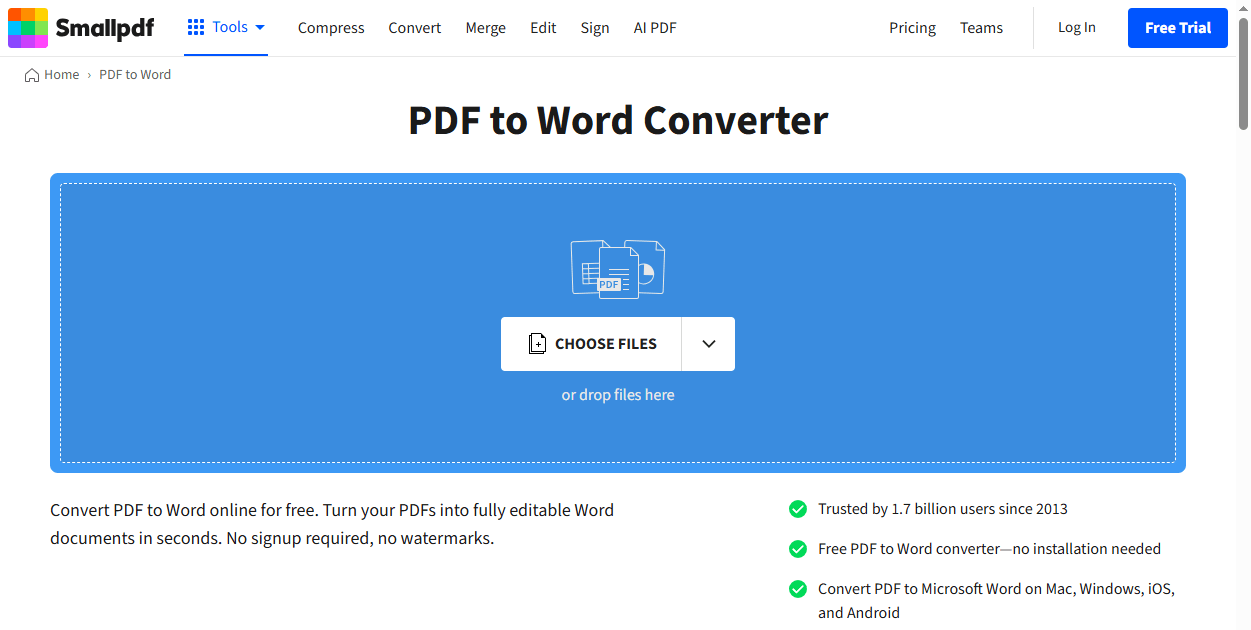
- Download the new Word document and open it on your computer.
- Now that it is a Word document, you can easily fix the formatting. You can increase the text size, change the font to something easier to read, and adjust the margins.
- When everything looks nice and clean, save the Word document as a brand-new PDF.
Tips for Creating a High-Quality PDF
The best way to fix a bad file is to not create one in the first place! If you are creating a document from scratch, you have total control over how it looks. If you are wondering how to enhance PDF quality when you save a file from Word, PowerPoint, InDesign, or Canva, just follow these simple rules.
✅ Choose the Right Export Setting: Never choose "Smallest File Size" or "Web Quality" unless you really have to. Always look for a setting that says "High Quality Print," "Press Quality," or "Best." This keeps all the rich details in your document.
✅ Check Your Pictures: If you put photos in your document, make sure they are big and clear before you save the PDF. A setting called DPI (Dots Per Inch) controls this. Try to make sure your pictures are set to at least 300 DPI for a clear, beautiful print.
✅ Use Native Exporters: Always try to use the "Save As" > "PDF" button inside your program. Try not to use the "Print to PDF" button. Printing to PDF can sometimes flatten the file, making the colors and text look worse.
Conclusion
That’s all about how to increase PDF quality. By adjusting the screen display settings, using intelligent OCR tools like SwifDoo PDF, and saving new files correctly, your documents will always appear clear, neat, and professional. We hope this guide is helpful to you!