


1. Share a Resume as a Link Using Google Drive
Google Drive gives you an easy, worry-free way to share a PDF as a link. Simply upload your file, create a secure link, and decide who can view it. If your resume lives in Google Docs, any edits are saved instantly and shown through the same link—no resending required. It provides a reliable way to maintain an up-to-date, accessible resume.
Step 1. Upload Your Resume
Go to Google Drive and log in to your account. Then, navigate to + New, select File upload, and pick your resume file.
Step 2. Create a Shareable Link
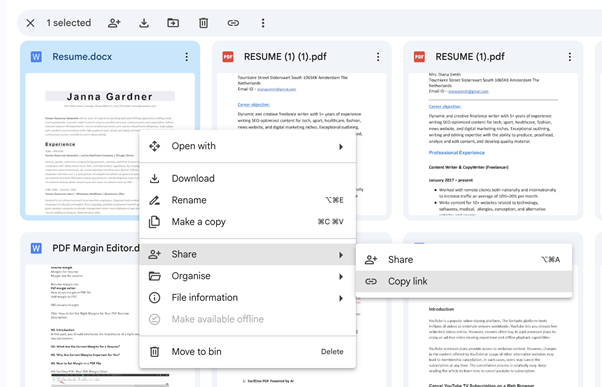
After uploading your PDF, right-click and choose Get link, or click the Share icon to create a shareable link.
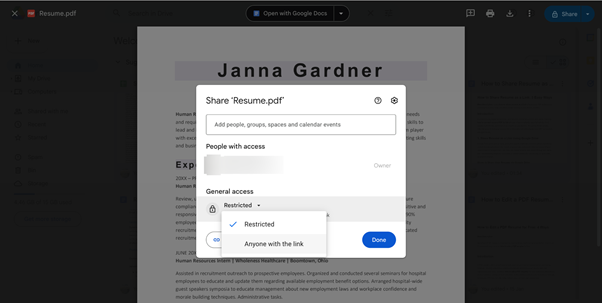
Switch the link permission from Restricted to Anyone with the link to make your resume instantly viewable to recruiters. Use the Viewer setting to let recruiters see your resume while keeping it protected from edits.
Step 3. Share the Link
Click Copy link, confirm with Done, and include it in your application to give recruiters immediate access.
2. Share a Resume as a Link Using Tiiny.Host
If you want a lightweight, account-free solution, Tiiny.Host is a great choice. It provides simple static hosting that lets you upload PDF or HTML files through an easy drag-and-drop interface, with no account needed for a basic temporary link. This option works perfectly for freelancers, fresh graduates, or anyone looking to create a link for a resume fast, without technical steps.
Tiiny.Host is compatible with every major resume format, whether chronological, skills-based, or a mix of both. In summary, it delivers a fast, polished way to share your resume via a clean, easy-to-remember link, plus premium options such as password protection, analytics, and PDF tools.
Step1. Prepare Your Resume
Complete your resume as a PDF to ensure universal access and ATS compatibility. PDFs ensure your resume looks the same on every device, preserving its layout and style.
Step 2. Upload Your PDF
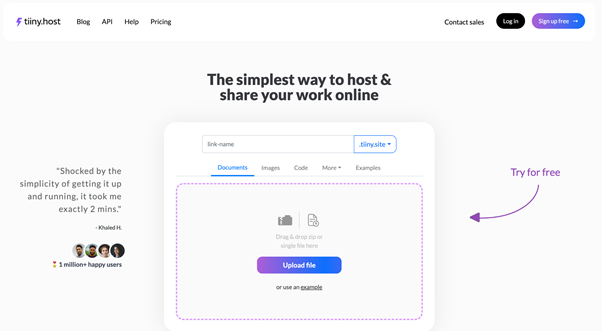
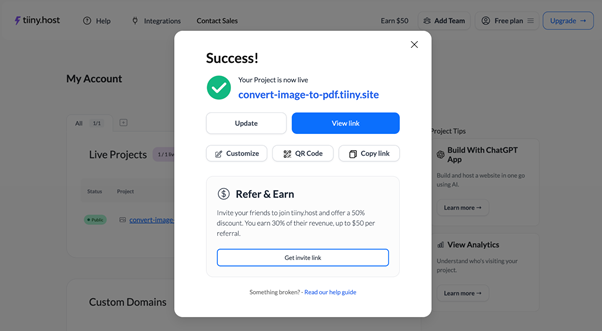
Go to Tiiny.Host and drag your PDF into the upload box for immediate sharing. After uploading, choose a custom link name (for example, tiiny.site/john-resume) and click Launch to make your resume live instantly.
Step 3. Copy and Share the Link
After publishing, Tiiny.Host gives you a unique link to access your resume instantly. Share your PDF resume quickly by copying the link and adding it to applications, portfolios, or messages to hiring managers.
3. Share a Resume as a Link Using LinkedIn
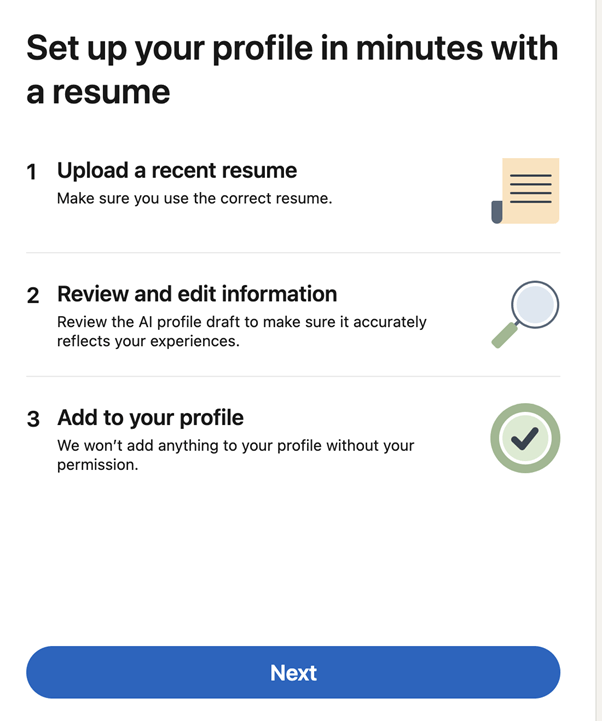
Make your resume stand out on LinkedIn by adding it to the Featured section, where recruiters can easily view it. Displayed in this section, your resume is easy for recruiters to access and save. In addition, you can use Easy Apply on LinkedIn to apply with a resume tailored to the specific position. Placing your resume prominently makes it easy for recruiters to view and evaluate your experience.
Step 1. Go to Add Profile
Go to your account and cick "Add Profile section" below your headline on your LinkedIn profile. Click Add Profile Section, then Add Featured.

Step 2. Upload Your Resume
Select Add Media—or Add Document if posting to your feed—and choose your resume file (PDF, DOC, or DOCX).
Step 3. Configure Settings and Create Link
Create a clear name for your resume, write a short description, and hit Save or Post to put it live. Tiy cab aksi use the "Share resume data with recruiters" feature in your job settings.
Bonus Tip: How to Edit a PDF Resume Easily
Want to edit your PDF resume before uploading? SwifDoo PDF, a professional PDF editor, makes updating your PDF resume easy. It can keep your resume professional, up to date, and ready to make a strong impression.
With SwifDoo PDF, you can:
- Easily edit text, layout, and formatting throughout your PDF resume.
- Easily add new qualifications and achievements to your PDF resume.
- Reduce your resume’s file size for faster, easier online sharing.
- Protect your resume by adding password security.
In addition, SwifDoo PDF lets you convert a Word resume to PDF effortlessly, ensuring consistent formatting across devices. This is especially helpful when getting your resume ready for Google Drive, Tiiny.Host, or LinkedIn.
Download SwifDoo PDF and give it a try!
Conclusion
Learning how to share a resume as a link gives job seekers a strong advantage in today’s digital hiring landscape. It offers instant access, flawless formatting, and hassle-free updates—no bulky attachments needed.
No matter the platform—Google Drive, Tiiny.Host, or LinkedIn profile with a resume link presents you as organized and efficient. SwifDoo PDF makes it easy to refresh and refine your resume, helping you stay visible and professional. Hope this guide is helpful.



