


Why Convert QBO Files to PDF?
QBO files are not designed for direct viewing or sharing outside accounting software. They are primarily used for importing bank transactions into QuickBooks Online or desktop versions of QuickBooks. Why convert QuickBooks files to PDF? Here are some advantages:
- Universal accessibility: PDFs are widely used owing to their wide compatibility, as they can be opened on any device and platform. Converting QBO to PDF makes financial data easier to share with clients, auditors, and stakeholders.
- Data integrity and read-only format: PDFs preserve formatting and prevent accidental edits. Hence, converting QBO files to PDF is also critical for financial records and compliance documentation.
- Professional reporting: Converting or exporting invoices, receipts, and financial reports to PDF makes the files look cleaner and more professional than raw system exports.
- Long-term archiving: PDF is a stable, widely accepted format for financial recordkeeping and tax documentation. Hence, saving QBO files as PDFs is good for long-term archiving.
- Easier collaboration: QBO files can only be accessed with QuickBooks. Converting QBO to PDF enables non-accounting teams to review financial documents without access to QuickBooks.
How to Export Reports from QuickBooks Online to PDF
Whether you are preparing taxes, reviewing business performance, or sharing financial data with others, PDF reports are easy to distribute and preserve their formatting. Below are some popular reports you can export to PDF from QuickBooks Online:
- Profit & Loss
- Balance Sheet
- Cash Flow Statement
- Sales by Customer
- Expenses by Vendor
- Accounts Receivable Aging
- Accounts Payable Aging
- General Ledger
- Trial Balance
Below are the steps to export reports from QuickBooks Online to PDF:
Step 1. Visit QuickBooks Online and log in to your account.
Step 2. Navigate to the left menu, click Reports, and search for or browse to the desired report.
Step 3. Customize filters for the report, such as date range, accounting method, columns, or other options. Then, click Run report.
Step 4. Click the Export icon at the top-right corner and select the Export to PDF option. Then the preview window will appear, and you can adjust settings such as orientation and smart page breaks.
Step 5. Finally, click Save as PDF and select the destination folder to save the PDF file.
Tips for Better PDF Reports:
To get a better and more correct PDF report export, I have also summed up several useful tips:
- Always set the correct date range before exporting
- Use “Customize” to remove unnecessary columns
- Switch to landscape mode for wide financial tables
- Double-check currency settings before exporting
How to Save Invoice/Receipts/Sales Forms as PDF
To facilitate communication and recordkeeping with clients, it is better to export invoices, receipts, and sales forms as PDFs. Here’s how:
Step 1. In QuickBooks Online, go to Sales and select Invoices or Customers.
Step 2. Open the specific invoice or receipt.
Step 3. Click Print or Download and select Download to save the invoice as a PDF.
If you want to export several invoices at once, use checkboxes to select them. Then use Batch actions and select Print or Download.
How to Convert QBO to PDF
Strictly speaking, QBO files themselves are not directly “converted” into PDF like a document file. Instead, they are formatted, raw data files full of webconnect code meant to map transactions straight into accounting ledgers. To convert QBO to PDF, you need to import or view the QBO data file within QuickBooks Online or QuickBooks and then export it as a PDF. In addition, you can use dedicated conversion tools. In the following content, let’s have a look.
Method 1. The Quick “Import and Print” Route (Recommended)
Step 1. In QuickBooks Online, go to Transactions or Banking and then select the target bank card account. Alternatively, click Upload transactions or Link account and select Upload from file.
Step 2. Upload your QBO file and follow the on-screen prompts to review, match, and add the transactions.
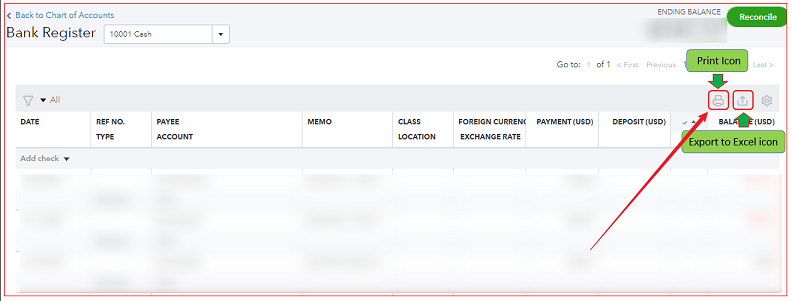
Step 3. Go to Accounting > Chart of Accounts, find the account, and click View register.
Step 4. Next, click the Print icon and select Save as PDF to save the PDF file.
Method 2. Use a Dedicated QBO to PDF Converter
If you do not want to import the data into QuickBooks and just want a readable document, you can also use third-party QBO to PDF converters, such as ProperSoft QBO2PDF and novaPDF. Here, I’ll take novaPDF as an example to show you how to convert QuickBooks to PDF.
Step 1. After installing novaPDF on your PC, select your invoice from the list.
Step 2. Customize its layout and click Print.
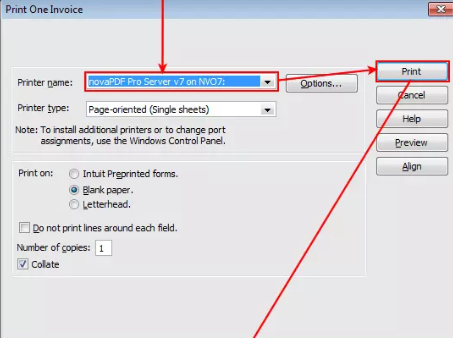
Step 3. In the Print window, select the Printer name, type, and other options. Next, click Print.
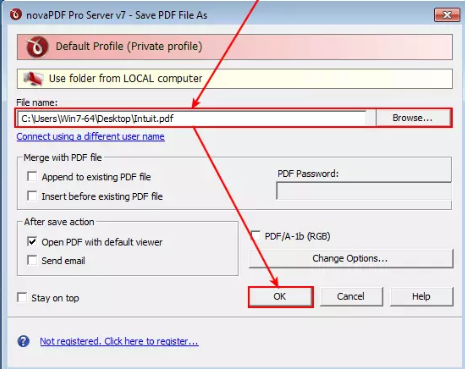
Step 4. Name the PDF file, select its location, and click OK to start the conversion.
BONUS: Edit and Manage PDFs in SwifDoo PDF
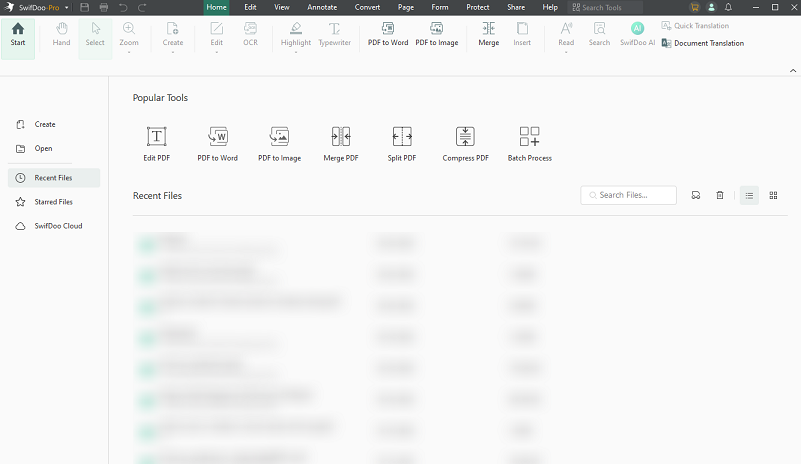
SwifDoo PDF is a reliable PDF editor with a wide range of editing features. For instance, you can use SwifDoo PDF to edit PDF text, type or draw on a PDF, add annotations, flatten sensitive information, or password-protect PDFs. Additionally, SwifDoo PDF allows signing and filling out PDF forms. What’s more, it enables you to edit and convert scanned PDFs to editable and searchable ones.
Beyond a PDF editor, SwifDoo PDF is an excellent PDF converter that enables you to perform various conversions, such as PDF to CAD, PDF to JPG, Word to PDF, HTML to PDF, and more.
Conclusion
PDF is one of the most reliable formats for file sharing, printing, and archiving, especially for financial information. How to convert QBO to PDF? The QBO-related data to PDF conversion is not a direct file conversion, but rather a structured export process through QuickBooks Online and QuickBooks. What’s more, you can convert a .qbo file to PDF via the “import and print” route within QuickBooks. You can also use a dedicated converter. Hopefully, this article can be helpful to you.


