


Why Is Adobe Print to PDF Not Working?
Problems don't just appear out of thin air. Why is Adobe not converting to PDF? Here are some of the most likely reasons.
- Adobe PDF printer driver may have been uninstalled, or the driver is outdated or corrupted.
- When the folder is set to read-only or the user lacks write permissions, PDF files cannot be generated, and typically, no error message will appear.
- Usually, the Windows Print Spooler manages all print jobs. When it crashes or becomes unresponsive, printing to PDF will fail silently.
- Certain PDF printers or security software may conflict with the Adobe PDF printer, preventing it from opening. So, you find Adobe Print to PDF not showing up.
- Windows or Adobe updates may cause conflicts. It may break compatibility with the Adobe PDF printer driver.
- When printing with older 32-bit programs on a 64-bit system, the Adobe PDF printer may fail to respond.
Quick Fix When Adobe Print to PDF Fails
The “Adobe Print to PDF not working” issue is so annoying because it disrupts your plans to obtain the PDF file. As you can imagine, troubleshooting all possible causes can be extremely time-consuming. But what if I told you there's a quick fix?
In fact, Adobe Print to PDF is not the only way to convert a document to PDF. If you want to get high-quality PDFs with minimal effort, SwifDoo PDF, a professional PDF converter, is an excellent choice.
It offers both online services and desktop applications for your convenience. Check to learn how to convert to PDF with SwifDoo PDF.
Use SwifDoo PDF Online Converter
SwifDoo PDF online PDF converter can help you convert Word, Excel, DWG, JPG, PDF, and HEIC to PDF. With an internet connection, drag and drop your files to convert them effortlessly—no registration required. It couldn't be easier.
However, it can only handle one document at a time. To convert multiple Excel files to PDF, please turn to the desktop app.
1. Open a browser and go to SwifDoo PDF online converter.
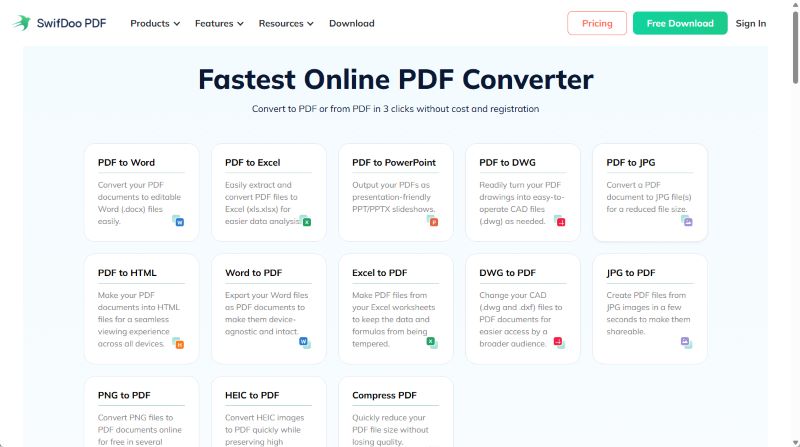
2. Choose one option as needed. For example, please choose Excel to PDF if you want to convert an Excel document.
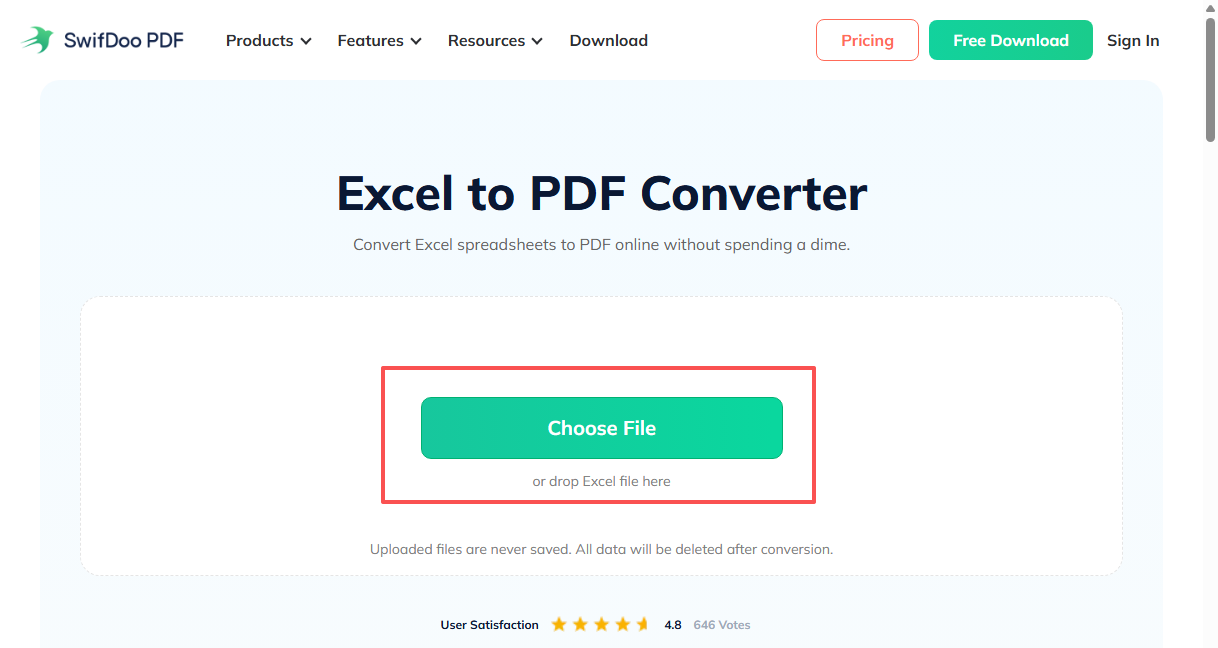
3. Drag and drop the document into the window and wait for a while.
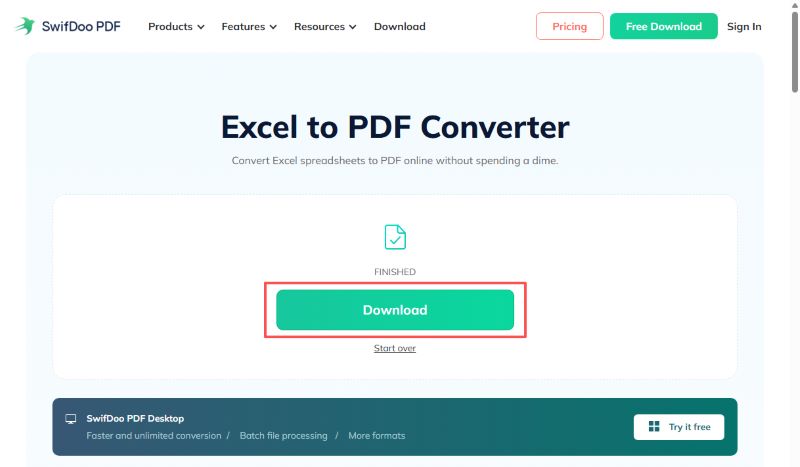
4. When finished, download the converted file to your computer.
Use SwifDoo PDF Desktop App
The SwifDoo PDF desktop app can help you convert various file types, including Office documents, images, CAD, EPUB, HTML, TXT, and XPS, to PDF and vice versa.
Additionally, it allows users to edit, annotate, add or delete pages, add watermarks, encrypt PDFs with a password, and more. In other words, once the conversion is complete, you can immediately process the PDF file without any hassle.
1. Download, install, and launch SwifDoo PDF.
2. Go to Convert and select one option, like Office to PDF.
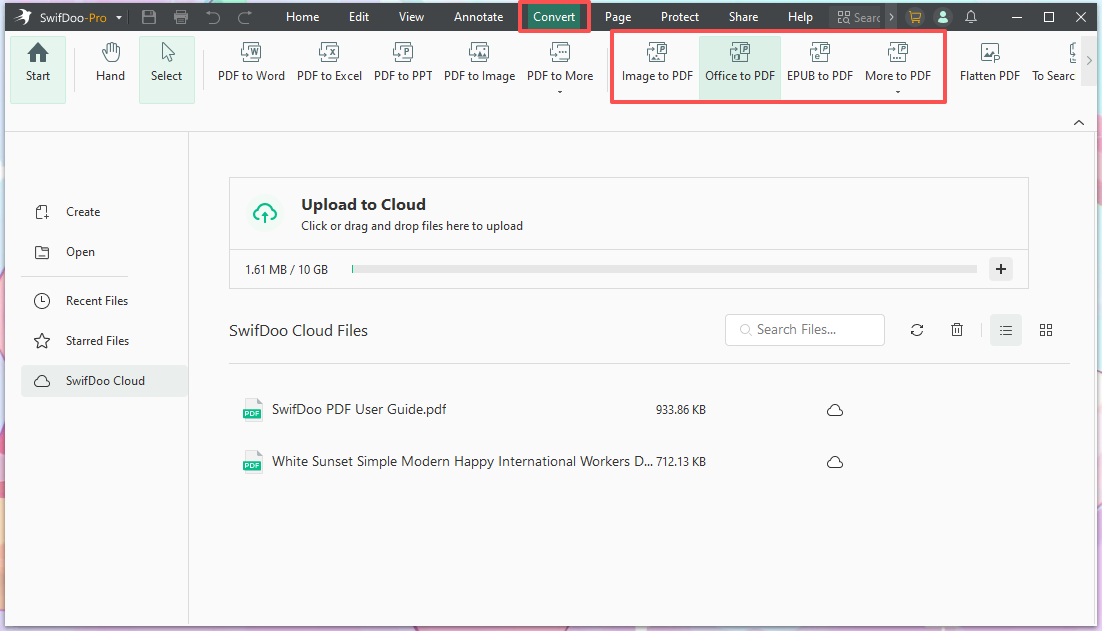
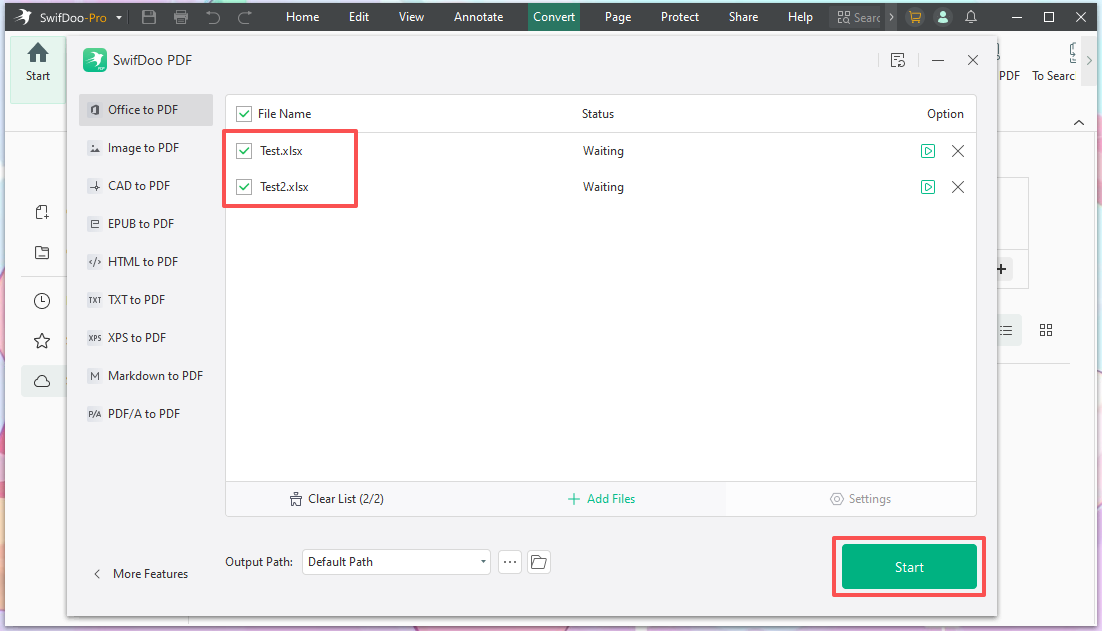
3. Add the documents you want to convert.
4. Confirm the output path and click Start.
5. After the conversion, SwifDoo PDF will open the document for you to edit.
SwifDoo PDF's conversion tool is incredibly easy to use, and the same goes for its other tools. If you've been searching for a professional yet lightweight tool, don't miss out on SwifDoo PDF!
How to Fix Adobe Print to PDF Not Working
As mentioned earlier, numerous factors can cause issues with Adobe printing functionality. Please try the following troubleshooting steps to restore the feature.
Fix 1. Try a Different PDF File
When you find Adobe Print to PDF not working, you can try converting another document. The file you attempted to convert may be corrupted, which is causing the current issue. If it doesn't work, please proceed to the next method.
Fix 2. Use Microsoft Print to PDF
On a Windows computer, there's a built-in feature called Microsoft Print to PDF, which helps users save documents, emails, and webpages as PDFs. When Adobe failed to print a PDF, you can try this tool. If you don't have this option, you can add and install Microsoft Print to PDF on your own.
Fix 3. Repair Adobe Acrobat Installation
It can help you fix corrupted or missing printer driver files and related components.
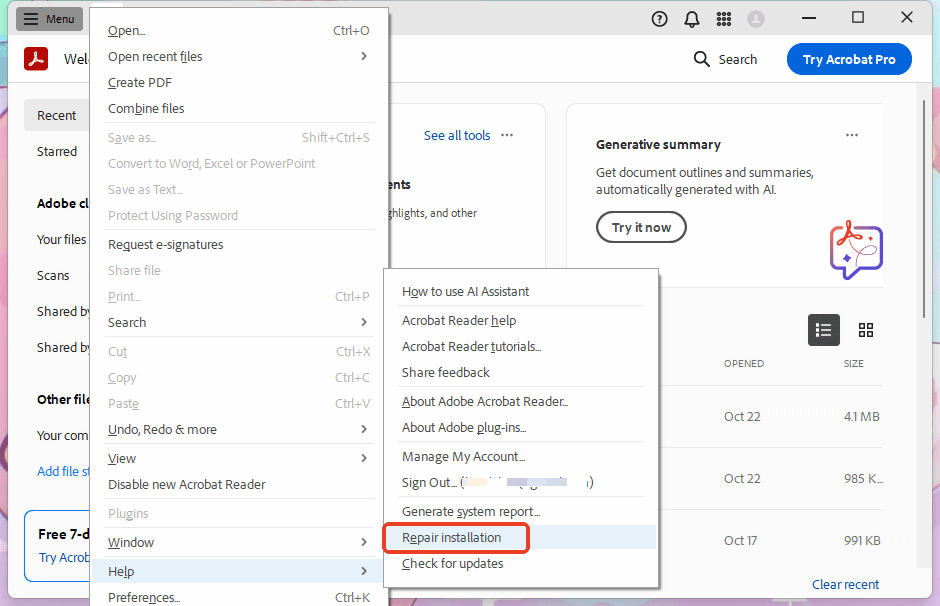
- Open Adobe Acrobat on your computer.
- Navigate to Menu > Help and choose Repair Installation.
- Wait for the process to complete, then restart your computer.
Fix 4. Add the Adobe PDF Printer
If Adobe Print to PDF is missing, check to learn how to add it to your system.
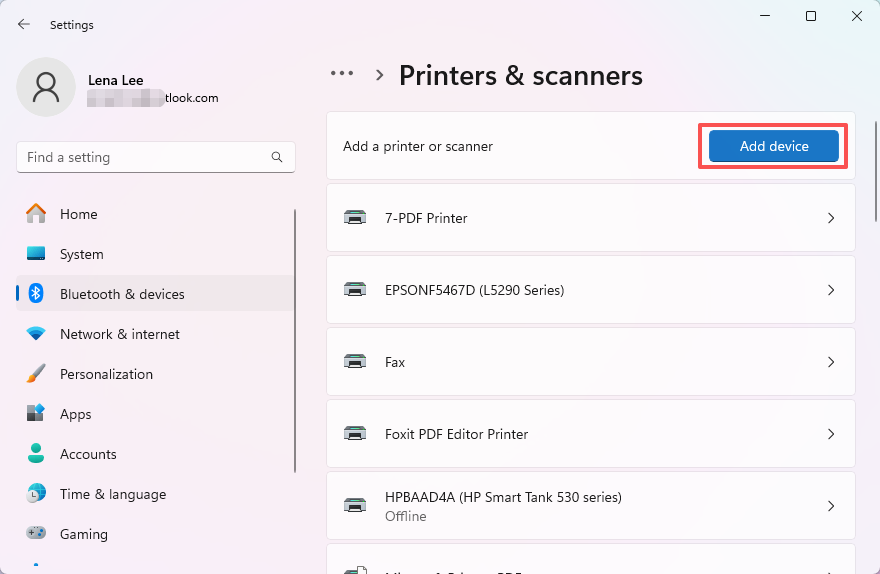
- Go to Settings > Bluetooth & devices > Printers & scanners.
- Click the Add device option and choose Add manually.
- If it's already installed, you can first uninstall it and then reinstall it.
- Select "Add a local printer or network printer with manual settings".
- Choose "Use an existing port", pick Documents\*.pdf (Adobe PDF), and click Next.
- Click "Have Disk" → Browse to: C:\Program Files (x86)\Adobe\Acrobat <version>\Acrobat\Xtras\AdobePDF.
- Select AdobePDF.inf, open it, and proceed.
- From the list, pick the appropriate Adobe PDF Converter, click Next, and name it Adobe PDF.
- Complete the installation and test printing again.
Fix 5. Uninstall and Reinstall Adobe Acrobat
You can also try reinstalling Adobe. Reinstallation usually can restore the driver functions that were lost due to the update.
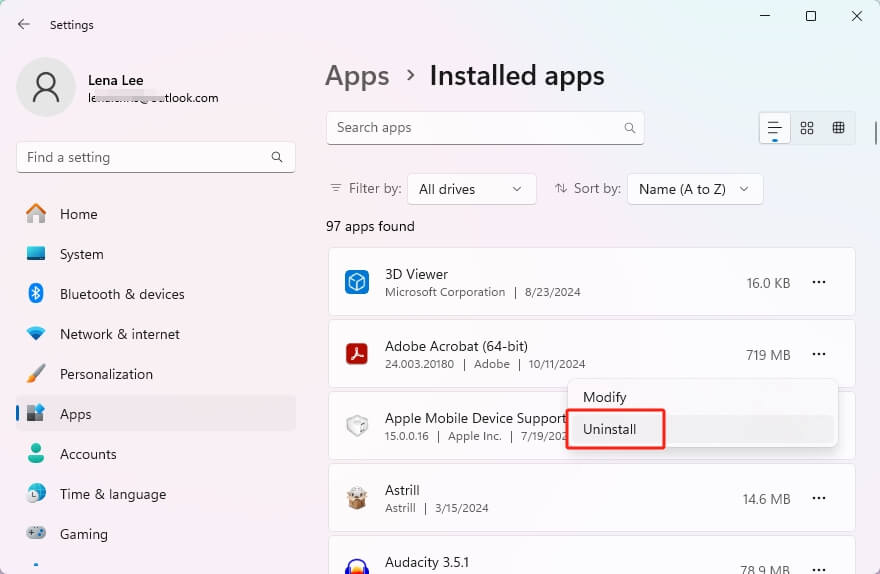
- Go to Settings. Choose Apps → Installed apps.
- Find Adobe Acrobat from the list.
- Click the three-dots icon. Select Uninstall to make it.
Conclusion
That’s all about how to fix Adobe Print to PDF not working. If you have ample time, you can proceed with troubleshooting step by step until the issue is resolved. Alternatively, you may try using SwifDoo PDF to complete the conversion. It can also help you edit the PDF document easily.



