


In today’s digital workflow, most of us use ChatGPT and other AI tools to solve problems and enhance work efficiency. Sometimes, we want to save ChatGPT conversations for offline access, share responses as professional documents, or archive important discussions for future reference. In those cases, PDF is the preferred format because it preserves formatting, looks professional, is universally compatible, and is easy to share. That’s why convert ChatGPT to PDF.
Method 1. Export Full ChatGPT Data and Convert to PDF
Best for: Ideal for someone who wants to make a complete backup of all ChatGPT conversations.
Though ChatGPT doesn’t offer a built-in “Export to PDF” button, it allows you to export ChatGPT conversations. In that way, the ChatGPT conversations will be saved as a ZIP file in HTML or JSON format. To convert exported ChatGPT chats to PDF, you need a PDF converter. SwifDoo PDF is worth a try.
You can use SwifDoo PDF to convert HTML to PDF with ease. Additionally, it supports other conversions, such as EPUB to PDF, CAD to PDF, Word to PDF, PDF to Excel, PDF to EPUB, and more. Beyond a PDF converter, SwifDoo PDF is an excellent PDF editor, offering a wide range of editing features. Moreover, you can use its SwifDoo AI feature to chat, analyze, summarize, and translate PDFs.
Here, let’s learn how to export ChatGPT conversations and convert to PDF.
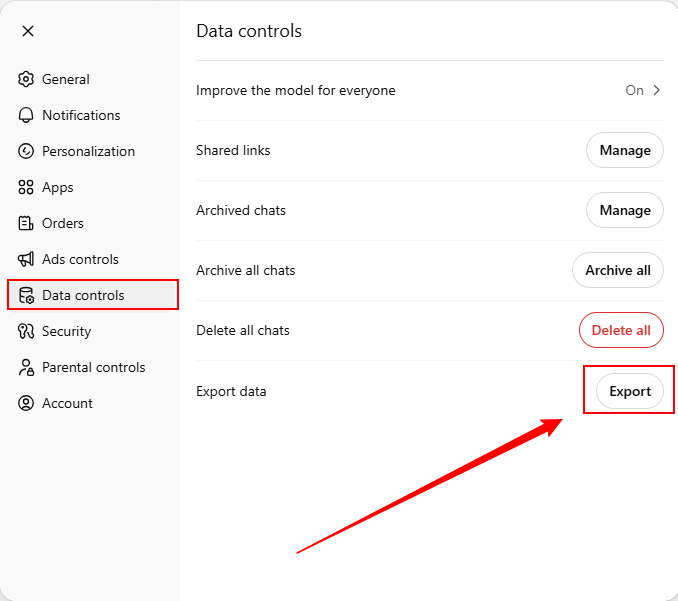
Step 1. Click your ChatGPT profile icon in the bottom-left corner to open Settings. Go to Data controls, find Export data, and click Export. Then enter the email certificate code to confirm. Next, click Export again to download your ChatGPT conversations.
Step 2. Later, OpenAI will email you a ZIP file. Then, you can download and install SwifDoo PDF on your Windows PC.
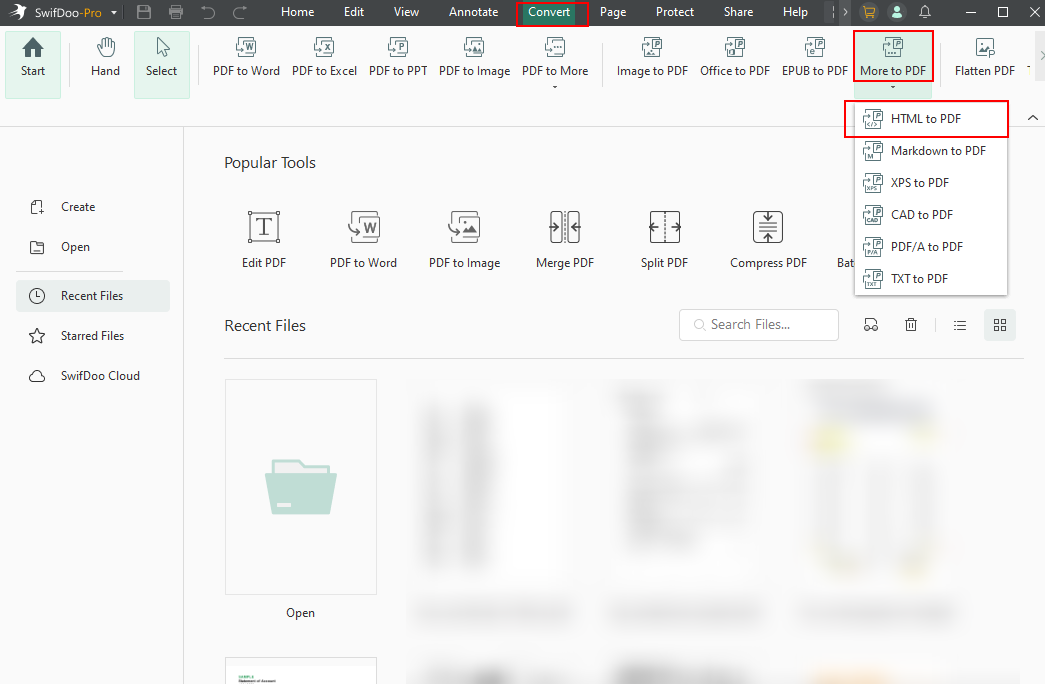
Step 3. Launch SwifDoo PDF, go to Convert, expand the More to PDF list, and select HTML to PDF.
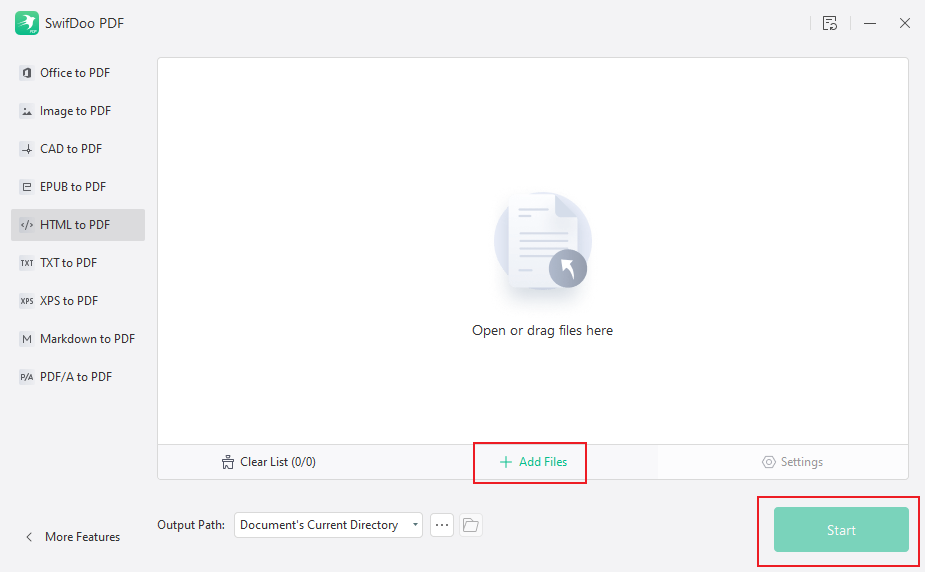
Step 4. Next, click Add Files to import the ChatGPT conversations.html file. Specify the save path, then click Start to convert ChatGPT to PDF.
Method 2. Use Your Browser’s Print to PDF Feature
Best for: Someone who needs quick exportation without software installation required.
If you don’t want to install a PDF converter and need to save a specific ChatGPT chat as a PDF, try your browser’s Print to PDF feature. This way is completely free and instant. You can use this method to convert ChatGPT to PDF on any device with a browser.
However, if the chat is very long, the formatting can break. Meanwhile, this method doesn’t support batch exportation for multiple chats. Below are the exact steps to save a ChatGPT conversation as a PDF quickly with the browser’s Print to PDF feature.
Step 1. Open the ChatGPT conversation you want to convert to PDF.
Step 2. Press Ctrl + P on Windows or Cmd + P on Mac to enable the print dialog.
Step 3. Open the Destination list and select the Save as PDF option. Meanwhile, you can adjust other settings, like layout and margins.
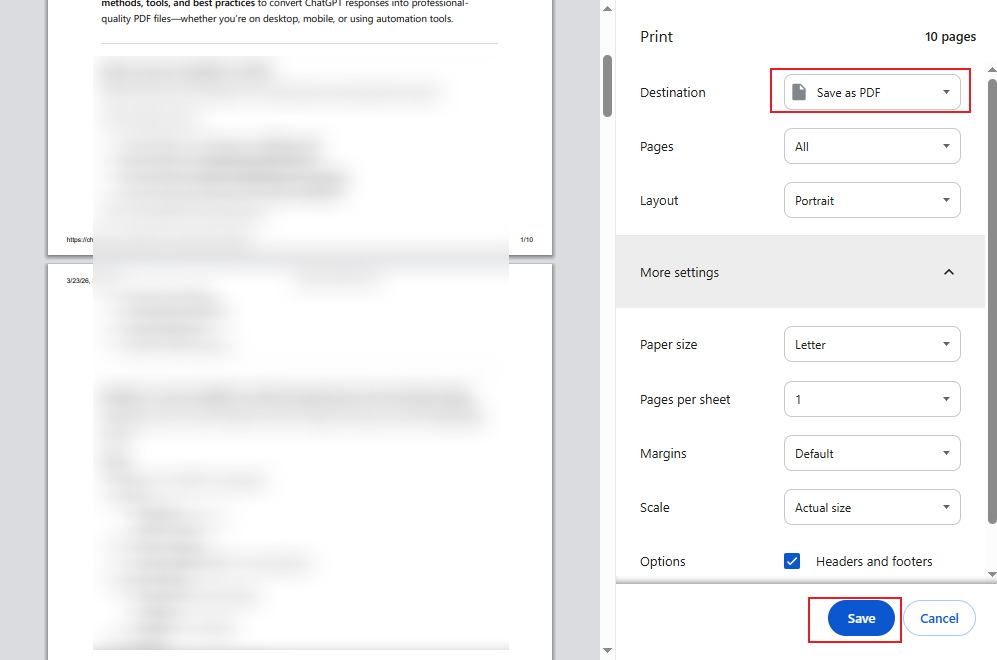
Step 4. At last, click the Save button.
Method 3. Install a Dedicated ChatGPT to PDF Chrome Extension
Best for: Someone who frequently needs to save ChatGPT conversations.
In addition, you can use the dedicated ChatGPT to PDF Chrome extension to easily and smoothly export ChatGPT chats as PDFs. Generally, those extensions have a direct “Export to PDF” button. Below are several popular ChatGPT to PDF extensions for you to choose from.
- ChatGPT to PDF by PDFCrows
- ChatGPT Exporter
- ChatGPT to PDF
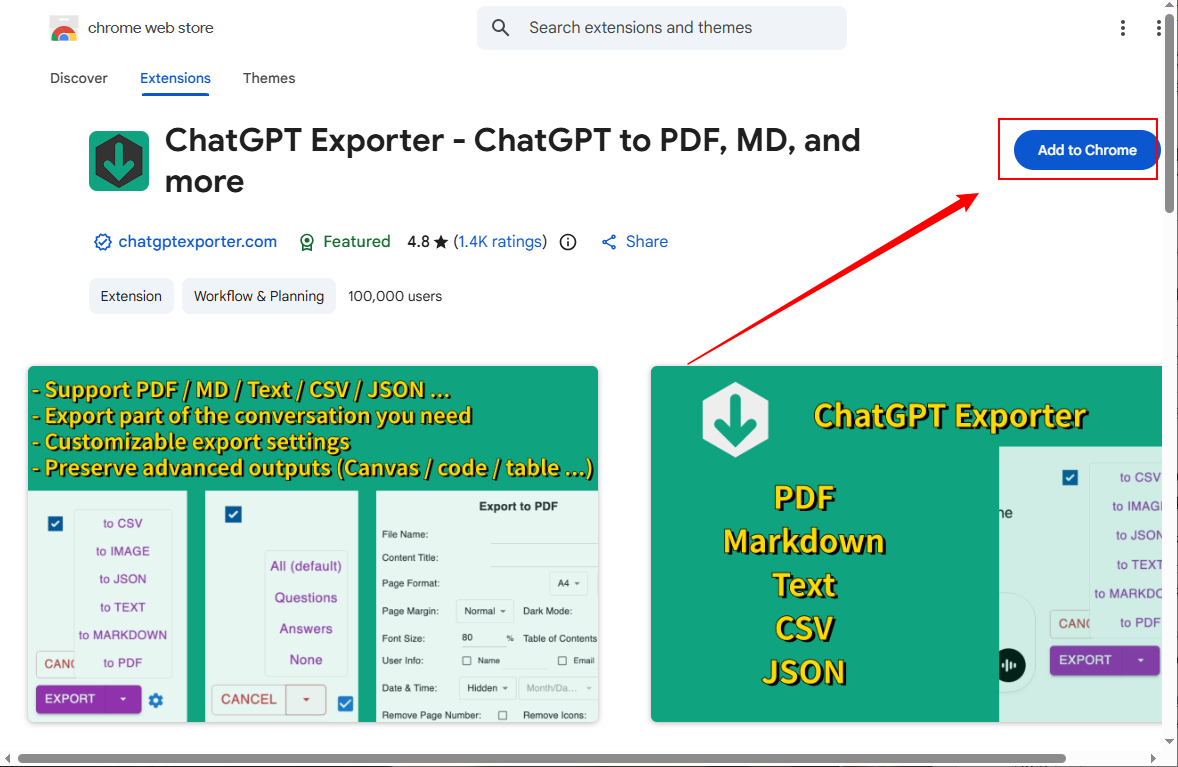
How to download ChatGPT conversation as PDF with a dedicated ChatGPT to PDF browser extension? Here, I take ChatGPT Exporter as an example to show you how to do it.
Step 1. Go to the Chrome Web Store and search for “ChatGPT Exporter”. Then, click the Add to Chrome button and follow the on-screen prompt to install it.
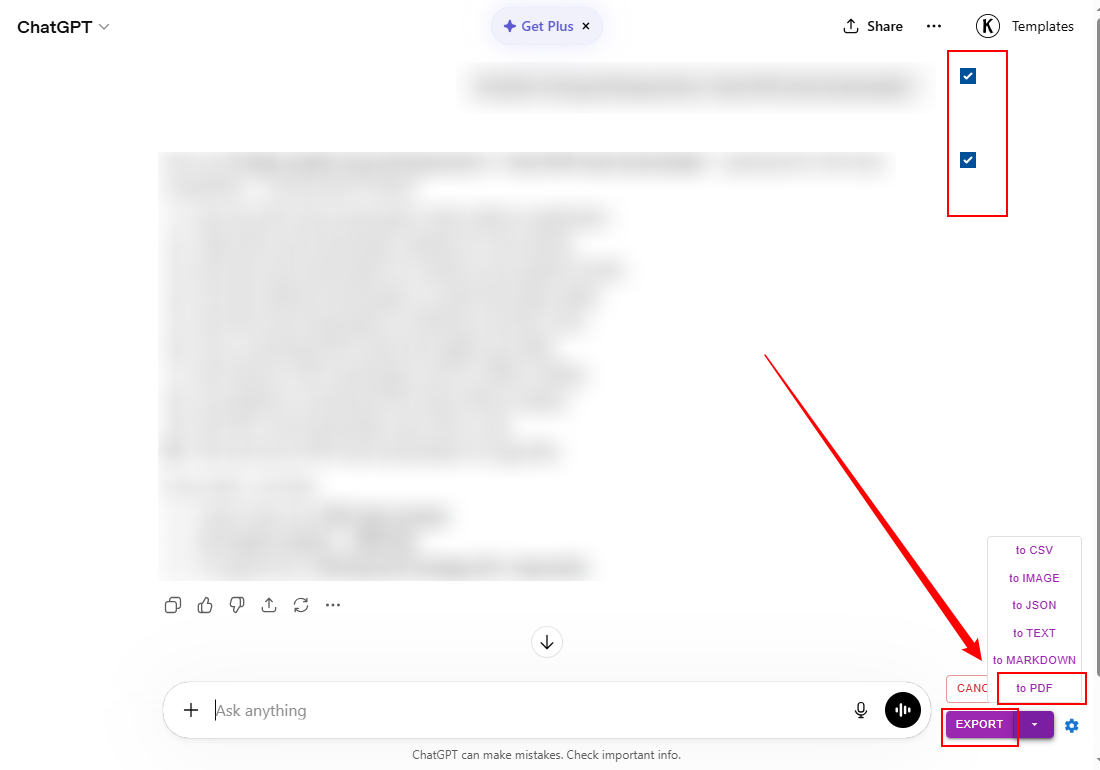
Step 2. Next, open ChatGPT and navigate to the target conversation. Click the SELECT button to select the chats you want to export. Finally, click EXPORT and choose the “to PDF” option.
Method 4. Copy-Paste into Word/Google Docs and Export as PDF
Best for: Someone who needs to customize the file formatting and layout before saving as a PDF.
The last workaround for “convert ChatGPT text to PDF” is to copy and paste the conversation into Word or Google Docs and then export it as a PDF. With this method, you can fully control the layout and select the chats you want to save as PDF. Below are the steps for your reference.
Step 1. Open the target ChatGPT conversation and copy the desired ChatGPT text.
Step 2. Paste it into Microsoft Word or Google Docs. Meanwhile, adjust the formatting as needed.
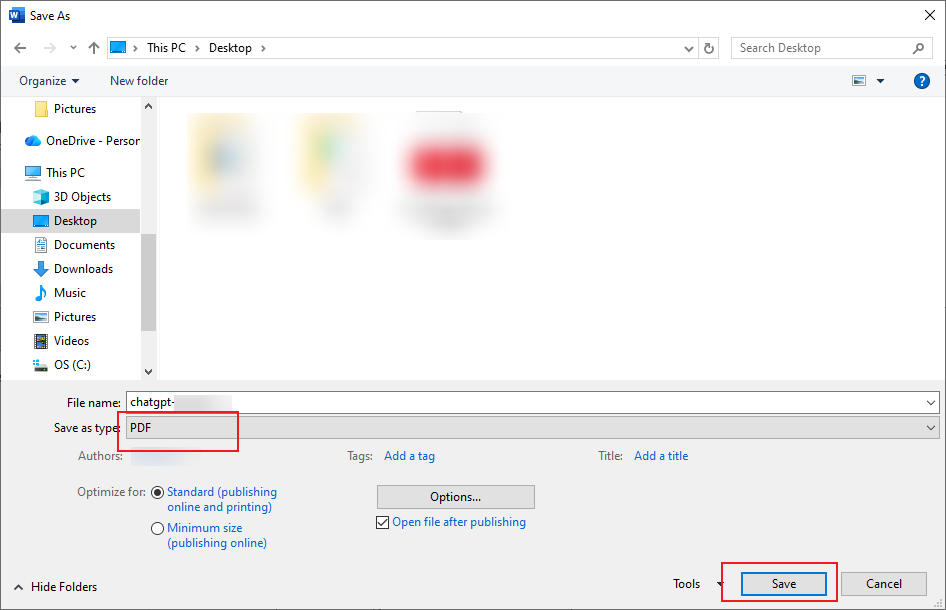
Step 3. In Google Docs, click File, move to Download, and select the PDF option. In MS Word, click File, select Save As, choose the saving path, set PDF as the output format, and click Save.
Conclusion
As long as you find the right method, it's a simple task to quickly save ChatGPT as a PDF. With ChatGPT’s built-in feature, you can export conversations in total. Meanwhile, use SwifDoo PDF to convert the conversation file in HTML format to PDF. In addition, you can use the browser’s Print to PDF feature, a dedicated ChatGPT to PDF extension, and the manual copy-paste way. Which method works best for you? Choose the one that best fits your practical needs.



