



Why is ChatGPT's History Gone?
Before we fix the problem, it helps to understand why it happens. When your chat history vanishes, it is usually because of one of these five simple reasons:
When OpenAI servers become overloaded, they try to conserve energy. To keep the main chat box working, they will temporarily hide the history sidebar, and you will meet the “ChatGPT chat history missing” error.
❌ Browser Cache Bugs
Your web browser saves small files to make websites load faster. This is called a "cache." Sometimes these old files get corrupted or mixed up. When this happens, your browser might show you a blank sidebar even if your chats are perfectly safe.
❌ Accidental Archiving
ChatGPT has an "Archive" button. If your hand slips, you might accidentally click it. Archiving a chat hides it from your main list, but it does not delete it.
❌ Account Sync Issues
Do you use ChatGPT on your smartphone and your computer? Sometimes, the two devices fail to communicate correctly. A syncing error can make your chats appear on your phone but disappear on your computer.
❌ Temporary Chat Mode
ChatGPT history gone when you close the window? If you accidentally turn on ChatGPT Temporary Chat, the AI will not save that conversation. Once you close the window, it is gone.
How to Recover Disappeared ChatGPT History
How to fix ChatGPT chat history disappeared? Follow this step-by-step troubleshooting guide.
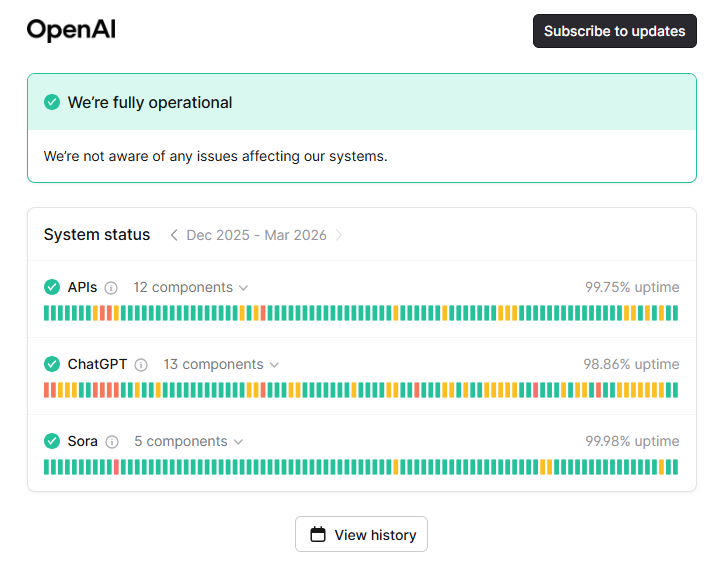
Fix 1: Check the OpenAI Server Status
The very first thing you should do is check if the website is broken. Open a new tab and visit status.openai.com. Look at the bars on the screen.
If you see red or yellow bars, it means OpenAI is having technical problems. Your chats are safe, but you cannot see them right now. You just have to wait a few hours while the company fixes its servers.
Fix 2: Refresh the Web Page
If the servers are fine, you can try forcing the website to load everything from scratch. This is a helpful trick when ChatGPT is unable to load the site.
- If you use Windows, press the Ctrl and F5 keys at the same time.
- If you use a Mac, press the Cmd, Shift, and R keys at the same time.
Often, your history list will pop right back up.
Fix 3: Log Out and Log Back In
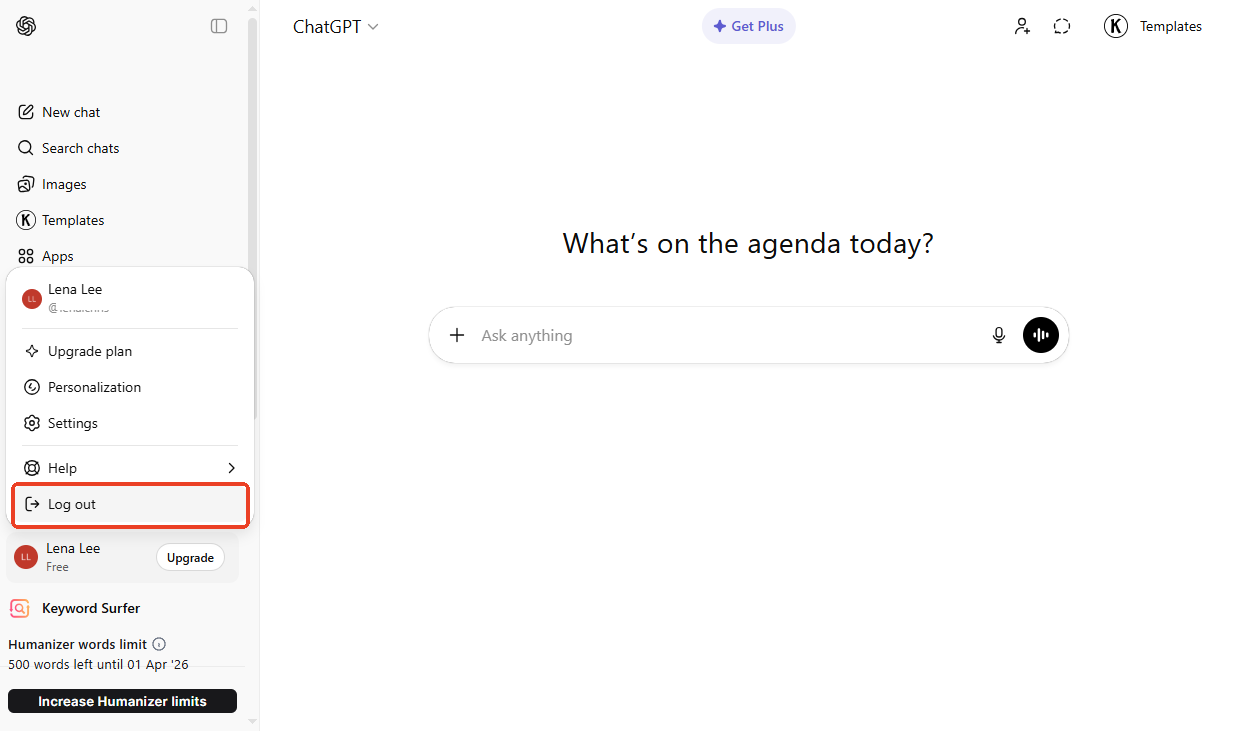
Sometimes your account connection goes to sleep. Logging out forces the system to wake up, reconnect to the main database, and reload your chat list. Please make sure you have logged in to the right account.
- Click your name or picture at the bottom left of the screen.
- Click Log out.
- Type in your email and password to log back in.
Fix 4: Clear Your Browser Cache and Cookies
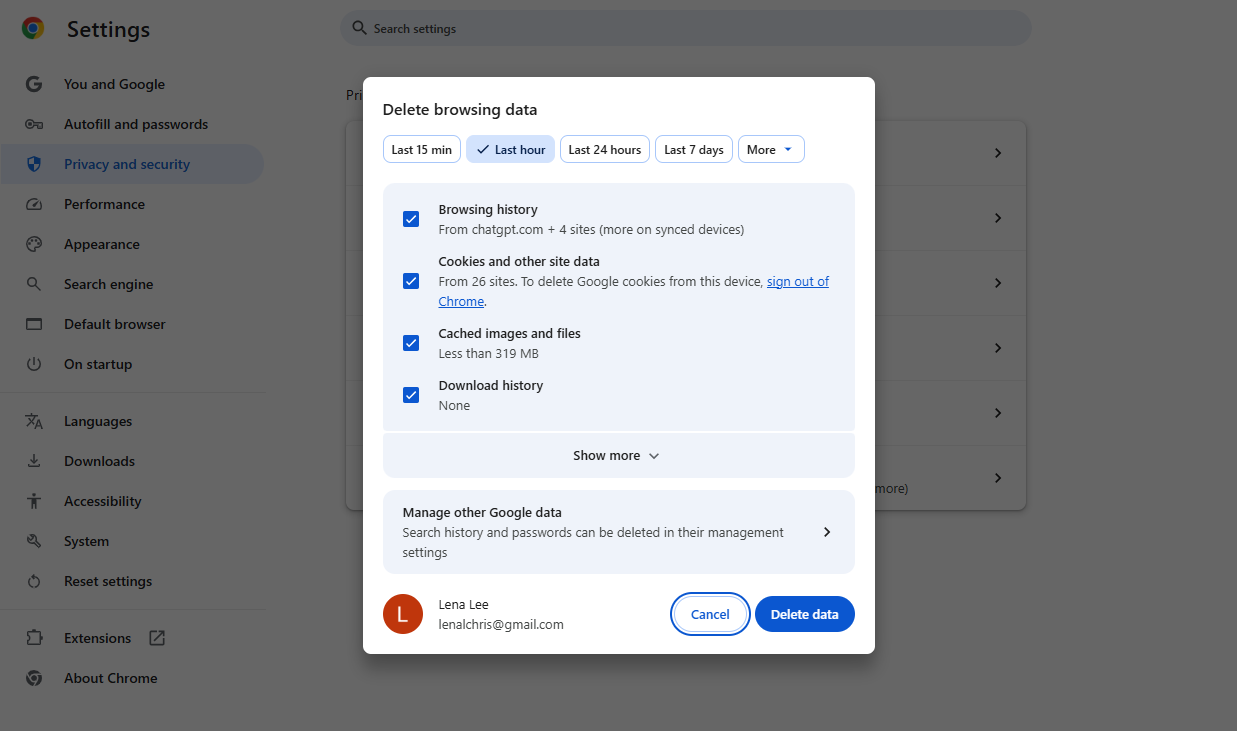
If the refresh did not work, you need to clear your browser's cache. Corrupted files can cause the “ChatGPT chat history missing” issue.
- Go to your web browser's settings menu. You can usually click the three dots in the top right corner to find it.
- Find the section called Privacy and Security.
- Select the history, caches, and cookies.
- Choose to clear the data from the "last 24 hours" or "all time."
- Click the delete button. Close your browser completely, reopen it, and go back to ChatGPT.
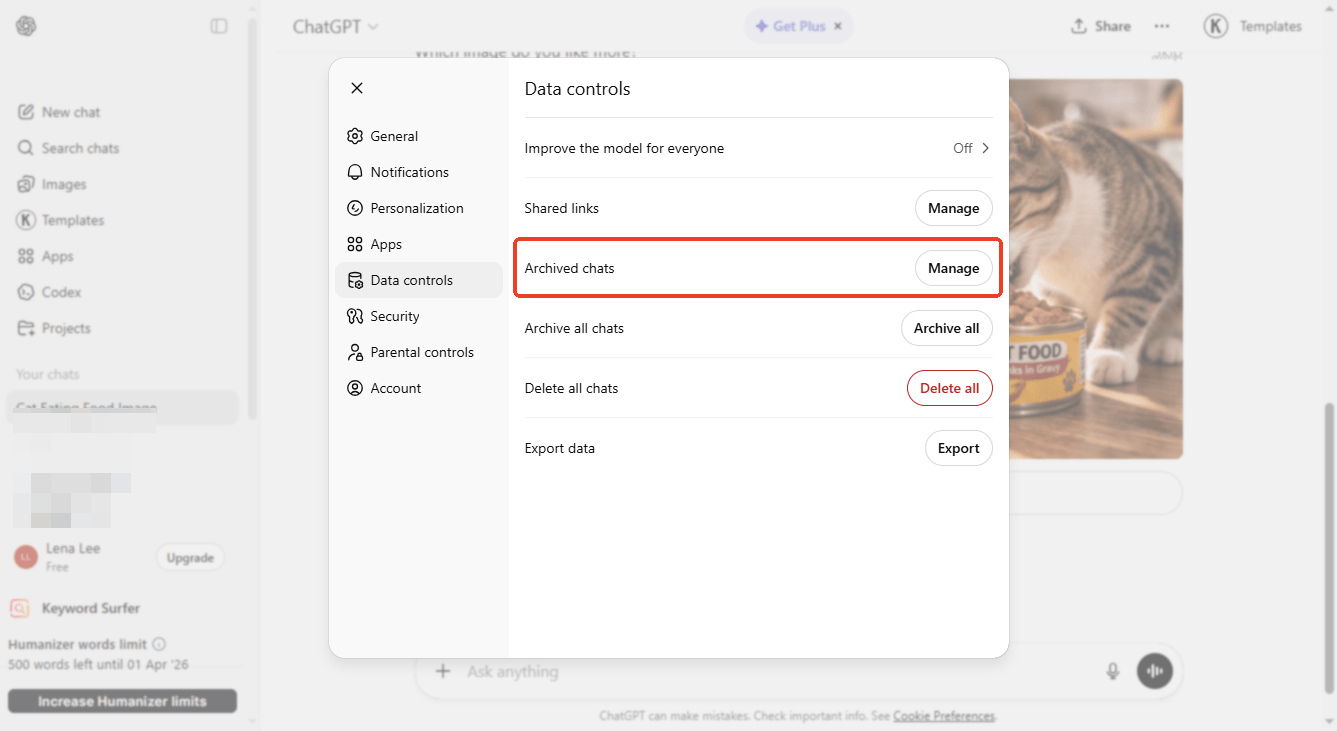
Fix 5: Check Your Archived Chats
If only one ChatGPT conversation history disappeared, you probably archived it by mistake. Here is how to pull them back out:
- Click your profile picture at the bottom left and select Settings.
- Click on the Data controls tab.
- Look for Archived Chats and click the Manage button next to it.
- You will see a list of hidden chats. Click the Unarchive icon. The chat will return to your main sidebar instantly.
Bonus Tip: How to Back Up Important ChatGPT Chats
The best way to protect your hard work is to back it up before a computer glitch occurs. If you save your chats to your computer, you will always have them, even if the website breaks.
Here are two easy ways to export chat history from ChatGPT, so you never lose it again:
1. Export All Data
If you want to save every single chat you have ever had, you can ask ChatGPT to send you a complete backup file.
- Look in the bottom-left corner of your screen, then click your profile name or picture.
- Click Settings, then click the Data Controls tab.
- Look for Export Data and click the Export button next to it.
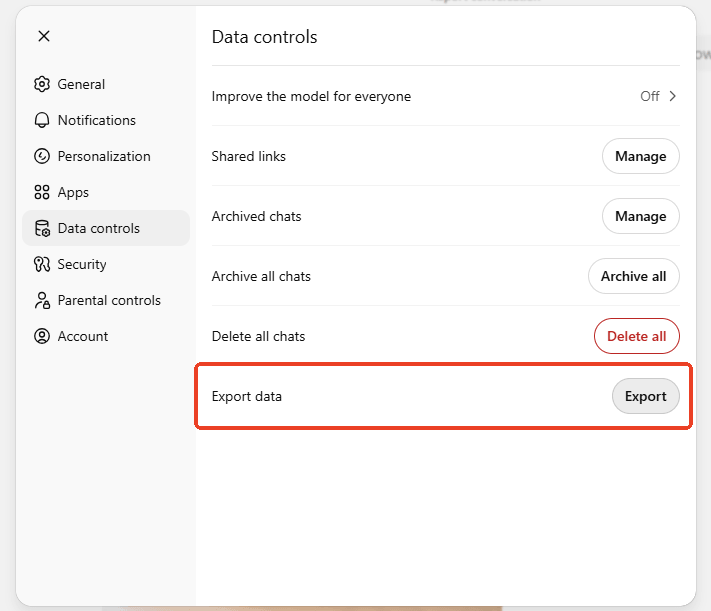
Wait a few minutes and check your email. OpenAI will send you a secure link with a zip file containing all your past chats.
2. Print as PDF
Plus, you can save ChatGPT conversation as PDF. It is a good choice if you just want to save one or two chats. PDF is like a digital photograph of the web page that you can keep forever.
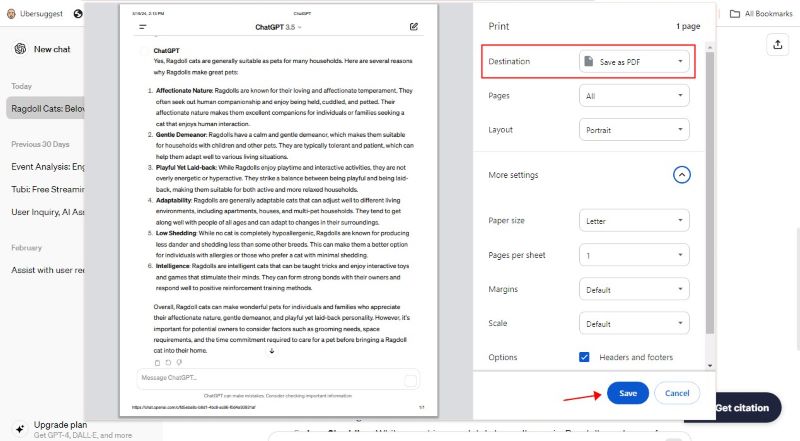
- Open the important chat you want to save.
- Press the Ctrl + P keys on a Windows computer, or Cmd + P on a Mac. This opens your computer's print menu.
- Instead of choosing your real paper printer, click the drop-down menu and select Save as PDF.
- Click the Save button, then select a location on your computer. Now you have a permanent, offline copy!
When you need to view the document, simply drag it onto your browser. Most browsers on the market have built-in PDF readers.
However, if you want more reading modes or more features, you should download a professional tool, such as SwifDoo PDF. With this tool, you can easily view and manage your PDF documents.
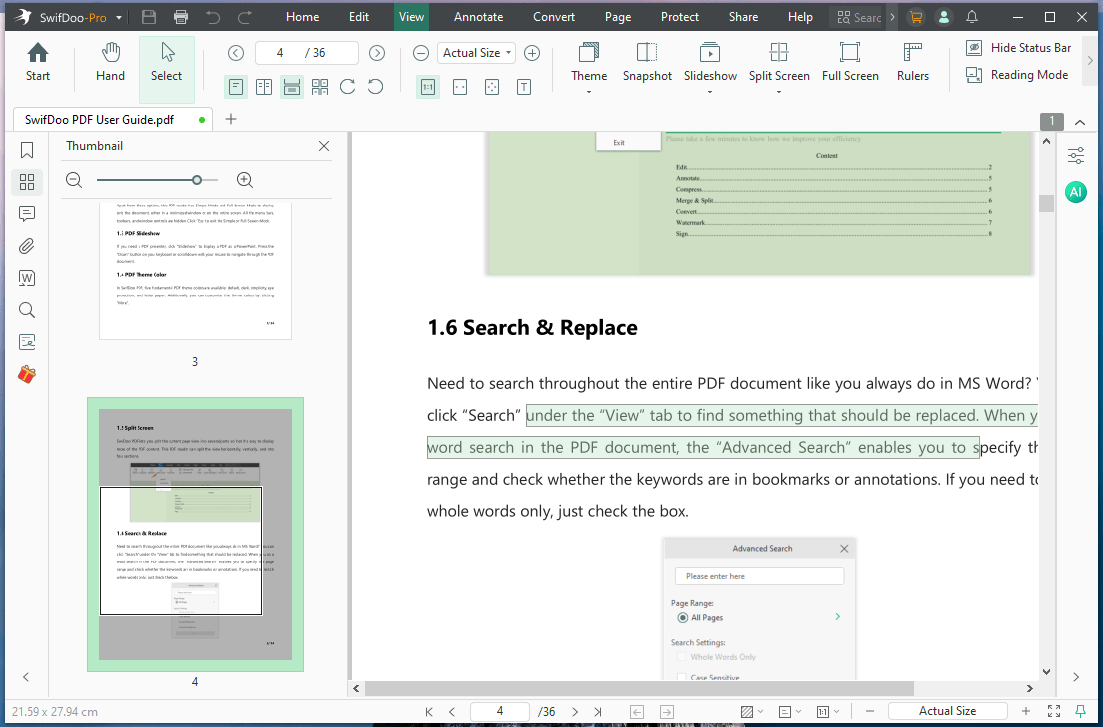
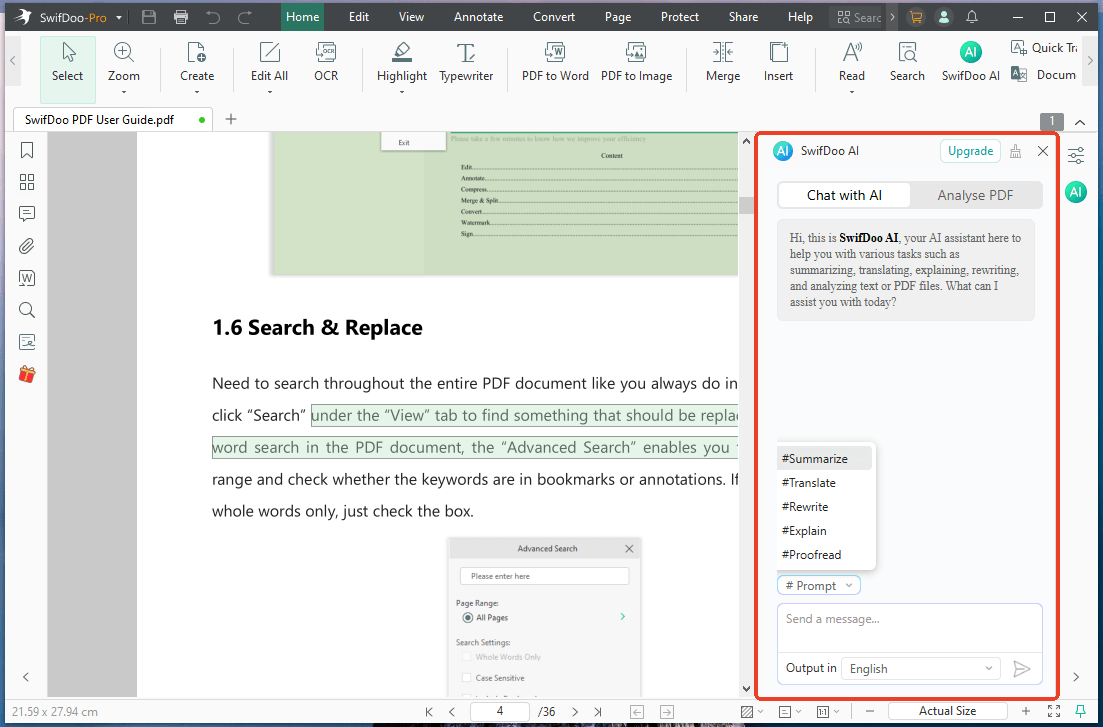
Moreover, it has an AI assistant called SwifDoo AI. You can ask the SwifDoo AI to read a long PDF and give you a short summary in seconds. If the document is in Spanish or French, the AI can instantly translate it into English.
Curious? Try it yourself! It’s never too late to work smarter.
Conclusion
That’s all about how to fix ChatGPT chat history disappeared. When your ChatGPT chat history disappears, it is rarely gone forever. By checking the server status, clearing your cache, or unarchiving your files, you can usually get your work back in minutes.
However, to keep your data safe in the future, it is a good idea to export your data regularly. And to view and manage your document, you can use a tool like SwifDoo PDF. You can choose the reading mode, merge the documents, and delete the unnecessary pages.



