


Why Hyperlinks Break During Word to PDF Conversion
Have you ever found hyperlinks in Word not working once saved as PDF or printed to PDF? When you use the Print to PDF option, your operating system generates a flat, static image-like file optimized for paper output. Paper does not need clickable links, so every hyperlink gets stripped away during the process. In contrast, the Export or Save As PDF function packages your document digitally, preserving interactive elements like URLs, email addresses, and cross-references.
Beyond this core issue, a few other culprits can cause hyperlinks not working in PDF. An outdated PDF reader may fail to detect links properly. The original URL might contain a typo, such as a missing https://. And on mobile devices, some lightweight PDF viewers simply do not support automatic link detection. Knowing these variables helps you fix the Word to PDF hyperlinks not working issue.
Method 1: Use "Export" Instead of "Print" (Windows & Mac)
If you have been hitting Print to PDF and wondering why every link breaks, the fix takes less than a minute. This method addresses the most common cause of MS Word hyperlinks not working after converting to PDF and applies to both Windows and macOS users.
Fix Word to PDF Hyperlinks Not Working Windows 10/11
Step 1: Open your finished document in Microsoft Word. Double-check that all hyperlinks function by holding the Ctrl key and clicking each one. If a link is broken inside Word itself, it will not magically start working in the PDF.
Step 2: Click the File tab in the top-left corner, then select Export from the sidebar.
Step 3: Choose Create PDF/XPS Document and click the corresponding button on the right. A save dialog box will appear.
Step 4: Before saving, click the Options button in the dialog. Ensure that Document properties and Document structure tags for accessibility are checked. These settings help embed hyperlinks correctly. Confirm and click Publish.
Step 5: Open the new PDF in your preferred reader and test every link. Click email addresses, external URLs, and any table of contents entries. They should all function.
Fix Word to PDF Hyperlinks Not Working Mac
Step 1: Open your document in Word for Mac. Review all links by Cmd-clicking each one.
Step 2: Click File, then Save As. In the file format dropdown, select PDF rather than relying on the print dialog.
Step 3: Ensure the Best for electronic distribution and accessibility option is selected. This is the Mac equivalent of the Windows export setting and is critical for keeping links active.
Step 4: Choose a save location and click Export. Test the resulting file immediately by opening it and clicking each hyperlink.
How to Save a Word Document as a PDF: 4 Ways on Windows, Mac & Online
Check this article to learn how to save a Word document as a PDF for free on different operating systems. Get the 4 solutions to convert Word to PDF with ease.
READ MORE >Method 2: Convert Word to PDF with SwifDoo PDF
Sometimes the built-in export still produces inconsistent results, especially with complex documents. Large reports containing a hyperlink in images no longer working, intricate charts with embedded links, or documents with dozens of cross-references can confuse standard converters. This is where a dedicated Word to PDF converter like SwifDoo PDF earns its place in your toolkit.
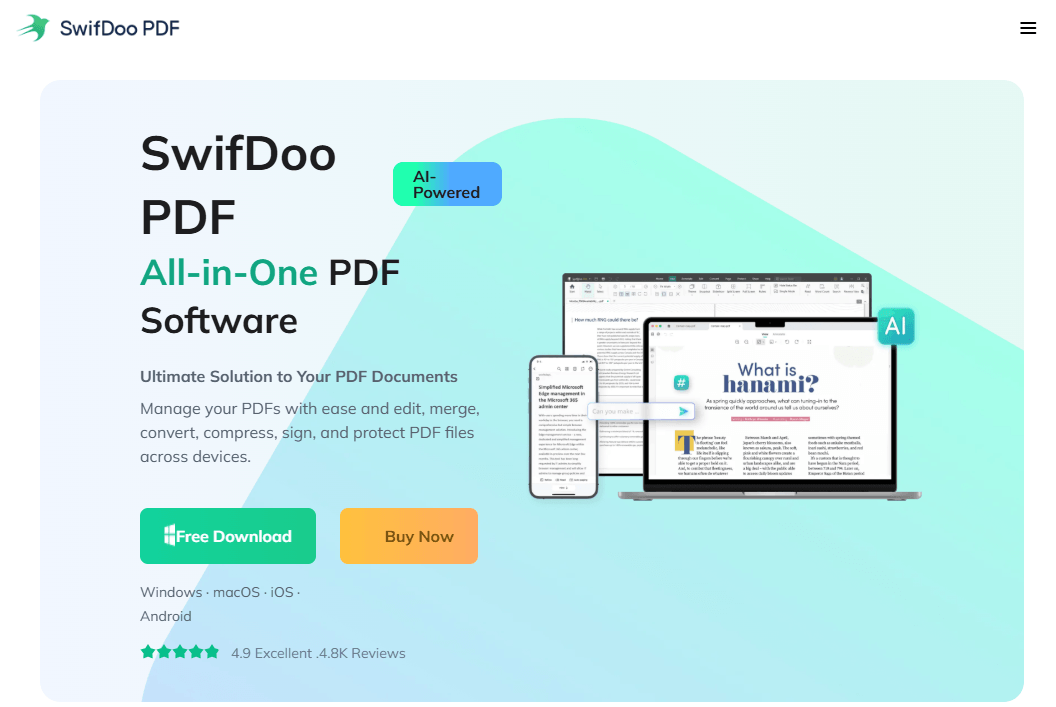
Step 1: Download and launch SwifDoo PDF on your Windows/macOS computer. The interface presents a clean dashboard with clearly labeled tools.
Step 2: On the home screen, go to the Convert tab and choose Office to PDF from the navigation menu. Browse your files and select the Word document you need to convert. SwifDoo PDF supports batch import, so you can queue multiple documents if you have a stack of invoices or reports to process.
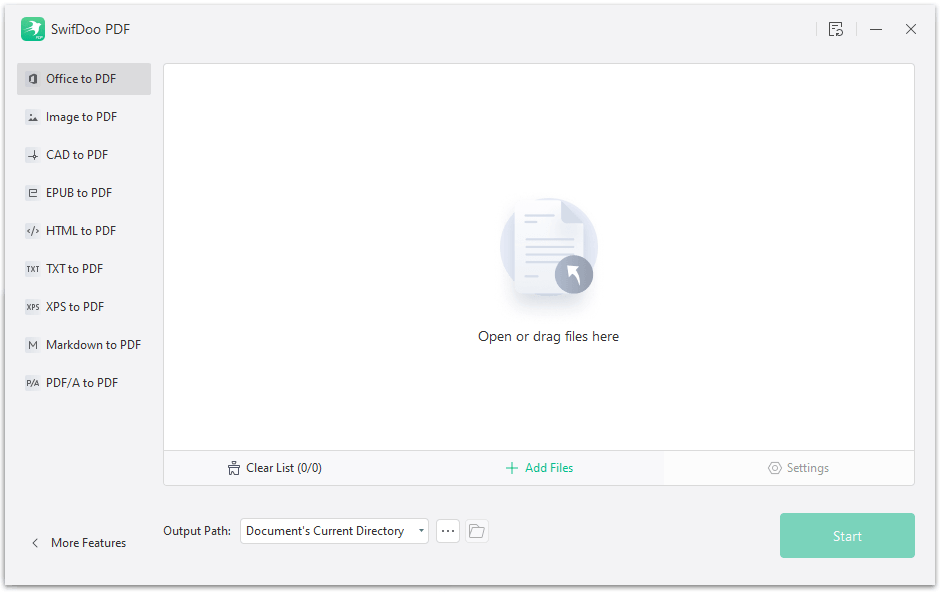
Step 3: The software analyzes your document and renders a preview. Pay special attention to images that contain hyperlinks. SwifDoo PDF handles image-based links reliably, preserving clickable areas that some lightweight converters flatten.
Step 4: Before finalizing, click through a few links in the preview pane to confirm they point to the correct destinations. If a link looks wrong, you can edit it directly at this stage without returning to Word.
Step 5: Click Save to generate the final PDF. Open the output file and run a full link test. The result should be a document where every URL, email link, and cross-reference functions exactly as it did in the original Word file.
Method 3: Fix Hyperlinks Directly in the PDF
What if the original Word file is long gone, and you only have the broken PDF? Perhaps an old report or a downloaded template arrived with dead links. In these cases, you need to repair links in PDF not working from within the PDF itself.
Step 1: Launch SwifDoo PDF and open the PDF that contains broken hyperlinks.
Step 2: Click the Link tab in the top toolbar, then select Add or edit link.
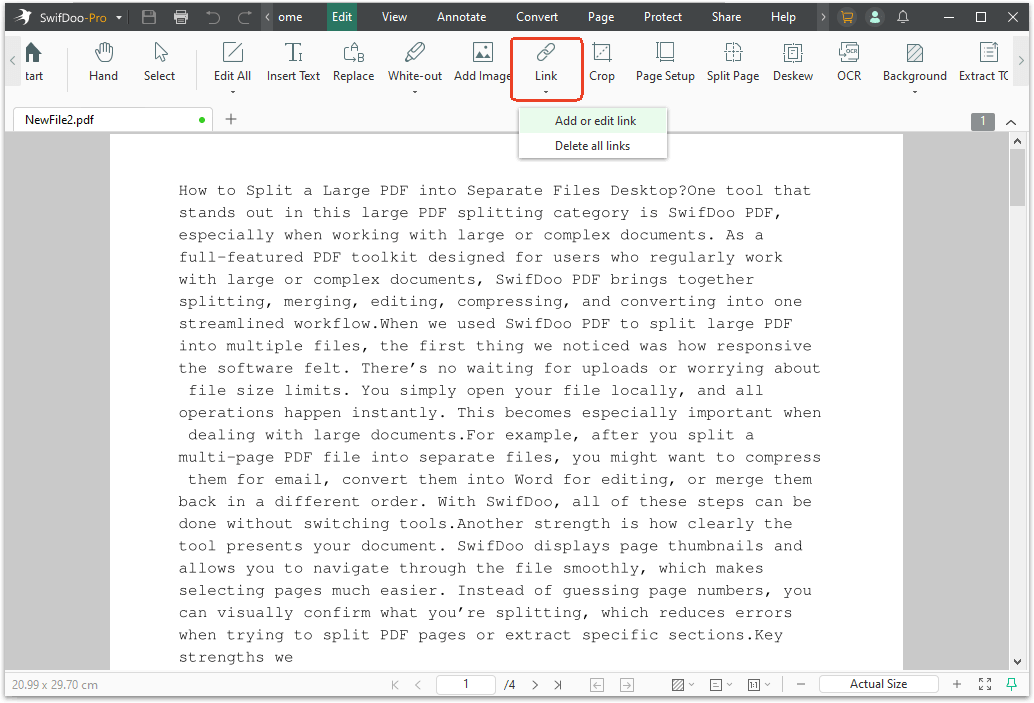
Step 3: Navigate to the text or image that should contain a hyperlink. Click to select the area. Then it will open a dialogue box named Add Links.
Step 4: You can configure the link layout, like its appearance, line style, and color. Then select which destination you hope to arrive at and input the link.
-
Open a Web for external URLs
-
Go to a Page View for internal navigation within the PDF.
-
Enter the full, correct URL, including
https://in the address field. For email links, entermailto:[email protected].
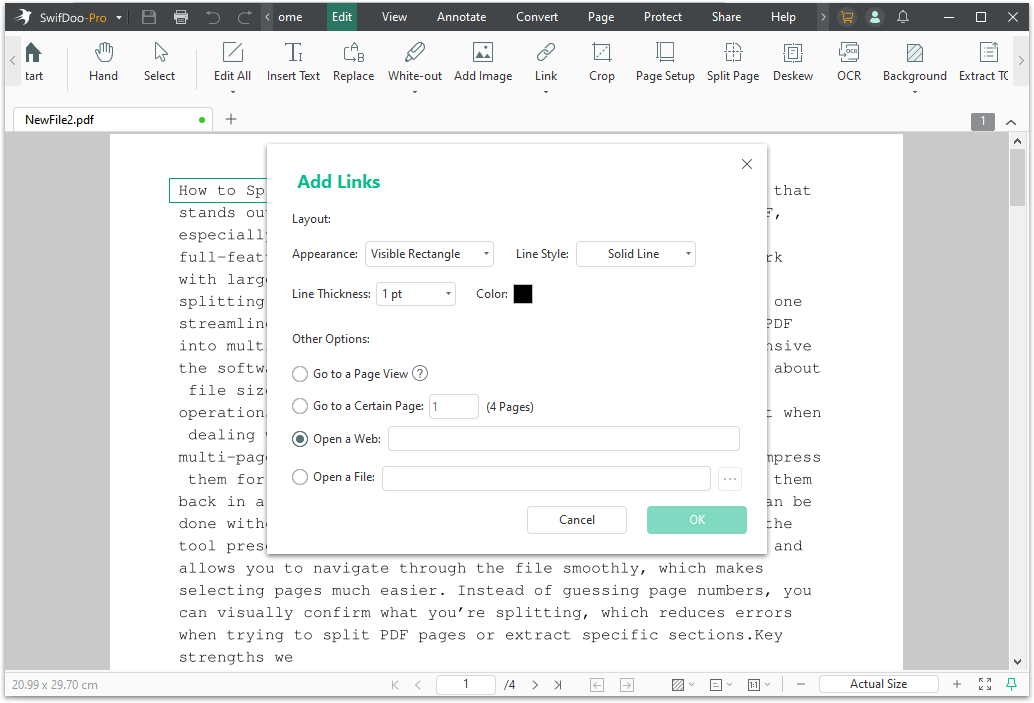
Step 5: Repeat the process for any other broken links in the document. Save the PDF when finished. This method resolves both text-based link failures and hyperlink not working in images issues, since SwifDoo PDF treats image areas as selectable link zones.
![Convert PDF to URL in 5 Ways [2025 Updated]](https://img.swifdoo.com/image/pdf-to-url.png)
Convert PDF to URL in 5 Ways [2025 Updated]
It’s simple to convert a PDF to a URL with a nice converter or URL link generator. You can use 5 ways to create online links or HTML files easily.
READ MORE >Method 4: Adjust Settings for Google Docs & Mac-Specific Issues
Do hyperlinks work in PDF from Google Docs? Not every professional works in Microsoft Word. Many teams rely on Google Docs, and many freelancers prefer Apple Pages. Each platform handles PDF export differently, which is why Word to PDF hyperlinks not working on Mac persists even after using the Save As method.
How to Keep Hyperlinks in PDF from Google Docs?
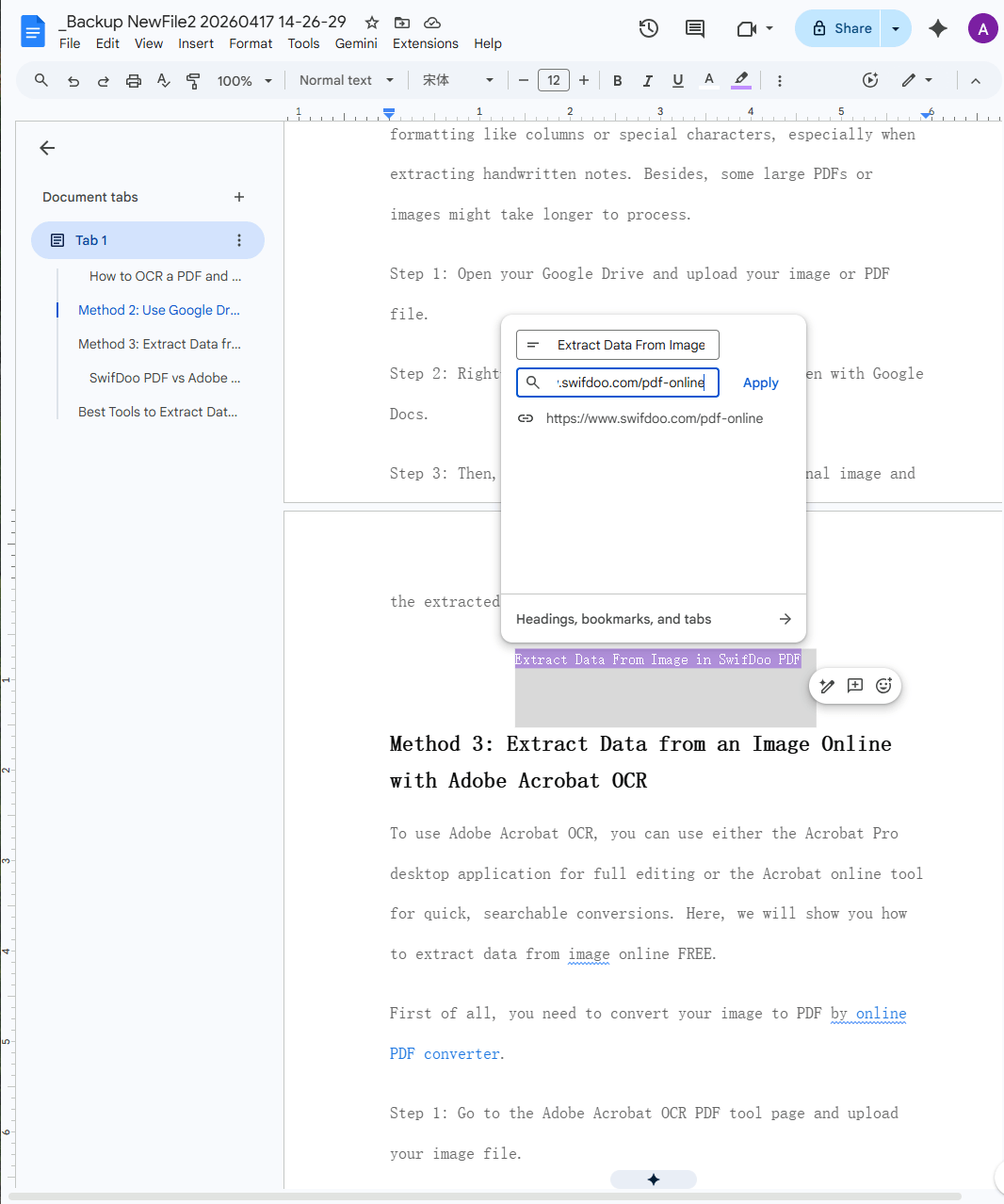
Step 1: With your document open in Google Docs, first confirm that your hyperlinks are properly formatted. Google Docs sometimes pastes URLs as plain text. Select each link, right-click, and choose Edit link to verify the destination.
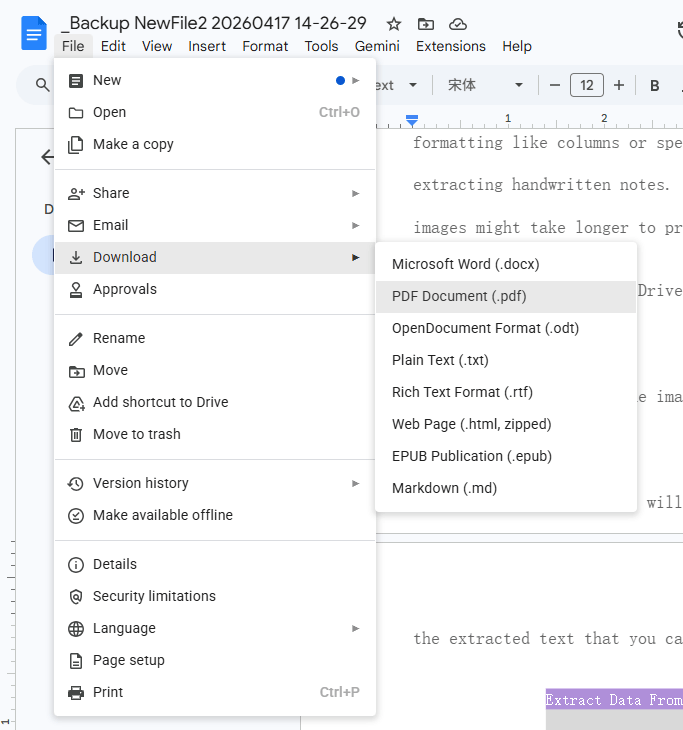
Step 2: Click File in the top menu, hover over Download, and select PDF Document (.pdf). Google Docs does not offer a "Print to PDF" dialog in the same destructive sense, but the Download route is the safest path.
Step 3: Open the downloaded file and test the links. If any link fails, return to Google Docs, remove and re-add the hyperlink, then export again. Google Docs generally preserves links well, so failures here often trace back to the original link formatting rather than the export engine.
How to Fix Word to PDF Hyperlinks Not Working Mac?
Step 1: In Apple Pages, click File, then Export To and select PDF. A settings window appears. Confirm that the Include Hyperlinks checkbox is ticked before proceeding.
Step 2: If your PDF links work fine in a browser but fail in the Mac Preview app, the issue is not your file. Preview sometimes fails to detect clickable links. Open the same PDF in SwifDoo PDF or Adobe Acrobat Reader, and the links should function normally. This is a known limitation of Preview, not a fault in your conversion.
Method 5: Check Mobile Readers & Browsers
A PDF that works perfectly on a desktop can arrive broken on a phone. If you are dealing with PDF links not working on mobile, the culprit is likely the app handling the file, not the PDF itself.
Step 1: If you are opening the PDF in a mobile browser like Chrome or Safari, try downloading the file and opening it in a dedicated PDF reader app instead. Mobile browsers sometimes disable link clicks inside PDF previews as a security measure.
Step 2: Install a reliable PDF reader such as SwifDoo PDF (available on mobile), Adobe Acrobat Reader, or Foxit PDF. Open the same file through that app and test the links again. In the vast majority of cases, the links work immediately once a proper reader renders the file.
Step 3: If links still fail in a dedicated reader, the file itself may have been flattened during creation. Return to Method 2 or Method 3 to reconvert or repair the document on a desktop, then transfer the corrected version back to your mobile device.
Conclusion
Broken hyperlinks in a PDF almost always trace back to one simple habit: choosing Print over Export. Once you internalize the difference, you will rarely encounter Word to PDF hyperlinks not working again.
For everything else, from complex image links to repairing a PDF without the source file, a capable tool like SwifDoo PDF fills the gap. It handles the conversion process reliably, lets you edit or add links directly inside existing PDFs, and provides a consistent viewing experience across desktop and mobile. Test your next document before sending, and you will never re-live that freelancer's late-night scramble.


