1. Use a Signing Service
Sometimes, the person who emails you makes the process incredibly easy. They might use a special business service like DocuSign, PandaDoc, or Adobe Sign. When they do this, you do not get a normal file attached to your email. Instead, you get a secure web link. This is the fastest way to electronically sign a document sent by email.
Here is how you complete it:
- Open the email in your inbox. Look for a big, colorful button that usually says "Review Document" or "Click Here to Sign". Click that button.
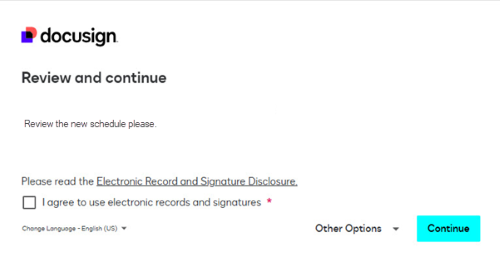
- The document will automatically open in your web browser (like Chrome or Safari). Read the document carefully.
- Look for a highlighted box on the page that says "Sign Here" and click on it.
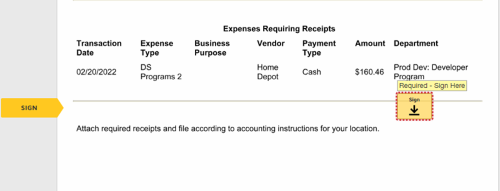
- The website will ask you to draw your name using your computer mouse, or you can simply type your name using your keyboard.
- Once your name is on the page, click the "Finish" or "Submit" button. The website will automatically lock the document and send the signed paper back to the sender. You do not even need to write a reply email!
2. Use SwifDoo PDF
Often, people will just attach a normal PDF file to their email. When this happens, you need a safe way to open the file and write your name on it. If you want to know how to sign a PDF document sent by email while keeping your personal information completely private, you should use a professional offline tool, such as SwifDoo PDF.
SwifDoo PDF is a good choice if you need to sign a PDF on Windows. It works directly on your computer, and your private files are never uploaded to a random website.
First, you must download the PDF file from your email and save it to your computer.
Then, follow these simple steps:
- Open the file you just downloaded using the SwifDoo PDF program.
- Look at the menu across the top of the screen. Click on the "Protect" tab, go to "Signature" > “Create New Signature”.
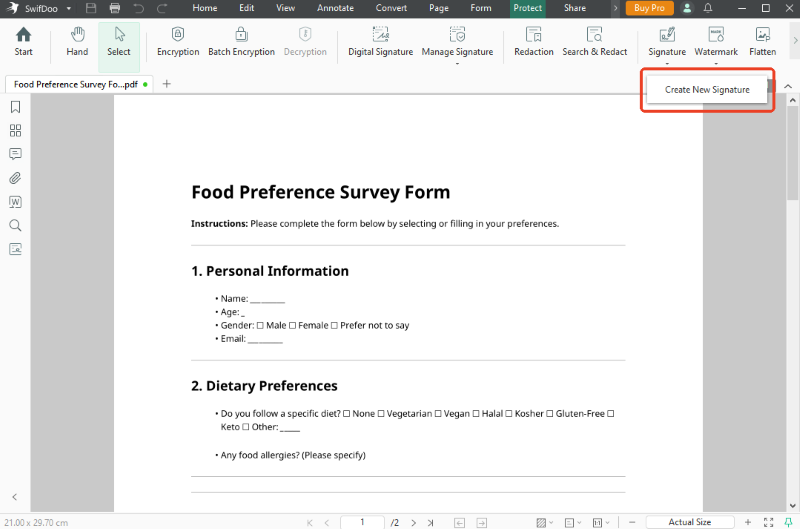
- Now, you can create your custom signature. SwifDoo PDF gives you four very easy options to choose from.
Draw: Use your computer mouse or your laptop trackpad to draw your name.
Type: Type your name on the keyboard. The software lets you pick a beautiful, cursive font that looks exactly like real handwriting.
Image: If you already have a picture of your real handwriting saved on your computer, you can insert that picture here.
Camera: You can hold up a piece of white paper with your signature drawn on it in front of your computer camera. The software will take a picture and instantly turn it into a digital signature!
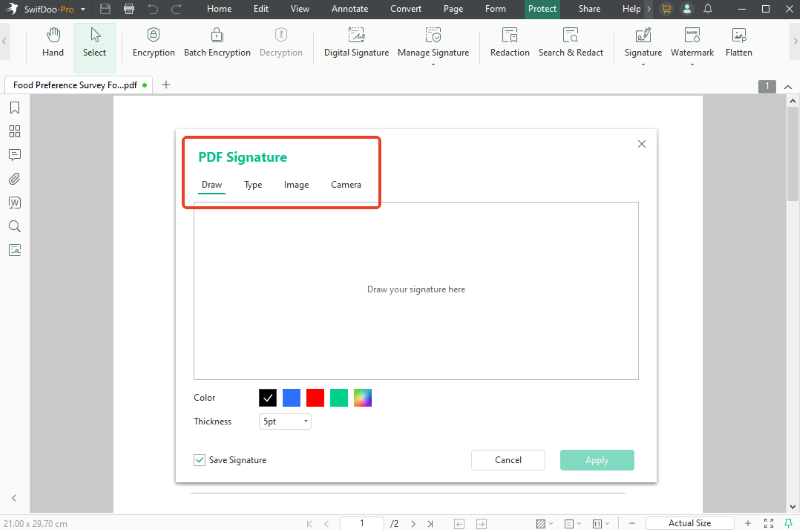
- Move your new signature to the correct blank line on the page. Click once to place it down securely. Then, save your file.
SwifDoo PDF is an amazing PDF editor because it gives you total control offline. You can also use it to edit text, fix spelling mistakes, and manage your files easily. Download SwifDoo PDF today to make your PDF work simple!
3. Use Adobe Acrobat
Many office computers and home laptops already have a free program called Adobe Acrobat Reader installed on them. If you already have this program, you do not need to look any further. You can easily add signature in Adobe Acrobat.
Here is how to use its built-in signing tool:
- Download the PDF attachment from your email and save it to your computer. Open the file using Adobe Acrobat.
- Look at the long menu on the right side of your screen. Find the signing tool and select “Add Signature.”
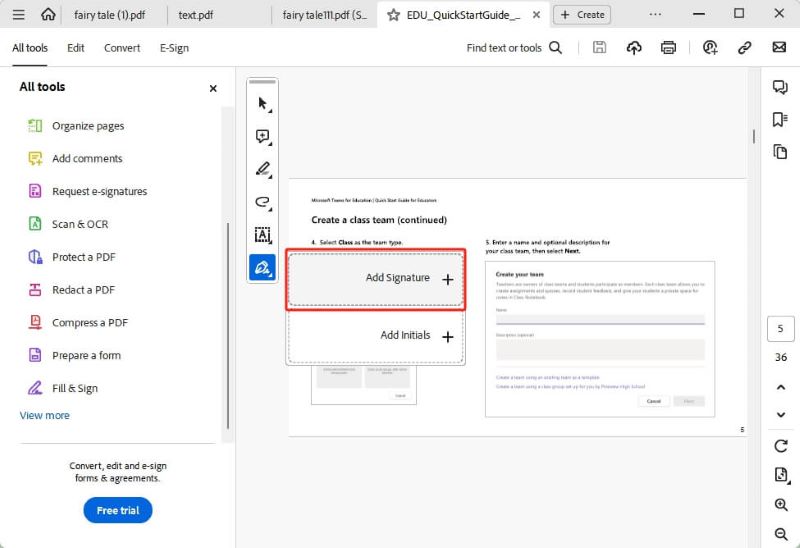
- A small box will pop open on your screen. Here, you can choose to either type your name or draw it with your mouse.
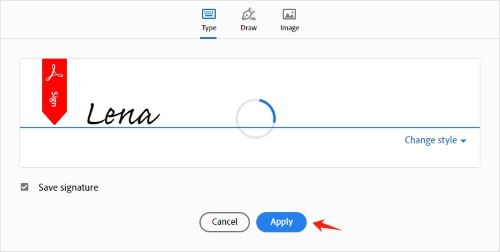
- Click anywhere on the document to place your name on the line. Remember to click "File" and then "Save" before you attach this finished file to your email reply.
4. Use a Browser (like Microsoft Edge)
What if you are in a big rush and you do not want to download or install any new software? You can actually learn how to sign a document sent by email for free using the web browser that is already on your computer. If you have a Windows computer, you can use Microsoft Edge. It has a very handy drawing tool built right into it.
Here are the easy steps to add a signature to a PDF in Microsoft Edge:
- Download the PDF document from your email and save it to a folder on your computer.
- Right-click on the file you just saved. A menu will appear. Move your mouse down to "Open with", and then choose "Microsoft Edge" from the list.
- The document will open up looking just like a normal webpage. Look at the top menu bar. Click the "Draw" button (the icon looks like a small pen pointing down).
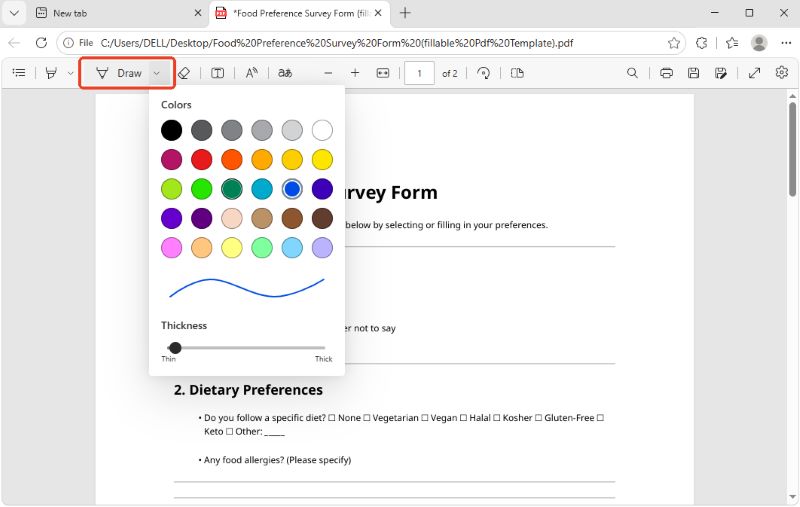
- Your mouse cursor will turn into a pen. Hold down your left mouse button and use your mouse to draw your name directly on the signature line.
- When you are finished, click the "Save" icon in the top right corner, which looks like a small floppy disk. Now, you can open your email, hit reply, and attach this newly saved file.
Conclusion
That’s all about how to sign a document sent by email. Whether you click a secure web link, use a quick browser trick, or use a powerful, safe desktop program like SwifDoo PDF, the entire process only takes a few minutes. Choose the method from this list that works best for you, and reply to those important emails with complete confidence!