1. Draw Your Signature
The most common way to sign is by using the free tools already built into the website. If you are wondering how to sign a document in Google Docs without downloading anything, this is the best method for you. You can use your computer mouse or your laptop trackpad to draw your name.
Here is how to add signature in Google Docs via drawing tool:
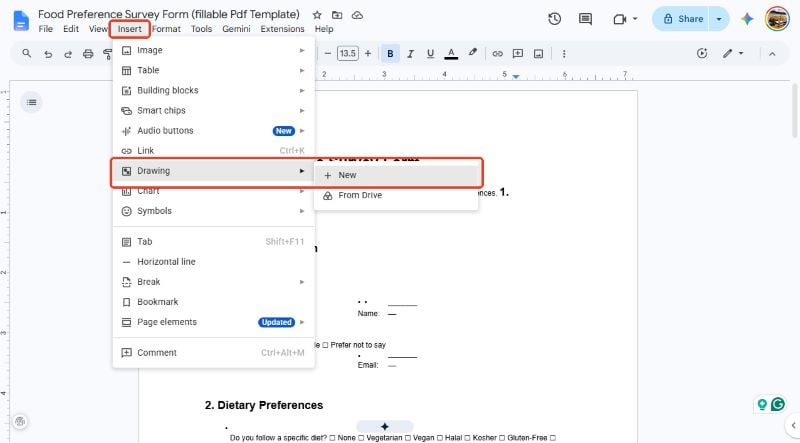
- Open your document. Click exactly where you want your name to go. Look at the menu at the top of the screen. Click on "Insert". Next, move your mouse down to "Drawing" and click on "+ New".
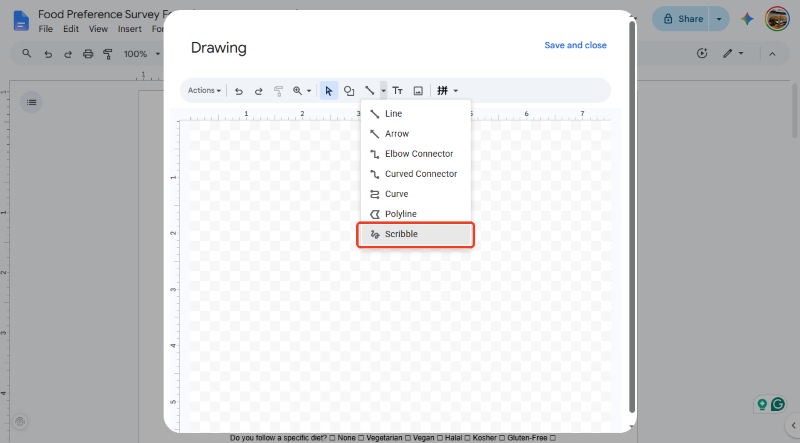
- A big drawing box will pop up. Look at the top of this box for a line icon. Click the small arrow next to the line. A tiny menu will drop down. Click on the word "Scribble".
- Now, hold down your left mouse button. Move your mouse to draw your signature inside the box. If you make a mistake, do not worry. You can press the "Undo" arrow at the top to try again.
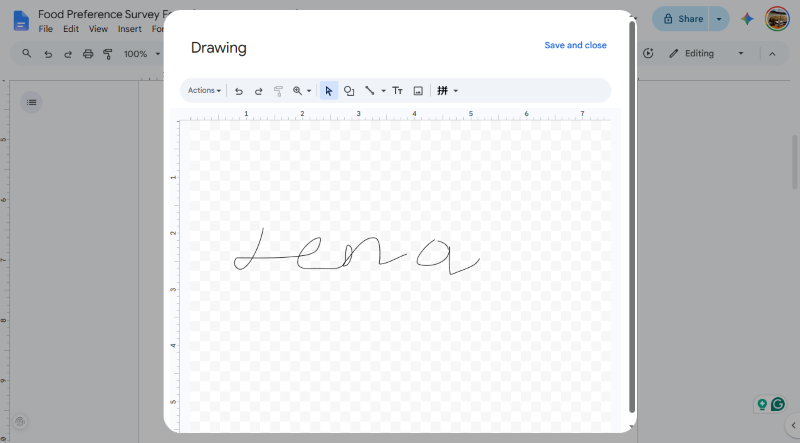
- When your drawing looks good, look at the top right corner. Click the blue button that says "Save and Close". Your signature will appear on your page.
2. Upload a Signature Image
Some people want their signature to look very professional. Drawing with a mouse can be hard. Instead, you can use a real picture of your handwriting. This method is great because it looks just like a real pen on paper.
Check to learn how to add a signature in Google Docs:
- First, get a blank piece of white paper. Sign your name using a dark blue or black pen. Use your phone or camera to take a clear, bright picture of your name.
- Send that picture to your computer and save it. You can crop the picture so only your name shows.
- Go back to your document. Click on "Insert" at the top. Choose "Image", and then click "Upload from computer". Find your saved picture and open it.
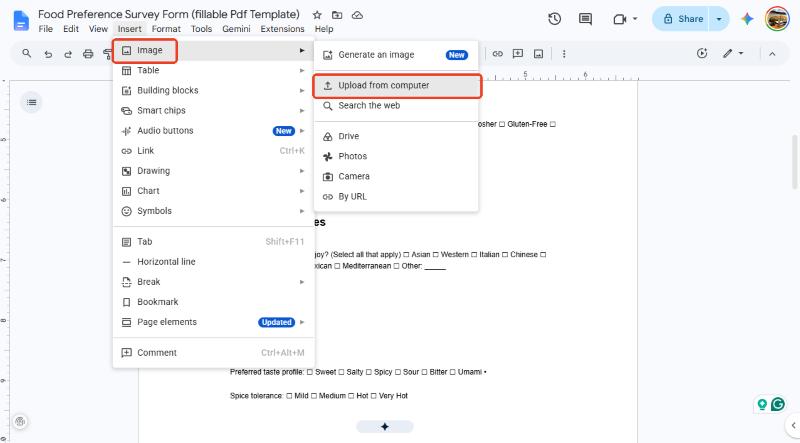
- Your picture might push your text out of the way. To fix this, click on the picture. A small menu will appear under it. Click on the option called "In front of text". Now, you can drag your picture and place it perfectly over a blank line.
3. Use Google Docs Add-ons
For business papers, you might need a very secure way to sign. If you want to know how to electronically sign a document in Google Docs for official work, you should use an add-on. An add-on is an extra tool you can plug into your document.
Here is how you use them:
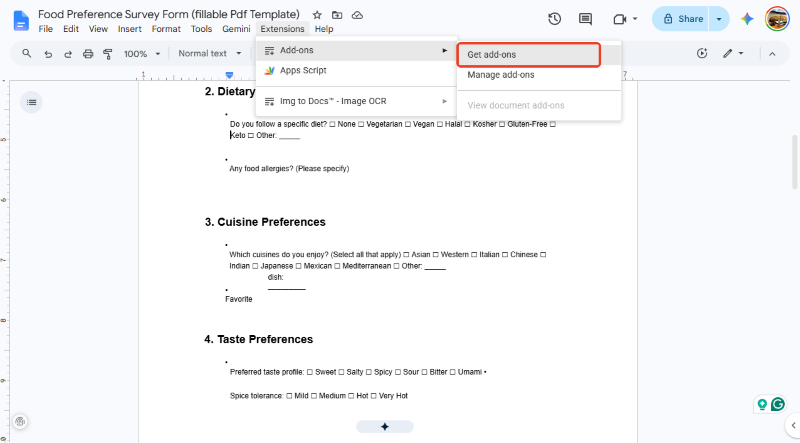
- Look at the top menu and click on "Extensions". Then, click on "Add-ons" and choose "Get add-ons".
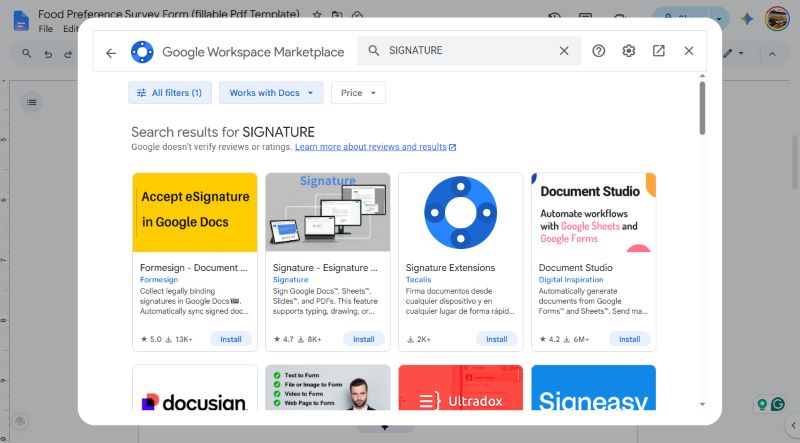
- A store window will open. Type the word "signature" into the search bar. You will see popular tools like DocuSign or Signeasy. Click on one and follow the simple steps to install it.
- After it installs, you can find the tool by clicking "Extensions" again. Click on the tool's name to open a menu on the right side of your screen. Follow the instructions there to place a secure, official signature on your page.
Bonus Tip: How to Easily Sign a PDF Offline
Sometimes you cannot connect to the internet. Or, maybe you need to sign a very important file and lock it so no one else can change your words.
If you need to sign a PDF contract or fill out an important form securely, you should use a desktop program instead of a website. We highly recommend using SwifDoo PDF, a powerful PDF editor.
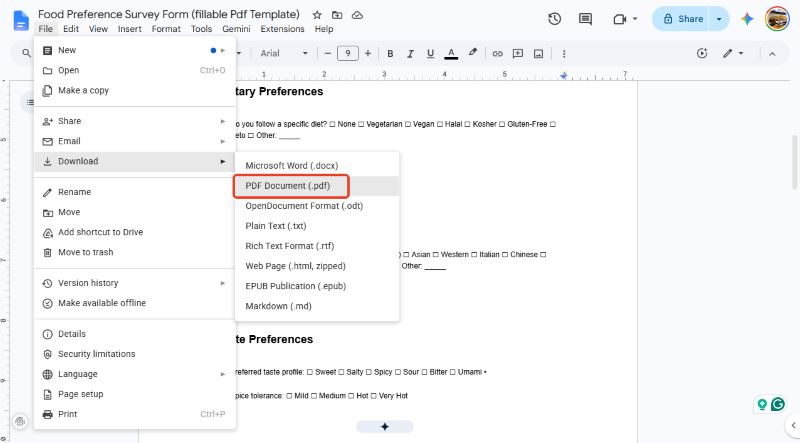
First, you need to save your work. Go to "File" in Google Docs, click "Download", and choose "PDF Document".
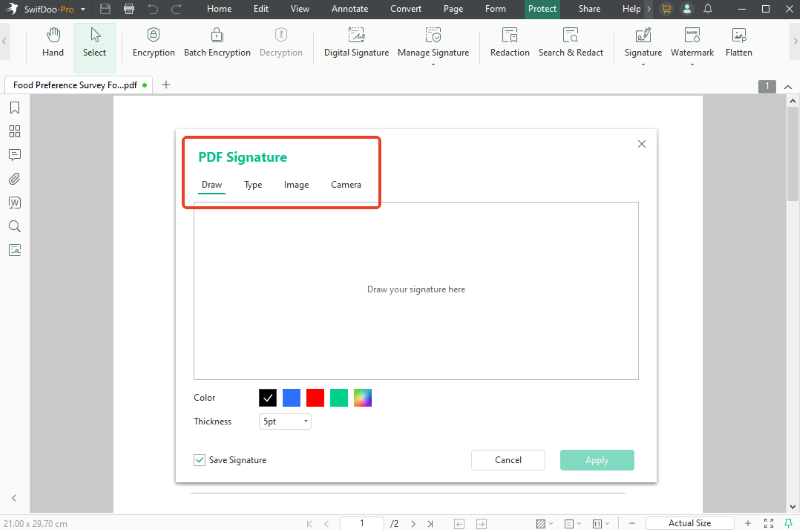
Once you open your new file in SwifDoo PDF, you have four amazing ways to sign it:
- Draw: Just like before, you can use your mouse to draw a custom signature directly on the page.
- Type: You can type your name using your keyboard. The software lets you pick beautiful, cursive fonts that look just like handwriting.
- Upload: You can easily insert a saved photo of your real signature.
- Scan: If you have a camera on your computer, you can hold up a piece of paper with your signature on it. The software will scan it instantly!
In fact, in addition to signing, SwifDoo PDF can also help you edit text, highlight anything, merge multiple pages into a single file, and lock your document so your signature is perfectly safe. Just try it today to make things easy!
Conclusion
That’s all about how to add signature in Google Docs. You can quickly draw your name, upload a nice photo, or use special tools for business contracts. If you want total control over your files without needing the internet, downloading your file to use an offline tool like SwifDoo PDF is a smart choice. Try these simple steps the next time you need to sign a paper!