


Part 1. How to Add Signature to PDF in Microsoft Edge
Windows 10/11 users can add signature in PDF using Microsoft Edge. It has reliable reading and annotation tools to help you add signatures to your documents. Just use the PDF drawing tool to write your signature straight onto the file — it’s fast and doesn’t require any extras.
Check out how to add a signature to a PDF in Microsoft Edge using the Draw Tool and Text Box.
Add Signature via the Draw Tool
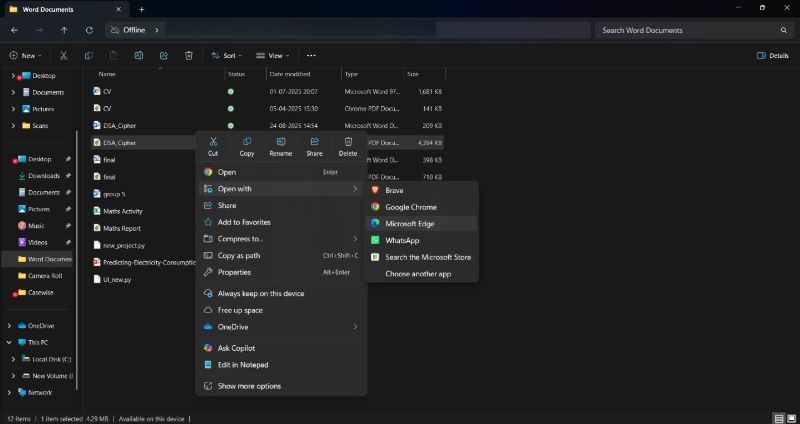
Step 1: Right-click the PDF you’d like to add your signature to. And click Open With > Microsoft Edge.
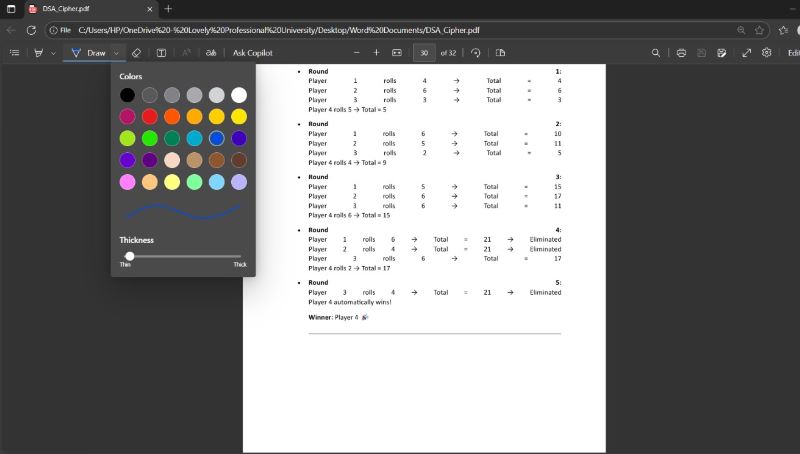
Step 2: Several annotation features will be available at the top of the toolbar. Find and click the Draw Tool.
Step 3: Choose your preferred color. And select the pen’s thickness to start adding the signature.
Step 4: Draw the signature on the PDF document. If necessary, you can remove it using the Erase tool. Redraw the electronic signature until you get the desired results.
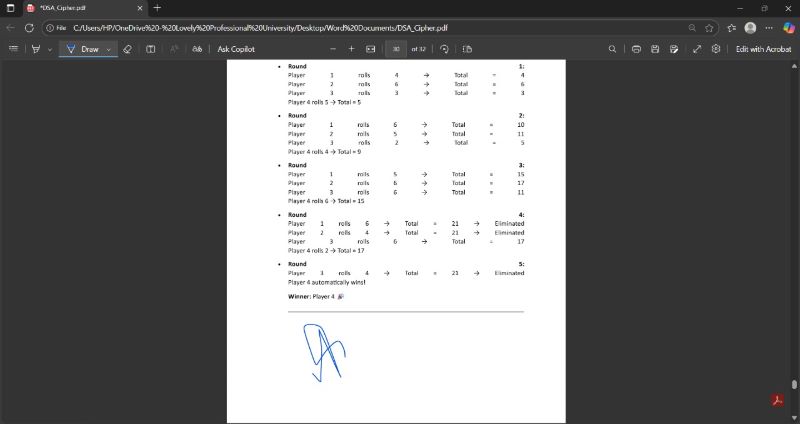
Step 5: Click either “Save” or “Save As." This will save the PDF document with the signature.
Add Signature with Text Box
Step 1: Open the required PDF file in Microsoft Edge.
Step 2: Hit the Text tool from the top toolbar.
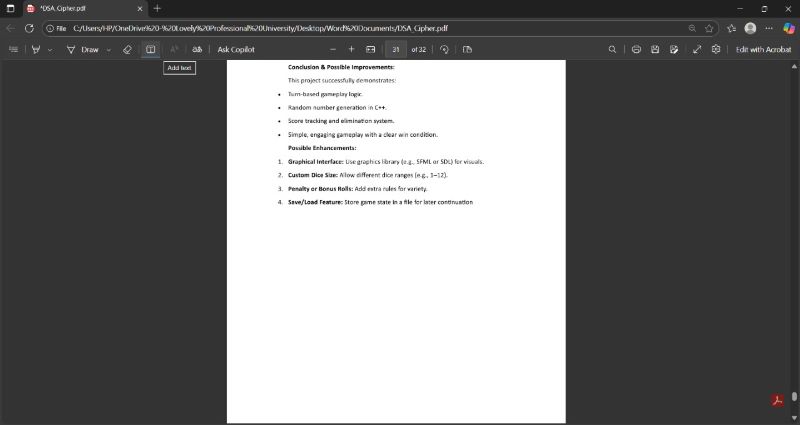
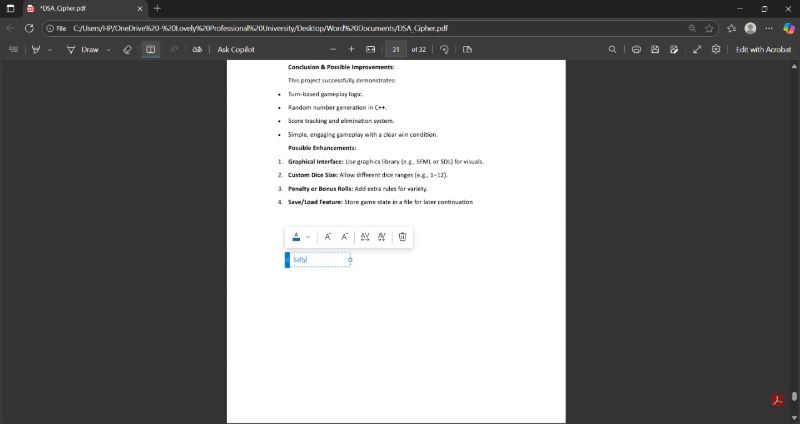
Step 3: Click to position the text box where you want to insert your signature.
Step 4: Type the signature. And tailor it using the built-in options.
While Microsoft Edge lets you add signatures to PDFs, it has several limitations. You won’t be able to insert a pre-saved signature image or modify its appearance. Additionally, it lacks security for managing signed documents. Unfortunately, Microsoft Edge lacks professional signing tools and advanced annotation features.
For a more secure and efficient way to work with PDFs, try SwifDoo PDF. It’s an easy-to-use tool made for PDF signing and editing. This all-in-one tool works great for both personal and professional tasks.
Part 2. How to Add Signature to PDF with SwifDoo PDF
SwifDoo PDF is an easy-to-use PDF signature creator. The powerful, all-rounder software lets you securely sign PDFs with legal validity. Regardless of the situation, SwifDoo helps you sign PDFs in almost all scenarios, allowing you to maintain a steady work rhythm.
You can choose to create an e-signature from an image through the camera or from saved ones (in the gallery). Or, add text directly as an e-signature with over 200 font styles. SwifDoo PDF also gives you the advantage of handwriting your signature using a trackpad, a mouse, or a pointing device. Just ensure to adjust the pen’s thickness. Additionally, it provides the option to digitally sign a PDF and record the author’s identity.
Steps to Add An Electronic Signature
Step 1: Install and launch SwifDoo PDF. Start by opening the PDF that needs your electronic signature.
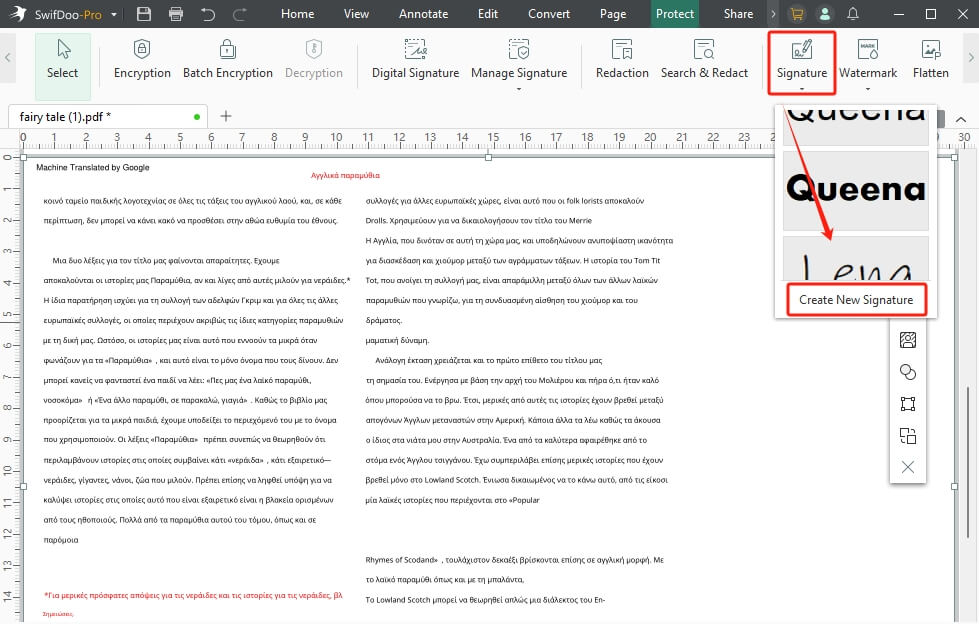
Step 2: Click Protect > Signature, and select Create New Signature.
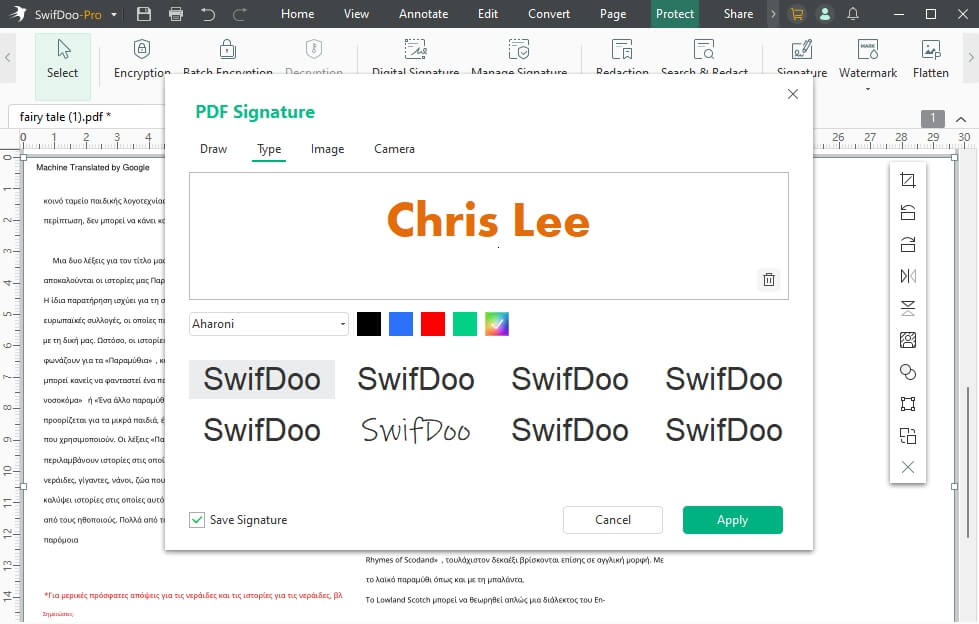
Step 3: Pick how you’d like to make your signature. You have the option to draw, type, upload an image, or snap a photo with your camera. To add an image signature to PDF, please choose the Image option.
Step 4: Click Apply. And place the signature wherever you want.
Steps to Add A Digital Signature
Step 1: Open your PDF with the SwifDoo PDF application.
Step 2: Move to Protect and choose Digital Signature. Then, select a field.
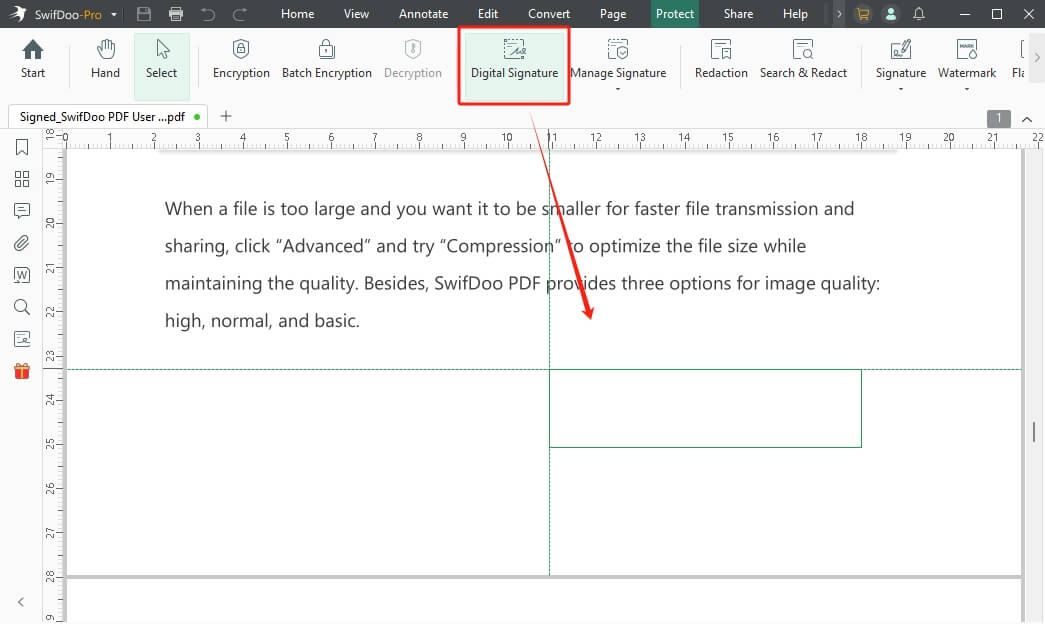
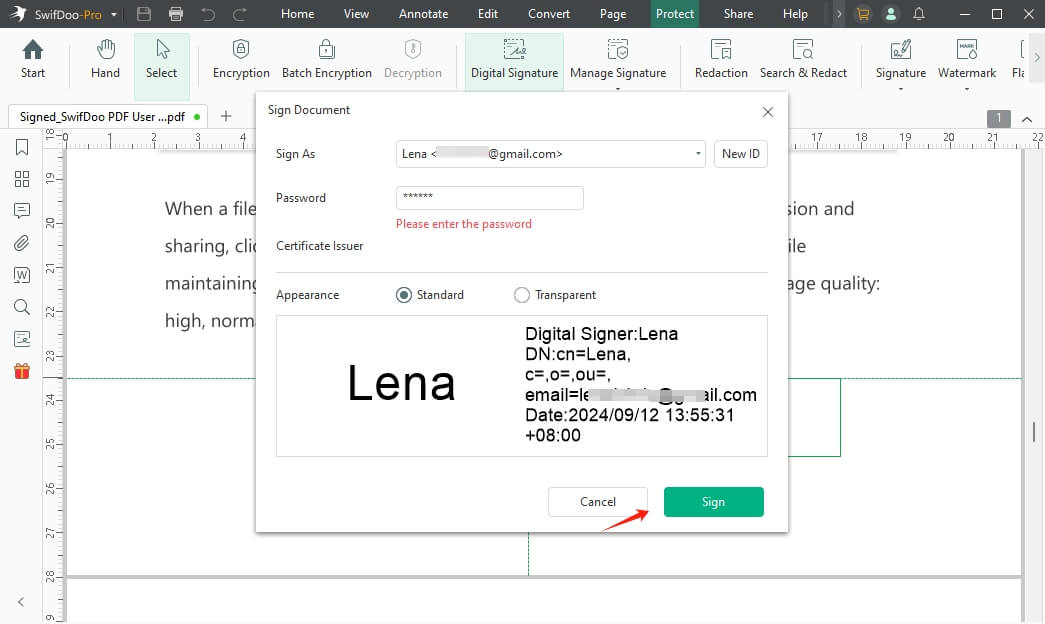
Step 3: Select 'New ID' to set up your digital signature.
Step 4: To digitally sign the PDF, click "Sign."
Other benefits of using SwifDoo PDF:
- Create, view, and read PDF files in various modes
- Compress, merge/split PDF documents
- Password-protect PDF files in one click
- Convert PDFs to/from other file formats
- SwifDoo AI to analyze and chat with PDFs
Final Wrap Up
That’s all we have to offer on how to add signature to PDF in Microsoft Edge. Adding a signature to PDFs is now easier than ever with Edge. We have already discussed two efficient methods, each with detailed steps, to help you proceed.
Since you now know how to add a signature to a PDF in Microsoft Edge, give it a try and streamline your workflow! However, for more advanced options, a dedicated PDF tool like SwifDoo PDF is better.



