


What Does Flattening a PDF Actually Do?
Flattening merges everything in a PDF into a single static layer. After flattening, the file looks the same on screen, but the interactive elements are gone. You can't fill in fields, and you can't edit annotations. What you see is what prints.
What Will Happen If You Flatten a PDF Before Printing?
Here are some important points you should notice before you flatten a PDF before printing.
- It's permanent. Once flattened, you can't restore form fields, layers, or annotations. Always save a copy of the original before flattening.
- Text may become outlines. Some flattening settings convert text to vector outlines. The document still looks correct, but the text is no longer searchable or selectable.
- It doesn't fix bad source files. If your images are low-resolution or your fonts are missing, flattening won't help. It locks the document in its current state.
When You Should Flatten a PDF for Printing
After learning the basic functions of PDF flattening, you need to apply it in specific situations. Here are some examples of when you should flatten a PDF for printing:
Scenario 1: Your PDF Has Fillable Form Fields That Print Blank
Some print workflows and printer drivers don't render form field layers correctly. The fields appear empty on paper even though you filled them in on screen. In this situation, PDF flattening forces those field values into the static page content, so they print as expected.
Scenario 2: Your Document Contains Annotations, Signatures, or Markup
Comments, sticky notes, and signatures often live on separate layers. If they need to appear exactly where you placed them on the printed page, PDF flattening locks them in. Without it, some printers may skip those layers entirely.
Scenario 3: Your PDF Uses Transparency or Complex Layers
Documents created in design software often contain transparent layers that a printer's Raster Image Processor can't interpret. The result can be missing elements or black boxes where transparency should be. Flattening removes those layers before the file reaches the printer.
How to Flatten a PDF for Printing?
The safest approach is to use a tool that gives you control over the output and keeps your original file intact. SwifDoo PDF handles both flattening and printing, so you can work with SwifDoo PDF all in one.
About SwifDoo PDF: It's a free desktop PDF editor for Windows and Mac that includes a dedicated Flatten feature alongside print controls.
- The flatten tool merges form fields, annotations, and layers into a static page while preserving the visual appearance.
- The print module lets you preview the output before committing, so you can confirm that signatures, images, and form values appear correctly.
Step 1: Save a copy of your original. Before you do anything, duplicate the file. Flattening is permanent, and you'll want the editable version if something goes wrong.
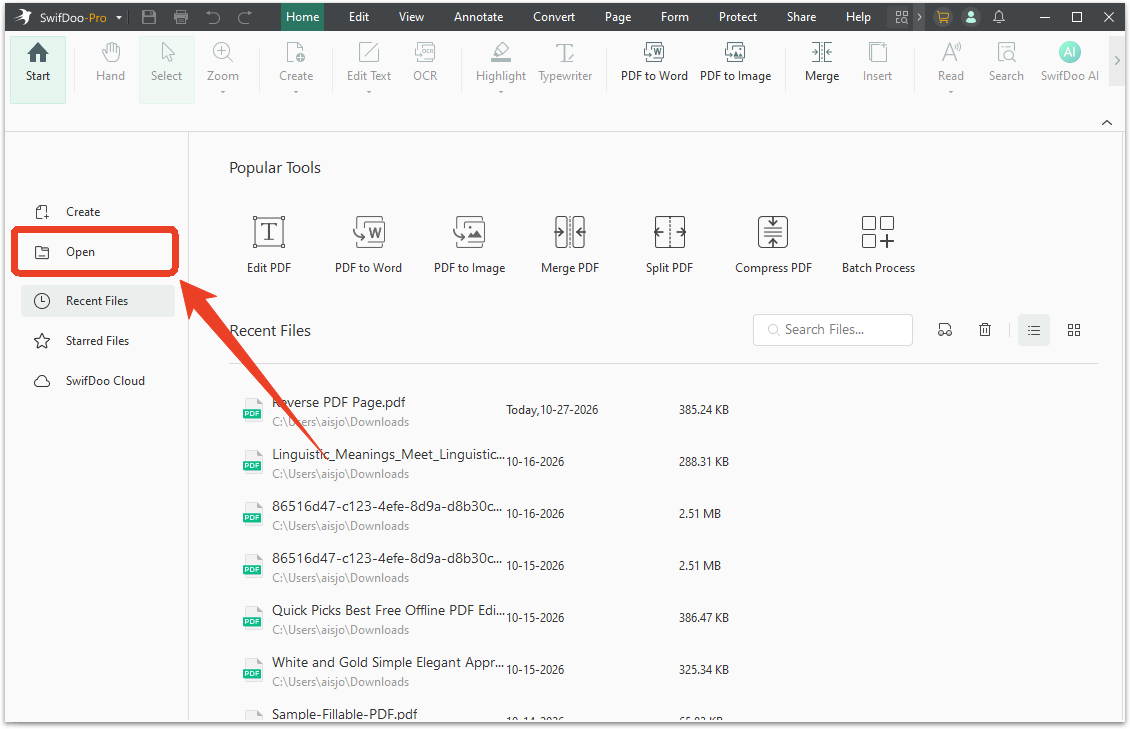
Step 2: Open the PDF in SwifDoo PDF. Launch the application and click Open to import the file.
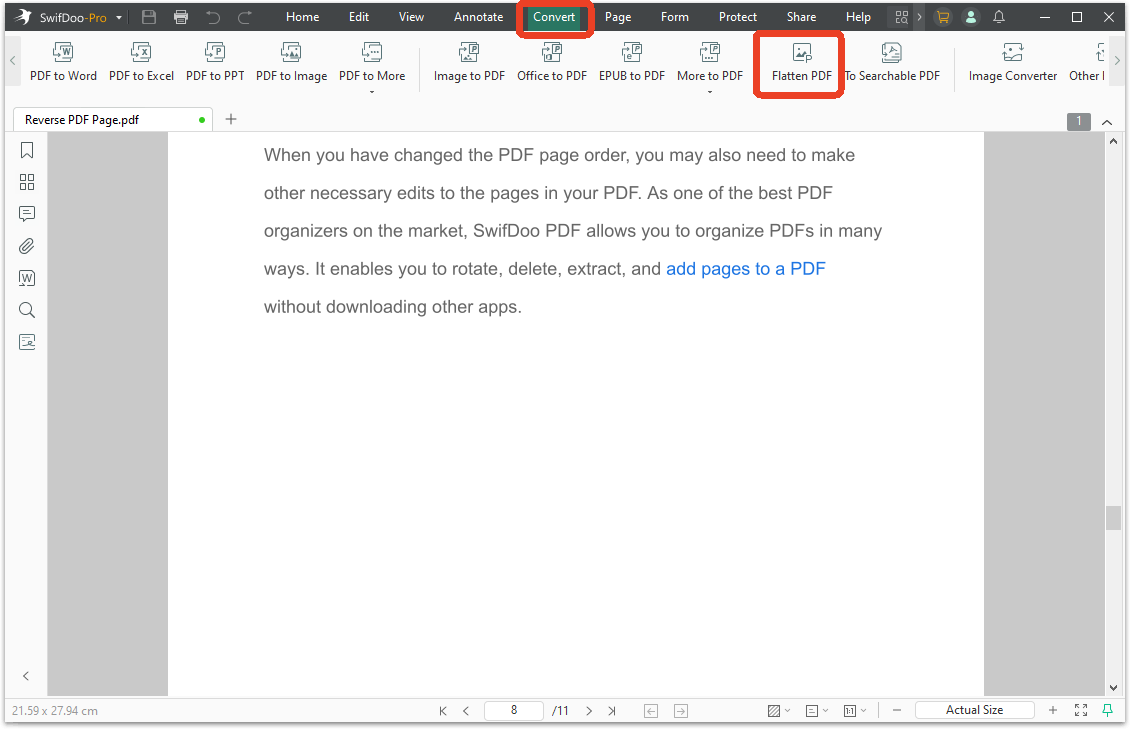
Step 3: Navigate to the Flatten PDF option in the Convert tab.
Step 4: Choose your output location. A dialog box will appear. Select a folder in the Output Path section where the flattened file will be saved. Your original stays untouched.
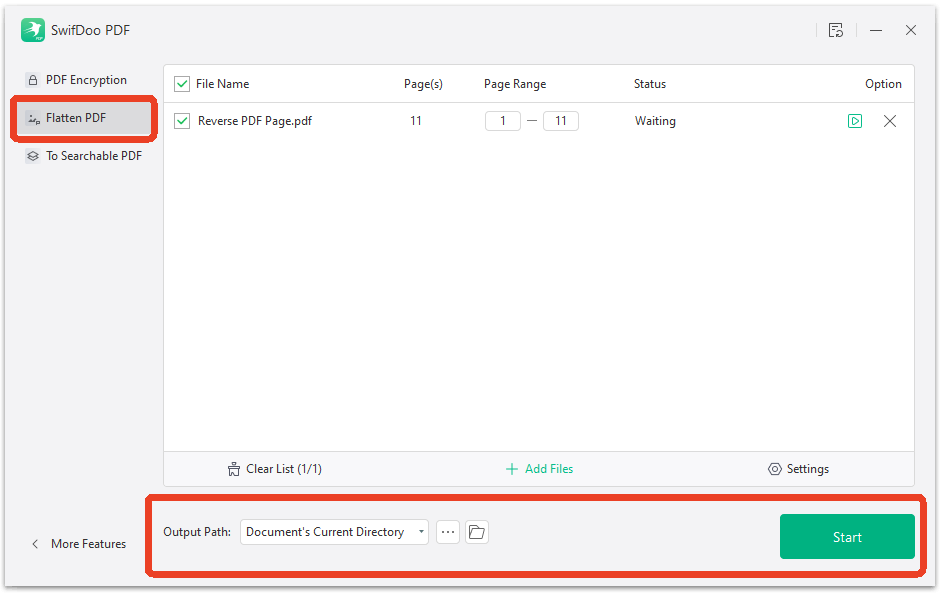
Step 5: Click Start. The tool processes the file and creates a new, flattened version.
To print a PDF with SwifDoo PDF, follow the next steps:
Step 1: Click the Print icon in the top left corner.
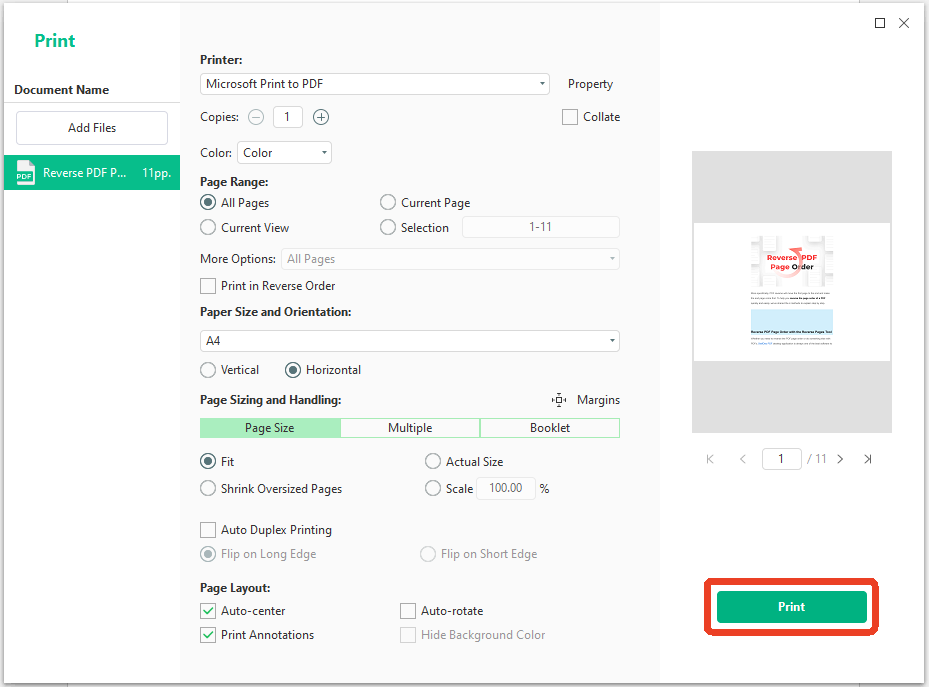
Step 2: Choose the printer device and set other configurations. SwifDoo PDF's print dialog also includes options for page range, orientation, and scaling, so you can adjust the output without returning to the original file.
Step 3: Check the print preview to confirm that everything appears as expected and click Print.
Flattening vs. Other Print Fixes: What to Try First
Are there any other methods to solve your printing problem so that you can keep the original intact and avoid the risks we covered earlier? Here are some “Flatten PDF” fix alternatives:
Fix 1: Print as Image
Most PDF readers, including Adobe Acrobat and SwifDoo PDF, have an option in the print dialog to print the document as an image. This rasterizes each page before sending it to the printer, bypassing rendering issues without changing the original file. If your problem is missing elements or transparency glitches, this often solves it.
Fix 2: Try a Different PDF Reader
Browser viewers and desktop applications handle PDF rendering differently. A file that prints incorrectly from Chrome might print perfectly from SwifDoo PDF. Test the file in another reader before assuming the file itself is the problem.
Conclusion
So, should I flatten a PDF for printing? The answer is yes if your file has form fields, annotations, or transparency that aren't printing correctly. And no if it's a simple document that prints fine as-is.
For a flatten PDF for printing workflow that doesn't risk your source file, working with SwifDoo PDF is the straightforward path. Now, download SwifDoo PDF for free and flatten your print-ready files safely.


