


Why Is My PDF Printing Blank?
When PDF printing blank pages becomes a recurring problem, the cause may be related to the PDF file, the software used to open it, or the printer itself. Identifying the source first can save you time and prevent unnecessary changes to your computer.
#1. The PDF File Is Damaged
A PDF file may contain corrupted data, incomplete content, or structural issues that prevent the printer from processing it correctly, even though you can open and view the PDF in your PDF reader.
#2. Incorrect Print Settings
Sometimes, a PDF document printing blank has less to do with the file itself and more to do with the print configuration. Incorrect page ranges, selected output options, or other settings can affect the result.
#3. PDF Rendering or Transparency Issues
PDFs can contain transparent objects, layered graphics, embedded fonts, vector elements, and other content that must be interpreted correctly when printed. This can result in missing text, incomplete graphics, or an entirely blank page when printing.
#4. Outdated Printer Drivers
Printer drivers help Windows communicate with your printer. If the driver is outdated, corrupted, or incompatible with your current software, the PDF printing blank problem may occur.
#5. Problems With the PDF Reader
The PDF editor you use to open a PDF can also affect printing. A PDF that prints incorrectly in one reader may print normally in another because different applications handle document rendering differently.
Testing the same file in another PDF reader or a supported web browser can help determine whether the problem is application-specific.
How to Fix a PDF That Prints Blank? Step-by-Step Guide
Try the following solutions to fix the PDF printing blank issue in order, starting with the simplest checks. After each change, print a test page to see whether the issue has been resolved.
Here is a quick check to help you identify the likely sources of the issue and the targeted fixes:
| Test result | What it may indicate | What to try next |
|---|---|---|
| Only one PDF prints blank | The file or its content may be the cause | Save a new copy or test another reader |
| Every PDF prints blank | PDF software, driver, or printer issue | Test another reader and update the driver |
| PDFs and Word documents print blank | Printer, connection, or driver issue | Print a test page and check the printer |
| The PDF works in another reader | Original reader or its settings may be responsible | Update or troubleshoot the original application |
| Only filled forms print blank | Form appearance or interactive field issue | Save, flatten, or export a compatible copy |
These results are clues rather than definitive diagnoses. For example, a printer can have a driver issue that affects only certain document types. For details, check the next step-by-step fixes. If you reach the end and still see a PDF blank when printing, the issue is likely a deeper file corruption problem that requires regenerating the document.
Fix 1: Check the Print Preview and Settings
Before changing drivers or reinstalling software, make sure the document is being sent to the printer correctly.
Open the PDF in your PDF reader and press Ctrl + P to check the print preview. You can check the following factors:
- Print Range: Is it set to “All pages” or did something default to a blank range? A blank page range is an obvious but easily missed cause.
- Print Content: Some viewers, like Foxit or certain Adobe configurations, offer a dropdown for Document, Document and Markups, or Form Fields Only. If this is set incorrectly, you may print nothing.
- Page Scaling: Fit to page or Shrink oversized pages can sometimes push content outside the printable area. Try Actual size
- Paper Size: Does the PDF’s page size match your printer’s paper? If you’re printing an A4 document on Letter paper with “Actual size” selected, content can be clipped or missing.
Quick test: If the preview itself shows blank pages, the problem is in the file or the viewer’s rendering, not the printer. Skip to Fix 2 or Fix 4. If the preview looks correct but the paper comes out blank, the issue is between the viewer and the printer. Continue to Fix 3.
Fix 2: Save a New Copy of the PDF
If the PDF file itself appears to be causing the “PDF printing blank” problem, try saving a fresh copy.
First, open the document and use the application's Save As command to save it under a different filename. Then open the new copy and print it again.
This simple step may help when the original file has encountered a saving or file-handling issue, although it will not repair every type of PDF corruption.
If the document contains important information, keep the original file as a backup.
When using this approach, inspect the newly saved document before printing. Check the text, images, page order, and layout to make sure nothing important has changed.
Fix 3: Test Another PDF or Printer
If you aren’t sure which one is the culprit of the PDF printing blank issue – your PDF file or your printer – switch to another PDF or printer for a test. Here, you can perform three tests:
Test A: Print a different PDF – Open a completely unrelated PDF and send it to the same printer.
- If the other PDF prints fine, the problem is specific to your original file. Return to Fix 2 (save a new copy) or Fix 5 (print as image).
- If the other PDF also prints blank, the problem is your printer, driver, or system configuration. Move to Fix 7 and Fix 8.
Test B: Print the same PDF from a different PDF printer – Open your problematic PDF in a different viewer and try printing.
It is recommended to use SwifDoo PDF to check the document and print PDFs. It is a PDF editing software solution that supports common document tasks, including viewing, editing, converting, and printing PDFs. It can be useful when you need to inspect a document, correct editable content, or create a new PDF copy before trying to print again.
Fix 4: Open and Print the PDF in Another Reader
If what you used before was a browser-based viewer, it may fail to render complex PDFs correctly, producing PDF printing blank pages, even when the file is perfectly valid. To resolve the PDF printing blank issue, change to another PDF reader – SwifDoo PDF (reliable rendering, accurate print preview).
A file that confuses Edge’s viewer may render perfectly in SwifDoo PDF. Just download and install SwifDoo PDF from its official site.
Step 1: Launch the PDF reader and open your PDF in it.
Step 2: Check your PDF and press Ctrl + P to open the Print dialog.
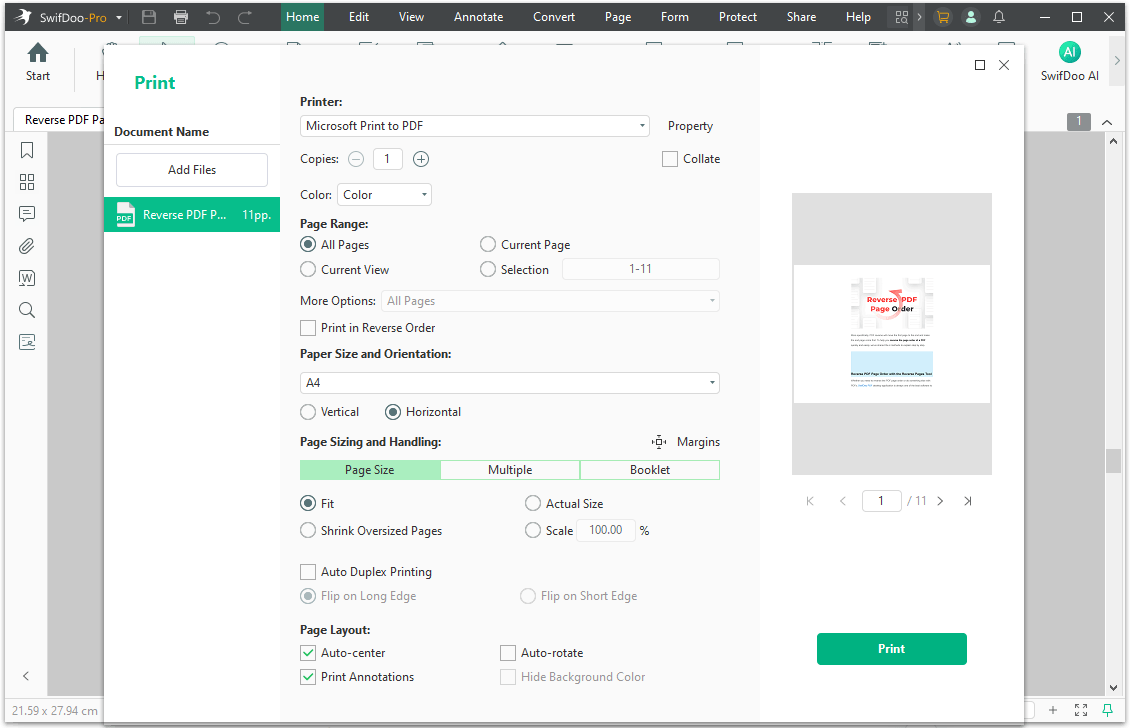
Step 3: Set your printer, page range, and page sizing and handling, etc., and click Print.
Fix 5: Print the PDF as an Image
This is the single most effective fix for PDF printing blank problems caused by transparency, font embedding, or complex vector graphics. “Print as Image” tells the PDF reader to rasterize each page, converting everything to a flat image and then sending it to the printer.
Step 1: Open SwifDoo PDF and choose PDF to Image.
Step 2: Upload your PDF and choose Each Page in a Separate Image. Then set your image resolution and format.
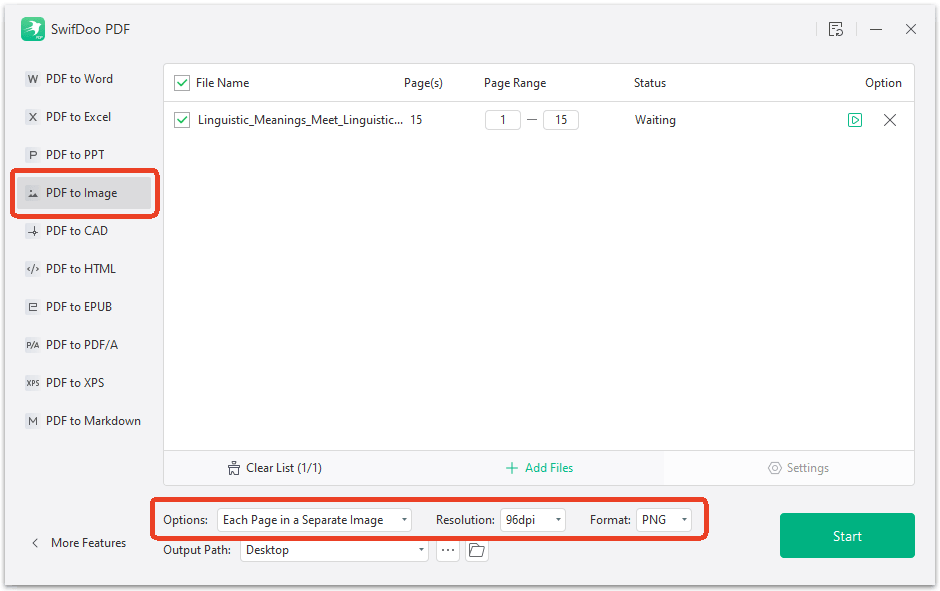
Step 3: Click Start to convert the PDF to an image, and then you can print it.
Even though this method can reliably resolve “PDF blank when printing” caused by rendering conflicts, printing as image is slower and produces larger spool files, especially for multi-page documents.
Fix 6: Flatten Your Filled PDF
If you’re dealing with “a filled PDF prints blank”, PDF flattening is the solution. Flattening can convert interactive form fields into permanent, non-editable page content, which helps print a filled PDF.
Step 1: Open the filled PDF from SwifDoo PDF and go to the Convert tab.
Step 2: Choose Flatten PDF in the top menu and upload the PDF.
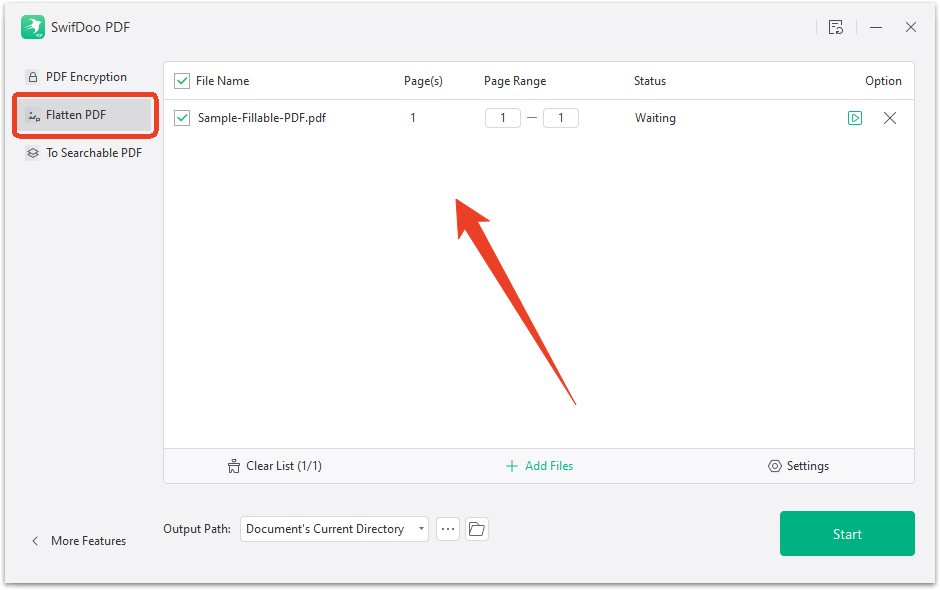
Step 3: Start to flatten the filled PDF and then print it.
Fix 7: Clear the Print Queue and Restart the Printer
A stuck print job can block every subsequent document from printing. If the printer repeatedly produces blank pages or seems to process jobs incorrectly, clearing the queue is worth trying.
Step 1: Stop the Print Spooler service:
- Press Windows + R, type msc, and press Enter.
- Find Print Spooler in the list.
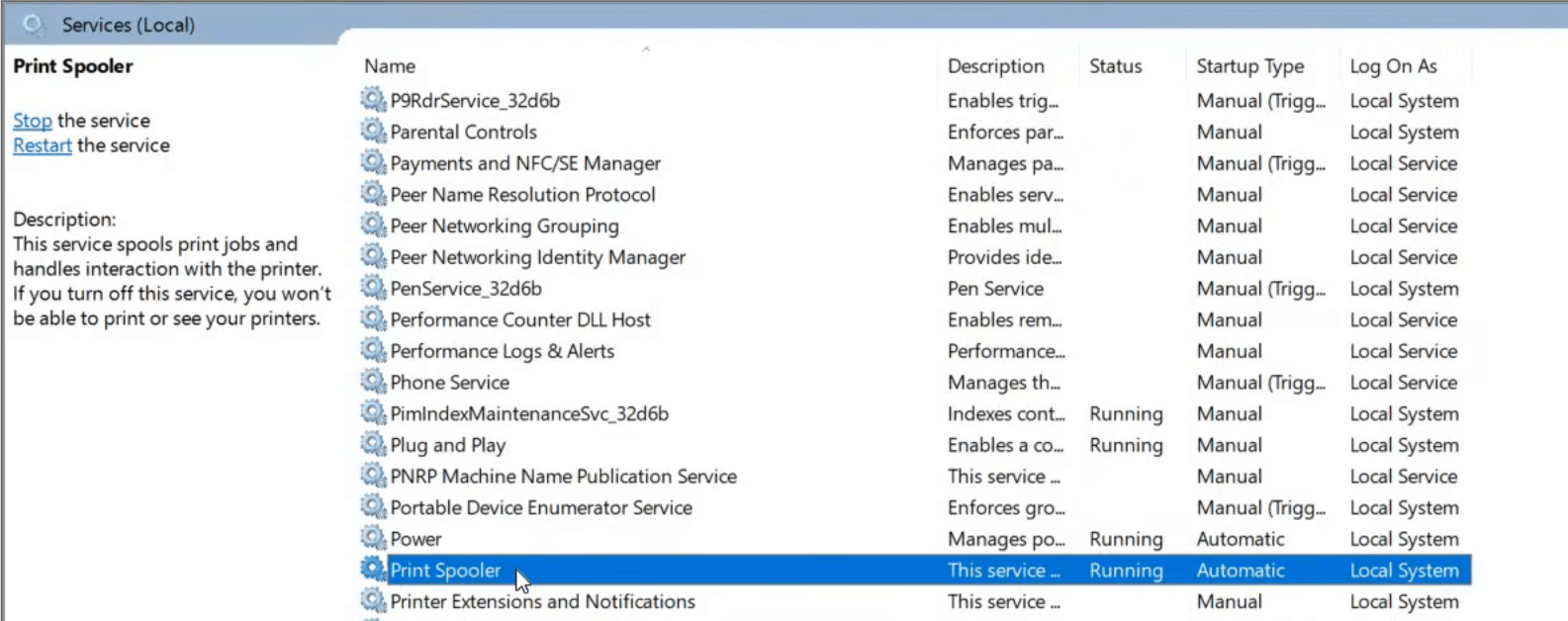
- Right-click it and select Stop.
Step 2: Clear the spool folder:
- Navigate to C:\Windows\System32\spool\PRINTERS.
- Delete all files in this folder.
Step 3: Restart the Print Spooler:
- Return to the Services
- Right-click Print Spooler and select Automatic as its startup type.
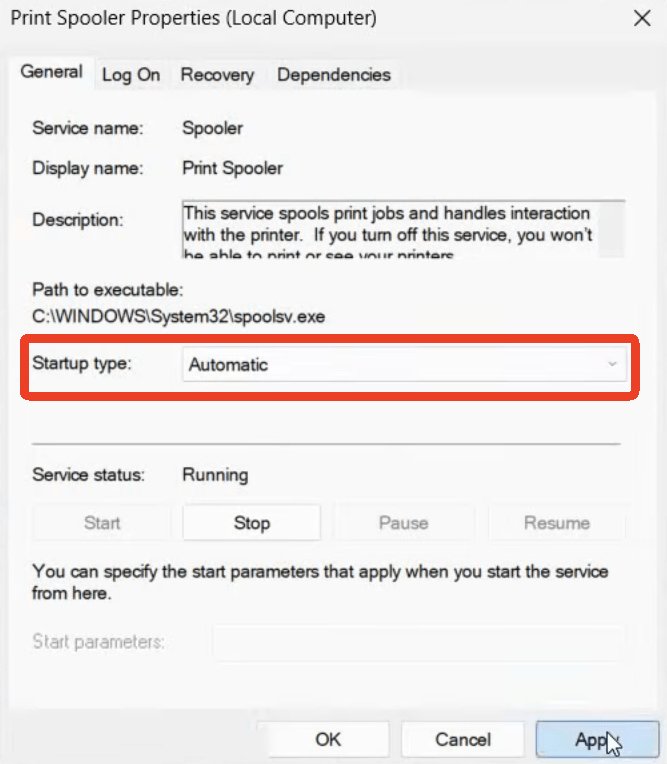
Step 4: Restart your printer:
- Turn the printer off, wait 30 seconds, and turn it back on. Then try printing again.
Fix 8: Update or Reinstall the Printer Driver
Outdated or corrupted printer drivers are a leading cause of PDF printing blank pages, especially when other document types (Word, text files) print fine.
Step 1: Open Settings and go to Windows Update.
Step 2: Check for available updates.

Step 3: Visit your printer manufacturer's official support website.
Step 4: Search for your exact printer model and Windows version.
Step 5: Download and install the recommended driver if a newer compatible version is available.
Step 6: Restart your computer and test the printer again.
If updating the driver does not help, you may need to remove and reinstall the printer through Windows Settings.
Be sure to download drivers only from trusted sources, preferably the printer manufacturer's official website.
Can a PDF Editor Help Fix PDF Printing Blank
A dedicated PDF editor like SwifDoo PDF won’t magically fix a broken printer driver, but it can help you avoid most of the file-side problems that cause blank printing, and it gives you better diagnostic tools than a basic viewer.
Let’s conclude the specific functions SwifDoo PDF can serve you:
- Accurate print preview: Unlike browser viewers, SwifDoo PDF renders PDFs the same way a printer will.
- Save a clean copy: Opening a corrupted PDF in SwifDoo PDF and using Save As rebuilds the internal structure, often fixing files that print blank from other applications.
- Flatten forms: SwifDoo PDF’s Flatten Form tool converts filled PDF forms into static content, solving filled PDF prints blank issues without requiring Adobe Acrobat.
- Print as Image support: SwifDoo PDF includes a PDF to Image option, giving you the most reliable workaround for transparency and font rendering problems.
Just change your PDF reader to SwifDoo PDF and enjoy a better PDF printing service.
Conclusion
PDF printing blank is rarely a single-cause problem. It’s a symptom that can originate from the file, the viewer, the driver, or the printer’s internal memory. The fix depends on where the failure occurs.
Just follow the above fixes, and you can find your solution within them. Download SwifDoo PDF free and take control of your PDF printing workflow.


