


Overview of PDF Booklet
A PDF booklet is a digital document structured like a traditional booklet, with numerous pages arranged in a compact, readable format. It allows avid readers to flip through the content effortlessly, making it ideal for reports, brochures, and portfolios.
Learning how to make a PDF booklet saves time, reduces printing costs, and ensures a professional presentation, while making it easy to share and distribute content digitally.
6 Best PDF Booklet Makers
Whether you prefer offline or online PDF booklet makers, finding the right tool can streamline your document creation and give your booklets a professional look. These tools allow you to easily make or convert PDF to booklet, saving time and ensuring your content is well-organized and visually appealing. In this section, we’ve compiled the 6 best options to simplify the process.
SwifDoo PDF
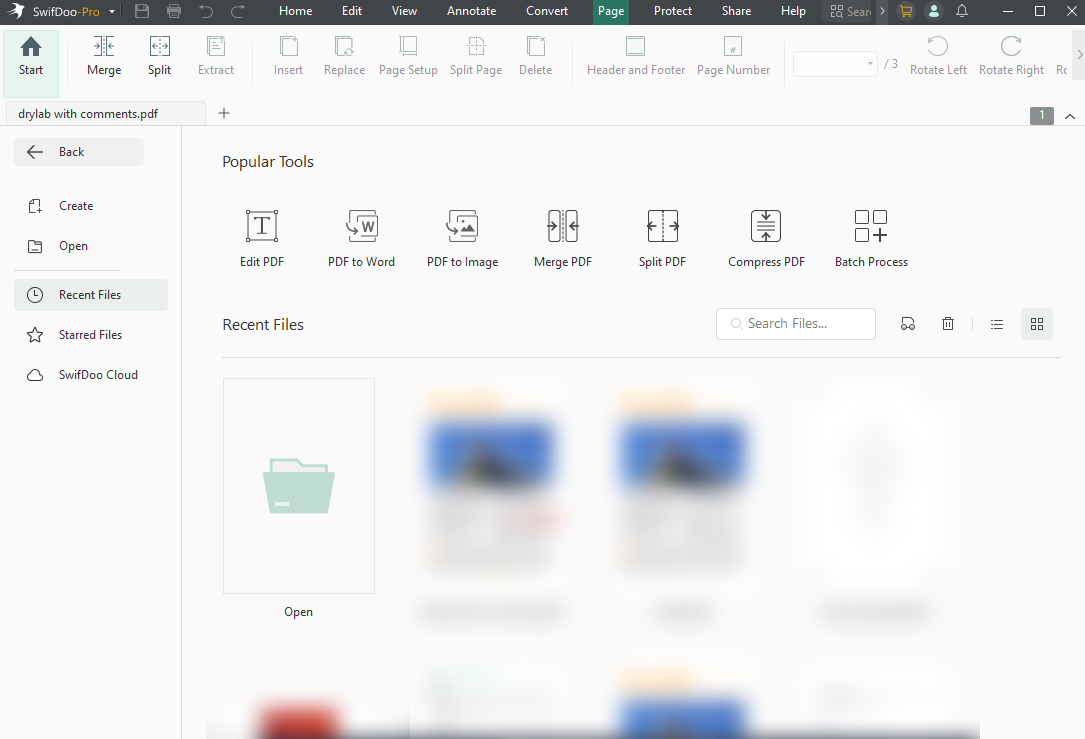
SwifDoo PDF is a versatile and lightweight PDF booklet maker for Windows, Mac, and mobile devices, designed to simplify document creation and printing. With its intuitive interface, users can easily print a PDF as a booklet and customize page layouts to suit their needs. Plus, its fast processing and user-friendly tools make creating booklets quick and hassle-free.
In addition, SwifDoo PDF lets you edit a PDF for free before printing, ensuring a professional finish every time.
Pros of SwifDoo PDF:
- Enables users to resize the PDF to A4, Letter size, or other size for perfect print flexibility.
- Offers fast processing and a user-friendly interface, making booklet creation quick and hassle-free.
- Lets you edit, annotate, convert, compress, merge/split, and digitally sign a document.
- Works seamlessly across Windows, Mac, iOS, and Android.
- Supports AI to summarize, translate, proofread, analyze, and even chat with PDF documents.
Cons of SwifDoo PDF:
- SwifDoo PDF for Mac has fewer features compared to the feature-rich SwifDoo PDF for Windows.
Adobe Acrobat Pro
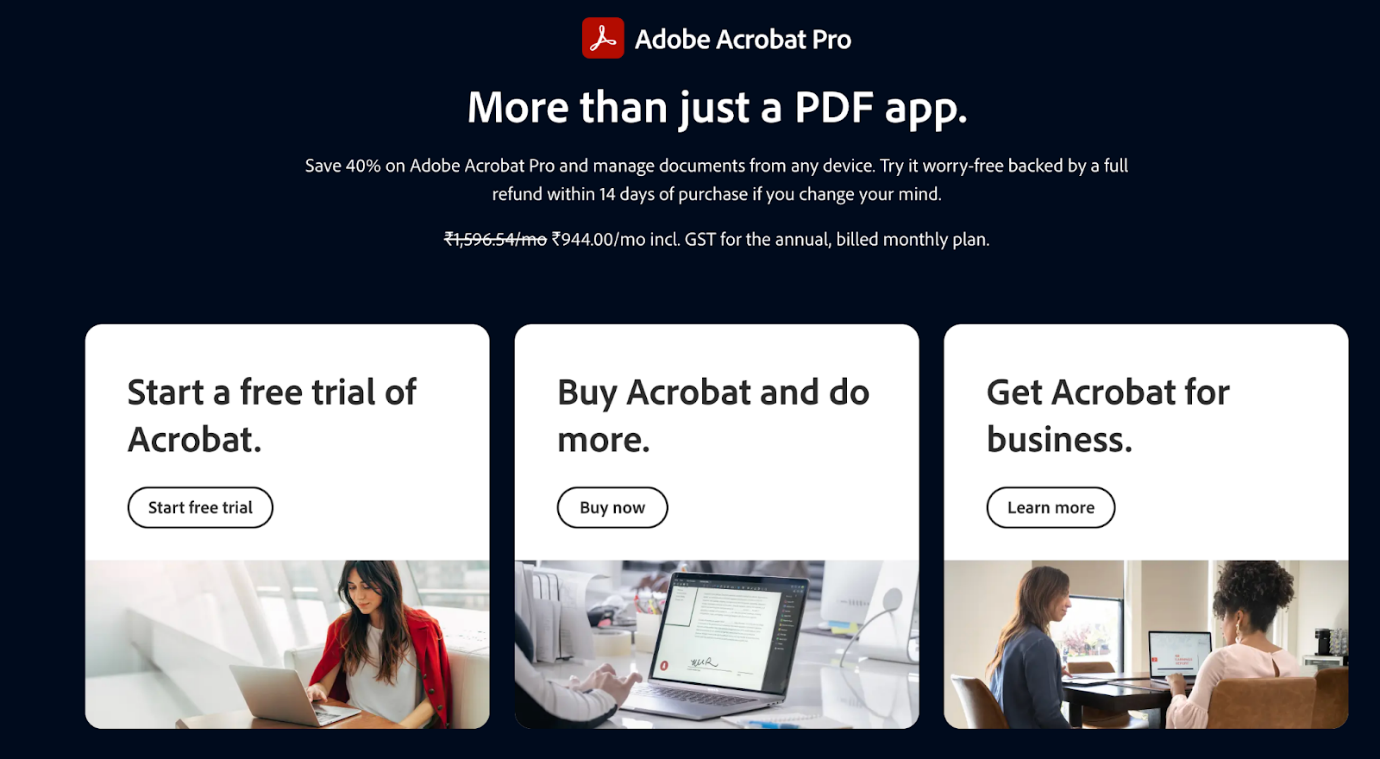
Adobe Acrobat Pro is also a powerhouse for PDF editing and booklet creation, offering advanced tools to design, organize, and tailor your documents. You can effortlessly print to PDF as a booklet, adjust page sizes, and get professional-quality layouts for reports, brochures, or portfolios. Its powerful features make it a top choice for both businesses and creative professionals.
Pros of Adobe Acrobat Pro:
- Effortlessly prints a PDF as a booklet with precise layout and page arrangement.
- Edit text, images, and objects directly in the PDF, keeping the formatting intact, with tools to adjust fonts and layouts just like in Word.
- Provides advanced features for compressing graphics, managing colors, adding bleeds, and preparing files to meet professional print standards
- Works on both Windows and Mac, providing reliable cross-platform functionality.
- Supports integration with cloud storage for easy sharing and collaboration.
Cons of Adobe Acrobat Pro:
- Can be more expensive than other PDF booklet makers.
- Slightly steep learning curve for beginners due to advanced features.
- Requires significant system resources, potentially slowing down older devices.
Online2PDF
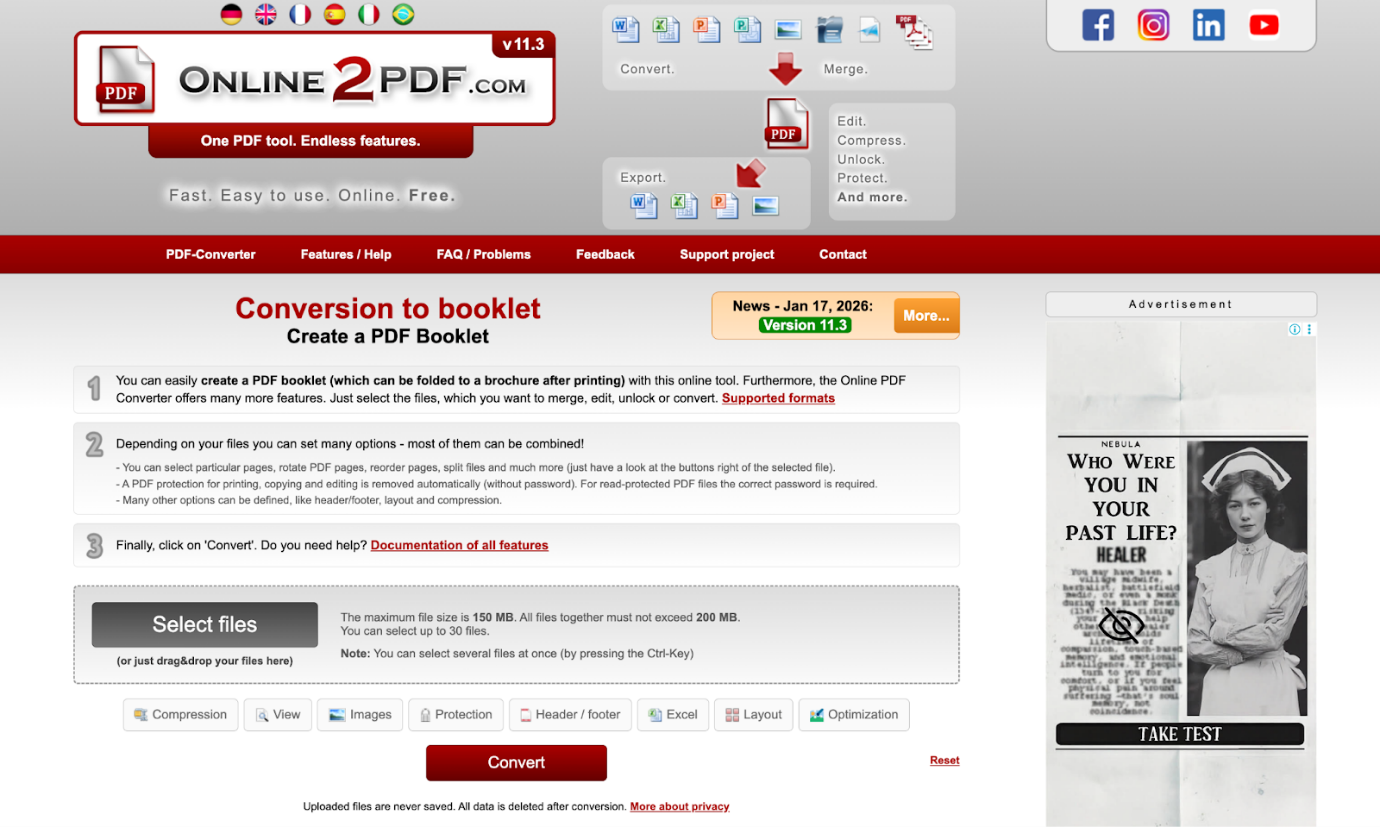
Online2PDF is a convenient online PDF booklet maker that lets users create a booklet without installing any software. As a flexible online PDF converter, it lets users create a PDF booklet by adjusting page order, layout, and print settings directly in a web browser, making it ideal for quick, simple booklet printing. The web-based tool also lets users edit, merge, and unlock PDF files.
Pros of Online2PDF:
- No installation required; works directly in the browser.
- Allows users to convert a PDF to a booklet with basic layout customization.
- Can merge various PDFs or files (like images) into a single, unified booklet, simplifying document management.
- The conversion process is typically very fast, delivering a print-ready booklet in moments.
- Works across computers, tablets, and phones, offering flexibility.
Cons of Online2PDF:
- The free version limits file size to 150 MB per file, 200 MB total, and allows up to 30 files at a time.
- Requires an internet connection to function.
- Offers only basic editing and design features.
- File and usage limits may restrict working with large projects, especially those containing many pages or high-resolution content.
FlipHTML5
FlipHTML5 is another PDF booklet creator that transforms static PDFs into interactive, page-flipping digital booklets. It is widely used to create online magazines, catalogs, and brochures that offer an engaging reading experience.
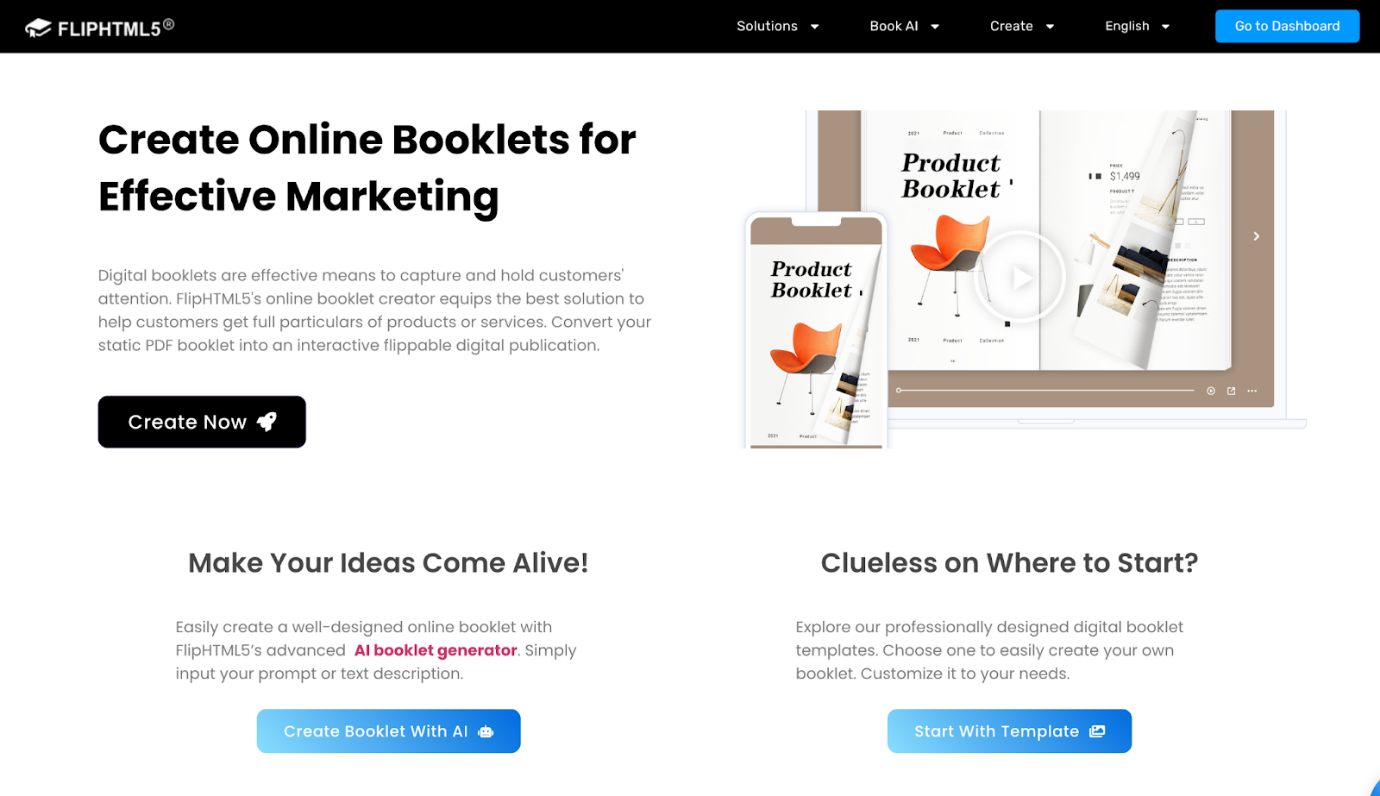
Pros of FlipHTML5:
- Generates unique URLs or QR codes for each booklet, making it easy to share via email or social media.
- Allows users to add multimedia elements to PDFs, including YouTube videos, audio, links, and hotspots.
- Provides options to protect content with passwords.
- Supports multimedia elements like videos, audio, and links.
- User-friendly, requiring no technical skills to create, design, and share.
Cons of FlipHTML5:
- Advanced features require a paid subscription.
- Less suitable for traditional print-focused booklet printing.
- Limited offline functionality in the free version.
FlipBuilder
Lastly, we have FlipBuilder, a competitive and feature-rich PDF booklet maker. It is designed to help users easily make PDF booklets with realistic page-flipping effects. It allows users to change standard PDFs into interactive digital publications, making them suitable for eBooks, brochures, and catalogs. With a range of templates and customization options, FlipBuilder delivers visually appealing booklet experiences.
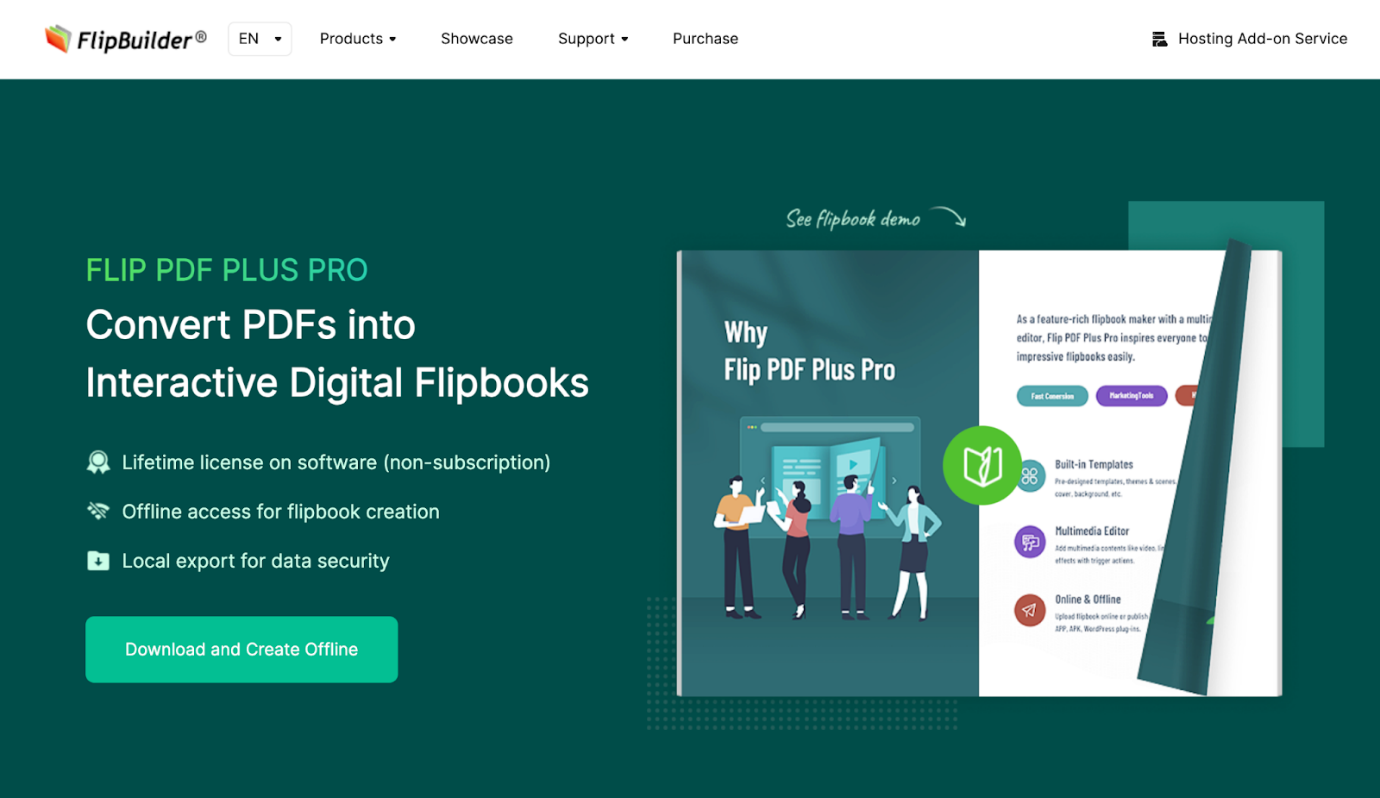
Pros of FlipBuilder:
- Intuitive drag-and-drop editor requires no coding skills, praised for ease of use.
- Offers templates, themes, backgrounds, and branding (logos) to personalize publications.
- Automatically turns PDFs into lifelike, book-like experiences with animated page turns.
- Easily embed videos, audio, GIFs, links, and pop-ups to create dynamic content.
Cons of FlipBuilder:
- Advanced features are locked behind paid plans.
- Focused more on digital viewing than print booklet creation.
- May require higher system resources for smooth performance.
How to Make a PDF Booklet
Creating a well-structured booklet doesn’t have to be complicated or time-consuming. This section will guide you through how to make a PDF booklet quickly and efficiently, both offline and online, using the right tools. For printing or digital publication, the process is simple and works for both new users and experienced ones.
How to Print Booklet in PDF via SwifDoo PDF
SwifDoo PDF is a reliable and user-friendly choice for printing booklets, especially for users who want speed and precision. It makes printing a booklet straightforward with flexible layout settings, page-size adjustments, and preview options, ensuring perfect results. If you’re looking for an efficient way to print a professional booklet, SwifDoo PDF is a smart solution.
Let’s find out how to print booklet in PDF using SwifDoo PDF in a few clicks.
Step 1. Download, install, and open SwifDoo PDF on your device.
Step 2. After launching the program, tap the File icon to import your PDF file. Or, drop it anywhere on the main interface.
Step 3. Next, hit the Print tab in the main menu bar. Once the Print window opens, choose Microsoft Print to PDF in the Printer section.
In the Page Sizing and Handling section, select Booklet. And adjust the Booklet settings.
Similarly, adjust other settings, including the page range, paper size and orientation, and page layout.
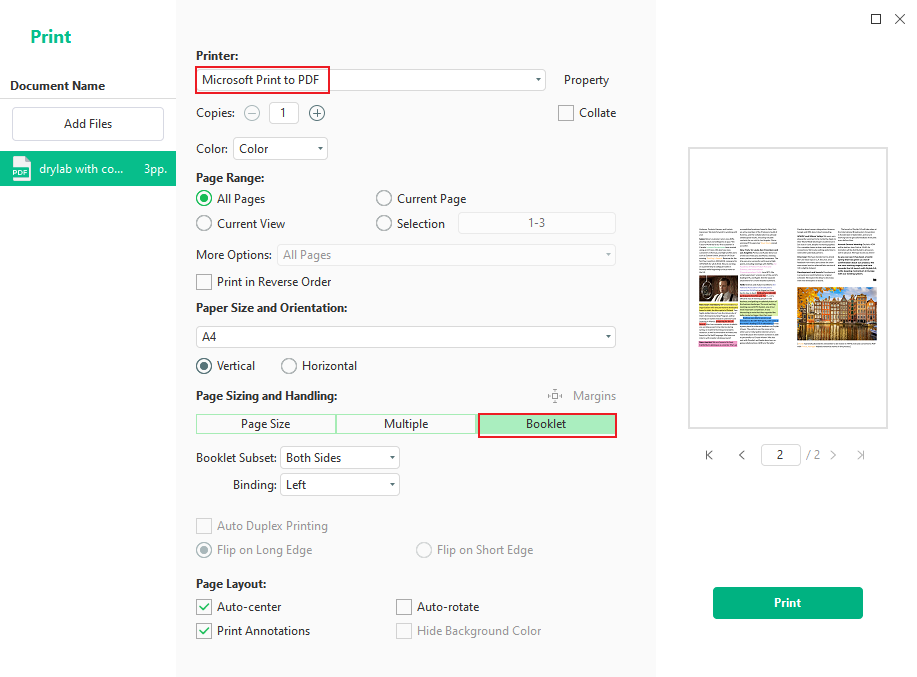
Step 4. After configuring all settings, click Print to print your booklet as a PDF.
How to Convert Booklet to PDF Online in Online2PDF
If you don’t want to install software, converting a booklet to PDF online is an easy alternative. Online2PDF simplifies this process by allowing users to upload files, adjust booklet settings, and generate a ready-to-use PDF directly in their web browser.
Learn how to convert booklet to PDF online via Online2PDF in a few clicks.
Step 1. Access the Online2PDF website on your browser.
Step 2. Click "Select files" or drag and drop your existing PDF file into the drop zone.
Step 3. In the options panel, find and click on the "Layout" tab. From the "PDF page layout" dropdown menu, choose "Booklet".
Then, configure the Booklet Settings, including the reading direction, printer settings, page layout (paper size and orientation), outer margin, and inner margin.
Note. If your printer prints on both sides (duplex), select "Duplex-Printer - flip on long edge" (recommended) in the converter settings to get one single PDF.
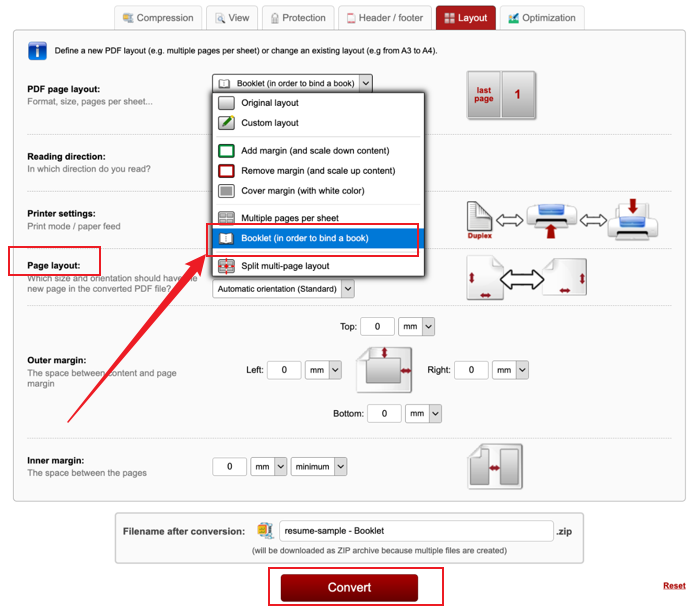
Step 4. After configuring the settings, tap the Convert button to process your file.
Once converted, download the generated PDF, which will now have its pages ordered for booklet printing.
A Quick Wrap Up
Choosing the right PDF booklet maker can greatly improve the quality and efficiency of your document creation process. Whether you’re learning how to make or print a PDF as a booklet for professional, educational, or personal use, the tools covered in this article offer flexible solutions for every need. With suitable software, designing professional, neatly organized booklets becomes simple and highly effective.



