


An OK.ru downloader can be an online service, a browser extension, or a desktop application that helps you save videos hosted on Odnoklassniki (OK.ru) to your device. Depending on the tool, you may be able to download videos in MP4 or other formats, choose an available resolution, or extract audio from a video. In the following content, you’ll learn 6 reliable ways to download from OK.ru. Now, let’s get started!
Quick Comparison of the 6 Best OK.ru Downloaders
Before learning each downloader in detail. Here is a quick overview of the six OK.ru downloaders for your reference:
|
OK.ru Downloader |
Type |
Output Formats |
Compatibility |
Best For |
|
A2Z Tools |
Online |
MP4 and available video formats |
Desktop and mobile browsers |
Quick online downloads |
|
Steptodown |
Online |
Formats depend on retrieved options |
Desktop and mobile browsers |
Simple URL-based downloads |
|
Skachok |
Online |
MP4, MP3 |
Windows, Mac, Android, iOS browsers |
Video quality selection and audio extraction |
|
IDL Helper |
Browser extension |
MP3, MP4, WEBM |
Chrome and Firefox versions |
Downloading directly from OK.ru |
|
OK.ru Video & Audio Downloader |
Chrome extension |
MP4, M4A |
Chrome desktop |
Video quality selection and audio extraction |
|
Cisdem VideoPaw |
Desktop software |
Multiple video and audio formats |
Windows and Mac |
Batch video downloading |
#1. A2Z Tools – Best for Simple Online OK.ru Downloads
A2Z Tools is an online platform with thousands of tools, ranging from calculators and unit converters to video and audio downloaders. It provides a free online OK.ru video downloader that lets you save publicly accessible videos without installing any additional software. It can work directly in a web browser, making it convenient if you occasionally need to download videos from Odnoklassniki on desktop or mobile devices.
Key Features:
- Online OK.ru video downloading without desktop installation.
- No account registration required.
- Supports public OK.ru videos.
- Provides available video quality options, including HD and higher resolutions when supported by the source.
- Works with desktop and mobile browsers.
How to Download OK.ru Videos with A2Z Tools
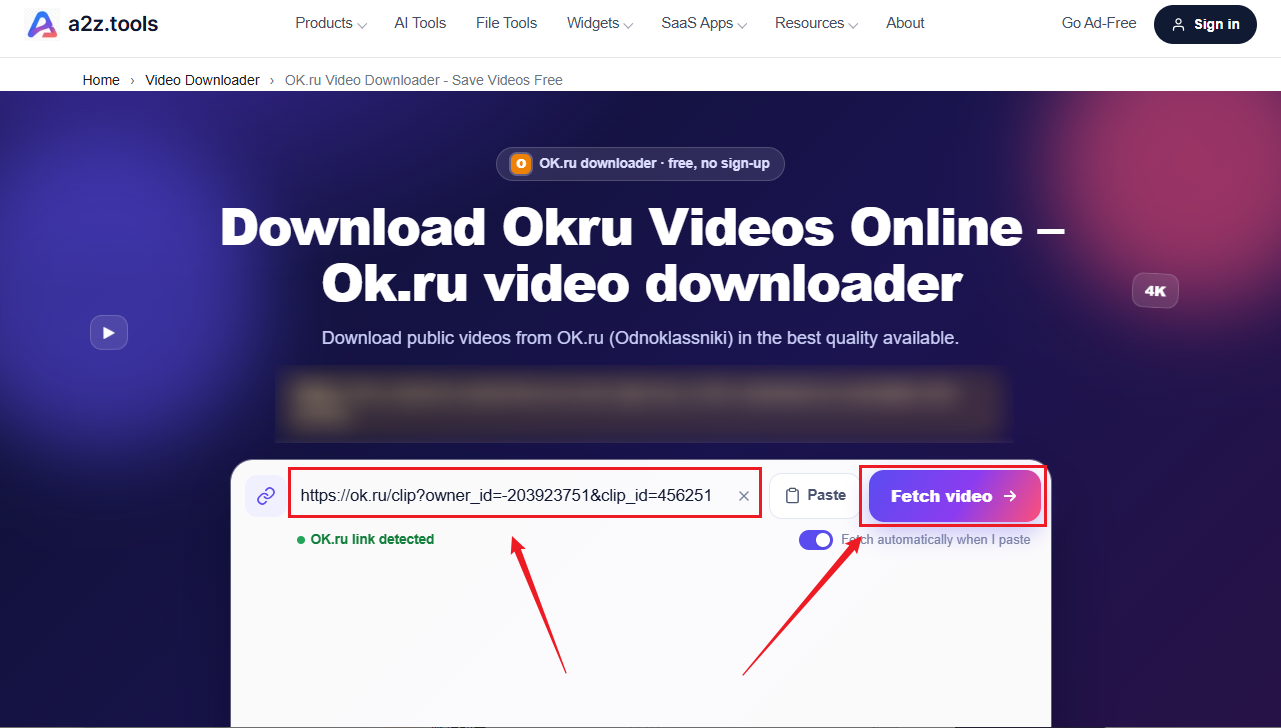
- Open your browser and visit A2Z Tools’ OK.ru Video Downloader.
- Then open OK.ru in another browser tab, find the video you want to save, and copy the video’s URL.
- Return to A2Z Tools and paste the copied link into the OK.ru Video URL field.
- Next, click “Fetch Video” to let A2Z Tools retrieve the available download formats. Wait for the available video options to appear.
- Select your preferred resolution and format, and click the corresponding download option to save the OK.ru video to your device.
Pros:
- No software installation or account registration required.
- Simple interface with a straightforward URL-based workflow.
- Supports desktop and mobile browsers.
Cons:
- Only supports publicly accessible videos.
- Video processing involves an external service.
#2. Steptodown – Best for Quick Online Downloads
Steptodown is a free online media downloader that enables you to download videos, audio, and images from various social media platforms, including but not limited to OK.ru, TikTok, Facebook, and GettyImages download. It provides a simple way to retrieve downloadable files from supported Odnoklassniki video links without requiring a separate desktop application.
Key features:
- Dedicated OK.ru video downloading page.
- Browser-based operation.
- No separate software installation.
- Works on computers, smartphones, and tablets.
- No registration requirement is advertised by the service.
How to download OK.ru videos with Steptodown
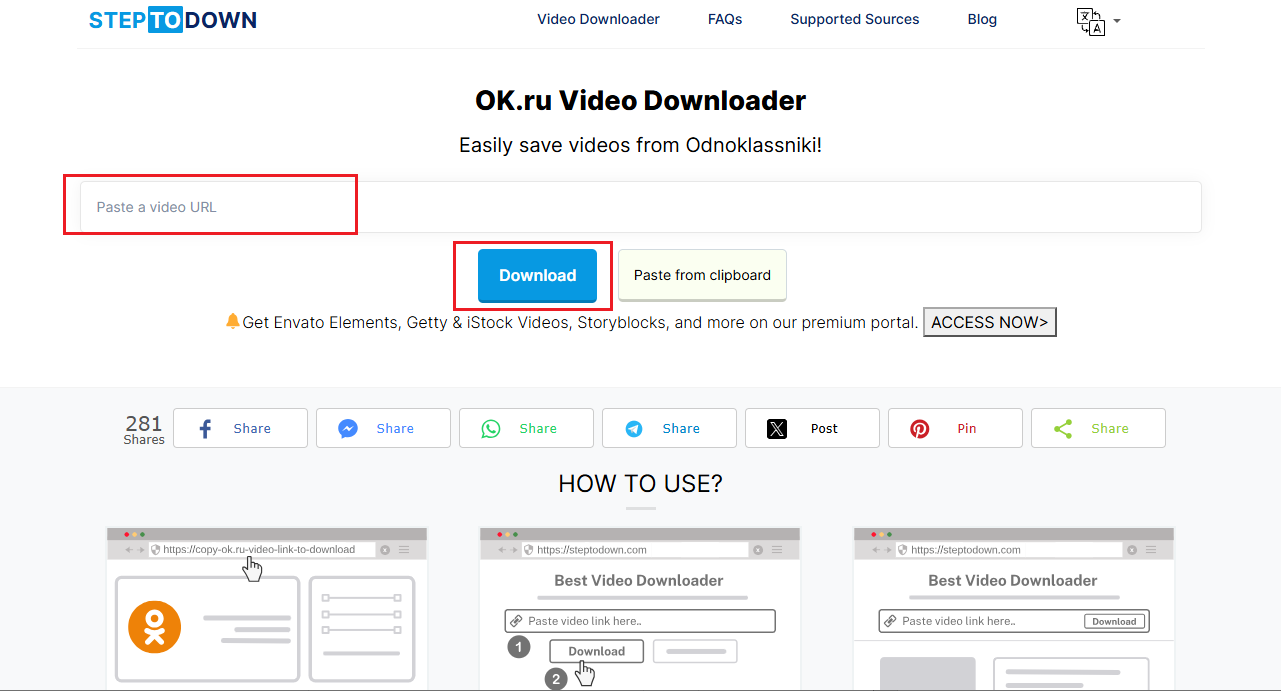
- Visit Steptodown and select “ru Video Downloader” (https://steptodown.com/okru-video-downloader/).
- Find the OK.ru video you want to download and copy the video’s URL from the browser’s address bar. Next, paste the copied URL into the input field.
- Click Download, wait for Steptodown to process the link, and finally click the appropriate download option to save the OK.ru video.
Pros:
- Simple three-step downloading process.
- No desktop software installation.
- Compatible with desktop and mobile browsers.
Cons:
- Available formats and resolution options should be checked for each video.
- Download success depends on the accessibility of the source video.
- Uses an external online service to process submitted links.
#3. Skachok – Best for Video Quality Selection
Skachok is an online video downloader with a dedicated page for downloading videos from Odnoklassniki. It supports URL-based downloads and provides available video quality options after processing a submitted link. What’s more, Skachok supports both video and audio downloads. Meanwhile, it lets you save OK.ru videos as MP4 files or extract audio as MP3.
Key features:
- Dedicated OK.ru video downloader.
- MP4 video downloads.
- MP3 audio extraction.
- Video quality selection, up to 1080p when available.
- Works on Windows, Mac, Android, and iOS through a browser.
- Supports regular and mobile OK.ru video links.
How to save an OK.ru video with Skachok
- Visit Skachok’s OK.ru Video Downloader.
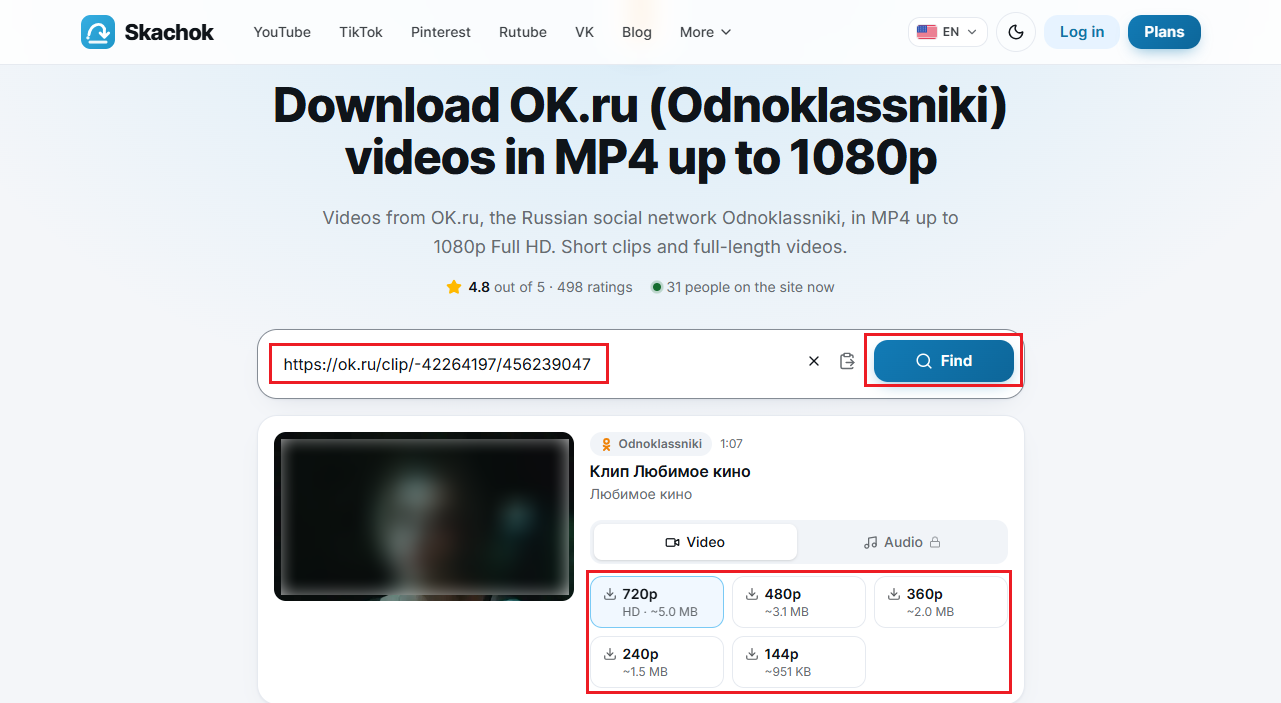
- Open the target OK.ru video and copy the video URL. On a mobile phone, tap the Share button and select Copy link.
- Paste the copied video URL into the input field and click Find to let Skachok analyze the link.
- Wait for the video information and available download options to appear. In the Video section, select and click your needed resolution to save the OK.ru video as an MP4 file.
Pros:
- Supports both MP4 video downloads and MP3 audio extraction.
- Provides multiple video quality options.
- Works on computers and smartphones without software installation.
Cons:
- Free downloads have daily usage limitations.
#4. Ok.ru Downloader (IDL Helper) – Best for Browser-Based Downloads
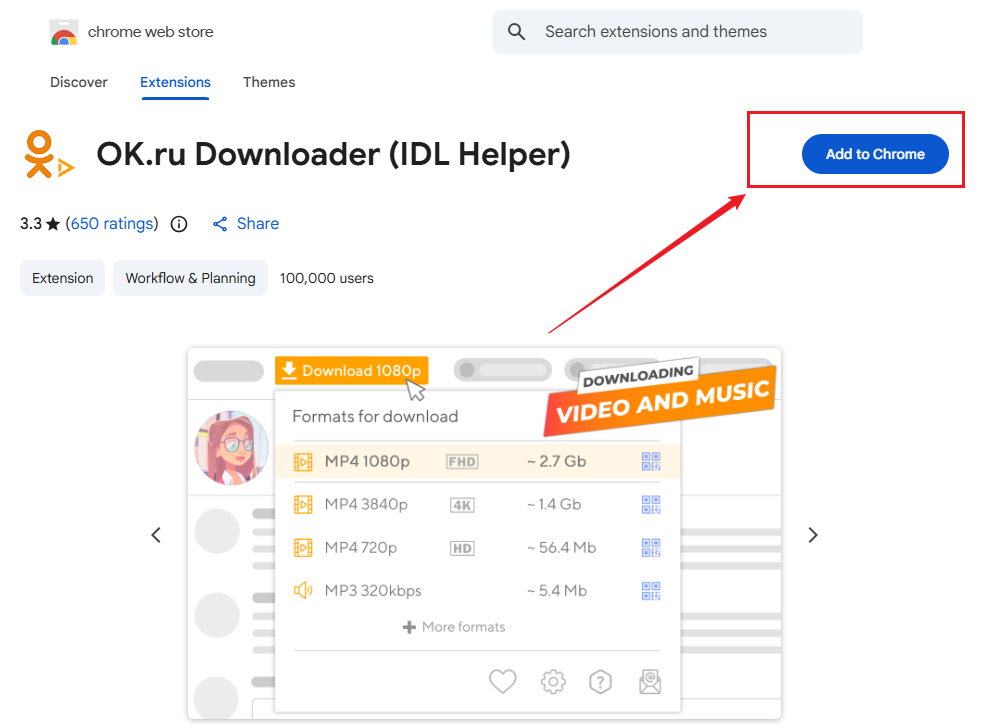
OK.ru Downloader (IDL Helper) is a browser extension designed to download videos and music from Odnoklassniki. Unlike online downloaders, it integrates with your browser and can display download options when you open supported videos. In addition, it supports MP4, MP3, and WEBM formats. Meanwhile, it can work with Instagram and provide screenshot functionality for supported online video players.
Key features:
- Browser extension for downloading OK.ru videos and music.
- Supports MP4, MP3, and WEBM.
- Can display download options directly on supported video players.
- Supports video-to-audio extraction.
- Also supports Instagram media downloading.
How to download OK.ru videos with IDL Helper
- Visit the Chrome Web Store, find OK.ru Downloader (IDL Helper), and click Add to Chrome. Then click Add extension to confirm the operation.
- After installation, open OK.ru in Chrome. Navigate to the video you want to download and play it.
- Wait for IDL Helper to detect the video. Then look for the Download button displayed around the video player.
- Hover over the Download button to view the available format and quality options. Finally, select the target output option to save the OK.ru video.
Pros:
- Integrates with the browser.
- Supports multiple video and audio formats.
- Can provide download options directly on supported video players.
Cons:
- Requires browser extension installation.
- Some downloads may require additional Windows software.
#5. OK.ru Video & Audio Downloader – Best for MP4 and M4A Downloads
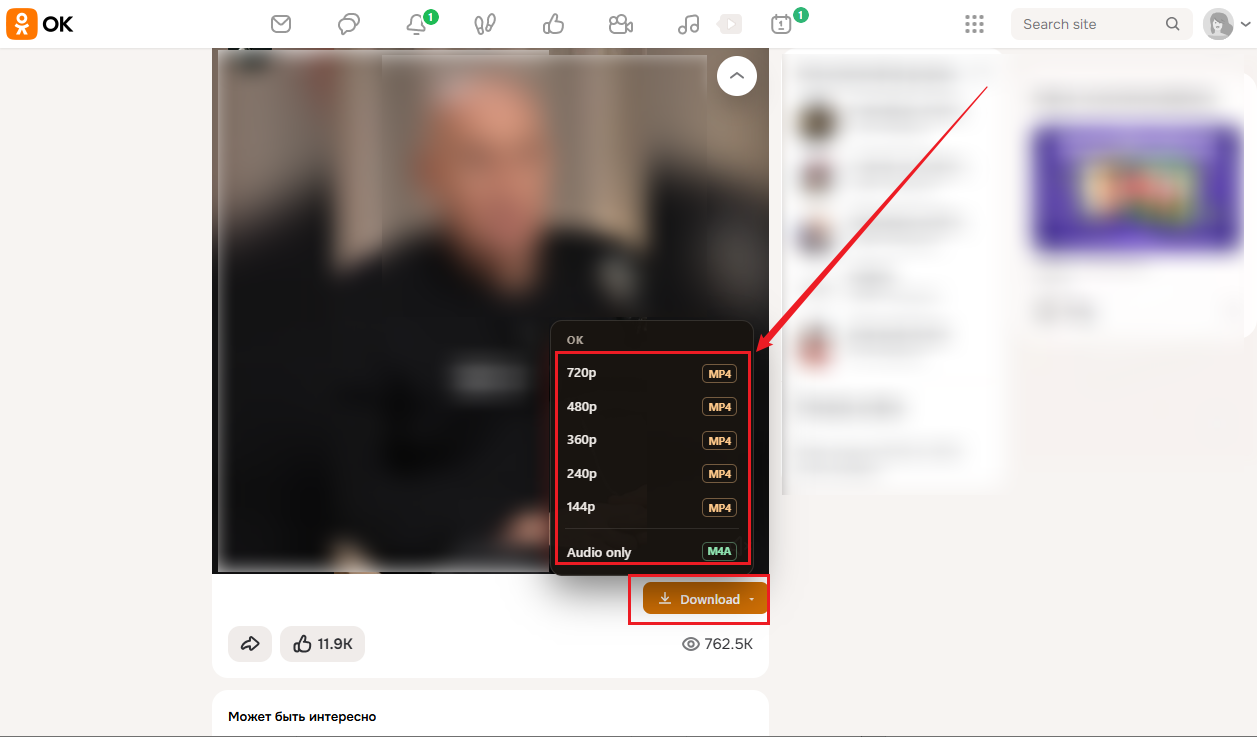
OK.ru Video & Audio Downloader is a Chrome extension designed specifically for saving videos and audio from Odnoklassniki. After installation, it adds a download button beneath supported OK.ru video players. Users can click this button to view the available video resolutions and save the selected file as MP4. It also supports audio-only downloads in M4A format.
Key features:
- Dedicated Chrome extension for OK.ru.
- MP4 video downloads.
- M4A audio extraction.
- Multiple resolution options, depending on the source video.
- Download button displayed beneath supported video players.
- Uses Chrome's normal download manager.
How to save OK.ru videos with OK.ru Video & Audio Downloader
- Visit the OK.ru Video & Audio Downloader Chrome Web Store page. Then click Add to Chrome and confirm the installation.
- Open OK.ru in Chrome, find the video you want to download, and start playing it.
- Look for the orange Download button beneath the video player.
- Click to display the available video quality options.
- Select and click the preferred resolution to download the OK.ru video as an MP4 file. Finally, open Chrome’s Downloads page to locate the saved OK.ru video.
Pros:
- Adds a download button directly beneath supported OK.ru video players.
- Supports MP4 video and M4A audio downloads.
- Provides video quality selection.
- Uses Chrome's standard download manager.
Cons:
- Requires Chrome or a compatible Chromium-based browser.
- Has a relatively limited review history.
#6. Cisdem VideoPaw – Best Desktop OK.ru Downloader
Cisdem VideoPaw is a desktop video downloader for Windows and Mac. Unlike online OK.ru downloaders, it provides a dedicated interface for managing video downloads and offers additional media-processing features. According to its OK.ru downloading guide, VideoPaw can retrieve videos from Odnoklassniki by analyzing their URLs. It also supports batch URL importing, allowing users to add multiple video links instead of processing each one individually.
Key features:
- Desktop video downloader for Windows and Mac.
- Supports OK.ru video downloads according to its dedicated guide.
- Allows users to select available video formats and quality.
- Supports batch URL processing.
- Provides additional video conversion and editing features.
How to save an OK.ru video using Cisdem VideoPaw
- After installing Cisdem VideoPaw on your PC, launch it. Then open OK.ru and copy the target video URL.
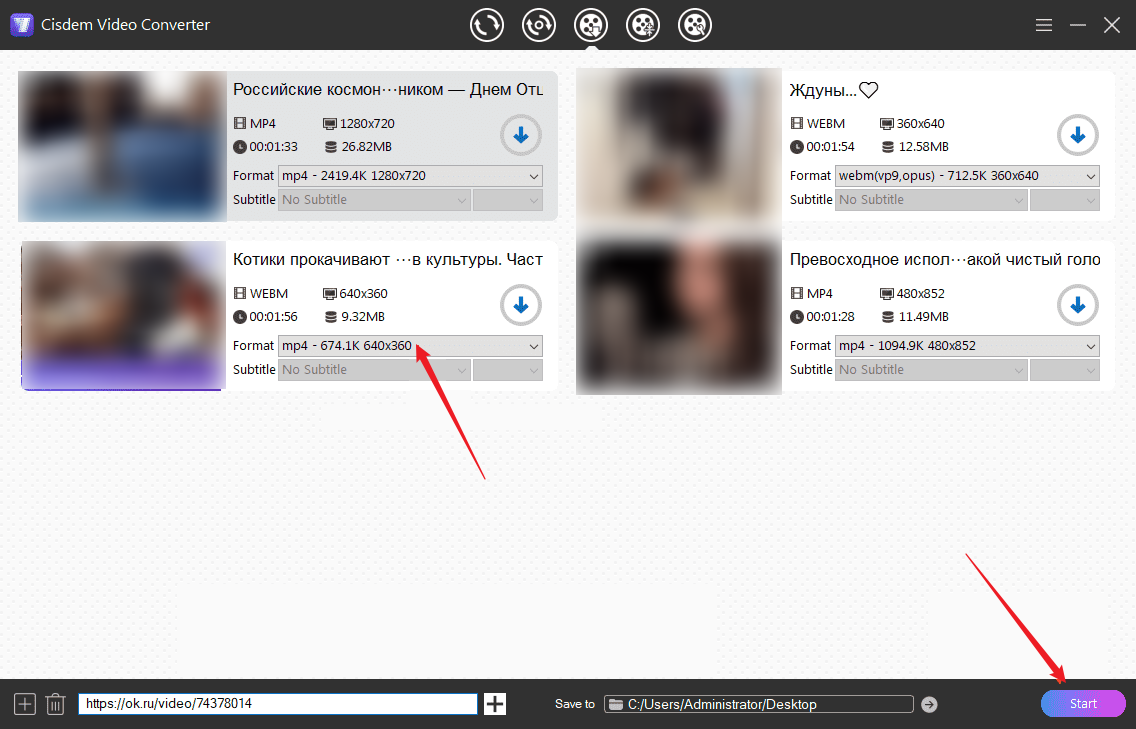
- Return to Cisdem VideoPaw and paste the copied OK.ru video URL into the input field at the bottom of the window. Next, click the add (+) icon to analyze the video URL.
- Wait for Cisdem to retrieve the video information, and choose the preferred output format and resolution.
- Finally, click Start to begin downloading.
Pros:
- Supports Windows and Mac.
- Provides video format and quality selection.
- Allows multiple URLs to be processed together.
- Includes additional video conversion features.
Cons:
- Requires desktop software installation.
- Some features may require a paid license.
- Less convenient than online tools for occasional downloads.
Why Is My OK.ru Downloader Not Working
Sometimes an OK.ru downloader may fail to recognize a video link or retrieve the available download options. This does not necessarily mean that the tool is broken. Why doesn’t the OK.ru downloader work? It may be related to the source video, link format, network connection, or downloader compatibility. Below are some common problems and possible solutions for your reference:
|
Problem |
Possible Cause |
Suggested Solution |
|
Video URL is not recognized |
Incorrect or incomplete link |
Copy the URL from the individual video page |
|
No download options appear |
Unsupported video or temporary processing issue |
Refresh the page and try again |
|
Private video cannot be downloaded |
Restricted access permissions |
Check whether you have permission to access the video |
|
Download button does not appear |
Extension compatibility problem |
Update the extension or try another supported browser |
|
Downloaded video has low quality |
Original video has limited resolution |
Check the quality options provided by the source |
|
Download keeps failing |
Network interruption or temporary service issue |
Refresh the page and retry |
|
Video has no audio |
Audio stream is unavailable or unsupported |
Try another available format if provided |
|
Online downloader does not respond |
Temporary server problem |
Try again later or use another reputable downloader |
Is It Safe and Legal to Download Videos from OK.ru
Using an OK.ru downloader does not automatically make every download legal or safe. Before saving a video, consider both copyright restrictions and the security of the downloading service. Videos uploaded to OK.ru may be protected by copyright. Meanwhile, OK.ru’s official rules explain that protected content generally cannot be copied, downloaded, distributed, or otherwise used without the necessary rights or permission.
To use these OK.ru downloaders safely, you’d better follow these precautions:
- Use established downloader websites and official browser extension stores.
- Avoid tools that require your OK.ru account password.
- Check browser extension permissions before installation.
- Do not download suspicious executable files disguised as video files.
- Be cautious of pop-ups and misleading download buttons.
- Avoid uploading confidential or private video links to unknown services.
Conclusion
An OK.ru downloader can help you save supported Odnoklassniki videos for offline viewing, but different tools offer different features and downloading experiences. In this article, I introduced you to 6 reliable OK.ru video downloaders, along with detailed reviews and exact steps for downloading OK.ru videos. Hopefully, this article is helpful to you. Now, select one downloader and try it out.


