


Microsoft Edge Add Text to PDF Disappeared
On the Microsoft Q&A forums, users like "Andrew" and "Issam" have reported the same frustration - Microsoft Edge add text to PDF disappeared. One student mentioned that he used Edge daily for taking notes in class, but after the latest update, the "text box function no longer works like it used to". Another user on Reddit joked that the "Add text" button just "vanished into thin air" right when he needed to submit an important assignment.
Usually, Edge hides the PDF toolbar when the "New PDF Viewer" is either too old or too new. Sometimes, if your display language is set to something other than English, the Add text to PDF option just does not show up. Other times, the text you type disappears after saving, or the words get cut in half.
Microsoft is aware of this, but updates often break this feature again. If you are tired of struggling with this add text to PDF missing issue, do not worry. Here are effective ways to bring it back.
Method 1: Restore the Button via Edge Flags
Sometimes, Edge hides features behind experimental walls. The Microsoft Edge Add Text to PDF disappeared issue is usually caused by a glitch in the "New PDF Viewer." We can force-enable it to get the text box back.
Step 1: Open Microsoft Edge and type edge://flags into the address bar to enter it.
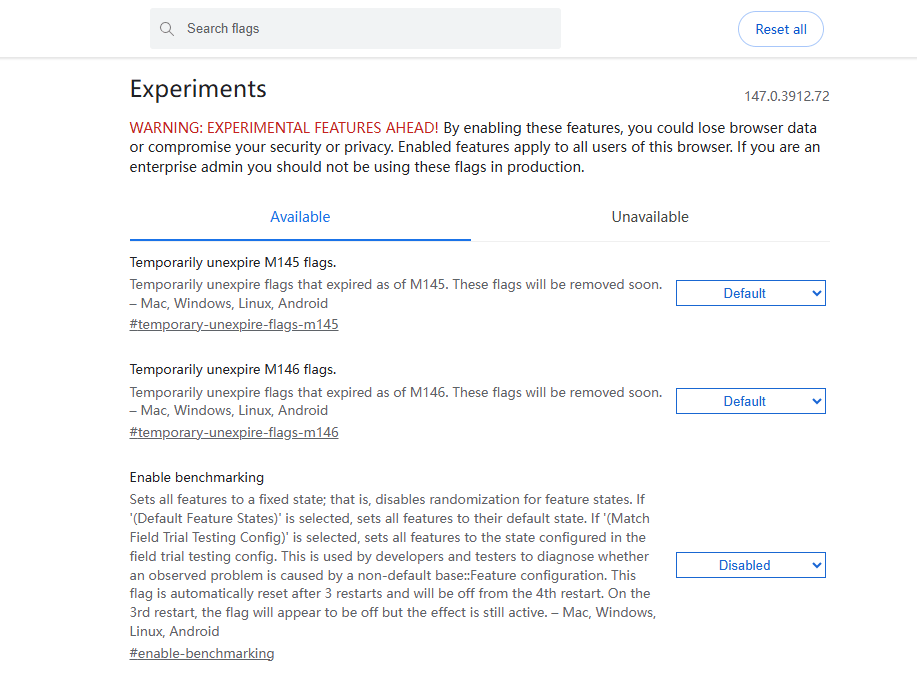
Step 2: In the search box at the top, type New PDF Viewer and you'll see the option highlighted.
Step 3: Find the option and click the drop-down menu to change the setting from Default to Enabled.
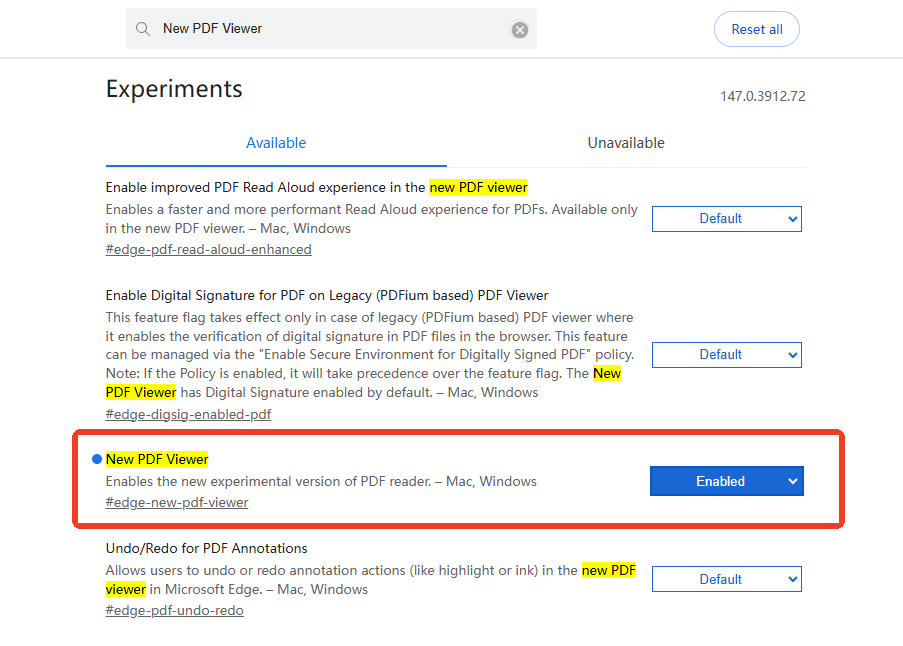
Step 4: A blue button will appear at the bottom right saying Restart. Click it.
Once Edge restarts, open a PDF file. You should see the Add text button in the top toolbar again.
How to Edit PDF in Microsoft Edge and an Alternative PDF Editor
Are you seeking the best guide to edit a PDF in Edge? Check out how to use the Microsoft Edge PDF editor and its alternative to make changes to your file.
READ MORE >Method 2: Disable the Adobe Engine
For many users, the add text to PDF feature missing because Edge recently integrated an Adobe Acrobat engine. While this sounds fancy, it actually breaks the old, reliable text tool. If your text gets cut off or disappears when you save, you need to turn this off .
Step 1: Still, go to the edge://flags site and search for Adobe or New PDF Viewer.
Step 2: Find the flag named "New PDF Viewer" (sometimes labeled Adobe PDF Reader) and change the setting to Disabled.
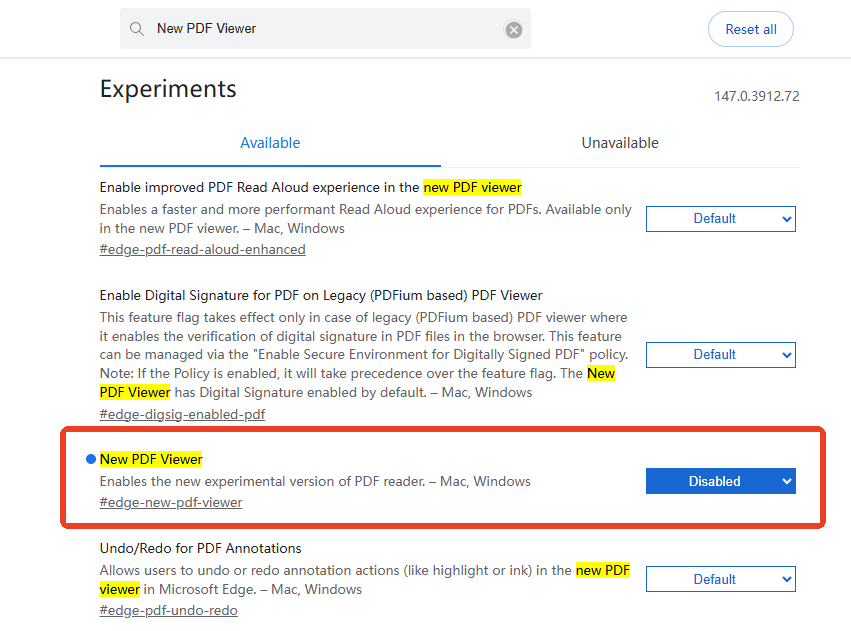
By disabling this, you are switching back to Edge’s original PDF engine. This usually restores the classic toolbar immediately. One user confirmed this worked for them after struggling with disappearing text for six months.
Method 3: The Font Adjustment Trick
If you only see the button, but the text you type looks blank or disappears, do not reinstall Windows just yet. A user on the Microsoft forums found a weird but effective fix involving the browser's font settings. This helps if the Edge PDF editor toolbar missing is due to a language rendering bug.
Step 1: Click the three dots in the top right of Edge and go to Settings.
Step 2: Type Fonts in the settings search bar and change your Standard font to Arial.
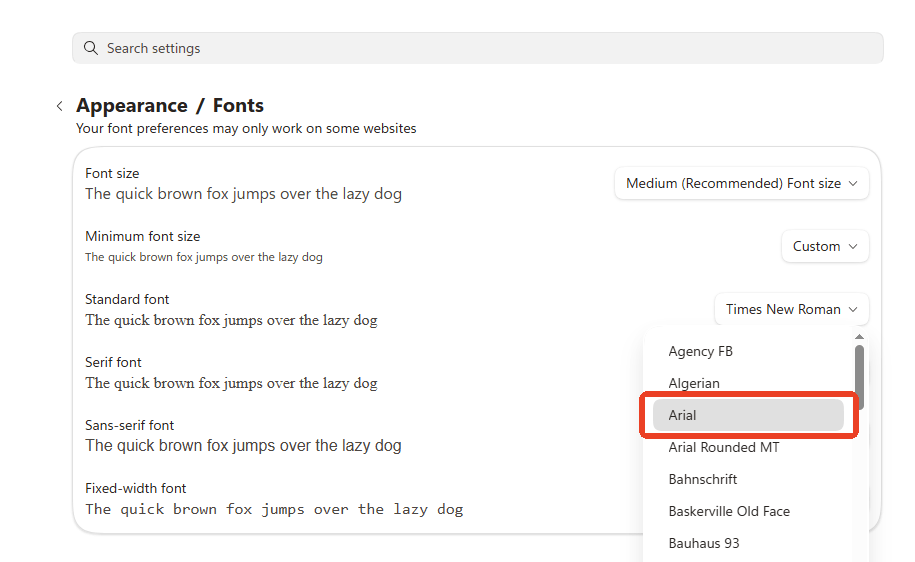
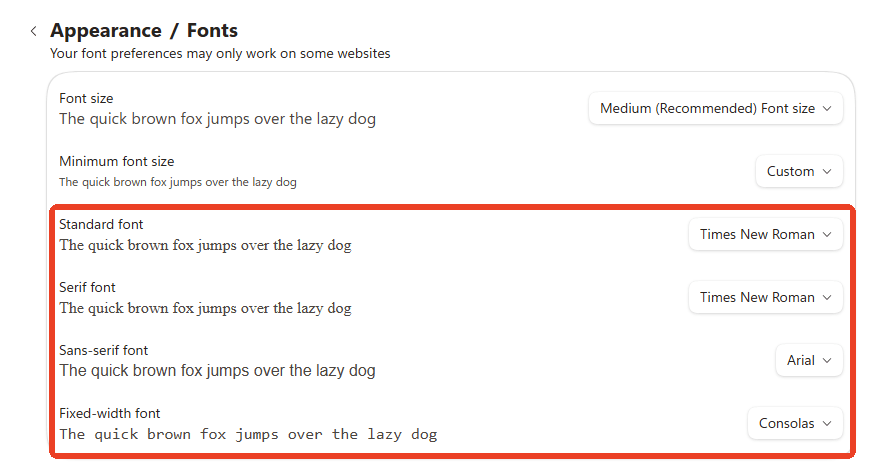
Step 3: Change Serif, Sans-serif, and Fixed-width fonts to Arial as well.
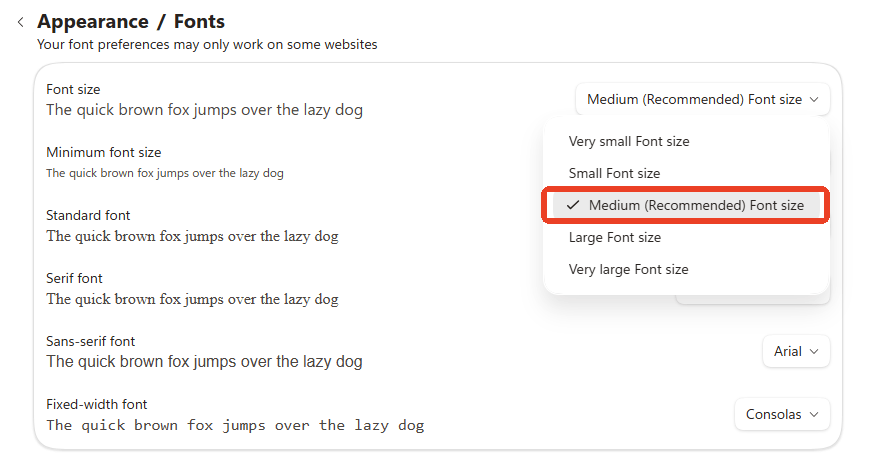
Step 4: Then set the Font size option to Medium.
After this, try adding text to your PDF again. The text should now appear properly without vanishing when you click away.
The Reliable Alternative: Using SwifDoo PDF
While these Edge tricks usually work, Microsoft has a habit of breaking the Microsoft Edge Add Text to PDF function again with every Tuesday update. You might fix it today, but next week it could be gone again.
If you annotate PDFs every day, you need a tool that does not play hide-and-seek with your buttons. This is where SwifDoo PDF comes in.
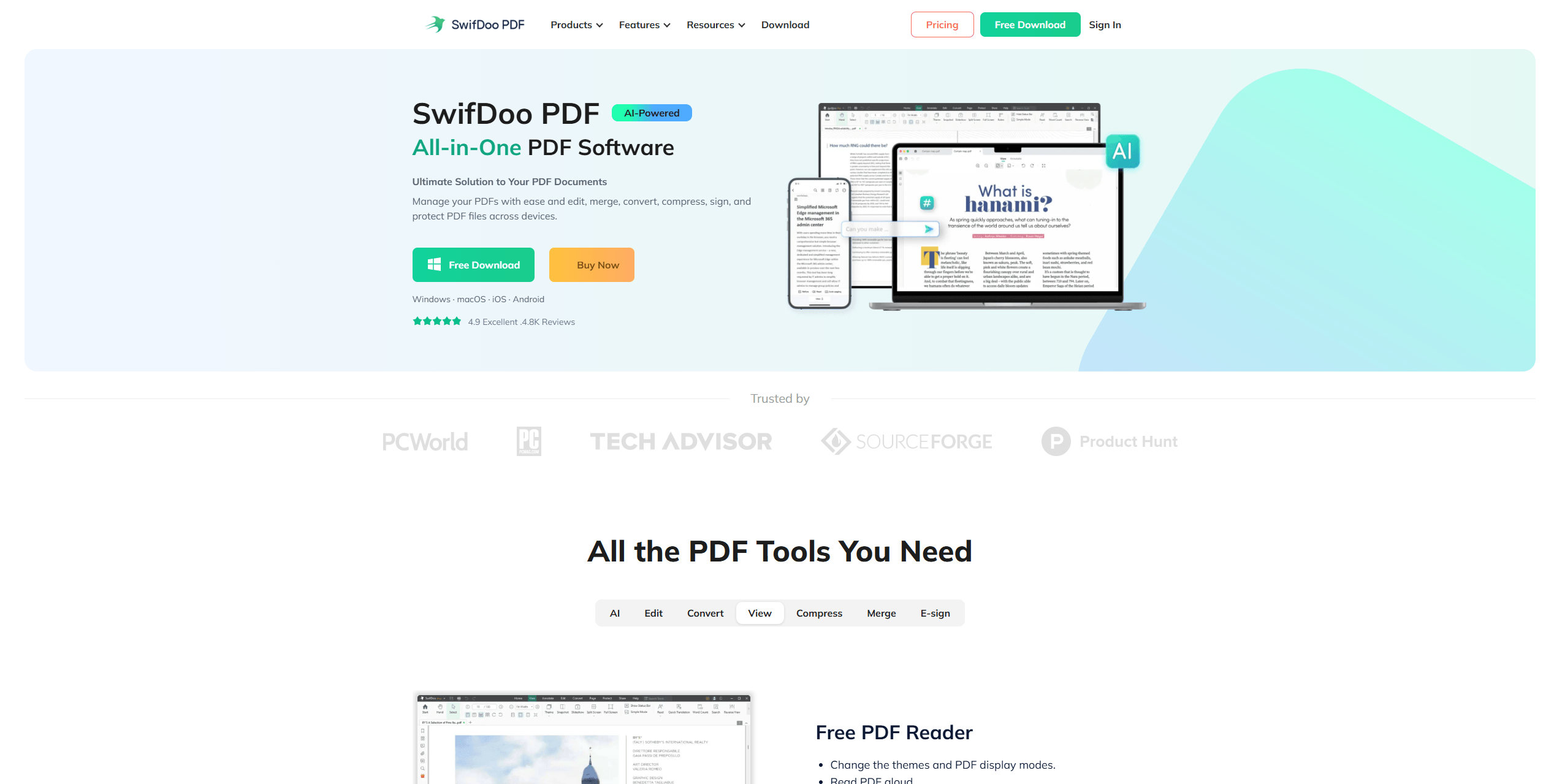
SwifDoo PDF is a lightweight, super-fast PDF editor. Unlike Edge, which hides features based on your language or update status, SwifDoo puts every tool right on your screen. You can add text, edit images, convert files, and even sign documents without logging into a cloud service.
With SwifDoo, you do not need to restart your browser. Just open the file, click the "Edit" tab, and start typing. It handles fonts perfectly without cutting text off. It is the professional solution for when you cannot afford to waste time searching for missing buttons.
Conclusion
The Microsoft Edge Add Text to PDF disappeared error is frustrating, but it is usually fixable in less than two minutes. If you rely on PDFs for work or school, do not depend on a web browser that keeps changing its mind. Download SwifDoo PDF for a stable, permanent editing solution that works offline and handles any PDF task instantly.


