


Can You Sign a PDF Using Preview
Can you sign a PDF in Preview? Yes, you can. Whether you're signing contracts, application forms, agreements, or permission slips, Preview includes built-in tools to create and insert signatures directly into a PDF. It allows you to create a signature using your Mac’s trackpad, camera, or a connected iPhone or iPad. Once created, the signature can be inserted into PDFs, resized, moved, or reused whenever needed.
Requirements for Signing PDFs in Preview
Before signing a PDF, it's helpful to understand what Preview can and cannot do. Here, let’s have a look.
Compatible macOS Versions
Preview comes preinstalled on all modern versions of macOS. If your Mac can open PDFs with Preview, you can use its signature tools.
Supported PDF Documents
Preview works best with:
- Standard PDF files
- Fillable PDF forms
- Contracts
- Documents requiring handwritten electronic signatures.
However, Preview is not suitable for scanned or image-based PDFs.
Electronic Signatures vs. Digital Signatures
Some of you may confuse electronic signatures and digital signatures. Here’s a quick comparison table for your reference.
|
Digital Signature |
|
|
Handwritten signature captured electronically |
Certificate-based signature |
|
Supported in Preview |
Limited support |
|
Suitable for everyday documents |
Used for high-security workflows |
|
Easy to create |
Requires digital certificates |
For most personal and business documents, an electronic signature created in Preview is sufficient. If you need to add digital signatures to a PDF, you need to use another tool, such as SwifDoo PDF, Adobe Acrobat Pro, or Foxit PDF Editor.
How to Sign a PDF on Preview
How to add a signature in Preview on Mac? Here’s the detailed, step-by-step guide to signing a PDF using the Preview.
Step 1. Open the PDF in Preview
If Preview is your default PDF viewer, double-click the PDF to open it in Preview. If not, right-click the PDF, select Open With, and choose Preview.
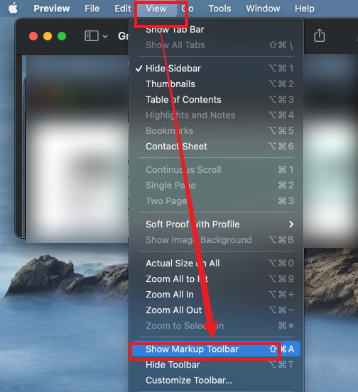
Step 2. Show the Markup Toolbar
If the Markup Toolbar is not visible, click the Markup button in the toolbar. Alternatively, click View and hit Show Markup Toolbar.
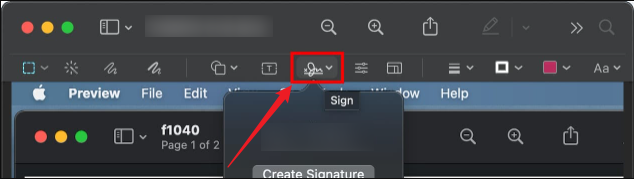
Step 3. Open the Signature Tool
In the Markup toolbar, click the Sign button.
Step 4. Create a New Signature or Select an Existing One
If you already have a saved signature, skip to step 5.
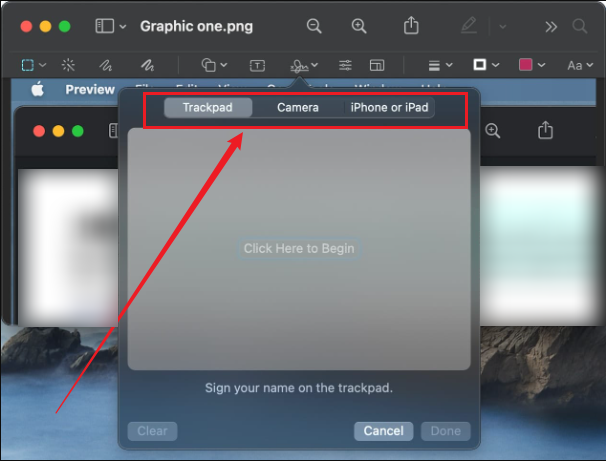
If you have not created one before, click Create Signature. Here are 3 options for you.
A. Using Trackpad (easiest on most Macs)
- Click Trackpad and follow the prompt to sign your name on the trackpad with your finger.
- Then press any key when done.
- Next, click Done. If you are not satisfied, click Clear and try again.
B. Using the Camera
- Click Camera.
- Write your signature on a white piece of paper.
- Hold the paper in front of your Mac’s camera.
- When the signature appears clear, click Done.
C. Using iPhone or iPad (recommended for best quality)
- Click Selected Device and choose your iPhone or iPad.
- Sign on your device with your finger or Apple Pencil.
- Tap Done on the device.
Step 5. Add the Signature to the PDF
- Click the Sign button again in the Markup toolbar.
- Select your saved signature from the list.
- Click the desired location within the PDF.
- Optionally, you can drag the corner handles to resize the signature or drag the signature to reposition it.
Step 6. Save the Signed PDF
Click File and select Save to save the signed PDF. Or press Command + S.
Limitations of Signing PDFs in Preview
If you don’t want to install additional software, Preview is convenient. However, it does have some limitations.
- No advanced digital certificate support: In Preview, you can only add electronic signatures to a PDF. If you need to add certificate-based digital signatures, you need dedicated software.
- Limited workflow features: Preview lacks signature request workflows, approval tracking, team collaboration tools, and audit trails.
- Basic PDF editing: Although Preview supports annotations and signatures, advanced PDF editing features are limited.
Best Alternatives to Preview for Signing PDFs
If you need certificate-based digital signatures or regularly work with PDFs, a dedicated PDF editor can provide additional flexibility. Here, I’d like to introduce you to several alternatives to Preview for signing PDFs. Let’s check them one by one.
#SwifDoo PDF
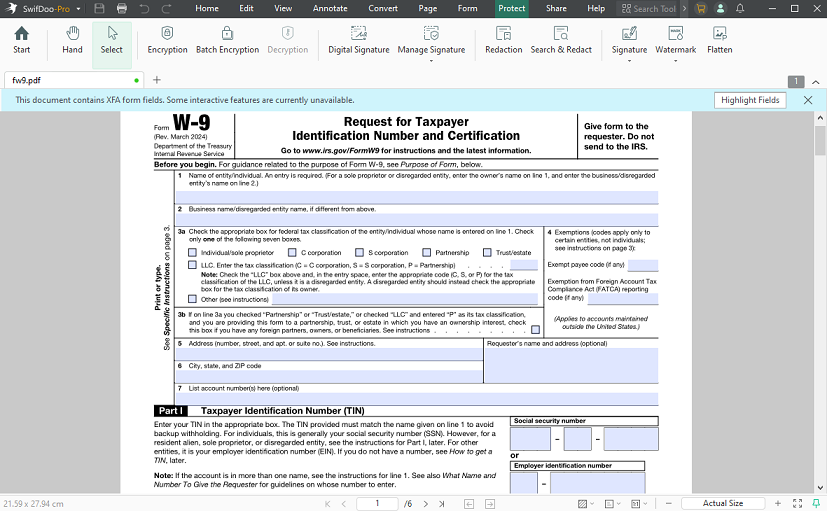
SwifDoo PDF is a lightweight but capable PDF editor that offers more control over signing and document management. With SwifDoo PDF, you can sign PDFs with either electronic signatures or certificate-based digital signatures.
In addition, SwifDoo PDF allows you to fill out PDF forms. Hence, you can use SwifDoo PDF to fill and sign PDFs efficiently. All in all, it is a strong choice if you need to prepare forms, add signatures, and make quick edits without switching between multiple apps.
SwifDoo PDF offers:
- Electronic signature tools that let you insert a saved signature, draw a new one, or place a signature image into a PDF
- PDF editing features for adding, deleting, or modifying text, images, and page elements directly in the document
- Form creation and filling tools for typing into interactive fields, checking boxes, and completing fillable forms
- PDF conversion options for turning PDFs into Word, Excel, PowerPoint, or image files and converting those files back into PDF
- Password protection tools for encrypting PDFs, setting open passwords, and restricting editing or printing
- PDF compression features for reducing file size before emailing or uploading documents
#Adobe Acrobat
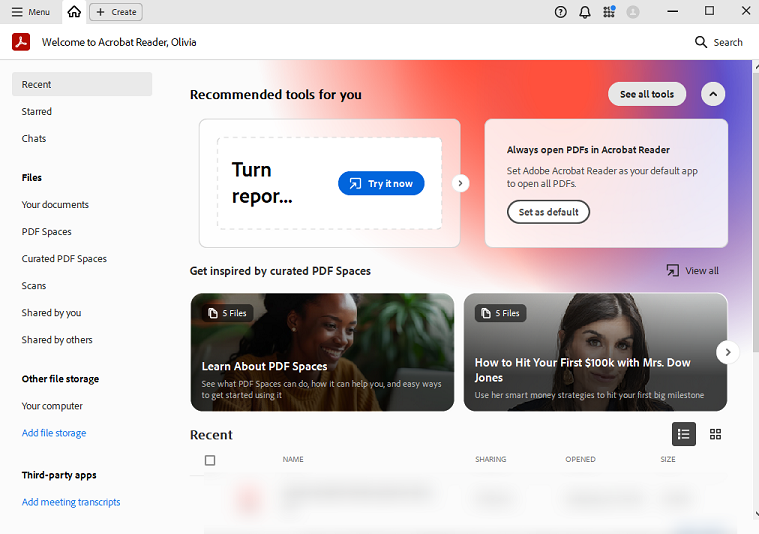
Adobe Acrobat is the most widely recognized PDF solution, often used by professionals and enterprises. It is a good option if you need advanced signing features, which support both electronic and certificate-based signatures.
Adobe Acrobat provides:
- Industry-standard PDF tools for opening, editing, annotating, and organizing PDF pages
- Digital signature support for applying certificate-based signatures and verifying signer identity
- Cloud document workflows for sending files for signature, tracking status, and storing documents online
- Team collaboration features that allow multiple users to review, comment on, and approve the same file
- Form tools for creating fillable fields, collecting responses, and preparing documents for repeated use
#PDF Expert
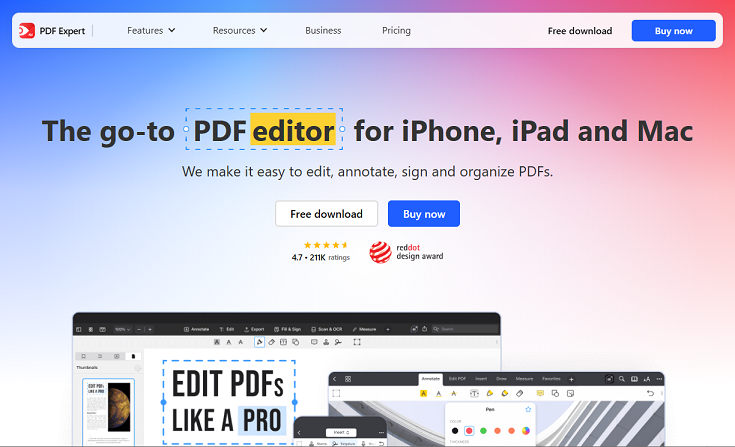
PDF Expert is a popular PDF editor for Mac that combines a clean interface with useful editing and signing tools. In addition to signing PDFs, PDF Expert offers a polished experience for reading, annotation, and editing PDFs.
PDF Expert offers:
- Signature tools for adding handwritten signatures, initials, and stamps to contracts and forms
- Annotation features for highlighting text, underlining key sections, adding notes, and marking up documents
- Organization features for merging PDFs, splitting pages, rearranging page order, and deleting unnecessary pages
- PDF text editing functions for correcting wording, updating labels, or inserting new content into existing PDFs
- File organization tools for managing multiple PDFs in one workspace and moving between documents quickly
Final Words
As pre-installed software on Mac, Preview makes it easy to sign PDFs without paying for additional software. How to sign a PDF on Preview? In the content above, I show you a step-by-step guide to signing a PDF using a trackpad, camera, or iPhone. However, if you need to add certificate-based digital signatures, a dedicated PDF tool, such as SwifDoo PDF and Adobe Acrobat, is a better choice.



