


How do you scan from a printer to a computer? Some printers offer dedicated applications to scan directly to the computer from the printer. Fortunately, HP printers also offer a dedicated application called HP Smart. Meanwhile, some printers with a scanner feature let you scan directly to a computer from the printer’s control panel when connected to the same Wi-Fi network. Also, there are other effective ways to scan documents from HP printers to computers. Now, let’s explore this article.
Before scanning, make sure you have the following ready:
- Use an HP printer with the scanning feature.
- Connect the computer and HP printer with a USB cable or the same Wi-Fi.
- Download and install HP Smart or HP Scan.
How to Scan from HP Printer to Computer Using HP Smart
At the beginning, I’d like to introduce HP Smart first, which is the easiest and most recommended method for HP printer scan to a computer on both Windows and Mac PCs. Below are detailed steps for your reference.
Step 1. Install and launch HP Smart Scan Application
Once installed, launch HP Smart on your computer and add your HP printer. You can connect them via a USB cable. Or connect the HP printer to the same network as your computer.
Step 2. Scan Documents from HP Printer to Computer
Place your document face down on the scanner glass and click the Scan option in HP Smart.
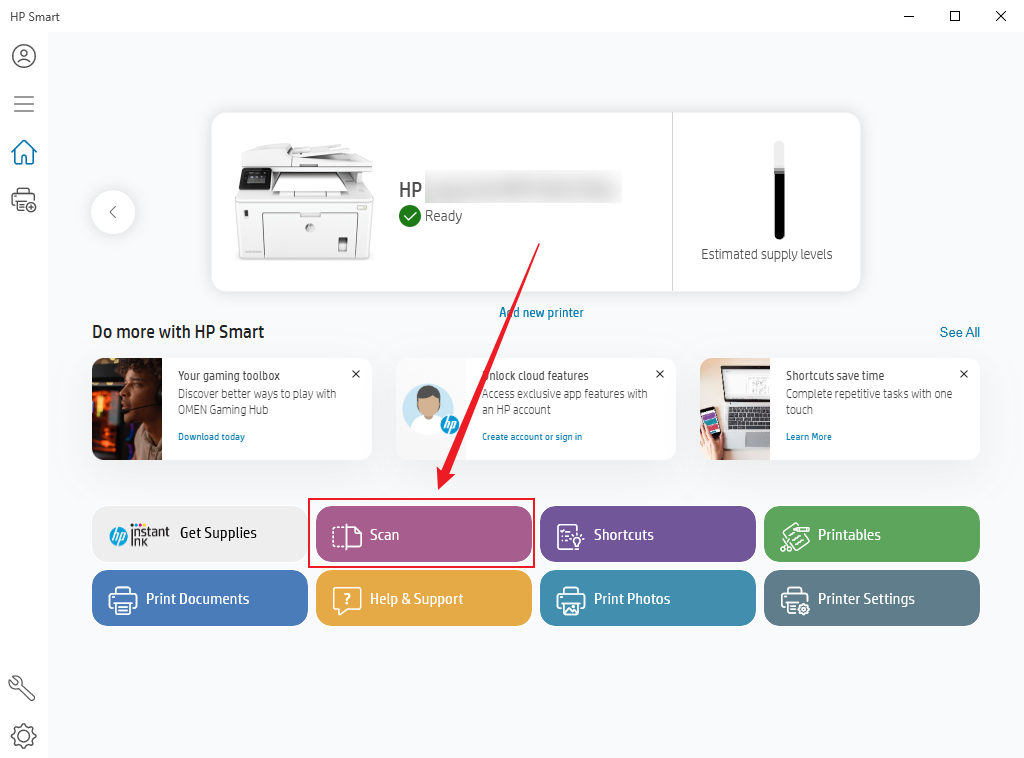
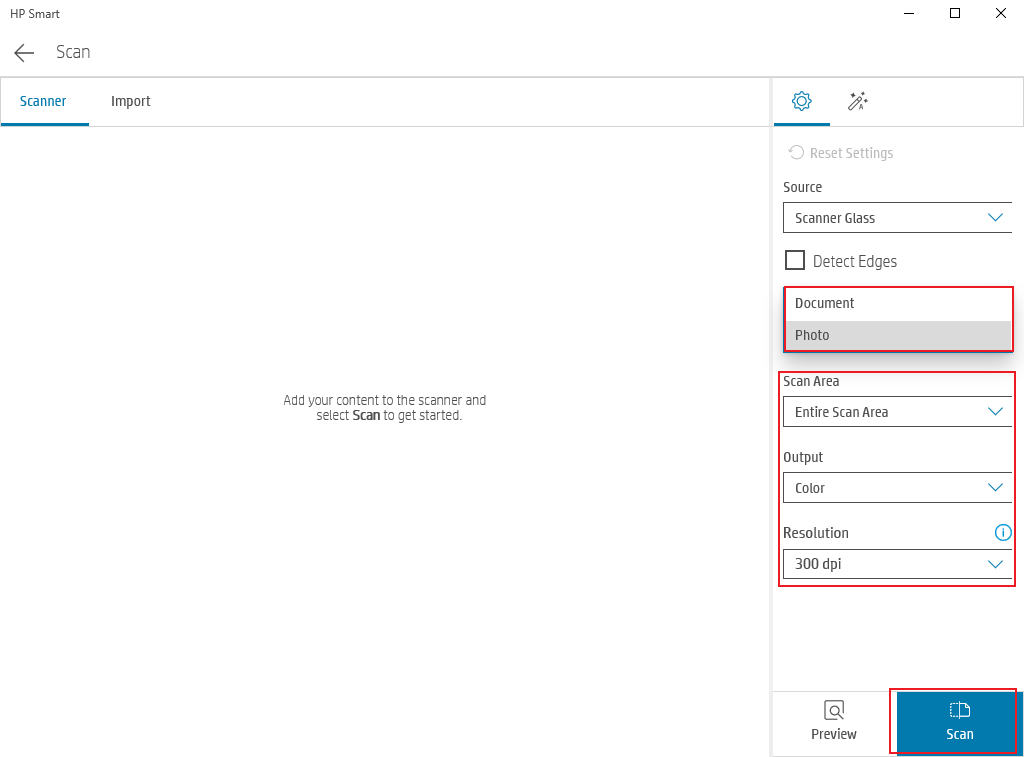
Select the Document or Photo option. Then, you can adjust the scan settings, like color, DPI, and file type. Next, click the Scan button.
Step 3. Save HP Scans as PDF or Image
HP Smart allows you to preview the scanned file. If you are satisfied with it, click the Save option and select PDF, JPG, or PNG format to save the scanned file on your PC.
Scan from an HP Printer to a Computer on Windows 10/11
Additionally, you can also try Windows’ built-in scan features or third-party applications to scan from HP printer to computer on Windows 10 or Windows 11. Here are two options for you.
Option 1. Scan Using SwifDoo PDF
SwifDoo PDF is known as a PDF editor for Windows, Mac, Android, and iOS. Surprisingly, it offers the ability to scan to PDF. Compared to HP Smart, SwifDoo PDF has the edge if you need to handle scanned documents, like recognizing text in PDFs, extracting text from scanned PDFs, and more. In addition to scanning from an HP printer, SwifDoo PDF also lets you scan from an Epson printer to your computer. How to scan from your HP printer to a computer on Windows using SwifDoo PDF. Here’s how:
Step 1. Download and install SwifDoo PDF on your Windows PC by clicking the download button below. Then launch it.
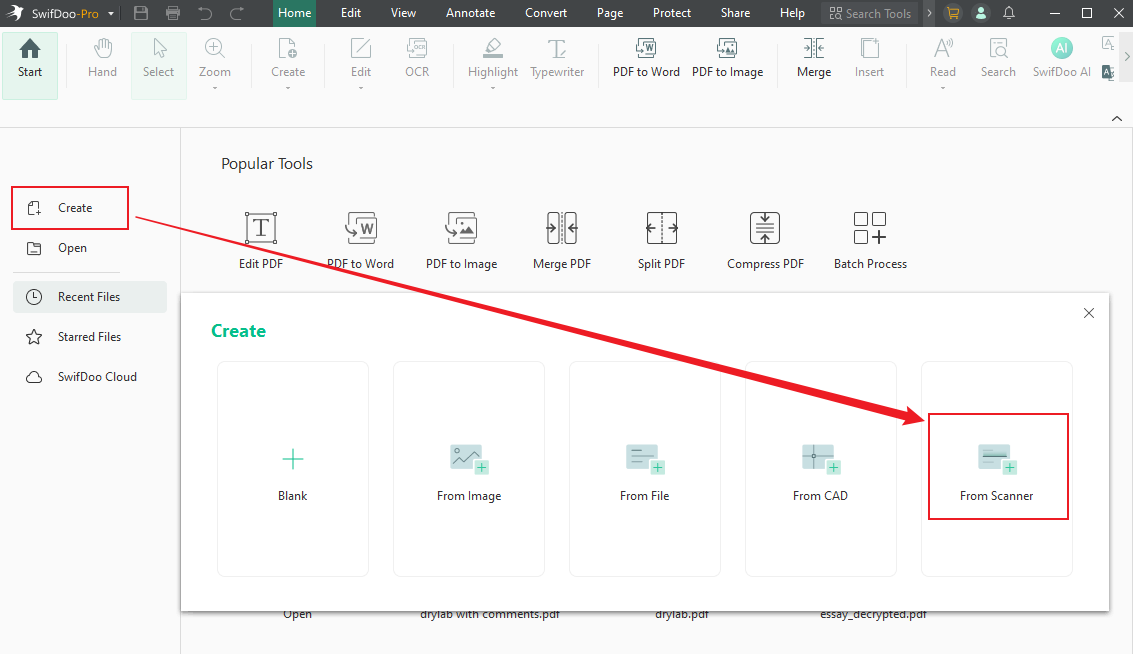
Step 2. Hit Create on the left side bar and click the From Scanner option.
Step 3. Open the Scanner list to choose your HP printer, customize the resolution, and other scanning settings. If you want to make the file editable, tick the OCR option. Then, click the Scan button.
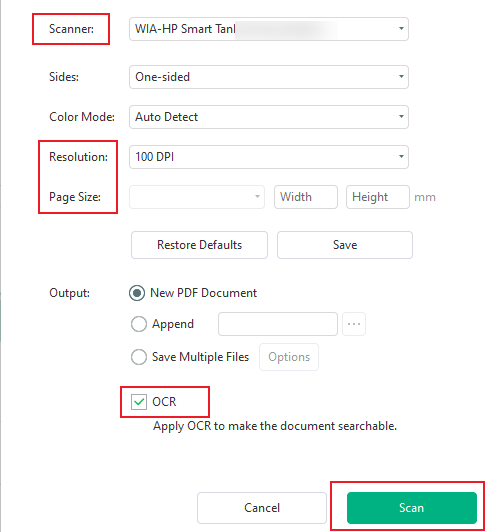
Later, name the scanned file and specify its saving path to save it on your Windows PC.
Option 2. Scan Using Windows Fax and Scan
If you don’t want to download and install any software, try Windows Fax and Scan or Windows Scan to scan from an HP printer to a Windows computer. Below is the guide for your reference.
Step 1. Launch Windows Fax and Scan first. You can press Win + R, type wfs, and press Enter to run it. Alternatively, search for Windows Fax and Scan in the Windows Search box, then click Open.
Step 2. Click the New Scan option in the top left, choose your HP printer, and click OK to establish a connection.
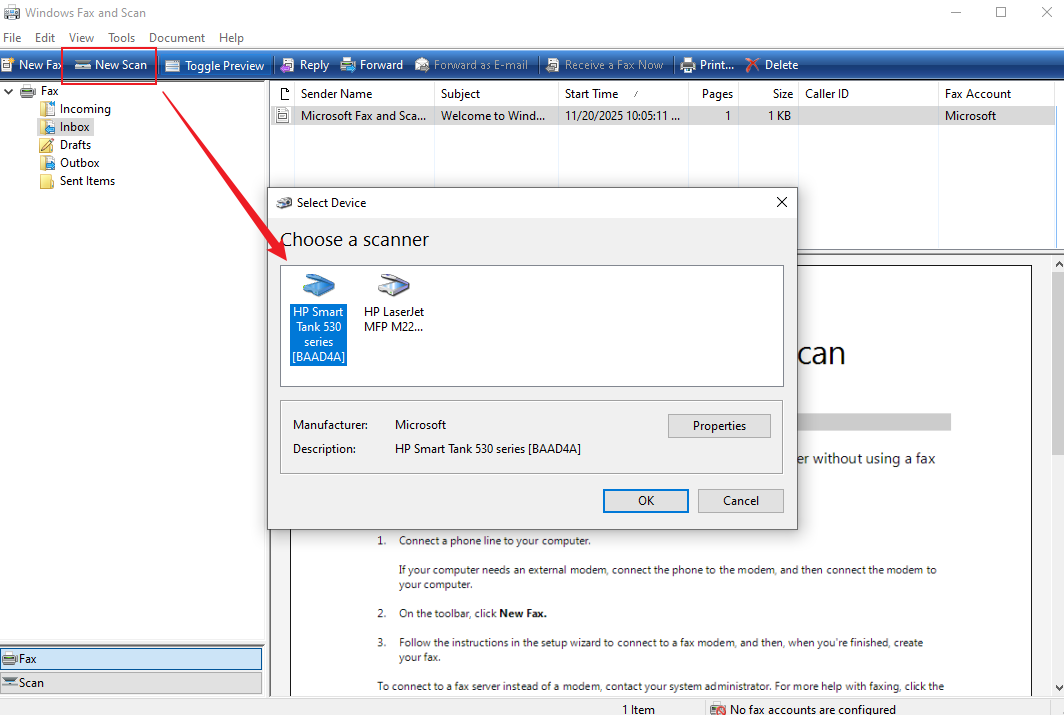
Step 3. Follow the on-screen instructions to complete the scanning settings and click Scan.
How to Scan from HP Printer to Mac
Like Windows, macOS also offers a built-in feature to scan from an HP printer without installing extra software. How to scan from an HP printer to Mac PCs? I present the steps below for your reference.
Step 1. Open System Settings on your Mac and go to Printers & Scanners. Then, click the Plus icon to select your printer and click Add.
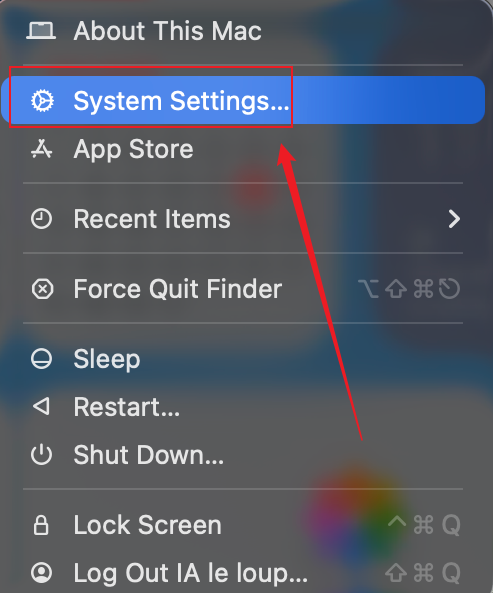
Step 2. Then, click the Open Scanner button to launch Image Capture. Next, place your document on the scanner glass.
Step 3. You can preview the scan. Finally, click Scan to save it to your Mac computer.
Fix HP Scanner Not Working
Why won’t my HP printer scan to my computer? There are some common reasons as follows:
- Connection problems
- Outdated drivers
- Outdated HP Smart
- Firewall or antivirus blocking
How can you fix the HP scanner not working issue? You can try the following solutions:
- Run HP Print and Scan Doctor to detect your printer and diagnose scan issues.
- Update or reinstall HP Smart.
- Run Windows built-in troubleshooters.
- Update or reinstall drivers.
- Use alternative ways, like SwifDoo PDF, to scan from HP printers.
Final Thoughts
How to scan from an HP printer to a computer? You can use the dedicated app, HP Smart, to directly scan documents from an HP printer to your Windows or Mac PC. If you need to edit the scanned document, SwifDoo PDF can be a good choice, which enables you to create a PDF from scanners and edit scanned documents with various features. Additionally, both Windows and Mac offer built-in features to directly scan documents from a printer or scanner. I hope this article can be helpful to you.



