


What Does Save As Mean in Adobe Acrobat
What does Save As mean in Adobe Acrobat? It allows you to create a new version of a PDF file without overwriting or altering the original. In addition, the Save As feature lets you rename a PDF file, save it to a different destination, maintain multiple versions of the same PDF, or prevent accidental overwriting. How to save as in Adobe Acrobat? Let’s read on.
How to Save As in Adobe Acrobat Reader
Adobe Acrobat Reader, the free version of Adobe Acrobat, primarily serves as a PDF reader with some basic annotation features. For instance, you can use it to add electronic signatures to a PDF, add annotations, and more. With its basic Save As feature, you can save copies of PDF files to a different location with new names. Below are the steps to save as in Acrobat Reader.
Step 1. Open your PDF file in Adobe Acrobat Reader.
Step 2. Click Menu and select Save As.
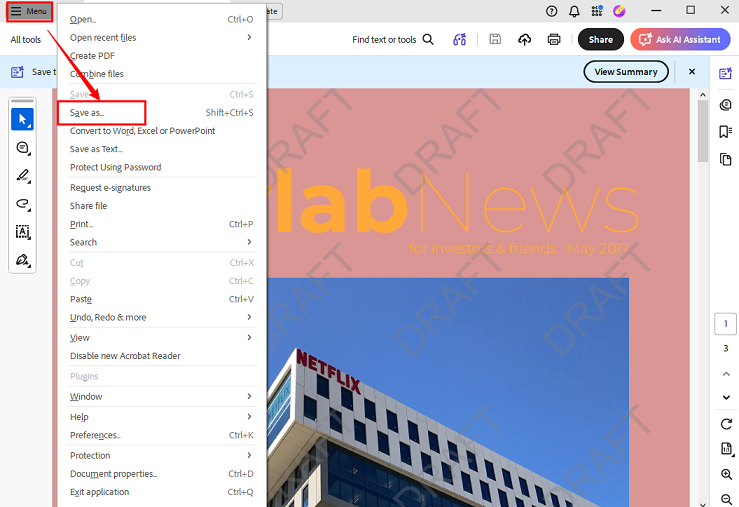
Step 3. Select where you want to store the new copy of the PDF file. Rename it as needed, then click the Save button.
Though Adobe Acrobat Reader supports the basic Save As feature, it doesn’t offer the full set of conversion and export features available in Adobe Acrobat Pro. If you need to save a PDF as Word, Excel, PowerPoint, or other image formats, you need to subscribe to Acrobat Pro or Standard. You can also consider a cost-effective Adobe Acrobat alternative, such as SwifDoo PDF, if you have a limited budget.
How to Save As in Adobe Acrobat Standard/Pro
How to save a PDF as a new version in Adobe Acrobat Standard or Pro? Actually, the process in Acrobat Standard and Pro is virtually the same as in Acrobat Reader. The steps are:
Step 1. Open your target PDF file in Adobe Acrobat Standard or Pro.
Step 2. Click File from the top menu and select Save As.
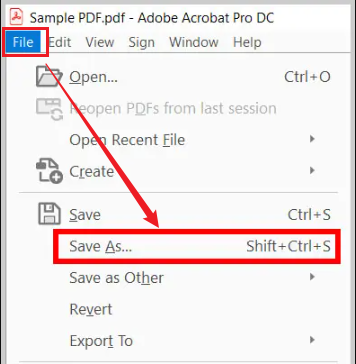
Step 3. Select a destination folder to save the new copy of the PDF.
Step 4. Rename the PDF file and click Save.
In addition to creating PDF copies, Adobe Acrobat Standard or Pro provides additional editing and management features for PDFs. For instance, you are allowed to export PDFs to Word, Excel, or PowerPoint, save PDF pages as images, reduce PDF file size, and more.
How to Save As PDF as Another File Type in Adobe Acrobat Pro
How to save a PDF as Word, Excel, PowerPoint, JPG, or PNG in Adobe Acrobat Pro? I prepared the following step-by-step guidance for you.
Step 1. Open your PDF file in Adobe Acrobat Pro.
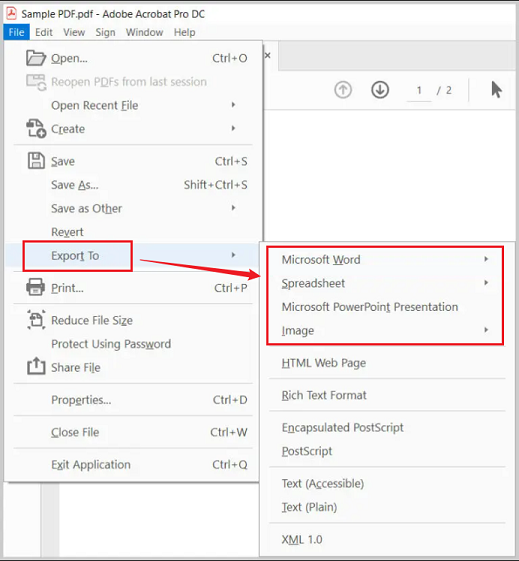
Step 2. Click File from the top menu and click the Export To option.
Step 3. Under the Export To list, select the needed format, including:
- Microsoft Word: You can select DOCX or DOC format. According to your needs, you can customize other settings, such as retaining flowing text, recognizing text, and more.
- Spreadsheet: Both XLSX and XML formats available. Meanwhile, you can set numeric separations and adjust other settings.
- Microsoft PowerPoint Presentation: Select PPTX format and adjust layout and other settings as needed.
- Image: The image formats you can choose include JPEG, PNG, TIFF, or JPEG 2000. Select one as needed and adjust the image resolution and other settings.
Step 4. After making choices and settings, save the document.
If you need to convert a PDF to other Office or image formats, SwifDoo PDF can be a cost-effective, easy-to-use alternative.
Save vs Save As vs Save As Other
Adobe Acrobat includes several save-related options. What are the differences between Save, Save As, and Save As Other? When to use each of them? You can refer to the simple comparison table below:
|
Option |
Purpose |
|
Save |
Updates the current PDF |
|
Save As |
Creates a new copy of the PDF |
|
Save As Other/Export To |
Create a new file with additional conversion or optimization options |
A Cost-Effective Way to Edit PDFs in SwifDoo PDF
Adobe Acrobat is a professional and useful tool for PDFs. Its free version, Acrobat Reader, only provides limited viewing and annotation features. If you need to edit, convert, or compress PDFs, you can pay expensive subscription fees for Acrobat Standard or Pro. Fortunately, you can use a cost-effective alternative to Adobe Acrobat. SwifDoo PDF is a good choice.
SwifDoo PDF is a full-featured PDF tool including viewing, editing, annotating, converting, organizing, compressing, and protecting PDFs. With its intuitive interface, you can easily convert PDF to DOCX, PDF to Excel, CAD to PDF, PDF to HTML, and more. Moreover, its OCR enables you to recognize text in a PDF and make a scanned PDF searchable and editable.
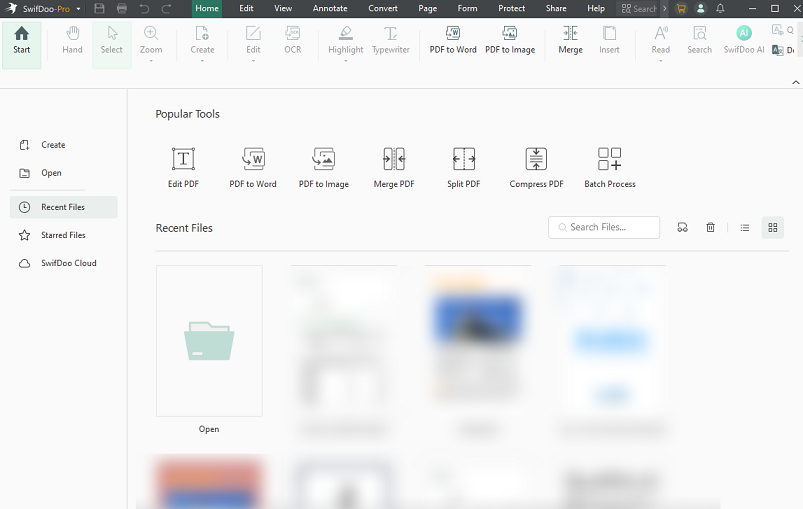
What’s more, SwifDoo PDF offers SwifDoo AI for analyzing, summarizing, rewriting, proofreading, and translating PDFs effectively. You can download and install it and explore its wide range of features.
Conclusion
It’s essential to master how to save as in Adobe Acrobat if you need to work with PDF files. Unlike the normal Save feature, the Save As feature allows you to create backup copies, rename files, change the final destination, and preserve original documents while making edits. What’s more, you can subscribe to Adobe Acrobat Pro to unlock the full features, such as exporting a PDF to Excel or another format. To convert PDFs, you can also use SwifDoo PDF.



