


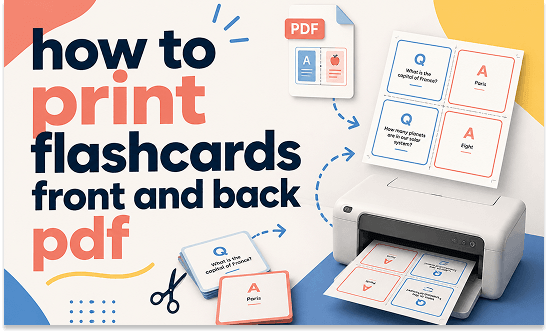
Can you print flashcards front and back from a PDF? Yes, you can. Most flashcard PDFs can be printed double-sided using duplex printing. Generally, there are two methods available:
- Automatic duplex printing: your printer prints both sides automatically
- Manual duplex printing: you print odd pages first, then even pages.
Before starting printing, you need to make the following preparations:
- A flashcard PDF file
- A printer that supports duplex printing
- A PDF reader or editor: SwifDoo PDF or Adobe Acrobat
- Correct “flip on long edge” or “flip on short edge” settings
- Cardstock paper for durability and to prevent bleed-through
How to Print Flashcards Front and Back PDF in SwifDoo PDF
SwifDoo PDF is an all-in-one PDF tool that offers viewing, editing, annotating, converting, protecting, and printing. It supports duplex printing for flashcards. With it, you can easily print Quizlet flashcards. In addition, it enables you to print a PDF as a booklet. Meanwhile, you can customize various print settings as needed, such as printing a PDF without margins or with comments. How to print flashcard front and back in SwifDoo PDF? Follow the steps below:
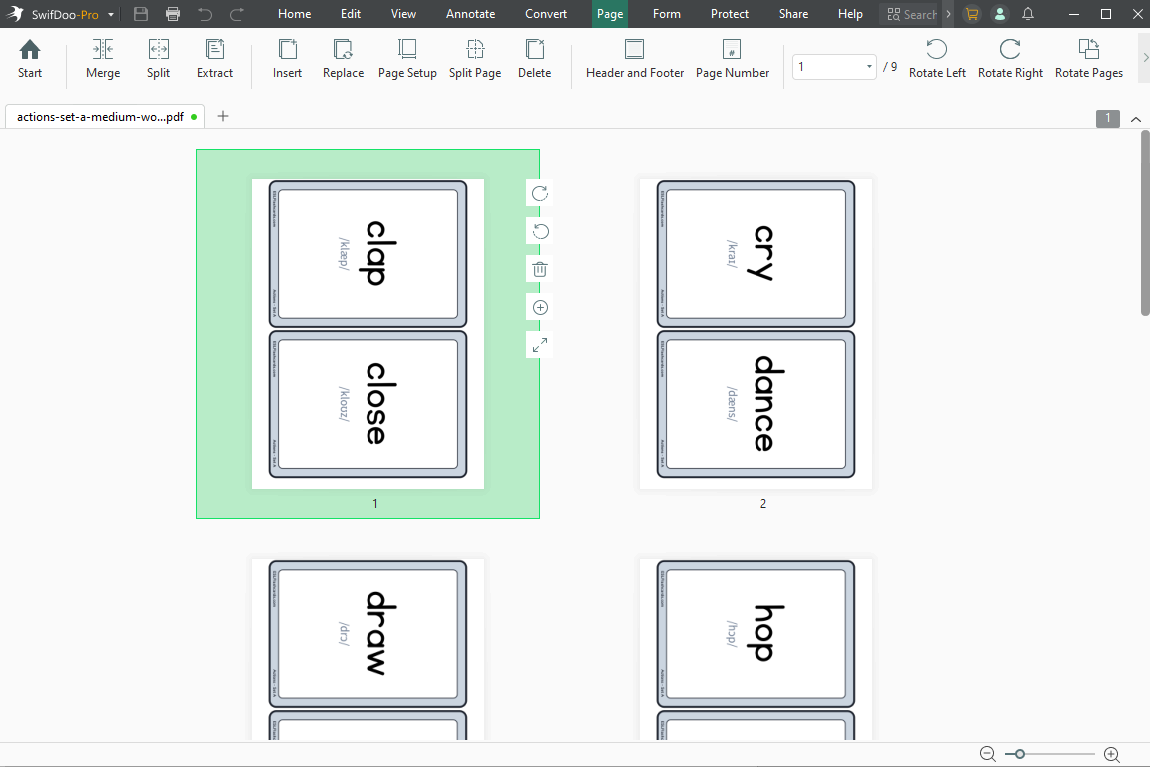
Step 1. Download and install SwifDoo PDF on your PC. Once installed, launch it and click Open to open your flashcard PDF file.
Step 2. You can go to Page and directly drag the pages to reorder them. You can apply OCR to make the flashcards editable if the file is scanned or flattened. Also, you can use SwifDoo PDF’s various editing features to modify the file.
Step 3. Click the Print icon or press Ctrl + P to access the Print window. Select your target printer device and set the paper size and orientation as needed. Next, under the Page Sizing and Handling section, tick the Auto Duplex Printing checkbox and choose the Flip on Long Edge or Flip on Short Edge option. Then, customize other printing settings as needed.
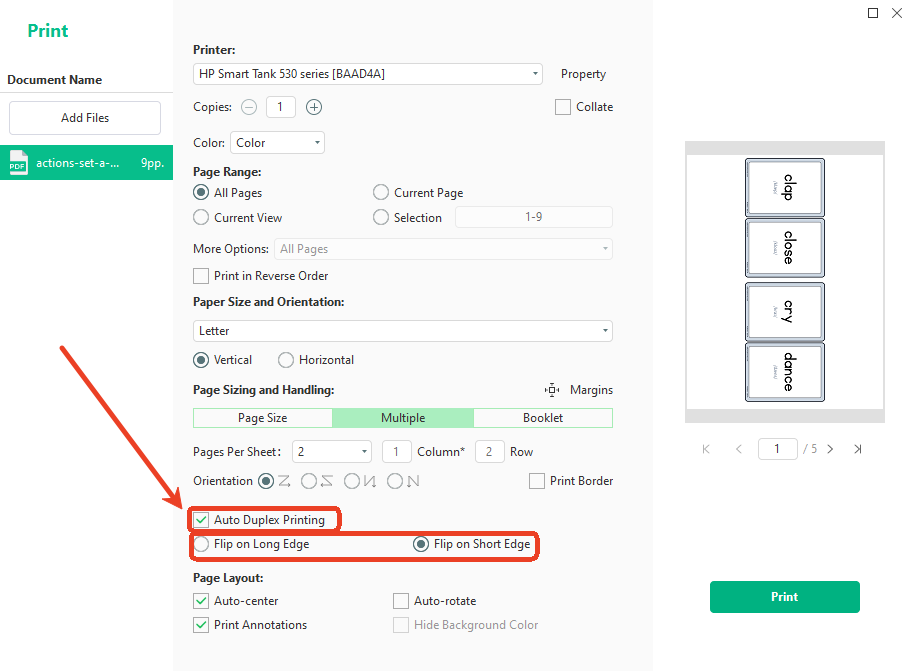
Step 4. In the right Preview section, you can preview the flashcard file. Once you are satisfied, click Print.
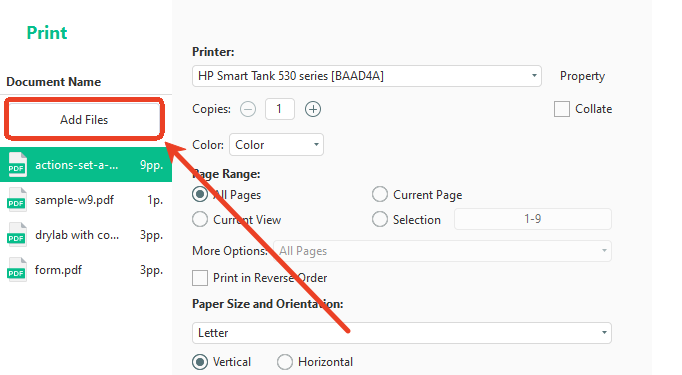
Print Flashcards Front and Back in Adobe Acrobat
Can you make a duplex printing in Adobe for free? Of course, Adobe Acrobat Reader provides the most reliable duplex printing controls for PDFs. Furthermore, it enables you to print poster size in a PDF. How to print a flashcard PDF front and back in Adobe Acrobat Reader? Here’s how:
Step 1. Download Adobe Acrobat Reader from its official website. Then, follow the on-screen prompts to install it.
Step 2. Locate the target flashcard PDF file, right-click it, and choose “Open with Adobe Acrobat”.
Step 3. Then, press Ctrl/Command + P to open the Print menu. Check the “Print on both sides of paper” option and select to flip on the long or short edge. For flashcard printing, you can click the Multiple option.
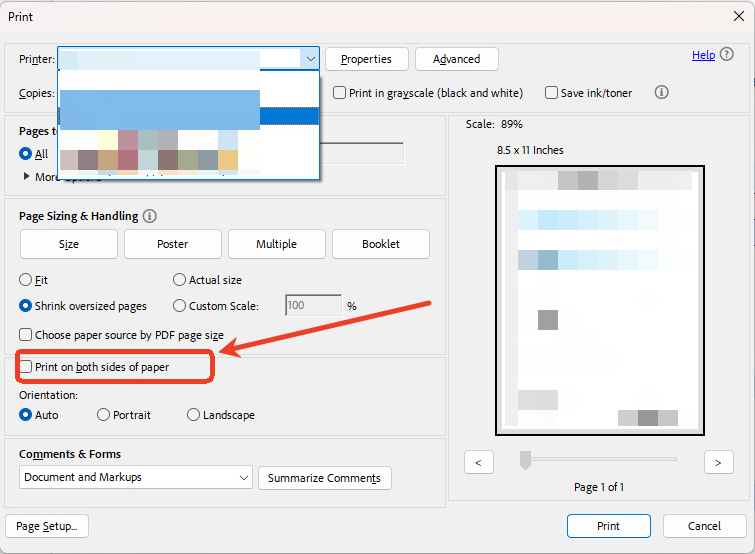
Step 4. Finally, select your printer and adjust other printing settings, and click Print.
How to Print Double-Sided Flashcards in Google Chrome
Beyond serving as a browser, Google Chrome can also function as a PDF viewer with several basic editing features. Moreover, you can use it to enable duplex printing once your printer supports it. How to print double-sided flashcards in Google Chrome?
Step 1. Locate the flashcard PDF, right-click it, move to Open With, and select Google Chrome.
Step 2. Press Ctrl + P to open the Print preview dialog.
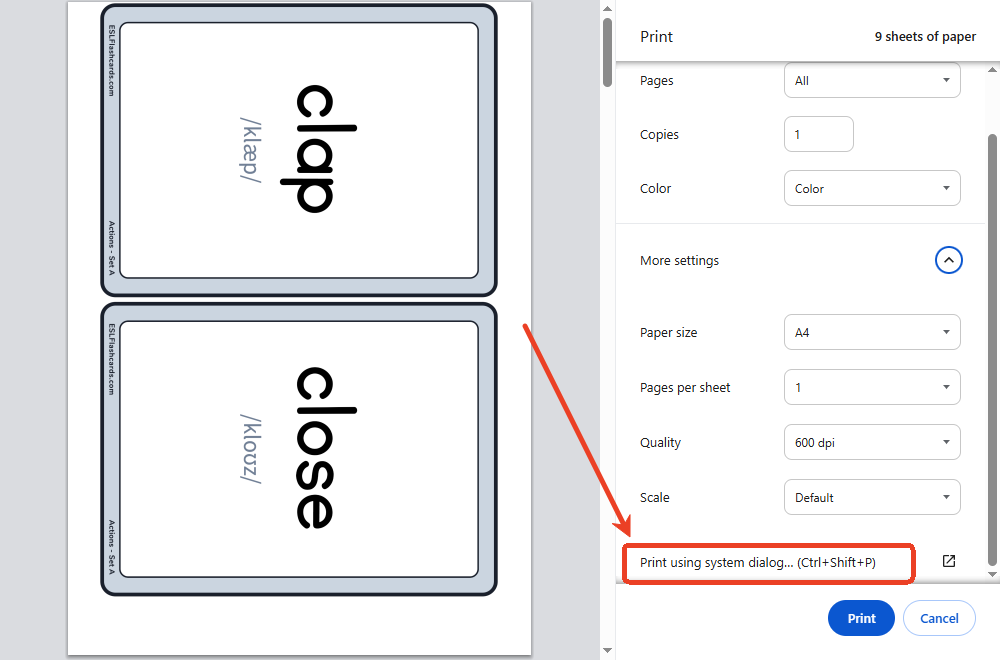
Step 3. Select your target printer, expand More settings, and select “Print on both sides” or “Duplex” option. Then, adjust other settings as needed. Finally, click Print.
How to Manually Print Flashcards Front and Back
What can you do if your printer doesn’t support duplex printing? Don't be frustrated! There’s a workaround to print double-sided flashcards. Let’s learn how to manually print double-sided flashcards.
Step 1. Open the flashcard PDF in the browser and click Print to access the print preview dialog.
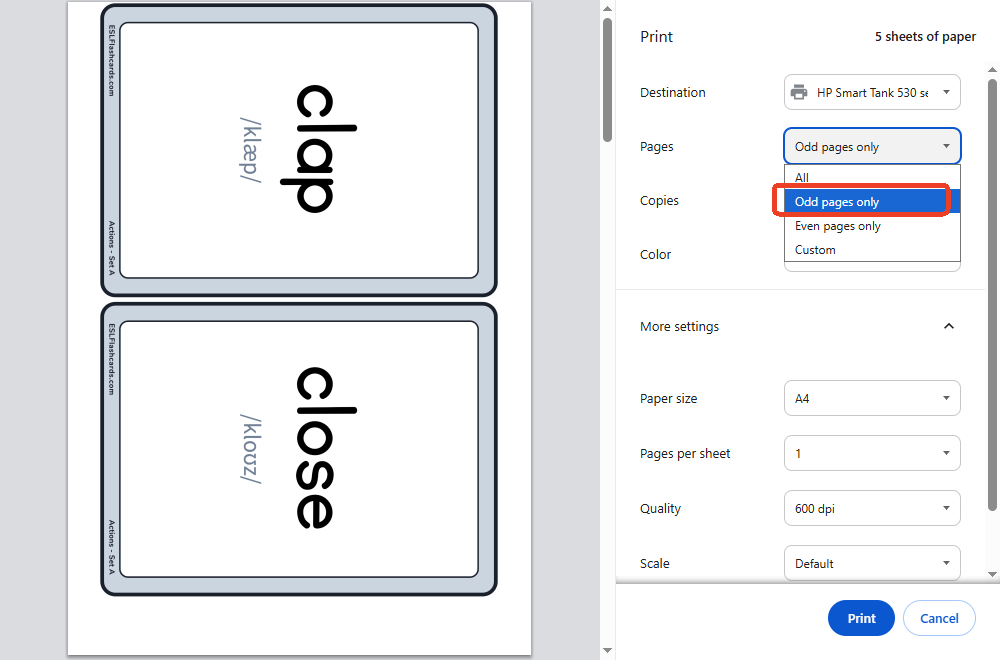
Step 2. Expand the Pages option and select “Odd pages only”. Then, print odd pages.
Step 3. Place the printed pages back into the paper tray.
Step 4. This time, select “Even pages only” from the Pages list. Finally, click Print.
Best Tools for Printing Flashcard PDFs
Which tool is best for printing flashcard PDFs? SwifDoo PDF or Adobe Acrobat Reader? Here’s a table for your reference.
|
Tool |
Best For |
|
SwifDoo PDF |
Simple PDF printing workflow |
|
Adobe Acrobat Reader |
Advanced print controls |
|
Google Chrome |
Quick browser printing |
|
Preview |
Mac users |
|
Microsoft Edge |
Windows PDF viewing |
Final Thoughts
Once the correct duplex settings are configured, printing flashcards front and back from a PDF can be straightforward. To get better flashcard printing, choose the correct flip direction and test the alignment before printing the entire set of flashcards. Which tool should be your choice? SwifDoo PDF is a good choice, which provides reliable PDF print controls and double-sided printing support.



