


Why Print or Save Quizlet Flashcards
Deciding to print Quizlet flashcards helps create a more flexible yet controlled learning environment, free from any distractions. Physical cards especially come in handy for exam preparation, language learning, medical school revision, and even classroom teaching, where quick access and hands-on practice matter. When you print Quizlet flashcards, you can review anywhere without needing a device, reduce screen fatigue, and improve memory through tactile interaction.
Prerequisites Before Printing Quizlet Flashcards
Before you start printing, it’s important to gather a few essentials to ensure everything runs smoothly and efficiently. Let’s take a look at them.
- A Quizlet account. To access and manage your flashcard sets.
- A desktop or laptop browser (recommended). Printing options are more complete on these devices than on mobile phones.
- A stable internet connection. This helps load and format your flashcards properly.
- A printer (optional). To get physical copies right away.
- PDF software, such as SwifDoo PDF (optional). To save, edit, or customize flashcards before printing.
- Basic knowledge of printer settings. Knowledge of paper size, orientation, and margins helps attain better results.
Note. The Quizlet mobile app has limited printing support, so using a computer is usually the best choice.
How to Print Quizlet Flashcards
Printing your Quizlet flashcards is a simple process once you know where to find the right options. Whether you want a quick hard copy or a well-formatted PDF, there are several methods to choose from.
Let us see how to print the Quizlet flashcards via the official site.
Step 1. Log in to your Quizlet account from a laptop or desktop computer. And open a set.
Step 2. Select the More menu. And click Print.
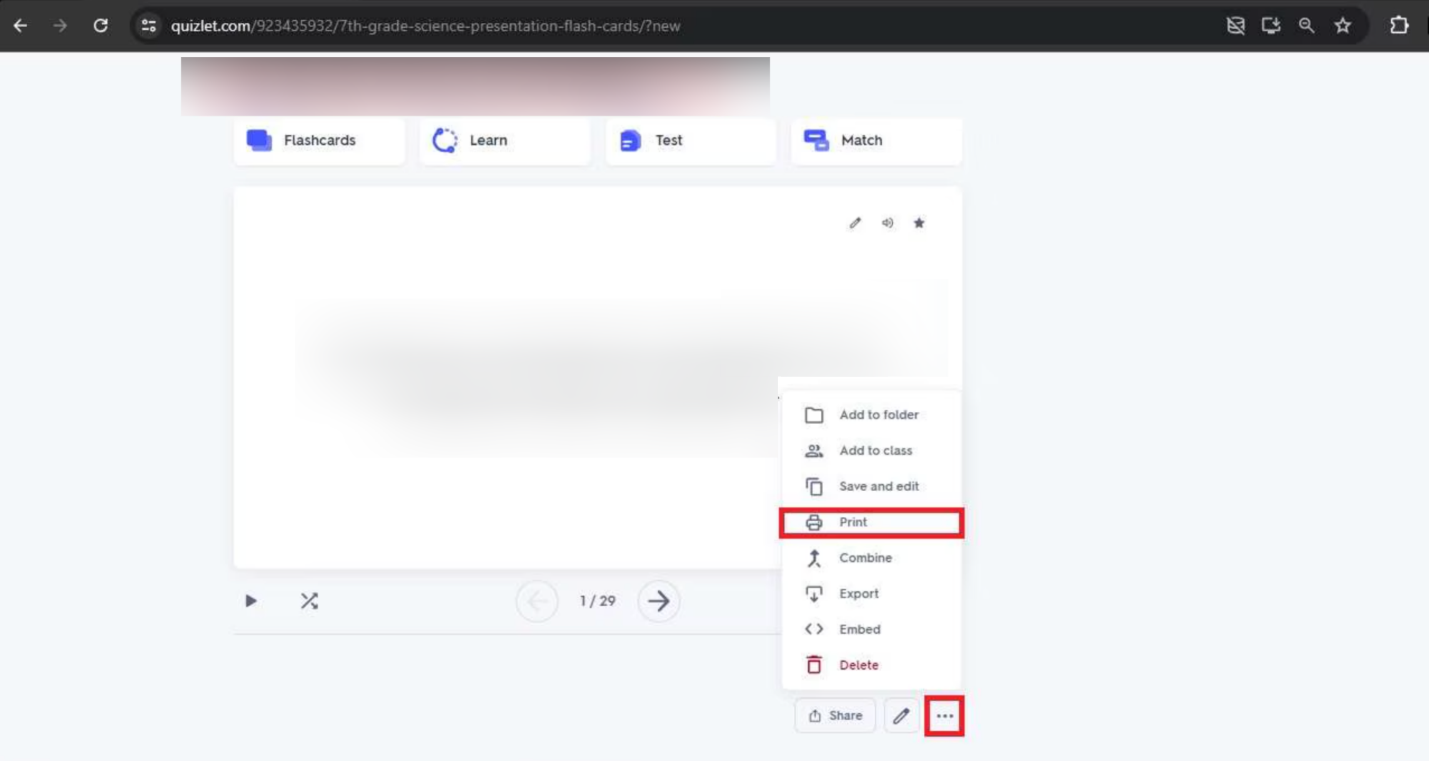
Step 3. Now, adjust the page size and print options, if needed. Also, to print sets with multiple terms, navigate to the bottom of the list on the set page and click See more to make all terms visible.
Note. If you do not see specific formatting options, the set's language isn't supported for customized formatting. You can still print from your browser.
Step 4. Hit Print.
Choosing the Best Layout for Your Needs
Selecting the right layout can significantly improve the effectiveness of your flashcards. Quizlet typically offers a few common formats. And each one is suited to different study styles and purposes. Here’s a quick comparison.
|
Layout |
Description |
Best For |
|
Table |
Display terms and definitions in rows, similar to a study sheet. |
Quick review, reading-heavy subjects, and last-minute revisions. |
|
Large Flashcards |
Shows one term and definition per card with bigger text. |
Visual learners, detailed concepts, and focused memorization. |
|
3x5 Index Cards |
Formats flashcards to fit standard index card size. |
Printing on real cards, portability, and traditional study methods. |
Recommendations for when to use each.
- Table layout. Use it to scan multiple terms at once.
- Large Flashcards. Use it when clarity and readability matter most.
- 3x5 Index Cards. Use it if you want a hands-on, portable study tool that mimics classic flashcards.
How to Print Double-Sided Quizlet Flashcards
Printing double-sided Quizlet flashcards allows you to create a more realistic flashcard experience. You can print terms on one side and definitions on the other. This helps save paper and also makes studying more efficient and organized.
If your printer supports automatic duplex printing, simply enable the “Print on both sides” option in the print settings before printing your flashcards. Make sure to choose the correct flip setting (usually “flip on long edge”) so the front and back align properly.
For printers without duplex support, you can use the manual method. Here, you can first print the front side of your flashcards, then reinsert the printed pages back into the printer tray in the correct orientation to print the reverse side. This method may take a bit of trial and error, but it works well once you get the alignment right for your double-sided Quizlet flashcards.
Here are the steps to print double-sided Quizlet flashcards.
Step 1. Open Quizlet and log in to your account. Then, navigate to your set.
Step 2. Click the “...” (More) icon and select Print.
Select 3x5 Index Cards or Large (sometimes under "Flashcards"). Select "Double-sided" if available in the print dialogue.
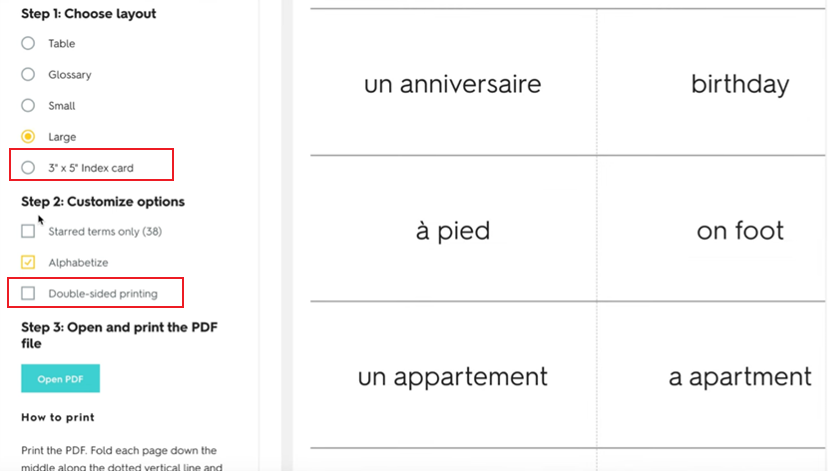
Step 3. Select Print to PDF and look for options to disable “Alphabetize” to keep your own order.
Step 4. Select Odd pages only in your printer settings. And reload the printed pages into the paper tray, ensuring they are oriented correctly (usually with the blank side facing up). Print "Even pages only."
How to Print Quizlet Flashcards on Real 3x5 Index Cards
To properly print Quizlet flashcards on 3x5 index cards, you must adjust your print settings carefully so the content fits the small card size and aligns correctly on both sides.
Here’s how to print Quizlet flashcards on 3x5 index cards.
Step 1. Open Quizlet and log in to your account. Then, click the "•••" (More) icon on your Study Set page. Then, click Print.
Step 2. Select a 3" x 5" Index card. And click "Open PDF." Then, select the "Print file" icon. And tap "Page Setup." Change Paper Size to "Index card 3x5in."
Now, select "Landscape" orientation and hit OK.
Step 3. Within the "Pages to Print" section, tap "More Options." And select "Odd pages only". Now, load 3x5 Index Cards into the Main Feeder Tray. And press "Print."
Reload the odd-numbered index cards into the main feeder tray in the opposite orientation you loaded them initially.
Step 4. On the PDF page, click the printer icon. Within the "Pages to Print" section, select "Even pages only" from the drop-down menu.
Note. You may need to select the "Reverse pages" check box to ensure the pages are printed on the reverse side of the intended index card.
How to Print Quizlet Flashcards as a PDF
Saving Quizlet flashcards as a PDF is useful for archiving, easy editing, sharing with others, and reprinting whenever needed, without having to rebuild the set. You can do this using the native and quick methods.
#Native Method (Quick Save as PDF)
In the Quizlet Print preview, you can easily save your flashcards as a PDF instead of printing them. This built-in feature makes it easy to quickly export your flashcards for digital use, sharing, or future printing without needing any extra tools.
Here’s how to save Quizlet flashcards as PDF.
Step 1. Log in to Quizlet on a computer and open your desired flashcard set.
Step 2. Click the ... (More menu) button located below the flashcard preview on the right side.
Then, choose the Print option from the dropdown.
Step 3. Choose your layout (e.g., table or cards) and whether to print sides, definitions, or terms. And click Print or Open PDF.
Step 4. When your browser’s print dialog opens, change the destination/printer to "Save as PDF."
Finally, click "Save" and select a location on your computer.
#Enhanced Method with SwifDoo PDF
For more control after exporting, SwifDoo PDF offers a convenient way to manage your flashcards beyond basic saving. You can easily edit PDFs to adjust layouts, resize content, or add notes before printing.
SwifDoo PDF emerges as the best PDF editor for students, especially for organizing study materials in one place. Thanks to its lightweight design and useful features, it allows you to refine Quizlet flashcards for better offline learning.
Learn how to enhance the saved Quizlet PDF using SwifDoo PDF.
Step 1. Download and install SwifDoo PDF on your computer.
Step 2. Then open the saved Quizlet PDF with the program.
Step 3. Adjust the text layout or add annotations/highlights, if needed. You can also reorder pages and use other built-in tools for customization.
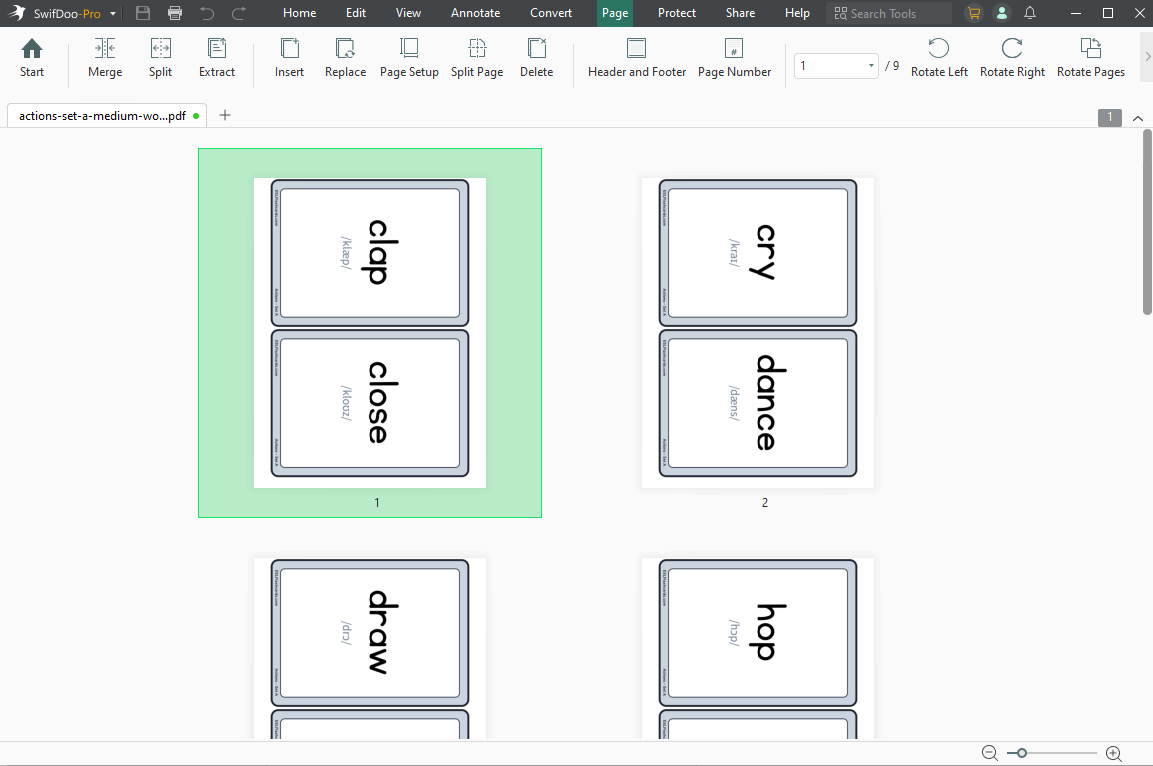
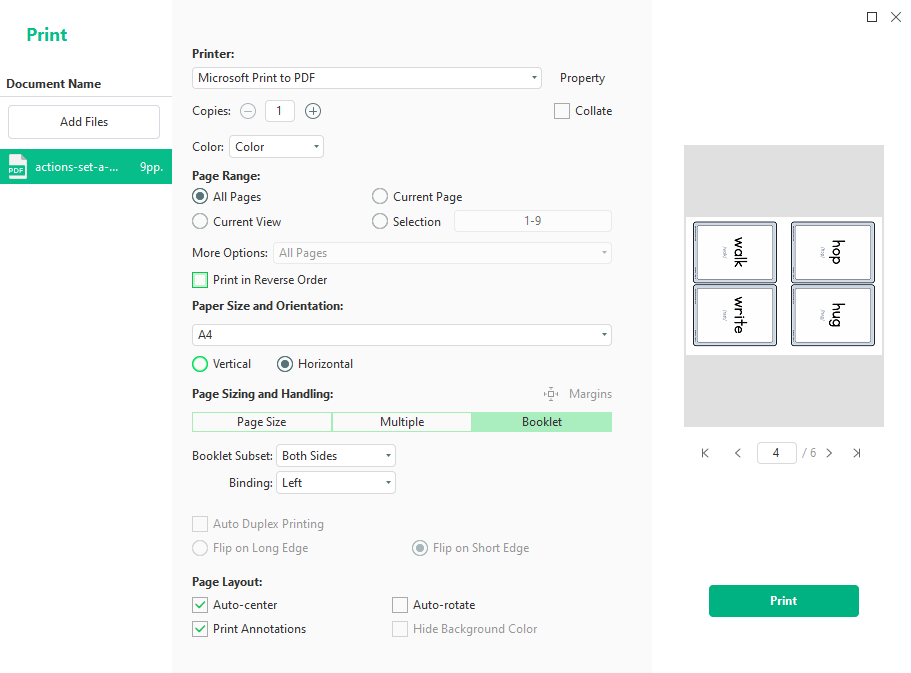
Step 4. Finally, save the updated PDF to retain your changes. You can also print it directly, selecting your desired layout and configurations. According to your needs, you can print the PDF on both sides.
A Quick Wrap Up
Once you learn the right tools and methods, printing flashcards is straightforward. Whether you like simple layouts, double-sided cards, or refined PDFs, learning how to print Quizlet flashcards helps you take better control of your study routine. It also increases flexibility, letting you choose the format that best fits your learning needs. From fast browser-based solutions to powerful PDF tools, you can personalize your flashcards for better learning and recall.



