


Can You Create a PDF in Canva?
The short answer is: Yes, absolutely! While Canva is best known for creating social media posts, posters, and presentations, it has a built-in feature that lets you save your designs as a PDF.
When you are ready to save Canva as a PDF, it gives you two different PDF choices:
- PDF Standard: This is the best choice if you plan to email the document or post it on a website. It will compress the file, reducing its size and enabling quick loading.
- PDF Print: You can easily create a printable PDF in Canva. It saves the file at very high quality, so the colors and images look sharp and professional.
Is it free to create a PDF in Canva?
Downloading a basic PDF from Canva is completely free. However, if you use special "Pro" pictures, fonts, or templates in your design, Canva will ask you to pay for them or upgrade to a paid account before you can download the file.
In short, Canva can help you make a PDF. However, the free version only offers basic features. If you often need to handle PDF files, a professional PDF tool, such as SwifDoo PDF, might be a better option.
How to Create a PDF in Canva
Let’s start to learn how to make a PDF in Canva. Just follow these simple steps.
Step 1: Open Your Design
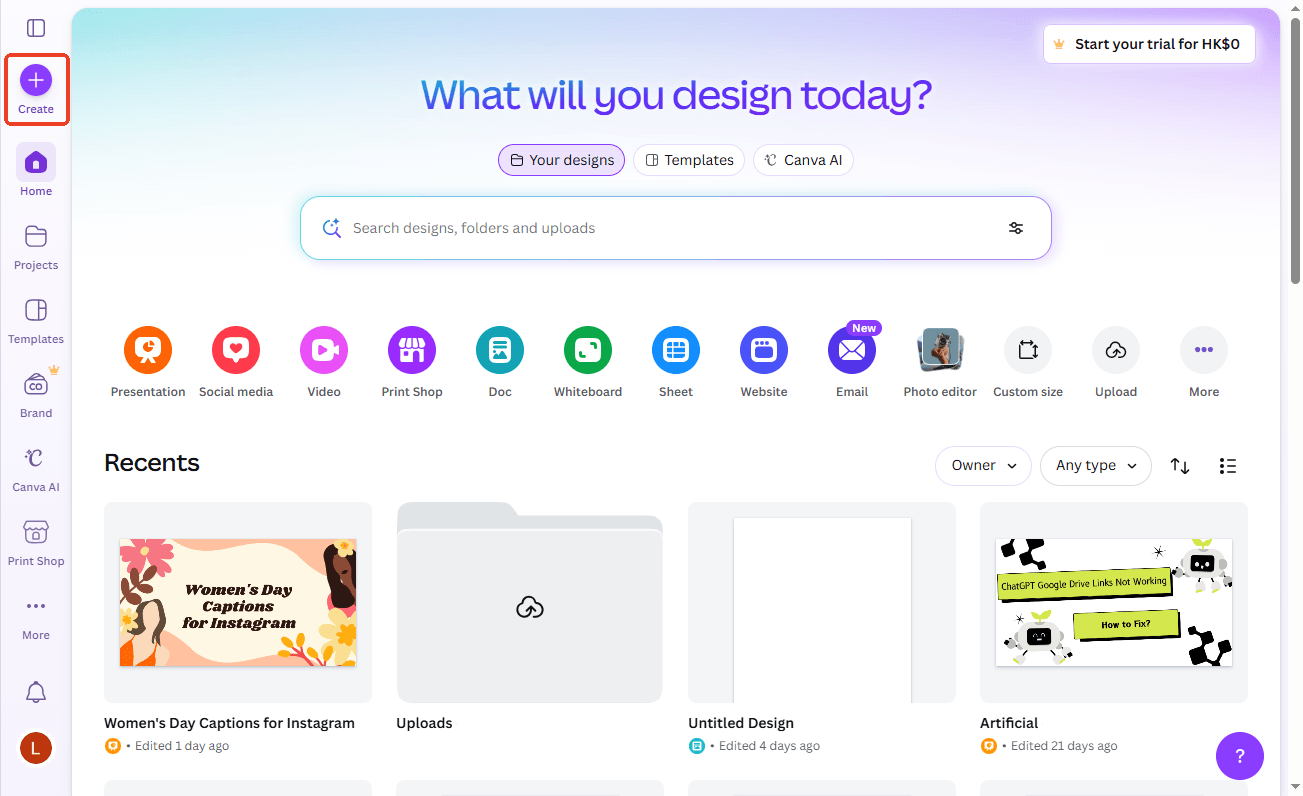
Go to the Canva website and log in to your account. You can click "Create " to start a brand new document, or you can open a design you have already started working on.
Step 2: Add Your Content
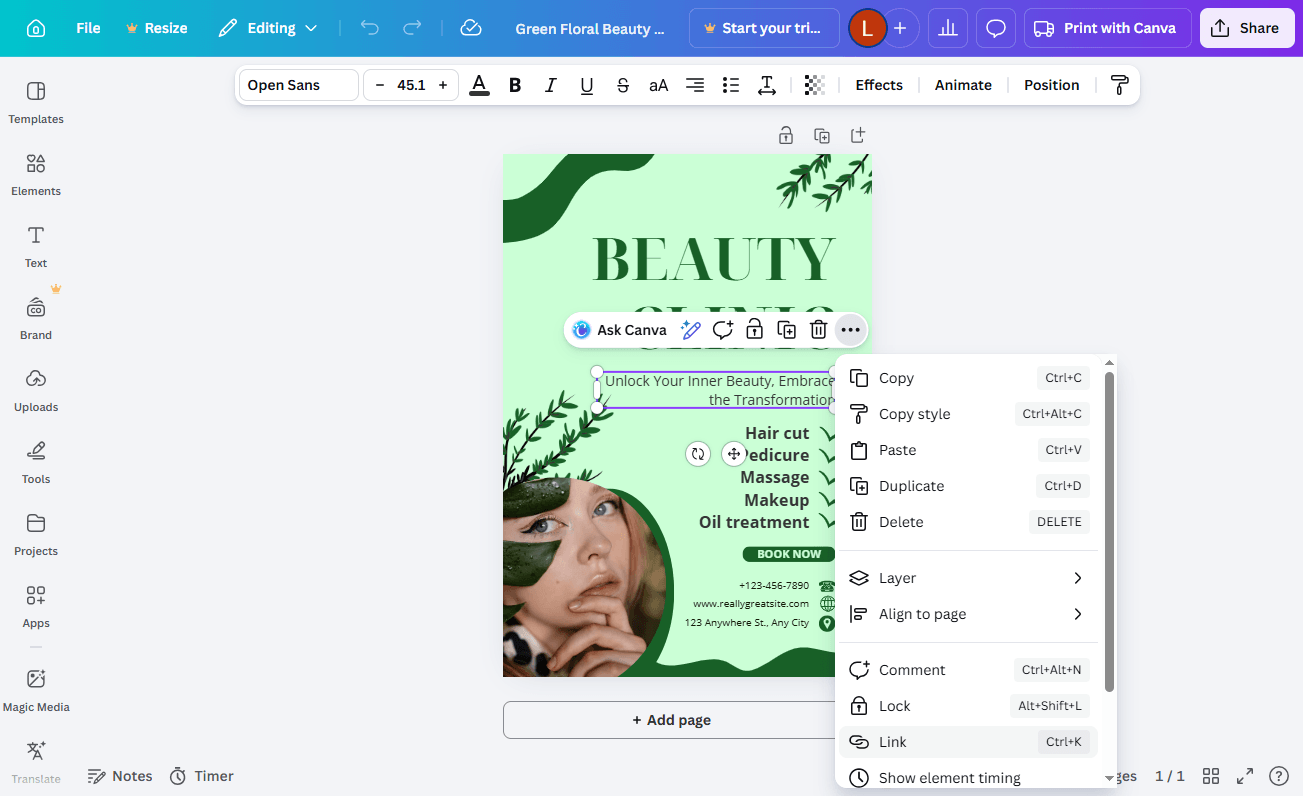
Use Canva's tools on the left side of the screen to build your page. You can drag and drop text boxes, photos, shapes, and colors onto your blank canvas. Make it look exactly how you want.
Want to add clickable links in Canva? It’s simple. Please select the text and click the three-dots icon > choose Link and enter the URL.
Step 3: Click the "Share" Button and Select "Download"
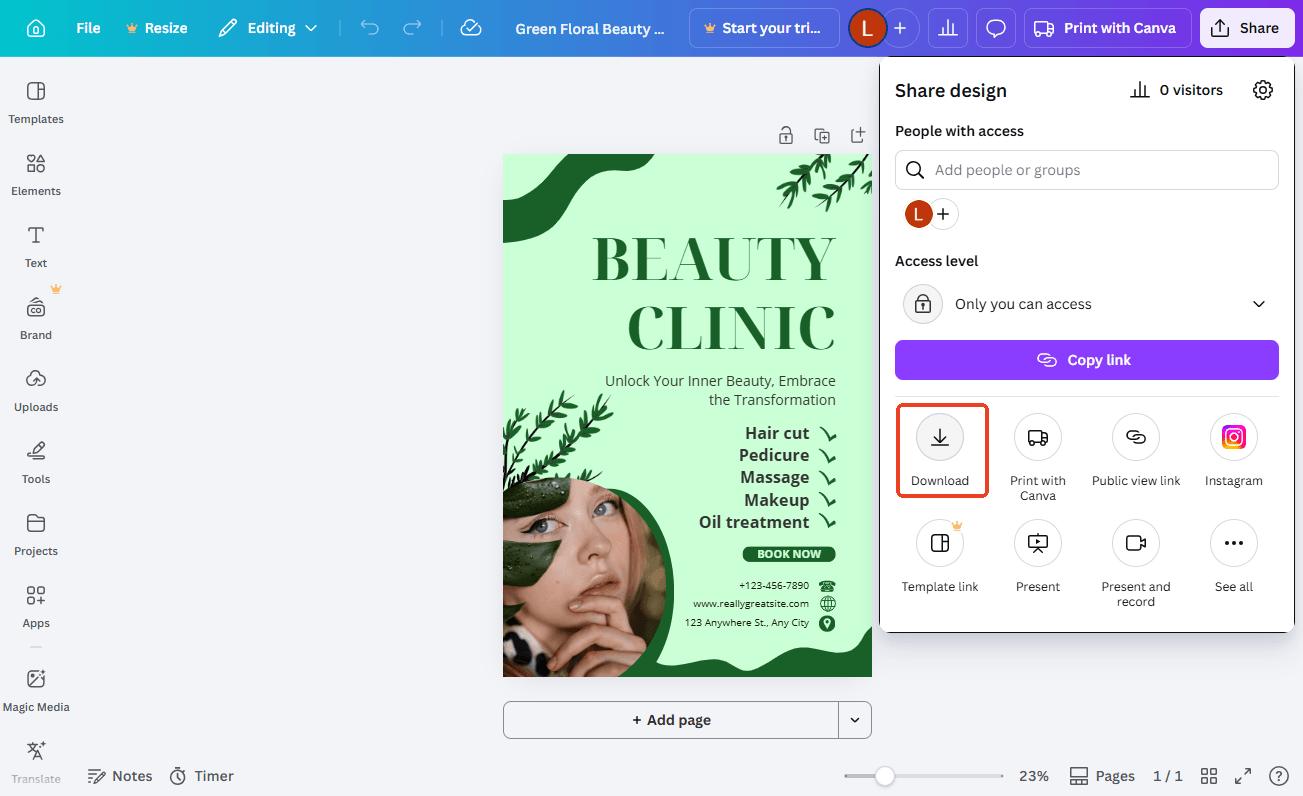
When your design is completely finished, look at the top-right corner of your Canva screen. You will see a white button that says Share. Click on it.
A small menu will drop down. Look through the list of options and click on the button that says Download.
Step 4: Choose Your PDF Format
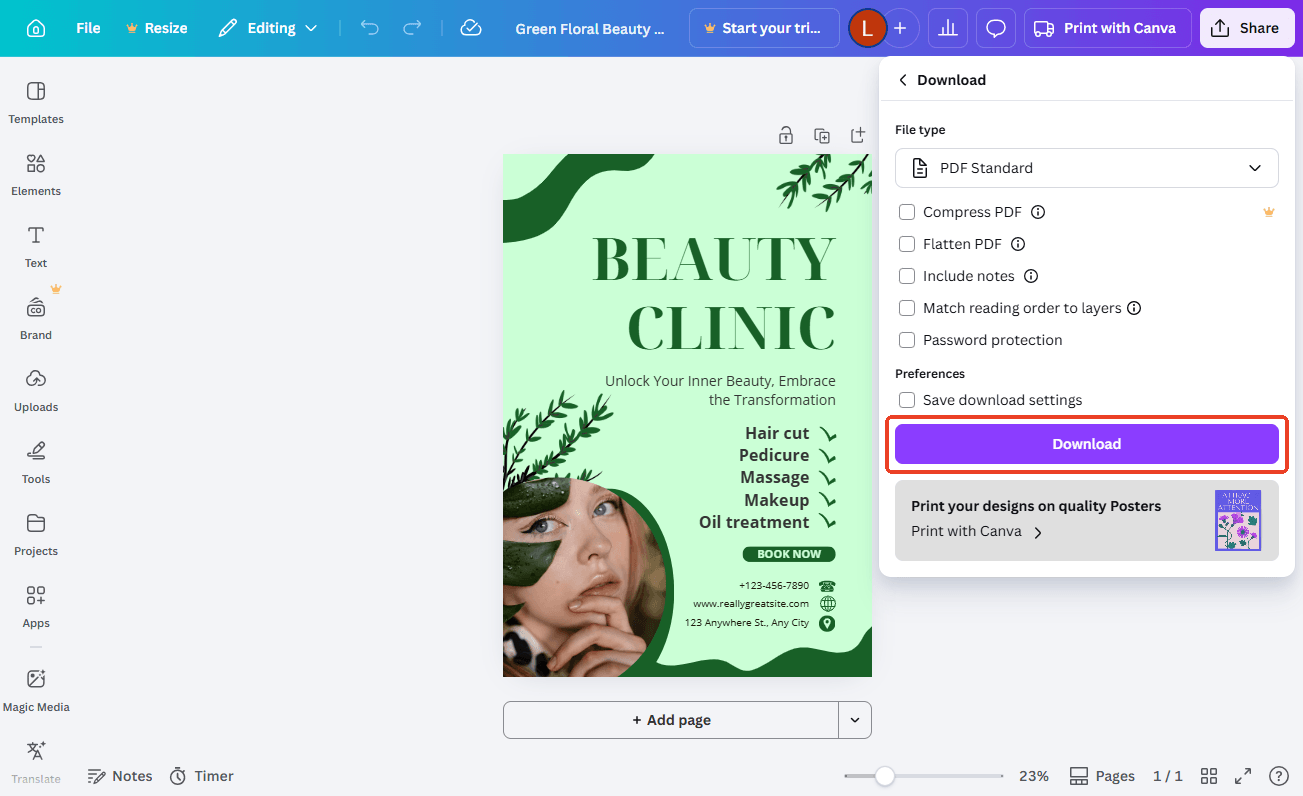
Canva will show you a box labeled "File type." Usually, it suggests saving as a picture (like a PNG or JPG). Click on that box to open a drop-down menu. Scroll down and select either PDF Standard or PDF Print.
Step 5: Download and Save
Finally, click the purple Download button. Then, a window will pop up asking where you want to save the new PDF on your computer. Pick a folder, click save, and you are entirely done!
Disadvantages of Using Canva for PDF Creation
From the above, you know how to make a PDF in Canva. If needed, you can also upload and edit a PDF in Canva. However, when it comes to serious document work, it has some big flaws. Here is why Canva might not always be the best choice for your PDFs.
Canva is built for creating short projects like flyers, menus, or simple eBooks. It struggles with long, text-heavy documents. If you are trying to write a 50-page business report, typing and organizing all those pages in Canva will be very frustrating.
❌ It is Hard to Edit Existing PDFs
If you upload a normal PDF into Canva to fix it, the design often breaks. The text might move around, or your fonts might get replaced with strange ones.
❌ No Advanced PDF Features
Canva is missing professional tools. For example, you cannot add a password to lock your PDF. It cannot compress PDF files to reduce their size.
❌ Flattening Issues
Sometimes, when you download a PDF from Canva, the text can be "flattened" into an image. This means that neither you nor anyone else can search for specific words within the document, nor can you annotate, copy, or paste it.
Another Easy Way to Create a PDF: SwifDoo PDF
Because Canva has these strict limits, you might need something stronger for your daily work. If you want to handle documents like a professional without the headache, we highly recommend SwifDoo PDF.
What is SwifDoo PDF?
SwifDoo PDF is a complete, all-in-one PDF software. It is built specifically to create, edit, convert, and manage PDF files quickly and easily.
How SwifDoo PDF Helps You Create and Manage PDFs:
✅ Create from Scanners: If you have a physical piece of paper, you can scan it and use SwifDoo PDF to convert it directly into an editable PDF.
✅ Various Editing Tools: Unlike Canva, SwifDoo PDF lets you click any text in a PDF and rewrite it, just like in Microsoft Word. You can change fonts, delete pages, and add new pictures instantly.
How to Use SwifDoo PDF to Create a PDF:
- Download SwifDoo PDF on your Windows computer.
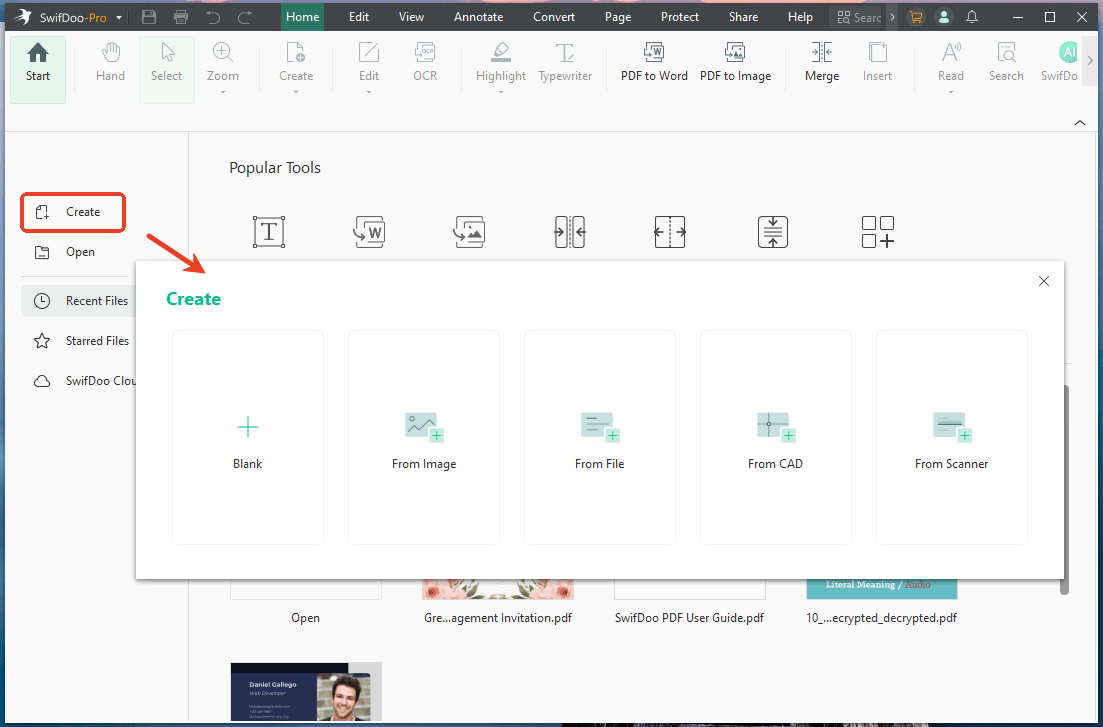
- Launch SwifDoo PDF and click the Create button. Select an option as needed.
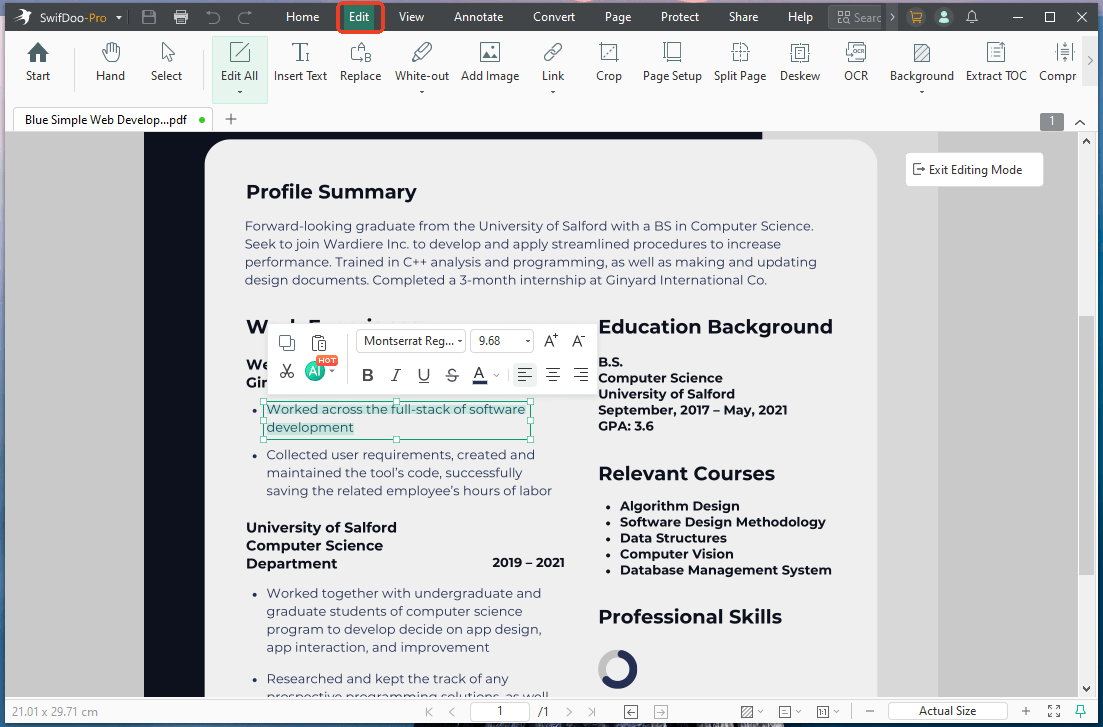
- Go to Edit and use the tools to add, change, or delete text/images. You can also go to Annotate and Page to add more visual elements and resize the PDF page.
- Finally, click the Save button, and that’s it!
SwifDoo PDF is not merely a PDF creation service; it is a comprehensive PDF tool. If you want a smooth, fast, and professional document experience, download and try SwifDoo PDF today!
Conclusion
Knowing how to create a PDF in Canva is a valuable skill. It is the perfect method for highly visual, short projects like flyers, party invitations, or simple social media guides.
However, when it comes to business documents, long reports, and advanced editing, Canva will likely slow you down. For those tasks, using a powerful tool like SwifDoo PDF will save you hours of frustration and make your work look incredibly professional.



