



The Tool You Will Need: SwifDoo PDF and Symbols App
SwifDoo PDF is an efficient PDF annotator that lets you quickly and easily add symbols to your PDFs. With its clean and intuitive interface, SwifDoo makes editing PDFs fast and easy for everyone.
Additionally, SwifDoo PDF allows users to add text boxes to PDF pages for exact alignment and organization. Its reliable editing features support academic, technical, and professional tasks. Its fast performance on both low- and high-end devices ensures a smooth, efficient workflow for symbol-based PDF editing.
All in all, SwifDoo PDF is your go-to tool for efficiently managing every aspect of PDFs. Coming up, you’ll see step-by-step instructions on how to insert symbol in PDF via SwifDoo PDF and other handy methods like Character Map and copy-paste.
Way 1. Use the Character Map
Character Map UWP is a smart solution for adding multiple symbols and emojis to your document. You can access numerous characters in a particular font to create various documents. With Character Map, you get innumerable characters in a font face with typography and color variants.
This tool lets you explore a wide range of symbols in various fonts, like Segoe, Webdings, and HoloLens. Once you view and select the desired symbol, use SwifDoo PDF to add it to your PDF.
Discover how to add symbols in PDF easily with the help of Character Map.
Step 1. Download the Character Map software. And access its Symbol Fonts.
Step 2. Choose any of the fonts from the left pane. Then, tap any symbol and press the +Add button to insert it into the preview area. Once added, click the Copy button to add it to your clipboard.
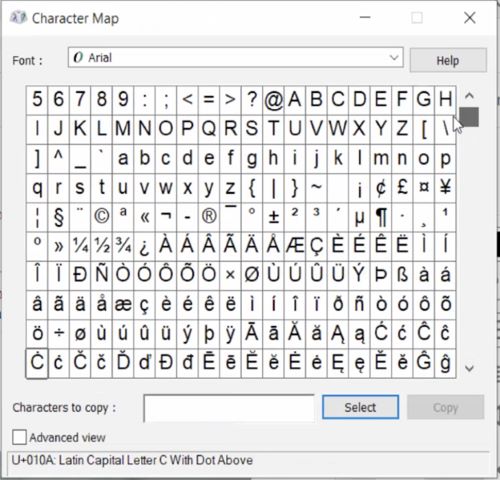
Step 3. Next, download and launch SwifDoo PDF. Press the Open tab to import the PDF into its main interface.
Step 4. Navigate to the Edit tab and tap the existing text twice where you wish to add the symbol. Right-click and tap the Paste option to add the symbol to the text.

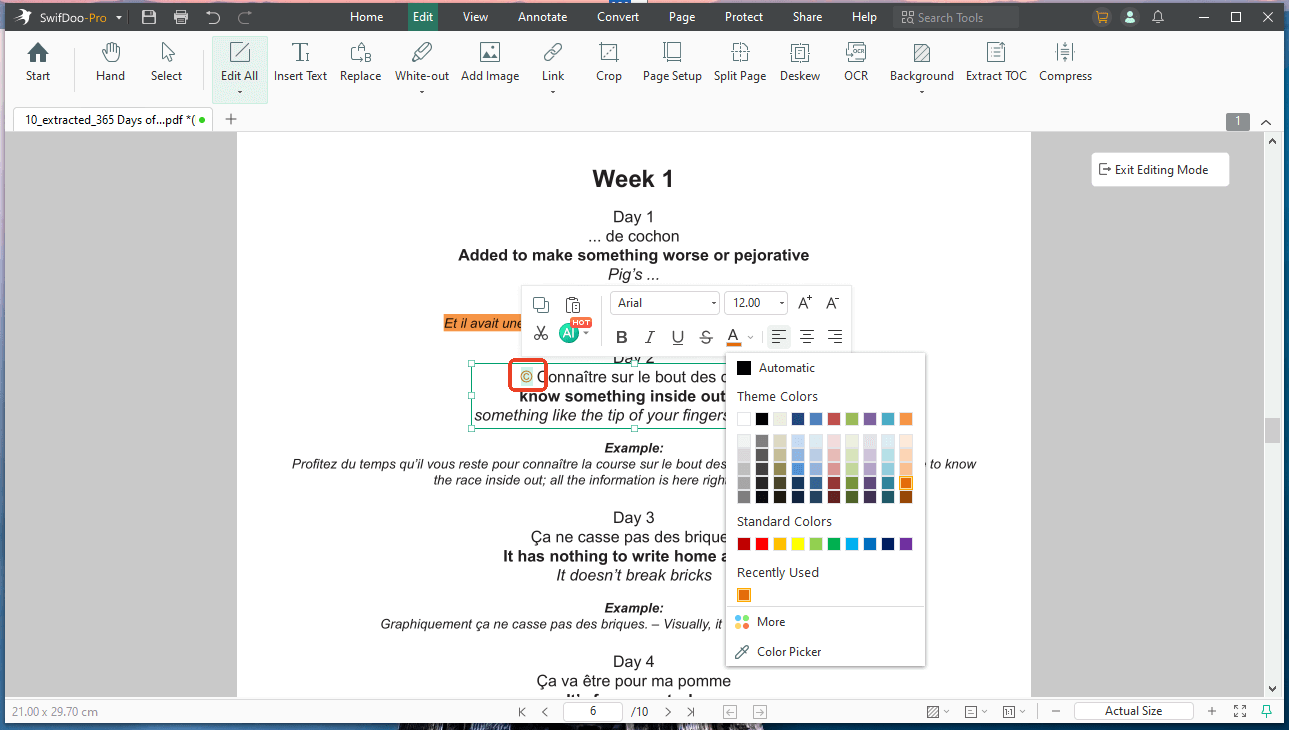
Way 2. Copy and Paste the Symbols in the PDF
Another effective way is to copy symbols from different web pages and paste them into your PDF files. You can get the symbols from anywhere across the web.
Alternatively, open Wikipedia to discover an extensive range of symbols. Once copied, use SwifDoo PDF to add them to your PDFs with ease. You have the flexibility to resize, reposition, and format these symbols so they align with your document’s style. This method is fast, convenient, and perfect for adding uncommon or decorative symbols.
Learn how to add symbols in PDFs easily with the copy and paste technique.
Step 1. Visit the Wikipedia page on your web browser to choose and copy the desired symbol.
Step 2. Click and highlight your desired symbol, then right-click. Once done, tap the Copy option from the menu to save it on the clipboard.
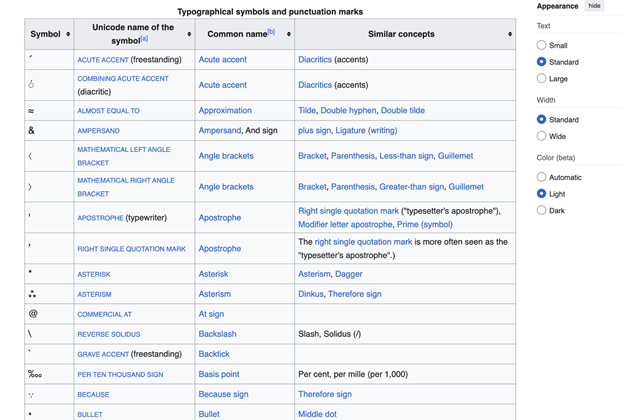
Step 3. Next, launch SwifDoo PDF. Then, open the PDF file where you wish to insert the symbol.
Step 4. Click on the Edit tab located at the top of the menu bar. After that, right-click the location where you want to add the symbol. Then select Paste from the dropdown menu. If needed, you can continue annotating the PDF to improve it.
Quick Wrap Up
Incorporating symbols helps emphasize details, ensure accuracy, and enhance communication across diverse projects. Mastering how to add symbols in PDFs helps you produce documents that are precise, well-organized, and effective.
Using the right tools, adding symbols becomes fast and effortless. This guide has shown you how to insert symbol in PDFs effectively. Put these steps to use and start enhancing your PDFs with confidence today.



